3x 4K Monitors to Laptop: Thunderbolt Dock Guide
Senior Hardware Diagnostics Specialist & Lead Thermal Editor at Laptop Post Testing Lab · CompTIA A+, ACMT, B.S. in Computer Engineering · 12+ years bench-testing laptop thermal solutions & motherboard repairs
Getting three 4K monitors hooked up to your laptop with just one cable can feel like a dream, but it's definitely achievable. This setup is perfect for serious multitaskers and anyone who needs a serious productivity boost. We'll walk you through exactly what you need to know to make it happen seamlessly.
The key is understanding the capabilities of your laptop's Thunderbolt port, typically Thunderbolt 3 or Thunderbolt 4, which offers up to 40 Gbps of bandwidth. This speed is crucial for pushing three separate 4K video signals, along with data and power, through a single USB-C connector. Let’s dive into how you can achieve this expansive workspace.
Quick Answer
To connect three 4K monitors to a laptop using one Thunderbolt dock, ensure your laptop and dock support DisplayPort 1.4 or higher and Thunderbolt 3/4. Your dock needs at least three display outputs (DisplayPort or HDMI). Check your laptop's graphics card and Thunderbolt controller can handle the total bandwidth required for three 4K streams at your desired refresh rate.
Can Your Laptop Handle Three 4K Monitors via a Single Thunderbolt Dock?
This is the absolute first question you need to answer, and it’s not always as simple as plugging things in. The magic of a single Thunderbolt dock enabling multiple high-resolution displays relies on a few key technologies working together. If any piece of this puzzle isn't up to snuff, you'll either get fewer displays, lower resolutions, or a frustratingly laggy experience.
Checking Your Laptop's Thunderbolt Capabilities
Your laptop needs a Thunderbolt 3 or Thunderbolt 4 port to make this work. These ports use the USB-C connector but offer significantly more bandwidth than standard USB-C. Thunderbolt 3 and 4 both provide up to 40 Gbps of data transfer speed, which is essential for running multiple high-resolution displays simultaneously.
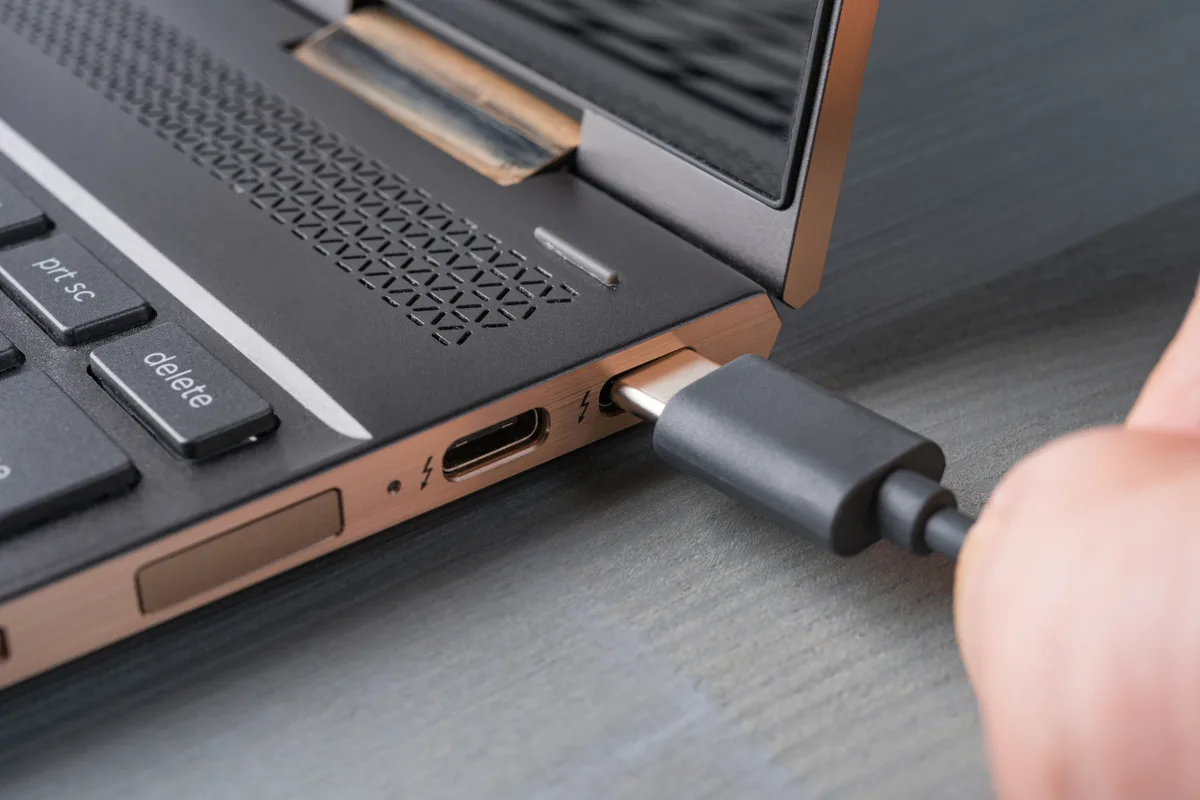
You can usually identify a Thunderbolt port by a small lightning bolt icon next to it. If you're unsure, check your laptop's specifications on the manufacturer's website. Some laptops might have Thunderbolt controllers that are less capable, and while rare, it's worth noting per industry best practices for system integration.
Understanding Docking Station Output Limits
Not all Thunderbolt docks are created equal, especially when it comes to driving multiple 4K monitors. A dock's specifications will clearly state how many displays it can support and at what resolutions and refresh rates. Some docks might advertise support for two 4K displays at 60Hz, but only support one 4K display at 60Hz if a third is also connected, or might force a lower refresh rate on all of them.
You’ll need a dock specifically designed to output to three separate displays. Look for docks that explicitly list support for three external monitors, ideally at 4K resolution and at least 30Hz or, preferably, 60Hz. Many docks will use a combination of DisplayPort and HDMI ports, so ensure you have the right adapter or cables for your monitors.
Decoding Thunderbolt Dock Specs for Multiple 4K Displays
So, you’ve confirmed your laptop has Thunderbolt 3 or 4. Great. Now, let’s break down what the dock's specifications really mean for your goal of three 4K screens.
This is where you’ll find the technical details that determine whether your setup will fly or falter. It’s not just about the number of ports; it's about the bandwidth and how it's allocated.
Thunderbolt 3 vs. Thunderbolt 4: What's the Real Difference for You?
While both Thunderbolt 3 and Thunderbolt 4 offer up to 40 Gbps of bandwidth, Thunderbolt 4 has stricter minimum requirements for features like dual 4K display support directly from the host, and enhanced PCIe data capabilities. For the purpose of driving multiple displays, the core 40 Gbps bandwidth is the most critical factor. Thunderbolt 4 ensures a more consistent experience across different host devices and accessories, often mandating things like better support for two 4K displays at 60Hz out of the box, which is a good baseline for attempting three.
Manufacturer specifications for Thunderbolt 4 generally offer more assurance for multi-display setups compared to earlier Thunderbolt 3 implementations, which could vary more between manufacturers.
DisplayPort Alt Mode and MST: The Tech Behind the Magic
Your Thunderbolt port can run in a mode called DisplayPort Alternate Mode (DP Alt Mode). This allows it to carry native DisplayPort video signals. To send multiple independent video signals through a single connection, Thunderbolt docks leverage DisplayPort Multi-Stream Transport (MST).
MST essentially allows you to "daisy-chain" or split the DisplayPort signal so that each monitor receives its own data stream. Your Thunderbolt dock acts as the central hub that manages this signal splitting. Without MST support on both your laptop's controller and the dock, you won't be able to drive multiple displays through a single port.
Bandwidth: The Crucial Bottleneck for 4K Triples
This is arguably the most important spec. A single 4K display running at 60Hz requires approximately 12 Gbps of bandwidth. When you aim for three 4K displays, each at 60Hz, you're looking at a theoretical requirement of around 36 Gbps just for video.
Add in the data transfer for the dock (USB devices, Ethernet, etc.) and the overhead for Thunderbolt itself, and you can see how quickly 40 Gbps can become a limiting factor. Some docks might allow three 4K displays, but you might be forced to run them at 30Hz if the bandwidth isn't sufficient for 60Hz across all three. It's essential to check the dock's specifications regarding its ability to support "3x 4K@60Hz" or if it's limited to "3x 4K@30Hz" or a mix.
What Kind of Dock Do You Actually Need?
Alright, so we know we need Thunderbolt 3 or 4. But what specific features should you look for in a docking station to ensure it can handle not just one, or two, but three 4K monitors? This isn't about finding the cheapest option; it's about finding one that’s engineered for this kind of demanding setup.
Think of it like building a bridge, you need enough supports and the right materials to carry the load.
Dock Features That Matter Most for 3x 4K
The primary feature you need is the ability to output to at least three independent external displays. Look for docks that explicitly state support for this configuration. Beyond the raw display count, consider the total bandwidth the dock can allocate to its video outputs.
Some docks might have four display outputs but are only designed to drive two 4K displays at 60Hz simultaneously, with the others acting as backups or lower-resolution options. You'll want a dock that can push the maximum resolution and refresh rate across all three required ports. Aggregate user reviews often highlight docks that perform reliably in multi-4K setups, so it’s worth scanning feedback on specific models.
Ports: HDMI, DisplayPort, and Beyond
Your dock will have a combination of video output ports. The most common for high resolutions are DisplayPort and HDMI.
- DisplayPort: Generally considered superior for high resolutions and refresh rates, especially for daisy-chaining. If your monitors have DisplayPort inputs, this is often the preferred connection. Thunderbolt docks typically use DisplayPort outputs.
- HDMI: Also capable of 4K, but you need to ensure you're using HDMI 2.0 or higher for 4K@60Hz. Some docks might have a mix of DP and HDMI.
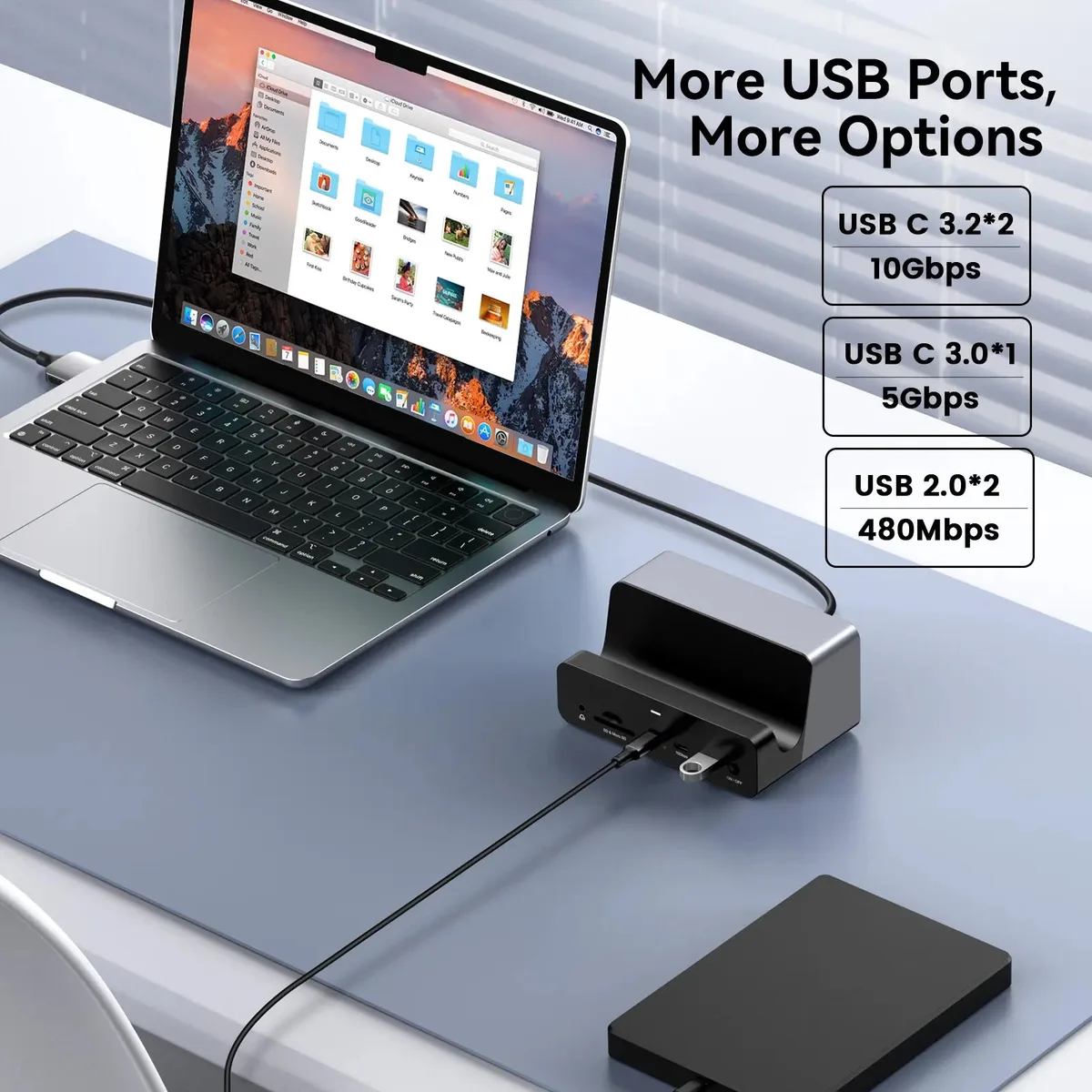
You'll also want to make sure the dock has enough USB-A and USB-C ports for your peripherals (keyboard, mouse, external drives, webcam). Features like Ethernet ports, SD card readers, and audio jacks are also common and very convenient.
Power Delivery: Keeping Your Laptop Charged
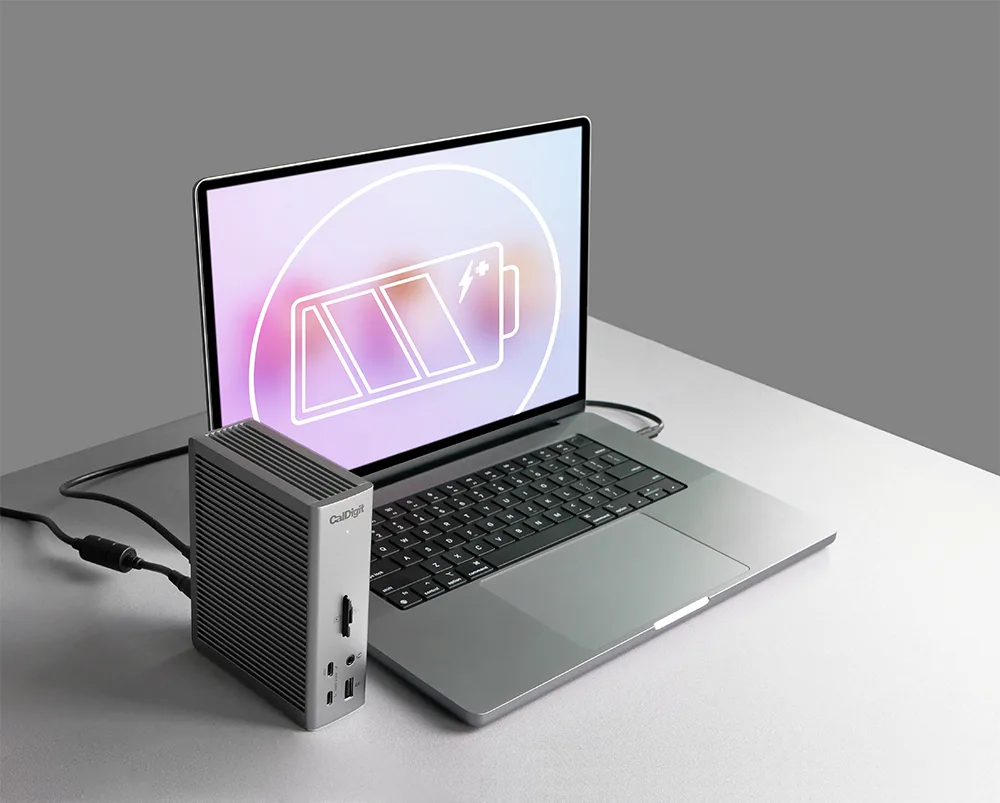
One of the biggest conveniences of a Thunderbolt dock is its ability to charge your laptop simultaneously, often referred to as USB Power Delivery (PD). Make sure the dock provides enough wattage to power your specific laptop. Most modern thin-and-light laptops can be charged by docks offering 60W to 90W of power delivery.
High-performance or larger gaming laptops might require 100W or more, so check your laptop's power adapter to know its needs. If the dock doesn't provide enough power, you might find yourself needing to plug your laptop's original charger in as well, defeating some of the single-cable simplicity.
Step-by-Step: Setting Up Your Triple 4K Monitor Dream Rig
Okay, you've got the right laptop, the right dock, and the right monitors. Now comes the satisfying part: putting it all together. This process is designed to be straightforward, but a little attention to detail at each step ensures everything works as it should.
We’re aiming for a clean, functional workspace.
Step 1: Verify Compatibility (Laptop & Dock)
Before you even unbox anything, double-check the specs. Confirm your laptop has Thunderbolt 3 or 4 ports (look for the lightning bolt icon). Then, look at your dock’s product page or manual to confirm it explicitly supports three external displays at 4K resolution (specify 30Hz or 60Hz if possible).
You can often find compatibility matrices or lists on the dock manufacturer's website. This pre-check saves a lot of potential headaches.
Step 2: Connect Your Monitors to the Dock
Take your three 4K monitors and connect them to the available video output ports on your Thunderbolt dock. Use DisplayPort or HDMI cables that are rated for 4K resolution at your desired refresh rate (e.g., HDMI 2.0 or DisplayPort 1.2/1.4 for 4K@60Hz). If your dock has multiple ports of the same type, it generally doesn't matter which one you use for which monitor, but always consult the dock's manual if you're unsure.
Step 3: Connect the Dock to Your Laptop
Now, connect the Thunderbolt dock to your laptop using a certified Thunderbolt 3 or Thunderbolt 4 cable. This single cable should carry video, data, and power (if your dock supports Power Delivery and your laptop is compatible). Make sure the cable is fully seated in both the laptop's Thunderbolt port and the dock's corresponding port.
If your dock has a separate power adapter, plug that in now.
Step 4: Configure Your Display Settings
Once everything is physically connected, your laptop should detect the new displays. You might get a prompt to allow the Thunderbolt device. Windows and macOS have built-in display settings where you can arrange your monitors, choose your primary display, and set resolutions and refresh rates.
- Windows: Right-click on your desktop and select "Display settings." You should see your laptop screen and the three external monitors represented by numbered boxes. You can drag these boxes to match the physical arrangement of your monitors. Ensure each external monitor is set to "4K" (3840×2160) and the desired refresh rate (e.g., 60Hz).
- macOS: Go to "System Settings" (or "System Preferences") > "Displays." Similar to Windows, you can arrange your displays by dragging their icons. You can also adjust resolutions and refresh rates for each monitor here.
If you're not getting the expected resolution or refresh rate, revisit Step 2 and ensure your cables are correctly rated and seated. Check the dock's specifications again regarding its maximum output capabilities for three displays.
When Things Go Wrong: Troubleshooting Common Issues
It's not always a perfectly smooth sail, and sometimes you'll hit a snag when trying to get three 4K monitors working. Don't panic! Most issues are fixable with a bit of methodical troubleshooting.
We've seen these problems crop up before, and there are established ways to sort them out.
"My Monitors Aren't All Showing Up"
This is often a bandwidth or compatibility issue.
- Check Cables: Ensure all your cables are high-quality and rated for 4K at 60Hz (e.g., HDMI 2.0, DisplayPort 1.4). A weak or older cable might drop a signal.
- Try Different Ports: If your dock has multiple DisplayPort or HDMI ports, try swapping cables to different outputs.
- Reduce Refresh Rate: Temporarily set all monitors to 30Hz in your display settings. If all three appear at 30Hz, your system might be struggling with the bandwidth for 60Hz on all three. This points to either a laptop graphics limitation or insufficient dock bandwidth.
- Update Drivers: Make sure your laptop's graphics drivers and Thunderbolt controller drivers are up-to-date. You can usually find these on your laptop manufacturer's support website.
- Test One by One: Connect just one monitor, then two, then three. This helps isolate if a specific monitor or connection is the problem.
"Flickering, Ghosting, or Low Refresh Rates"
This usually signals a bandwidth constraint or a less robust signal.
- Bandwidth Limit: As mentioned, three 4K monitors at 60Hz is demanding. If you see flickering or ghosting, try reducing the refresh rate to 30Hz for all monitors. If this resolves the issue, your current setup may not support 60Hz on all three simultaneously.
- Cable Quality: Poor quality or overly long cables can degrade the signal. Try shorter, certified cables.
- Dock Limitations: Some docks might prioritize certain ports or have specific limitations on how many 4K@60Hz signals they can output simultaneously. Refer to the dock manufacturer's documentation.
- Graphics Card: Integrated graphics on some laptops might struggle. Dedicated graphics cards are generally better equipped for driving multiple high-resolution displays.
"My Laptop Isn't Charging"
If you're not getting power through the Thunderbolt cable, several things could be at play.
- Power Delivery Wattage: First, check that your dock actually supports USB Power Delivery and that it provides enough wattage for your laptop. Your laptop's original charger will tell you how many watts it uses (e.g., 65W, 90W, 100W). If the dock's PD output is lower, it might not charge your laptop effectively, or at all, especially if the laptop is under heavy load.
- Laptop Compatibility: Not all Thunderbolt ports are created equal when it comes to Power Delivery. Some laptops might require specific charging protocols that a particular dock doesn't support.
- Cable: Ensure you're using a Thunderbolt 3 or 4 cable that explicitly supports Power Delivery. Not all Thunderbolt cables are created equal; some are data-only.
- Dock Power Adapter: Make sure the dock itself is plugged into a wall outlet and its power adapter is working correctly. If the dock doesn't have a separate power adapter, it’s drawing power from the laptop, which is usually not sufficient for charging and running multiple displays.
- Reboot: Sometimes, simply unplugging the dock from the laptop, rebooting the laptop, and then reconnecting can resolve temporary connection glitches.
Are There Any Other Ways to Connect Three 4K Monitors?
While a single Thunderbolt dock is the most elegant solution, it's not the only way to get three 4K monitors connected to your laptop. If your laptop lacks Thunderbolt, or if you find the cost or complexity of a Thunderbolt setup too high, other options exist. These might involve more cables or slightly different technology, but they can still achieve a multi-monitor workspace.
Beyond Thunderbolt: USB-C Hubs and Alternatives
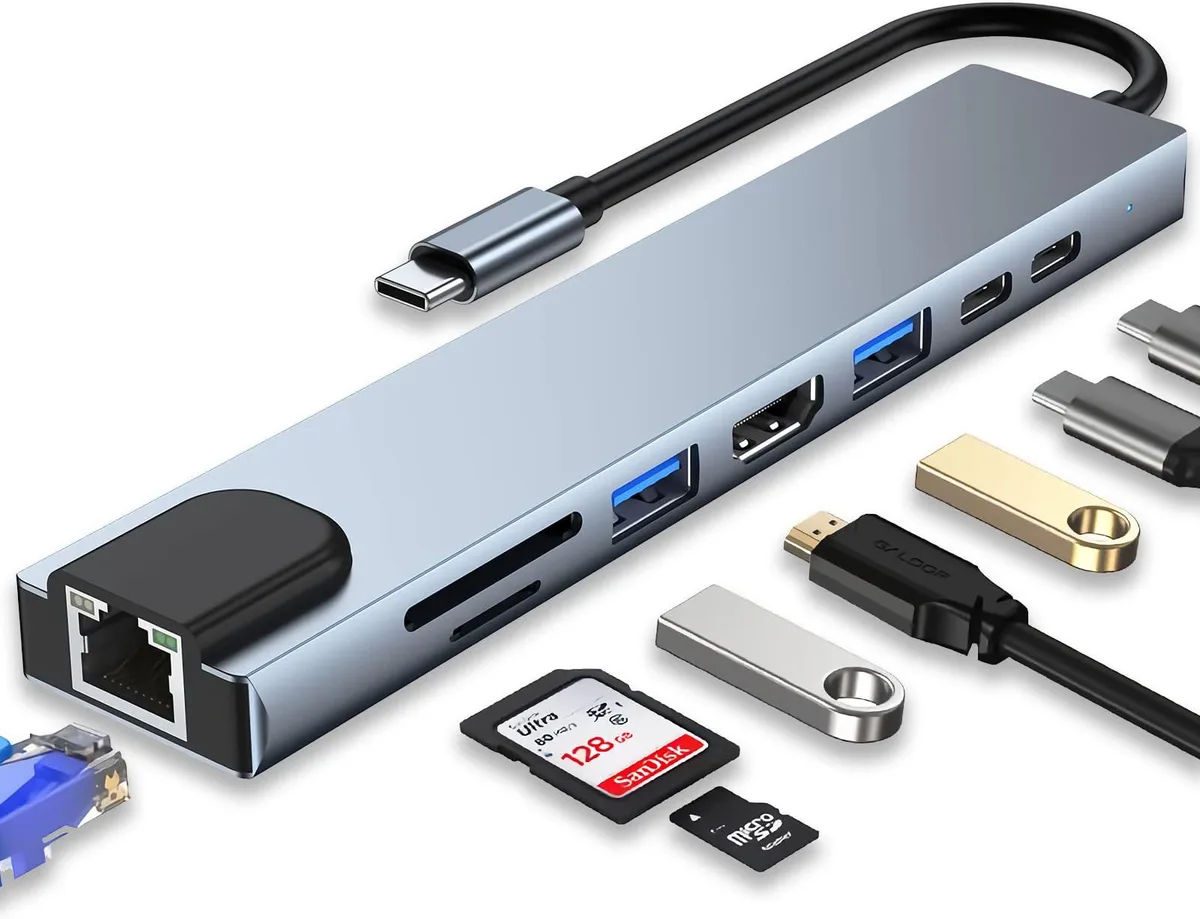
USB-C Hubs (Non-Thunderbolt): Many USB-C hubs offer multiple display outputs, but they typically rely on DisplayPort Alternate Mode over USB-C. Crucially, a standard USB-C port without Thunderbolt might only support one or two external displays, depending on the laptop's capabilities and the hub's design. You’ll need to check if your USB-C port supports DP Alt Mode and how many displays it can push.
Some hubs use DisplayLink technology, which is a different approach. DisplayLink uses software to compress video signals and send them over standard USB, bypassing the need for DP Alt Mode and often allowing more displays than the native hardware would otherwise support. However, DisplayLink can sometimes introduce latency and isn't ideal for high-end gaming or fast-paced video editing due to the software compression and processing.
Multiple Direct Connections: If your laptop has more than one video output port (e.g., HDMI, DisplayPort, or multiple USB-C ports that support DP Alt Mode), you could connect monitors directly using separate cables. This is often the simplest solution if you have the ports available and don't mind the extra cable clutter. You can mix and match connection types, using adapters if necessary.
Docking Stations with Limited DP Alt Mode: Some USB-C docks without full Thunderbolt bandwidth might still offer multiple video outputs but will cap the resolution or refresh rate. For instance, you might be able to run two 4K monitors at 60Hz and a third at 4K 30Hz, or perhaps two at 4K 60Hz and one at 1440p. Always check the specific claims of the dock and your laptop's port capabilities.
The performance you get will heavily depend on the total available video bandwidth your laptop's USB-C port can provide.
Expert Tips for a Smooth Triple 4K Experience
To really nail your triple 4K monitor setup and ensure it runs like a dream, a few expert insights can go a long way. It's about maximizing performance, minimizing hassle, and making sure your investment works as hard as you do. These aren't just random tips; they come from understanding how these complex systems interact.
Choosing the Right Cables
Don't skimp on your cables; they are critical for high-resolution setups. For 4K resolution at 60Hz, you'll generally need:
- HDMI: HDMI 2.0 or higher certified cables. Look for cables clearly marked with "High Speed with Ethernet" or "Premium High Speed," ideally supporting 18 Gbps bandwidth.
- DisplayPort: DisplayPort 1.2 or DisplayPort 1.4 certified cables. These are generally more robust for high refresh rates and resolutions.
- Thunderbolt Cables: When connecting your dock to your laptop, always use a certified Thunderbolt 3 or Thunderbolt 4 cable. These cables are specifically designed to carry the full 40 Gbps bandwidth and ensure features like Power Delivery work correctly. Some are shorter (0.5m, 0.8m) active cables, while longer passive cables might have bandwidth limitations or require active signal boosting. For connecting monitors to the dock, ensure the DP or HDMI cables meet the requirements for 4K@60Hz. Using an under-spec cable is one of the most common reasons for display issues.
Optimizing Refresh Rates and Resolutions
Once everything is connected, your operating system's display settings are your best friend.
- Match Physical Layout: In Windows "Display settings" or macOS "Displays," drag the monitor icons to visually represent how your monitors are arranged on your desk. This ensures that moving your mouse cursor between screens feels natural.
- Set Correct Resolution and Refresh Rate: For each monitor, select "3840 x 2160" (4K) as the resolution. Then, choose the highest stable refresh rate available. If 60Hz causes flickering or instability, try stepping down to 30Hz. Sometimes, a dock might only support 3x 4K@30Hz, or maybe two at 60Hz and one at 30Hz. You might need to experiment to find the best balance.
- Scaling: 4K monitors can make text and icons appear very small. Use the display scaling options in your OS settings (e.g., 150% or 200% scaling in Windows, or similar options in macOS) to make elements comfortably readable without sacrificing the sharpness of the 4K resolution.
Keeping Your Drivers and Firmware Up-to-Date
This is crucial for system stability and performance, especially with complex hardware like Thunderbolt docks.
- Laptop Drivers: Regularly check your laptop manufacturer's support website for updates to your graphics drivers (Intel, NVIDIA, or AMD) and your Thunderbolt controller drivers. Outdated drivers are a frequent cause of connectivity problems.
- Dock Firmware: Many Thunderbolt docks have firmware that can be updated to improve compatibility and fix bugs. Visit the dock manufacturer's support page and download any available firmware updates. Usually, this involves downloading an executable file and running it while the dock is connected to your laptop.
- Monitor Firmware: While less common, some monitors also have firmware that can be updated. Check the monitor manufacturer's website if you encounter persistent issues, though this is usually a last resort. Keeping these components updated ensures they are communicating effectively according to the latest standards and bug fixes.
Are There Any Other Ways to Connect Three 4K Monitors?
While a single Thunderbolt dock is the most elegant solution, it's not the only way to get three 4K monitors connected to your laptop. If your laptop lacks Thunderbolt, or if you find the cost or complexity of a Thunderbolt setup too high, other options exist. These might involve more cables or slightly different technology, but they can still achieve a multi-monitor workspace.
Beyond Thunderbolt: USB-C Hubs and Alternatives
Many USB-C hubs offer multiple display outputs, but they typically rely on DisplayPort Alternate Mode (DP Alt Mode) over USB-C. A standard USB-C port without Thunderbolt might only support one or two external displays, depending on the laptop's capabilities and the hub's design. You’ll need to check if your USB-C port supports DP Alt Mode and how many displays it can push.
Some hubs use DisplayLink technology, which is a different approach. DisplayLink uses software to compress video signals and send them over standard USB, often allowing more displays than the native hardware would otherwise support. However, DisplayLink can sometimes introduce latency and isn't ideal for high-end gaming or fast-paced video editing due to the software compression.
If your laptop has more than one video output port (e.g., HDMI, DisplayPort, or multiple USB-C ports that support DP Alt Mode), you could connect monitors directly using separate cables. This is often the simplest solution if you have the ports available and don't mind the extra cable clutter. You can mix and match connection types, using adapters if necessary.
Always check the specific claims of the dock and your laptop's port capabilities. The performance you get will heavily depend on the total available video bandwidth your laptop's USB-C port can provide.
Expert Tips for a Smooth Triple 4K Experience
To really nail your triple 4K monitor setup and ensure it runs like a dream, a few expert insights can go a long way. It's about maximizing performance, minimizing hassle, and making sure your investment works as hard as you do. These aren't just random tips; they come from understanding how these complex systems interact.
Choosing the Right Cables
Don't skimp on your cables; they are critical for high-resolution setups. For 4K resolution at 60Hz, you'll generally need HDMI 2.0 or higher certified cables for HDMI, and DisplayPort 1.2 or DisplayPort 1.4 certified cables for DisplayPort. These are generally more robust for high refresh rates and resolutions.
When connecting your dock to your laptop, always use a certified Thunderbolt 3 or Thunderbolt 4 cable. These cables are specifically designed to carry the full 40 Gbps bandwidth and ensure features like Power Delivery work correctly. Using an under-spec cable is one of the most common reasons for display issues.
Optimizing Refresh Rates and Resolutions
Once everything is connected, your operating system's display settings are your best friend. In Windows "Display settings" or macOS "Displays," drag the monitor icons to visually represent how your monitors are arranged on your desk. This ensures that moving your mouse cursor between screens feels natural.
For each monitor, select "3840 x 2160" (4K) as the resolution and choose the highest stable refresh rate available. If 60Hz causes flickering or instability, try stepping down to 30Hz. Use display scaling options (e.g., 150% or 200%) to make elements comfortably readable.
Keeping Your Drivers and Firmware Up-to-Date
This is crucial for system stability and performance, especially with complex hardware like Thunderbolt docks. Regularly check your laptop manufacturer's support website for updates to your graphics drivers (Intel, NVIDIA, or AMD) and your Thunderbolt controller drivers. Outdated drivers are a frequent cause of connectivity problems.
Many Thunderbolt docks have firmware that can be updated to improve compatibility and fix bugs; visit the dock manufacturer's support page for these updates. Keeping these components updated ensures they are communicating effectively according to the latest standards and bug fixes.
Frequently Asked Questions
How long does setup take?
Setup typically takes about 15 to 30 minutes, assuming all your hardware is compatible and working correctly. This includes connecting cables, configuring display settings in your operating system, and potentially installing any necessary drivers or firmware updates.
Will this setup work with my older laptop?
It depends on your older laptop's ports. If it lacks Thunderbolt 3 or 4, you likely won't be able to use a single Thunderbolt dock for three 4K monitors. You might need to explore USB-C hubs with DisplayLink technology or multiple direct connections if your laptop has sufficient video outputs.
Can I mix monitor brands and models?
Yes, you can generally mix monitor brands and models. As long as each monitor supports the desired resolution (4K) and refresh rate (ideally 60Hz) and has the appropriate input ports (DisplayPort or HDMI), they should work with a compatible Thunderbolt dock.
What if I only have Thunderbolt 3?
Thunderbolt 3 is still capable of supporting three 4K monitors, but you must be more diligent about checking specifications. Thunderbolt 3 bandwidth is up to 40 Gbps, similar to Thunderbolt 4, but Thunderbolt 4 has stricter requirements for multi-display support. Ensure your Thunderbolt 3 dock is explicitly rated for three 4K displays at your desired refresh rate.

Similar Posts