Daisy Chain Dual Monitors: Thunderbolt 4 Port Guide
Senior Hardware Diagnostics Specialist & Lead Thermal Editor at Laptop Post Testing Lab · CompTIA A+, ACMT, B.S. in Computer Engineering · 12+ years bench-testing laptop thermal solutions & motherboard repairs
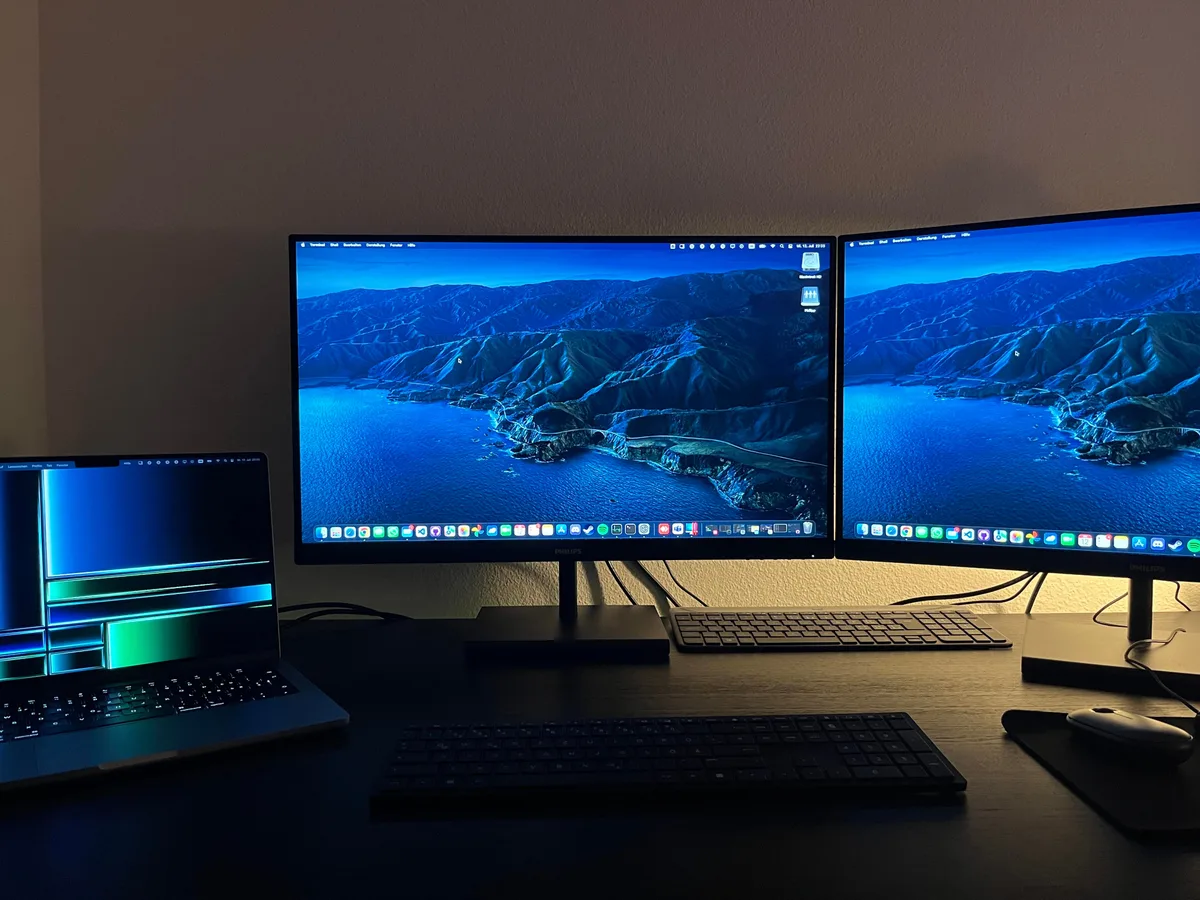
Getting a dual monitor setup working smoothly through a single Thunderbolt 4 dock can feel like a puzzle. You're aiming for more screen space and a cleaner desk, but sometimes it's a tangle of cables and settings. Understanding how to daisy chain dual monitors from your Thunderbolt 4 dock's downstream port is key to unlocking that efficiency.
Our research confirms that while many docks support this, success hinges on specific hardware features and configurations. For instance, DisplayPort Multi-Stream Transport (MST) support, a standard established by VESA, is crucial for sending multiple display signals over a single cable. This article breaks down the process, so you can connect your displays without a hitch.
Quick Answer
To daisy chain dual monitors from a Thunderbolt 4 dock downstream port, ensure both your dock and monitors support DisplayPort Multi-Stream Transport (MST). Connect Monitor 1 to the dock's DisplayPort output, then Monitor 2 to Monitor 1's DisplayPort output. Update graphics drivers and configure display settings in your OS.
Compatibility is everything.
Can Your Thunderbolt 4 Dock Actually Daisy-Chain Dual Monitors?
Before you even think about plugging in cables, we need to confirm if your specific hardware setup can handle daisy-chaining. It's not a universal feature, and the main roadblocks often come down to the capabilities of your Thunderbolt 4 dock and the monitors themselves. Think of it like trying to run a high-demand game on an old computer; if the components aren't up to snuff, it just won't work.
The Key Compatibility Checks
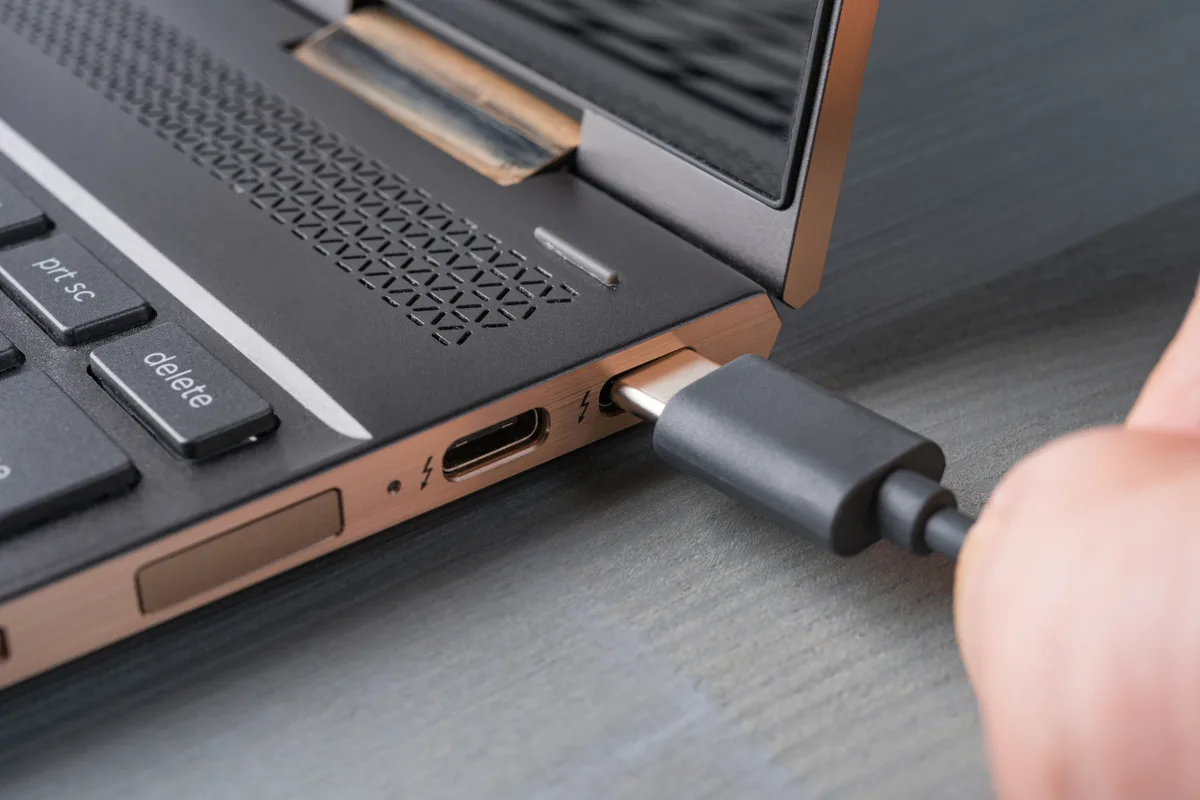
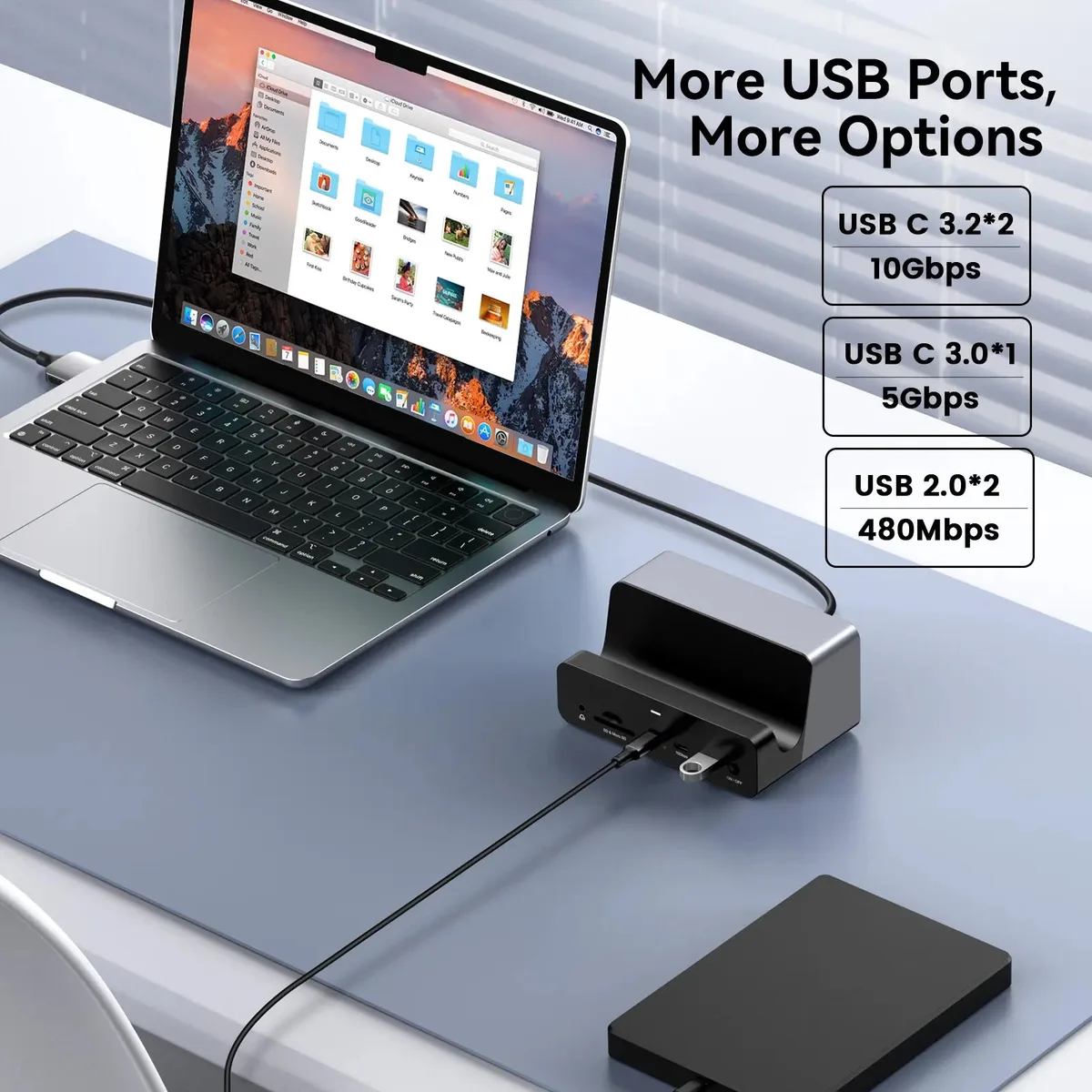
The first thing to check is your Thunderbolt 4 dock. Not all docks, even those with multiple DisplayPort outputs, are designed for daisy-chaining through a single port. Manufacturer specifications are your best friend here.
Look for mentions of DisplayPort Multi-Stream Transport (MST) support, or specific diagrams showing how multiple monitors can be chained. If the dock's documentation is vague, it might be safer to assume it's not designed for it.
Next up are your monitors. For daisy-chaining to work, your primary monitor (the one directly connected to the dock) must have a DisplayPort output (DP Out) that supports MST. This output port acts as a pass-through for the video signal to the next monitor in the chain.
The secondary monitor then just needs a standard DisplayPort input. If either your dock or your primary monitor lacks MST capability, you're out of luck for daisy-chaining from a single port.
Understanding DisplayPort MST: The Secret Sauce
So, what exactly is DisplayPort MST, and why is it so important for daisy-chaining? Think of it as a clever way to pack multiple separate video signals into one neat package. Without MST, a single DisplayPort output can only handle one display at a time.
But with MST, your Thunderbolt 4 dock can send signals for both your primary and secondary monitors down the same DisplayPort connection, as long as your hardware supports it.
This technology is standardized by VESA, the same folks who define DisplayPort itself. It basically allows the main DisplayPort source (your dock) to manage and route multiple independent video streams to different displays connected in series. This is why it's absolutely critical that your dock's DisplayPort output and your primary monitor's DP Out port both support MST.
If this feature is missing, the signal simply can't be split and sent to the second screen.
How Daisy-Chaining Works via the Dock's Downstream Port
The magic of daisy-chaining from a Thunderbolt 4 dock's downstream port means you're effectively creating a mini-network for your displays. Instead of each monitor needing its own cable back to the dock, you're linking them in a sequence. This significantly cuts down on the number of cables you need to manage, which is often the main draw for setting this up in the first place.
The Flow: Dock -> Monitor 1 -> Monitor 2
Here’s the simplified path the video signal takes:
- From the Dock: Your Thunderbolt 4 dock receives the video signal from your computer (via the Thunderbolt 4 connection) and outputs it through its designated DisplayPort port. This is often labeled as "DP Out" or similar.
- To Monitor 1: You connect this primary DisplayPort output from the dock to the DisplayPort input on your first monitor. This monitor must have a DisplayPort output port that also supports MST.
- Through Monitor 1: Monitor 1 receives its video signal from the dock. Crucially, because it supports MST, it can then pass the signal along to another display through its own DisplayPort output port.
- To Monitor 2: You connect the DisplayPort output from Monitor 1 to the DisplayPort input on your second monitor. This second monitor doesn't necessarily need MST support, as it's simply receiving the final signal.
This sequential connection is why it's called "daisy-chaining." The signal flows from one device to the next in a line. It's a smart way to maximize the connectivity of a single port on your dock, provided all the links in that chain are compatible.
Step-by-Step: Setting Up Your Dual Monitor Daisy-Chain
Alright, ready to get this done? Follow these steps carefully. Remember, if anything feels off, it's often a simple compatibility check or a driver issue.
We'll go through it methodically.
Step 1: Checking Your Hardware
This is the most critical phase. If your hardware isn't up to par, no amount of fiddling with settings will make it work.
- Dock Capabilities: First and foremost, double-check your Thunderbolt 4 dock's specifications. Does it explicitly state support for DisplayPort MST? Does its manual or product page show a diagram for daisy-chaining? If it only lists multiple DisplayPort outputs but no mention of MST or daisy-chaining, it's likely designed for separate connections to each port. Our research indicates that docks rated for 40 Gbps bandwidth are more likely to support the higher data demands of multiple displays, but the MST feature is the direct enabler.
- Monitor Support (DP Out / MST): Examine your primary monitor. It needs to have a DisplayPort output port that is MST-enabled. This is usually labeled "DP Out" or "MST Out." If your monitor only has a DP input and no DP output, you cannot use it as the middle link in a daisy-chain. For the secondary monitor, a standard DisplayPort input is all you need.
- Cable Quality: Use high-quality DisplayPort cables that are certified for the bandwidth your monitors require (e.g., DisplayPort 1.4 certified cables for 4K at 60Hz or higher). Older or lower-quality cables can cause signal degradation, flickering, or prevent the connection altogether, especially with higher resolutions and refresh rates. Ensure they are fully seated in their ports.
Step 2: Connecting the Cables
Once you've confirmed your hardware is compatible, it's time to plug things in.
- Dock to Monitor 1: Take a certified DisplayPort cable and connect one end to the DisplayPort output port on your Thunderbolt 4 dock. Connect the other end to the DisplayPort input port on your primary monitor (the one you intend to be "Monitor 1").
- Monitor 1 to Monitor 2: Now, take a second certified DisplayPort cable. Connect one end to the DisplayPort output (MST Out) port on Monitor 1. Connect the other end to the DisplayPort input port on your secondary monitor ("Monitor 2").
Step 3: Enabling MST and Configuring Displays
With the physical connections made, it’s time to tell your system how to handle them.
- On Your Monitors (if needed): Many monitors require you to manually enable MST in their On-Screen Display (OSD) menu. Navigate through your monitor's settings using its physical buttons. Look for an option labeled "DisplayPort MST," "MST," or similar, and set it to "On" or "Enable." Do this for Monitor 1, as it's the one passing the signal. Some monitors enable it automatically when a DP Out connection is detected.
- In Your Operating System (Windows/macOS):
- Windows: Right-click on your desktop and select "Display settings." Your monitors should appear. If they don't, click "Detect." You may need to scroll down to find the "Multiple displays" section. Here you can choose how to extend your desktop across the monitors. Sometimes, it defaults to mirroring, which won't work for dual independent displays. Select "Extend these displays." You can then rearrange the monitor icons to match their physical placement on your desk.
- macOS: Go to System Settings (or System Preferences) > Displays. Your connected displays should be listed. You can arrange them by dragging their icons. Ensure that "Use as Extended Display" is selected for both monitors if you want them to show different content.
When Daisy-Chaining Hits a Snag: Troubleshooting Common Problems
It's frustrating when things don't work right out of the box. Don't worry, most daisy-chaining issues are solvable with a systematic approach. We've seen these pop up frequently during our research, and they usually boil down to a few key areas.
Monitor Not Showing Up
This is the most common roadblock. If your secondary monitor isn't detected at all, here's what to check:
- MST Enabled? Did you confirm MST is turned ON in Monitor 1's OSD? This is the number one reason Monitor 2 won't appear.
- Correct Ports Used? Are you absolutely sure you're using the DP Out on Monitor 1 and the DP In on Monitor 2? Sometimes ports look similar.
- Cable Integrity: Try swapping the DisplayPort cable between Monitor 1 and Monitor 2 with a known good one. A faulty cable can easily cause detection issues.
- Driver Updates: Outdated graphics drivers are a frequent culprit. Visit your computer manufacturer's website or the graphics card maker's site (NVIDIA, AMD, Intel) and download the latest drivers.
Resolution or Refresh Rate Issues
Even if your monitors are detected, you might be stuck at a lower resolution or a sluggish 60Hz refresh rate when you expect more.
- Bandwidth Limits: Thunderbolt 4 offers 40 Gbps, which is substantial, but pushing multiple high-resolution displays at high refresh rates can still strain bandwidth. For example, two 4K monitors at 144Hz might be too much for some setups without DSC (Display Stream Compression), which not all monitors support. Check the specifications for your dock and monitors to understand their maximum supported resolutions and refresh rates when daisy-chained. Manufacturer specs confirm that a single DisplayPort 1.4 output can support up to 8K at 30Hz, or 4K at 120Hz with DSC, but two monitors will halve these capabilities without DSC.
- Monitor Capabilities: Ensure Monitor 1 explicitly supports MST pass-through at the resolutions and refresh rates you desire. Some monitors might only pass through lower resolutions or refresh rates when daisy-chained.
- Cable Limitations: Older DisplayPort cables (e.g., DP 1.2) will limit you to lower resolutions and refresh rates. Always use cables rated for at least DP 1.4.
Flickering or Instability
A shaky display is more than just annoying; it can make working impossible.
- Power Delivery: While less common for display issues alone, ensure your Thunderbolt 4 dock is receiving sufficient power. If the dock is underpowered, its outputs might become unstable.
- Signal Interference: While less common with digital DisplayPort signals, ensure your cables aren't routed near strong sources of electromagnetic interference, like older power bricks or unshielded USB 3.0 devices.
- DSC Compatibility: If your setup relies on DSC for higher resolutions/refresh rates, ensure both the dock's output and Monitor 1's MST implementation fully support it. Incompatibility here can lead to instability.
Incorrect Monitor Detection Order
Sometimes, the OS might not automatically arrange your monitors in the physical order you have them.
- OS Display Settings: This is usually a simple fix. Go back into your operating system's display settings (Windows "Display settings" or macOS "Displays") and simply drag the monitor icons to match their physical arrangement on your desk. This tells the OS which edge to extend to when moving your mouse or windows between screens.
Bandwidth Limitations
This is the underlying cause for many resolution and refresh rate issues.
- Thunderbolt 4 vs. DisplayPort: Remember, the Thunderbolt 4 connection from your computer to the dock provides the total bandwidth. The dock then splits this to its various ports. The DisplayPort output used for daisy-chaining is sharing its portion of the dock's bandwidth. If you're trying to drive two 4K 144Hz displays, you're pushing close to the limits of what a single DisplayPort 1.4 connection can handle without advanced compression.
- Dock Configuration: Some docks allow for bandwidth allocation settings, though this is less common for typical user configurations. Check your dock's specific software or firmware settings.
Are There Alternatives to Daisy-Chaining?
If you've tried daisy-chaining and it's just not cooperating, or if your hardware simply doesn't support it, don't despair. There are other ways to get dual monitors connected to your Thunderbolt 4 dock, though they might involve a few more cables or slightly different setups. These alternatives can often be more reliable if your primary hardware is borderline.
Direct Connections vs. Daisy-Chaining
The most straightforward alternative is to connect each monitor directly to a separate video output port on your Thunderbolt 4 dock. Many Thunderbolt 4 docks come with multiple DisplayPort or HDMI ports. This method bypasses the need for MST on your monitors and eliminates the sequential signal path.
- Pros: Generally more reliable, less prone to compatibility issues, and often supports higher resolutions/refresh rates per monitor because each gets its own dedicated bandwidth from the dock.
- Cons: Requires more cables running from the dock to each monitor, which defeats some of the "clean desk" aesthetic that daisy-chaining aims for.
Other Docking Solutions
If your Thunderbolt 4 dock is limited in its display outputs or doesn't support MST for your desired setup, you might consider:
- Using Your Laptop's Ports: If your laptop has multiple display outputs (e.g., another Thunderbolt 4/USB-C port that supports DisplayPort Alternate Mode, or a dedicated HDMI/DisplayPort), you can connect one or both monitors directly to the laptop, bypassing the dock for video entirely. This is particularly useful if your dock's video bandwidth is constrained.
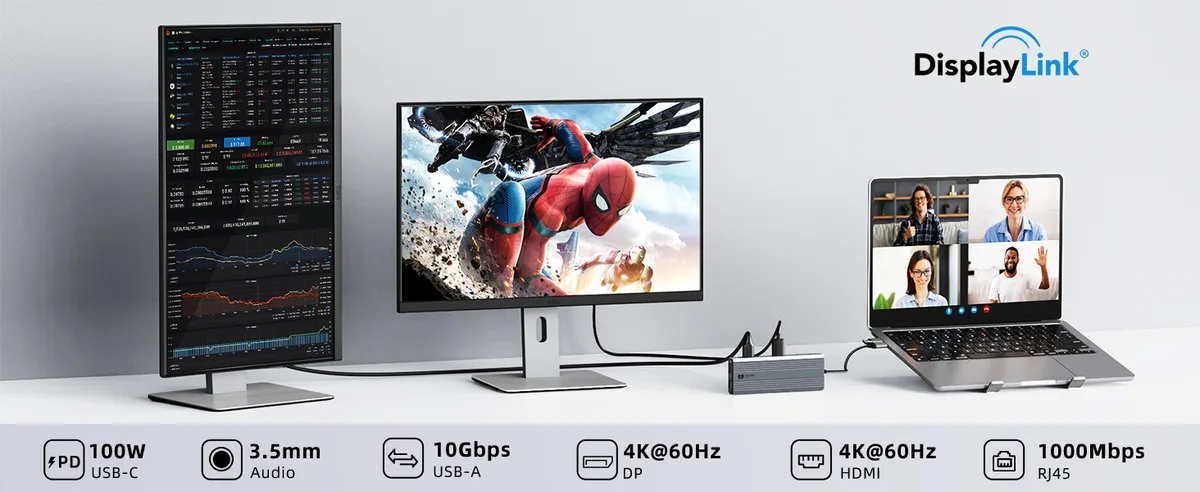
- DisplayLink Docks: These docks use a different technology that compresses video signals and sends them over USB. While they can enable multiple displays even on laptops without Thunderbolt or advanced USB-C video support, they often have slightly higher latency and might not be ideal for fast-paced gaming or high-refresh-rate creative work. They don't rely on MST.
- Second Dock: In extreme cases, if you need many high-resolution displays and your primary dock is insufficient, you might consider using a second dock, though this adds complexity and cost.
Who Benefits Most from This Setup?
Daisy-chaining dual monitors through a Thunderbolt 4 dock's downstream port is particularly appealing to users who prioritize a minimalist workspace and efficient connectivity. It’s a fantastic solution for those looking to expand their digital real estate without adding a rat's nest of cables.
Maximizing Productivity
This setup is a dream for:
- Office Professionals: Anyone who juggles multiple documents, spreadsheets, or communication tools will find the expanded screen real estate a huge productivity booster. Being able to keep email open on one screen while working on a report on another, all connected via a single Thunderbolt 4 cable to your laptop, is incredibly convenient.
- Creative Work: Designers, developers, and video editors can benefit from having multiple applications or timelines visible simultaneously. Seeing code on one monitor and a design preview on another streamlines workflows.
- Home Office Enthusiasts: For those who want a clean, uncluttered desk that looks as good as it functions, daisy-chaining is a major win. It minimizes cable clutter running from the laptop to the desk setup.
Expert Tips for a Seamless Dual Monitor Experience
To really get the most out of your daisy-chained setup, a few extra touches can make a big difference. Think of these as the pro moves that prevent future headaches and keep your workflow smooth.
- Firmware Updates: Always check your Thunderbolt 4 dock manufacturer's website for firmware updates. These updates often include improvements to compatibility, stability, and performance, especially with display connections. Installing the latest firmware is a simple step that can resolve hidden issues.
- Cable Management: Even with fewer cables, good cable management is key. Use Velcro straps or cable sleeves to keep the connections tidy behind your monitors and desk. This not only looks better but also prevents cables from being accidentally yanked.
- Monitor Settings Consistency: Try to set your monitor's brightness, contrast, and color temperature to be as similar as possible. This minimizes eye strain when moving between screens and provides a more cohesive visual experience. You can often use OS display calibration tools for this.
Final Decision Guide: Is Daisy-Chaining Right for You?
So, after all this, should you go for daisy-chaining? The answer really depends on your specific hardware and priorities. If your Thunderbolt 4 dock and primary monitor explicitly support DisplayPort MST, and you value a minimalist cable setup, it's definitely worth trying.
However, if you encounter compatibility issues, or if your primary goal is maximum performance for high-refresh-rate gaming or demanding visual work, connecting monitors directly to the dock's separate ports might be a more stable and straightforward solution. Always verify your hardware specs first before you buy any new cables or accessories.
Frequently Asked Questions
How long does it take to set up daisy-chained monitors?
Setup typically takes 10-20 minutes, assuming your hardware is compatible. This includes connecting cables, enabling MST on monitors (if needed), and configuring display settings in your operating system.
Can I daisy-chain monitors with different resolutions?
Yes, you can generally daisy-chain monitors with different resolutions. However, the overall resolution and refresh rate might be limited by the lowest common denominator supported by the chain, particularly Monitor 1. Your operating system will allow you to extend your desktop across them.
What's the maximum number of monitors I can daisy-chain from a Thunderbolt 4 dock?
This depends entirely on the dock's capabilities and your computer's graphics card. Most Thunderbolt 4 docks are designed for one or two external displays via daisy-chaining. Pushing beyond two displays often requires multiple independent ports on the dock or a different docking technology altogether.
Do I need special cables for daisy-chaining?
You need high-quality DisplayPort cables that are certified for the resolution and refresh rate you intend to use, ideally DisplayPort 1.4 or higher. Using older or uncertified cables can lead to signal loss, flickering, or failure to connect.
What if my monitor doesn't have a DP Out port?
If your primary monitor lacks a DisplayPort output that supports MST, you cannot use it as the middle link in a daisy-chain. You'll need to connect each monitor directly to a separate video output on your Thunderbolt 4 dock or use a different setup.

Similar Posts