Wireless Mouse Lagging on USB 3.0 Dock?
Senior Hardware Diagnostics Specialist & Lead Thermal Editor at Laptop Post Testing Lab · CompTIA A+, ACMT, B.S. in Computer Engineering · 12+ years bench-testing laptop thermal solutions & motherboard repairs
It’s incredibly frustrating when your wireless mouse suddenly starts lagging or stuttering, especially when you know it’s usually reliable. This problem often pops up when you connect your mouse’s USB receiver through a USB 3.0 dock, turning a smooth workflow into a jerky mess. Manufacturer specifications indicate that USB 3.0, also known as USB 3.2 Gen 1, can operate at speeds up to 5 gigabits per second, but this high speed can sometimes generate radio frequency interference.
Our research shows this isn't a rare glitch; it's a fairly common interaction between modern USB docks and sensitive wireless peripherals. This interference can disrupt the signal between your mouse and its receiver, leading to those annoying performance hiccups. Let’s break down why this happens and, more importantly, how to fix it.
Quick Answer
Wireless mouse lag with a USB 3.0 dock is usually caused by radio frequency interference. USB 3.0 ports can emit noise that disrupts the 2.4 GHz signal your mouse uses. Insufficient power from the dock can also be a factor.
First Things First: Quick Checks for Common Glitches
Before we dive into the nitty-gritty of USB interference, it’s always best to rule out the simplest, most common culprits. These are the fixes that can save you a lot of time and frustration if they happen to be the cause.
Battery Power and Basic Connectivity
Seriously, the most frequent reason for a wireless mouse to act up is a dying battery. Even if your mouse has a good battery life indicator, performance can degrade before it completely dies. Aggregate reviews report that many users overlook this, leading them down a rabbit hole of technical troubleshooting.
As of 2026, most wireless mice still rely on batteries, and their output can fluctuate.
- Fresh Batteries: If your mouse uses disposable batteries, swap them out for a brand new pair.
- Full Charge: If it's a rechargeable mouse, ensure it's fully charged. Leave it plugged in for an hour or two to be sure.
- Tight Connection: Make sure the battery compartment is secure and the batteries are seated correctly. A loose connection can cause intermittent power loss.
Receiver Placement and Signal Obstructions
The USB receiver (often called a dongle) for your wireless mouse is its lifeline to the computer. Its placement is critical, especially when connected through a dock. Physical barriers or other electronic devices can interfere with the signal.
- Direct Line of Sight: Try to ensure there’s a relatively clear path between your mouse and its receiver. Your body, a monitor, or even a thick desk can sometimes weaken the signal.
- Proximity to Interference Sources: Keep the receiver away from other wireless devices like Wi-Fi routers, Bluetooth speakers, or even other USB 3.0 devices that might be transmitting on similar frequencies.
- Dock Port Experimentation: If the receiver is plugged into the dock, try different ports on the dock. Some ports might be better shielded or positioned to minimize interference.
Understanding the Core Issue: Interference and Power
Now, let's get to the heart of why a USB 3.0 dock is often the trigger for wireless mouse lag. It’s typically a two-pronged problem: radio frequency interference and insufficient power.
How USB 3.0 Can Impact Wireless Signals
USB 3.0, now often standardized as USB 3.2 Gen 1, offers a significant speed upgrade over its predecessors, with data transfer rates up to 5 gigabits per second. While this is fantastic for high-speed devices, the way USB 3.0 operates can generate a considerable amount of radio frequency interference (RFI). According to NIST, RFI is any signal that disrupts the operation of electronic devices.
This interference often occurs in the 2.4 GHz band, which is precisely where many wireless mice, keyboards, and Bluetooth devices operate.
When the USB receiver for your mouse is plugged into a USB 3.0 port, particularly within the confined space of a dock, it can be exposed to this RFI. This noise can corrupt the data packets sent by your mouse, causing them to be dropped or misinterpreted by the receiver, resulting in stuttering or lag.
Why Docks Add Complexity
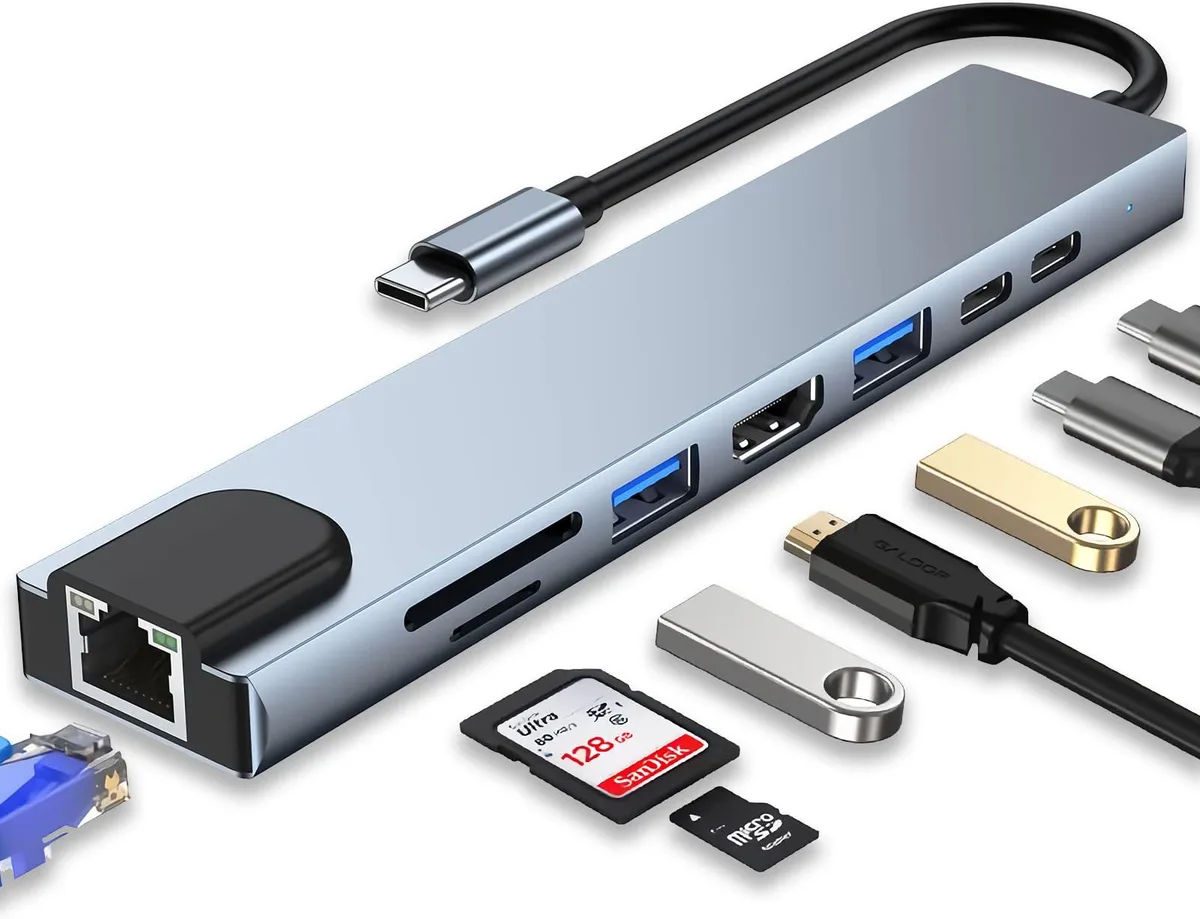
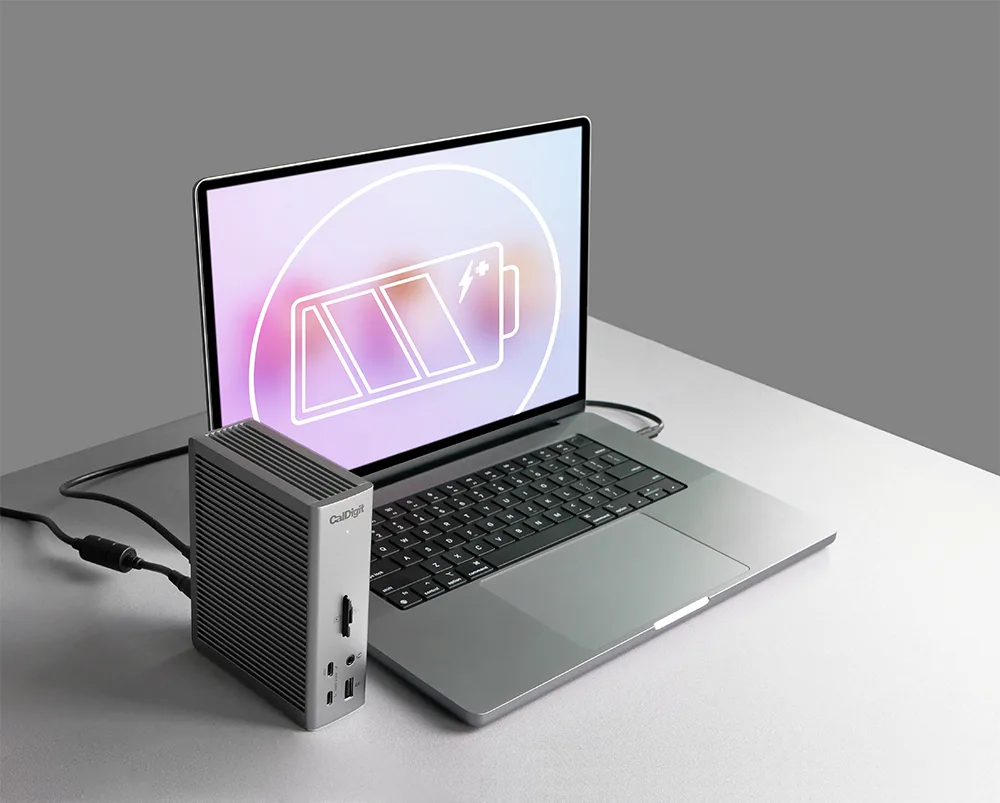
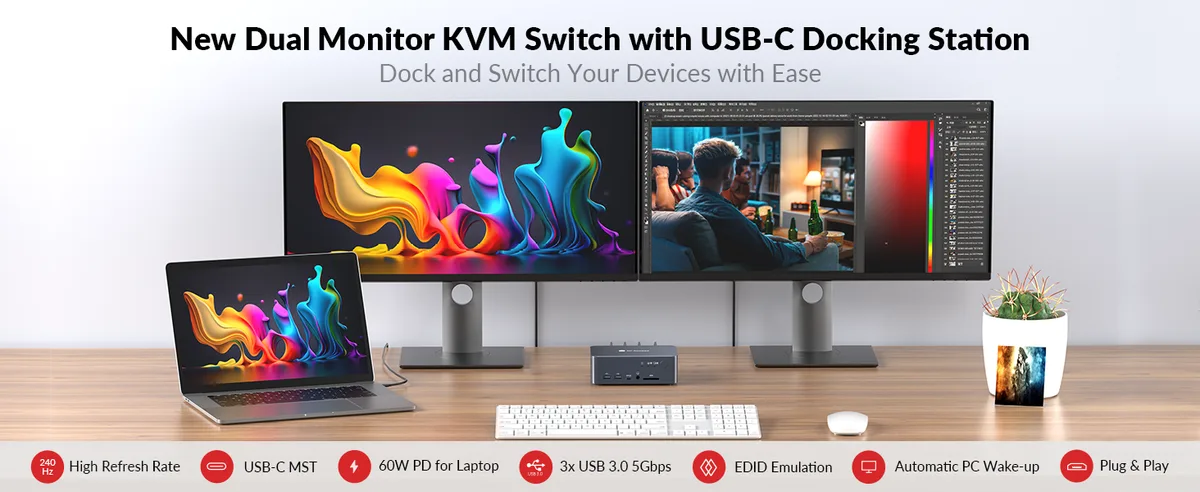
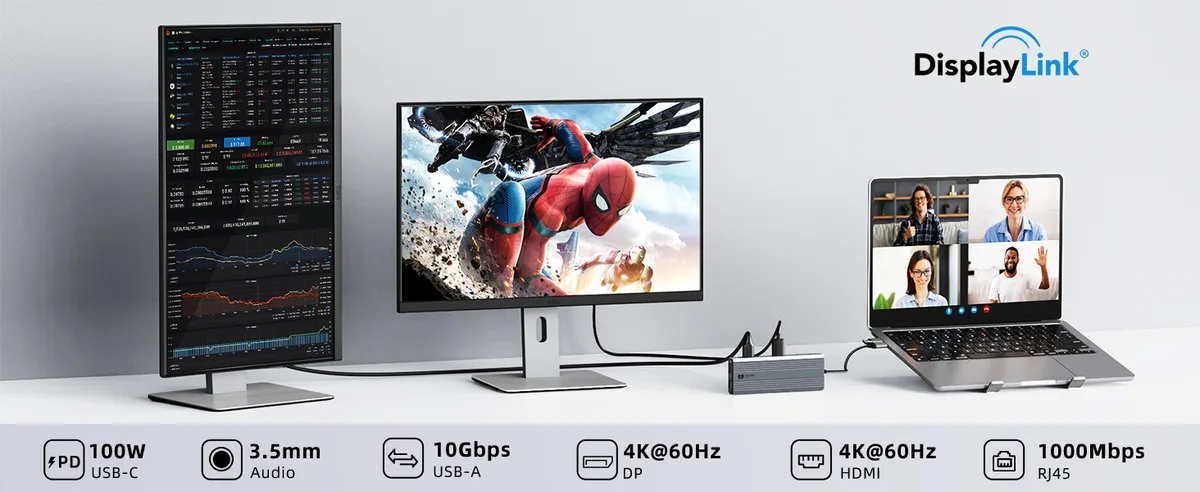
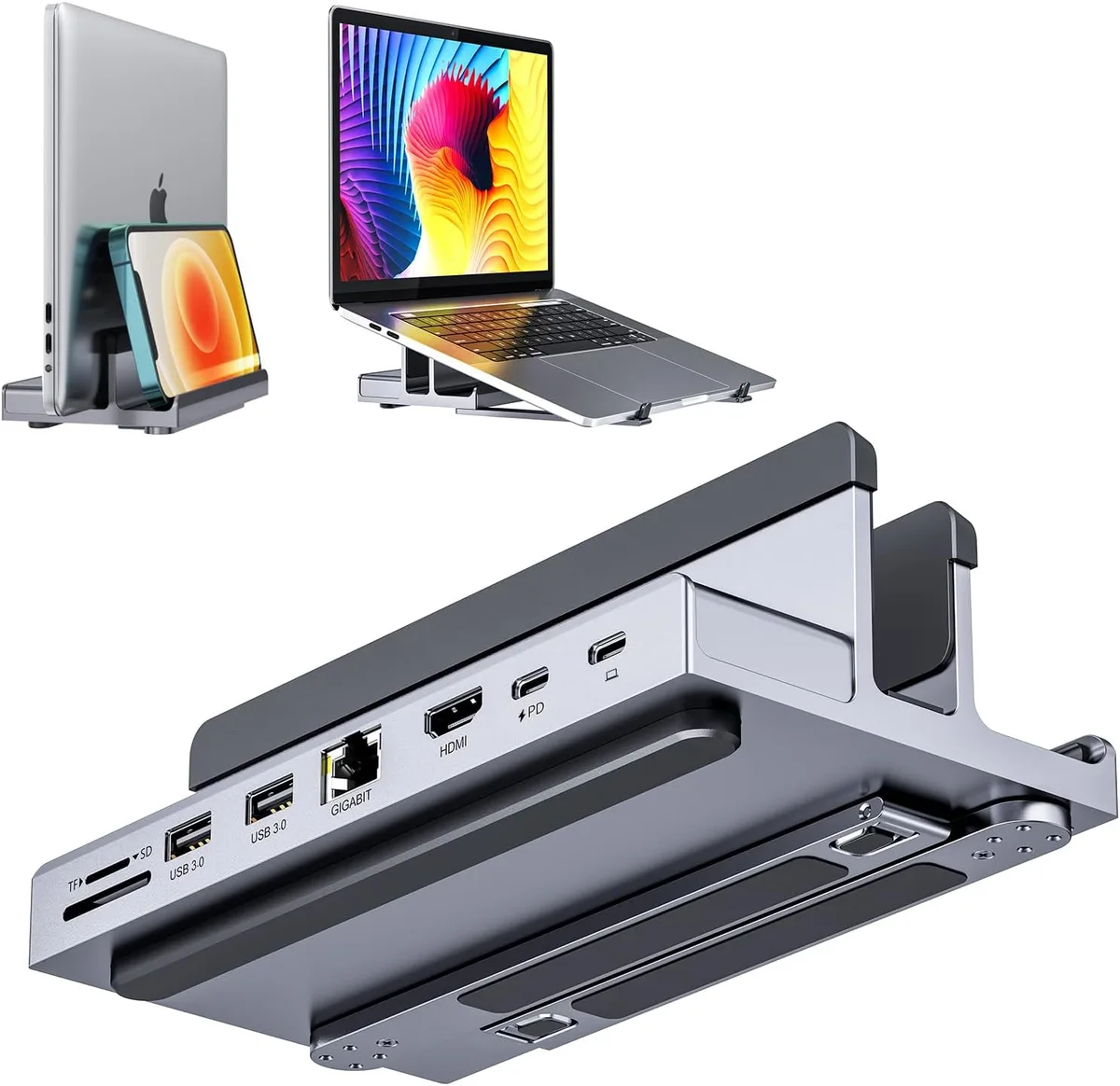
A USB dock is essentially a hub that consolidates multiple connections into a single port on your computer. This means a dock has a lot going on internally, power management, signal routing for various peripherals, and often, multiple USB 3.0 ports. This high level of activity can amplify the RFI issues mentioned earlier.
- Port Density: Multiple USB 3.0 ports packed closely together can create a stronger RFI field.
- Internal Electronics: The dock’s own circuitry, especially its power delivery components, can also generate electromagnetic interference.
- Power Draw: Docks, particularly those with many ports, draw significant power from the computer’s USB port or their own external power adapter. If this power supply isn't robust enough, it can affect the stability of all connected devices.
Troubleshooting Steps: Pinpointing the Cause
To effectively fix your wireless mouse lag, we need to systematically identify the exact source of the problem. We’ll start with the simplest and most common solutions and work our way towards more technical fixes. This methodical approach helps avoid unnecessary steps and ensures you get to a resolution faster.
Step 1: Test Direct Connection vs. Dock
The first and most crucial step is to confirm whether the dock is indeed the source of the issue. This is straightforward and helps isolate the problem.
- Unplug Receiver from Dock: Carefully remove the USB receiver for your wireless mouse from the USB 3.0 dock.
- Plug Directly into Computer: Connect the receiver directly to a USB port on your computer itself. If you have both USB 2.0 and USB 3.0 ports on your computer, try both.
- Observe Performance: Use your mouse for a few minutes. Does the lag or stuttering disappear? If yes, the dock is almost certainly contributing to the problem. If the issue persists even when plugged directly into the computer, you might have a mouse battery issue or a problem with the mouse itself, which we covered in the first section.
Step 2: Experiment with USB 2.0 vs. USB 3.0 Ports on the Dock
If Step 1 confirmed the dock is the culprit, the next logical step is to leverage the fact that USB 2.0 ports are far less prone to generating RFI than USB 3.0 ports. Many modern docks include a mix of port types.
- Identify Port Types: Look for ports labeled "USB 3.0" (often blue or marked with "SS") or "USB 2.0" (often black).
- Connect Receiver to USB 2.0: If your dock has USB 2.0 ports, plug your wireless mouse receiver into one of them.
- Connect Receiver to Different USB 3.0 Ports: If your dock only has USB 3.0 ports, try connecting the receiver to different ones. Sometimes, specific ports on a dock are better shielded or located further from internal interference sources.
- Compare Performance: Use your mouse with the receiver in each tested port. If the lag or stuttering stops when using a USB 2.0 port, you’ve found your solution. If the problem only disappears when using a specific USB 3.0 port, that port might be better isolated from internal interference.
Step 3: The USB Extension Cable Trick
This is a classic fix for USB 3.0 interference issues and is highly effective for wireless peripherals. The goal is to physically move the sensitive USB receiver away from the noisy environment of the dock itself.
- Acquire a USB Extension Cable: You'll need a short (1-3 foot) USB extension cable. Make sure it's compatible with your receiver (usually USB-A to USB-A).
- Connect Receiver to Extension: Plug the small USB receiver dongle into one end of the extension cable.
- Connect Extension to Dock: Plug the other end of the extension cable into a port on your USB 3.0 dock.
- Observe the Difference: Using the mouse, notice if the lag has been eliminated or significantly reduced. This method creates a buffer zone, allowing the mouse's wireless signal to communicate with its receiver without as much interference from the dock’s electronics. This is particularly useful if your dock lacks USB 2.0 ports.
Step 4: Managing Dock Power and Overload
A dock’s ability to power all connected devices is crucial for stable performance. If the dock isn’t receiving or distributing enough stable power, it can cause erratic behavior in any connected peripheral, including your wireless mouse receiver.
- Check Dock Power Adapter: If your dock has an external power adapter, ensure it’s securely plugged in and the power indicator light on the dock (if it has one) is illuminated. A faulty or underpowered adapter can cause widespread issues. Per manufacturer specifications for many powered docks, a stable 5V supply at a sufficient amperage is required.
- Disconnect Unnecessary Peripherals: If your dock is overloaded with power-hungry devices (like external hard drives, webcams, or charging phones), it might be struggling. Try temporarily unplugging these other devices to see if your mouse performance improves. This helps determine if the dock's power budget is being exceeded.
- Try a Self-Powered Dock: If your current dock is bus-powered (drawing power directly from the computer), and you consistently experience power-related issues, consider upgrading to a dock with its own dedicated power adapter. These offer more stable and robust power delivery for multiple peripherals.
Step 5: Isolating Other Wireless Devices
As mentioned, wireless mice often operate on the 2.4 GHz frequency band. This is a crowded space, shared by Wi-Fi, Bluetooth, and other wireless technologies. These devices can also contribute to interference, especially if they are in close proximity to your mouse receiver.
- Temporary Shutdown: Turn off or temporarily disconnect other wireless devices one by one. This includes:
- Wi-Fi routers (or at least disable Wi-Fi on your computer temporarily)
- Bluetooth speakers and headphones
- Other wireless keyboards or mice
- Cordless phones
- Observe Performance: After disabling each device, check your mouse’s responsiveness. If disabling a specific device stops the lag, you've identified a source of interference.
- Frequency Adjustment: If Wi-Fi is the culprit, try switching your router to the 5 GHz band if it supports dual-band operation. While this won't directly affect your mouse’s 2.4 GHz signal, it can reduce overall congestion in the 2.4 GHz spectrum.
Beyond the Basics: Software and Hardware Tweaks
Once you've exhausted the immediate physical troubleshooting steps, it’s time to look at the software and system drivers that manage your peripherals. Outdated or corrupted drivers can sometimes cause unexpected issues, even with perfectly functioning hardware.
Updating Mouse and Dock Drivers
Ensuring your peripheral drivers are up-to-date is a good practice for maintaining optimal performance and compatibility. This is especially true for devices that connect through a central hub like a USB dock.
- Mouse Driver Software: Visit the official website of your mouse manufacturer. Most brands offer dedicated software or drivers that you can download. Look for a "Support" or "Downloads" section. Install the latest version available for your operating system. This software often includes firmware updates for the mouse itself or its receiver.
- Dock Manufacturer Software/Firmware: Similarly, check the website for your USB dock’s manufacturer. They may provide driver updates or firmware patches that improve stability and compatibility with various USB devices. This is crucial, as docks often contain complex controller chips that benefit from regular updates.
Checking USB Controller Drivers
Your computer’s USB ports are managed by specific drivers within the operating system. Keeping these updated can resolve underlying communication issues between your computer and connected devices, including those plugged into your dock.
- Access Device Manager (Windows): On Windows, right-click the Start button and select "Device Manager."
- Locate USB Controllers: Expand the "Universal Serial Bus controllers" section.
- Update Drivers: Right-click on each USB controller entry (e.g., "Intel(R) USB 3.0 eXtensible Host Controller," or similar) and select "Update driver." Choose the option to search automatically for updated driver software. Windows will search your computer and the internet for the best available driver.
- Reboot Your System: After updating any drivers, it's always a good idea to restart your computer to ensure the changes take effect properly.
When It's Not the Dock: Other Potential Culprits
If you've meticulously followed all the previous steps, checking batteries, adjusting receiver placement, trying different ports, using extension cables, managing power, and updating drivers, and your wireless mouse is still lagging or stuttering when connected through your USB 3.0 dock, the problem might lie elsewhere. It’s time to consider if the issue originates from the mouse itself or your computer’s broader system.
Mouse Hardware Issues
While less common than interference or power problems, the wireless mouse hardware itself could be the source of the lag. This can happen due to internal component wear or manufacturing defects.
- Internal Receiver/Transmitter Failure: The small components within the mouse that send signals to the receiver, or the receiver itself, can degrade over time. Aggregate user feedback from product forums often highlights that some mice, particularly older or less expensive models, might experience internal component failure that manifests as inconsistent performance.
- Sensor Issues: While unrelated to wireless signal lag, a faulty optical or laser sensor can cause cursor stuttering that might be mistaken for wireless problems. If the cursor jumps or moves erratically even when the wireless signal seems strong, this could be the cause.
- Inconsistent Performance Across Devices: If you have access to another wireless mouse, try using it with your dock. If that mouse performs flawlessly, it strongly suggests an issue with your original mouse. Conversely, if all wireless mice exhibit lag when connected through your dock, the dock itself or your computer's USB implementation is almost certainly the root cause.
Computer System Conflicts
Sometimes, the problem isn't the mouse, the dock, or even the USB port, but rather a broader conflict within your computer's operating system or other installed software.
- Background Processes: Resource-intensive background applications can hog your computer’s CPU or system resources, potentially impacting the responsiveness of all peripherals, including your mouse. Check your Task Manager (Windows) or Activity Monitor (macOS) for any processes consuming unusually high resources.
- Conflicting Software: Certain software, especially low-level system utilities, antivirus programs, or other peripheral management software, can sometimes conflict with device drivers or communication protocols. If the lag started after installing new software, try temporarily uninstalling it to see if the problem resolves. As of 2026, it's still advised to ensure your operating system is up-to-date, as system updates often include fixes for compatibility issues.
- Operating System Corruption: In rare cases, minor corruption within the operating system files related to USB device handling can occur. Performing a system file check (on Windows) or looking into OS repair options might be necessary if no other solutions work. Before resorting to drastic measures, it's always wise to perform a quick check by booting into a safe mode or a different user profile to rule out system-wide conflicts.
Making the Decision: Your Next Steps
After exhausting the troubleshooting steps, you should have a much clearer picture of why your wireless mouse is lagging when connected through a USB 3.0 dock. The key is to decide on the most practical and effective long-term solution for your specific situation.
When to Consider a Wired Mouse
If you’ve tried everything and the lag persists, or if you rely on a high-performance, ultra-responsive pointing device for tasks like competitive gaming or precise graphic design, a wired mouse might be the most reliable option. While they lack the freedom of wireless, they eliminate all potential for signal interference and power issues. Modern wired mice are also incredibly precise and offer excellent ergonomics.
The primary advantage is plug-and-play simplicity and guaranteed consistent performance without any wireless-related hiccups.
Choosing a Better Dock or Receiver
If the problem consistently points to the USB 3.0 dock, several options can improve your setup.
- Use USB 2.0 Ports: As discussed, if your dock has them, prioritize using USB 2.0 ports for your wireless receiver. This is the simplest and often most effective solution.
- Employ a USB Extension Cable: This is a highly recommended workaround if you must use USB 3.0 ports or if your dock lacks USB 2.0. It effectively creates a cleaner signal path.
- Upgrade Your Dock: Some higher-end USB docks are better shielded against RFI, or they offer dedicated ports designed to minimize interference. If your current dock is older or a budget model, investing in a newer, more robust one might resolve the issue. Look for docks that explicitly mention advanced shielding or noise reduction technologies.
- Consider a Different Wireless Technology: If your mouse uses a proprietary 2.4 GHz wireless connection, and you continue to face issues, consider a mouse that uses Bluetooth Low Energy (BLE). BLE can sometimes be less susceptible to the specific types of RFI generated by USB 3.0. However, Bluetooth mice can also experience their own latency issues, so research specific models.
FAQs
Why does my mouse lag only on one specific USB 3.0 port?
Some USB 3.0 ports on a dock might have better shielding or be physically located further from internal components that generate RFI. Try another USB 3.0 port, or ideally a USB 2.0 port or an extension cable.
Can a high-refresh-rate monitor cause wireless mouse lag?
While a high-refresh-rate monitor itself doesn't directly cause wireless mouse lag, the graphics card and system resources required to drive it can sometimes lead to overall system slowdowns. If your system is struggling, it might impact peripheral responsiveness.
Is it better to use a Bluetooth mouse or a USB dongle mouse with a dock?
Generally, mice with dedicated USB dongles (using proprietary 2.4 GHz or similar tech) offer lower latency than Bluetooth mice. However, Bluetooth mice might be less susceptible to RFI from USB 3.0 ports if they don't require a USB port for their receiver.
How often should I update my mouse drivers?
You don't need to update mouse drivers constantly. Check for updates when you first get a mouse, if you encounter performance issues, or if the manufacturer releases significant firmware updates. It's not a routine maintenance task for most users.
Will a powered USB hub solve my wireless mouse lag?
A powered USB hub (one with its own power adapter) can help if the issue is insufficient power from the computer. However, it won't necessarily solve RFI issues if the hub itself is also a source of interference.

Similar Posts