Power Delivery 3.1: 140W & 240W Explained
Senior Hardware Diagnostics Specialist & Lead Thermal Editor at Laptop Post Testing Lab · CompTIA A+, ACMT, B.S. in Computer Engineering · 12+ years bench-testing laptop thermal solutions & motherboard repairs
You've probably noticed it already: your laptop charges slower than it used to, or maybe your newer, more powerful devices just aren't getting the juice they need. That’s where understanding what is Power Delivery 3.1 140W and 240W in next-gen docking stations becomes super important. It’s not just about faster charging; it's about ensuring your tech ecosystem can keep up with demanding tasks and multiple devices.
This advanced charging standard, officially known as USB Power Delivery (USB PD) Extended Power Range (EPR), represents a significant leap from earlier versions. Specifically, the jump to 140W and even 240W opens up new possibilities for how we power our laptops, monitors, and other peripherals through a single connection. Let’s break down what that really means for you and your setup.
Quick Answer: What's the Big Deal with PD 3.1 140W & 240W?
Power Delivery 3.1 with 140W and 240W capabilities allows docking stations to charge high-power devices much faster. This USB PD EPR standard enables charging for demanding laptops and multiple peripherals simultaneously. It’s crucial for users needing robust power delivery over USB-C, replacing multiple chargers with a single, versatile solution.
Core Explanation: How USB Power Delivery 3.1 Works
USB Power Delivery, or USB PD, is a specification that allows for much higher power levels and more intelligent power negotiation between devices than older USB standards. Think of it as a smart conversation between your charger (or docking station) and your device. Instead of just supplying a fixed amount of power, USB PD allows the source (the charger) and the sink (your laptop, phone, etc.) to communicate and agree on the optimal voltage and current needed for safe and efficient charging.
The most recent major update, Power Delivery 3.1, introduced two key advancements: the Extended Power Range (EPR) and enhancements to the Programmable Power Supply (PPS) feature. These aren't just minor tweaks; they unlock significantly more power and flexibility. This means that a single USB-C port can now handle charging for power-hungry devices that previously required their own proprietary, bulky power bricks.
For a comprehensive overview of USB standards and their evolution, the USB Implementers Forum (USB-IF) website provides official documentation.
The Magic of Extended Power Range (EPR)
Extended Power Range (EPR) is the headline feature of USB PD 3.1. Before EPR, USB PD typically capped out around 100W, which was sufficient for most laptops but struggled with the most power-intensive machines like high-end mobile workstations or gaming laptops. EPR changes the game by enabling power profiles up to a whopping 240W.
This is achieved through new voltage levels, specifically 28V and 36V, on top of the existing 5V, 9V, 15V, and 20V.
So, if you’ve ever wondered why your hefty gaming laptop needs its own giant power brick, EPR is the answer. It allows that same level of power to be delivered through a standard USB-C connector, making it possible for docking stations and even smaller chargers to power these demanding devices. This is a huge step for simplifying your desk setup and reducing the tangle of wires.
Programmable Power Supply (PPS) Explained
Programmable Power Supply (PPS) isn't new to PD 3.1, but it received important enhancements that work hand-in-hand with EPR. PPS allows for very fine-tuned voltage and current adjustments in small increments, typically 20mV for voltage and 50mA for current. Why is this cool?
It means the charging source can deliver exactly the power your device needs at any given moment, rather than sticking to larger, fixed steps.
This precise control is beneficial for battery health and charging efficiency. It helps minimize heat generation, which is a common enemy of battery longevity, and can lead to slightly faster charging by keeping the power delivery optimized throughout the charging cycle. For devices that support PPS, you’ll see smoother, more consistent charging.
Next-Gen Docking Stations: The Role of High Wattage
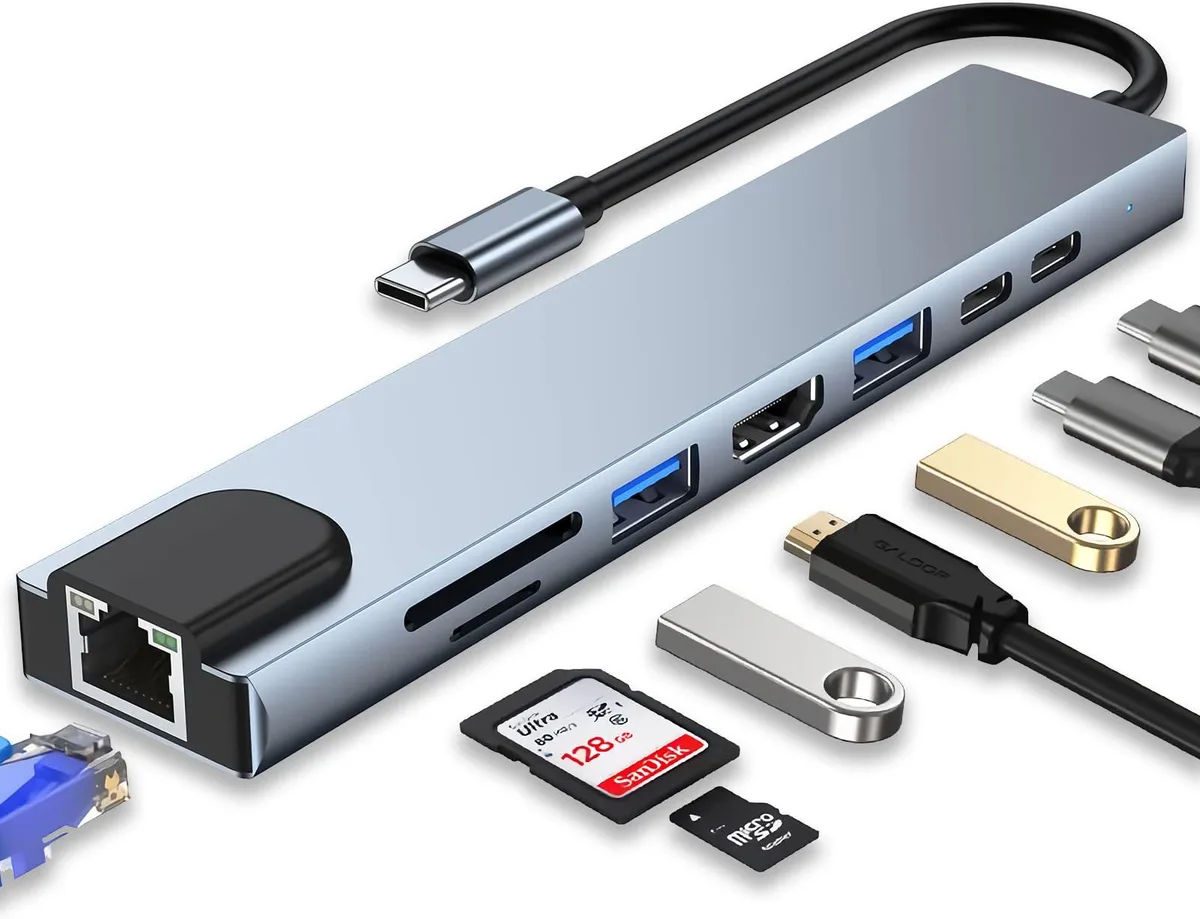
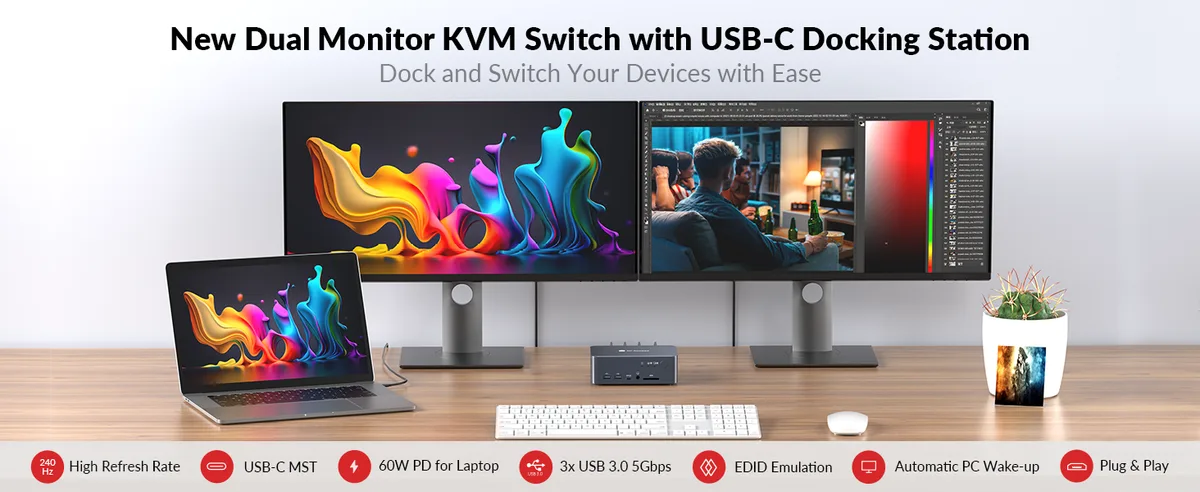
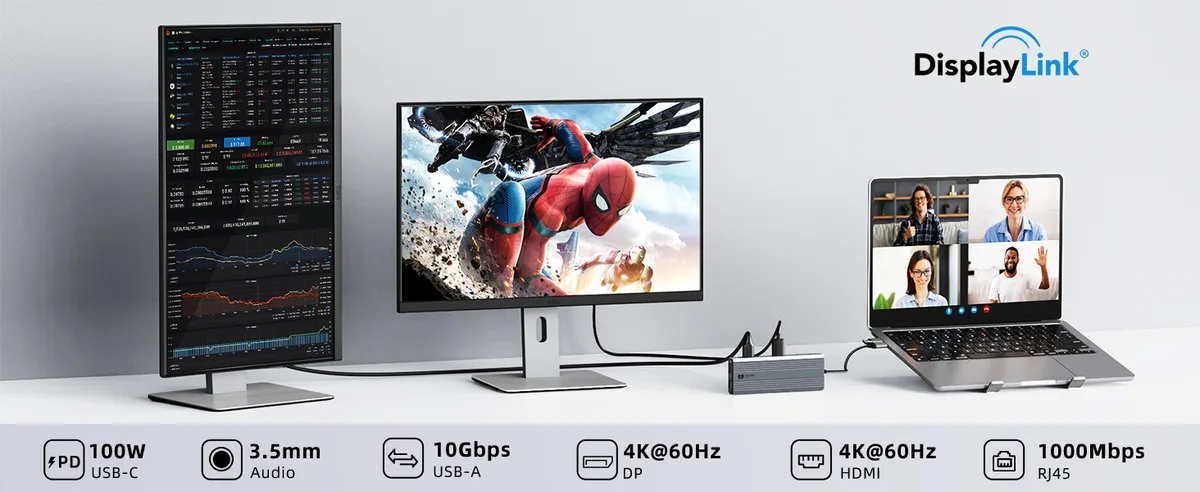
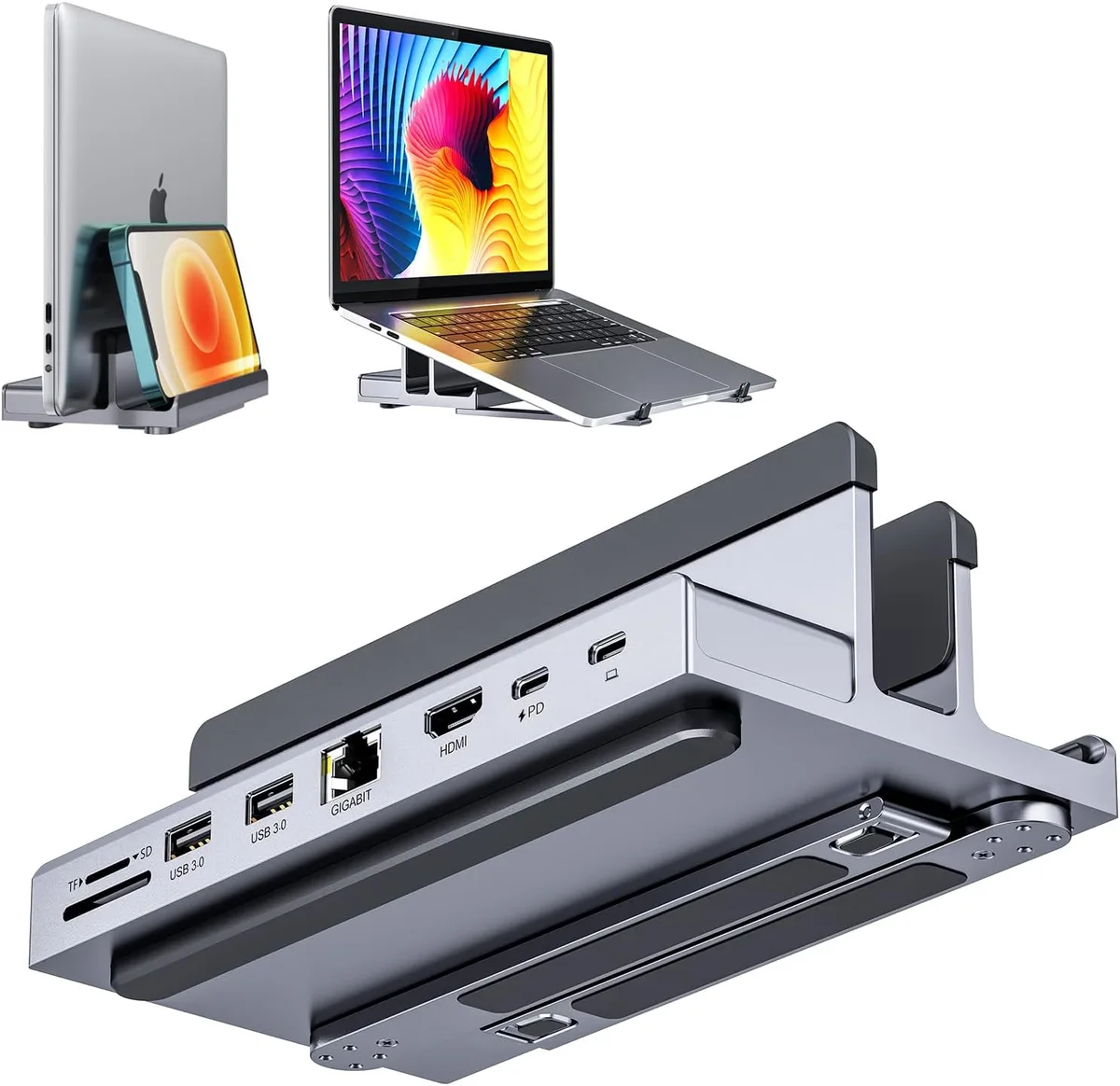
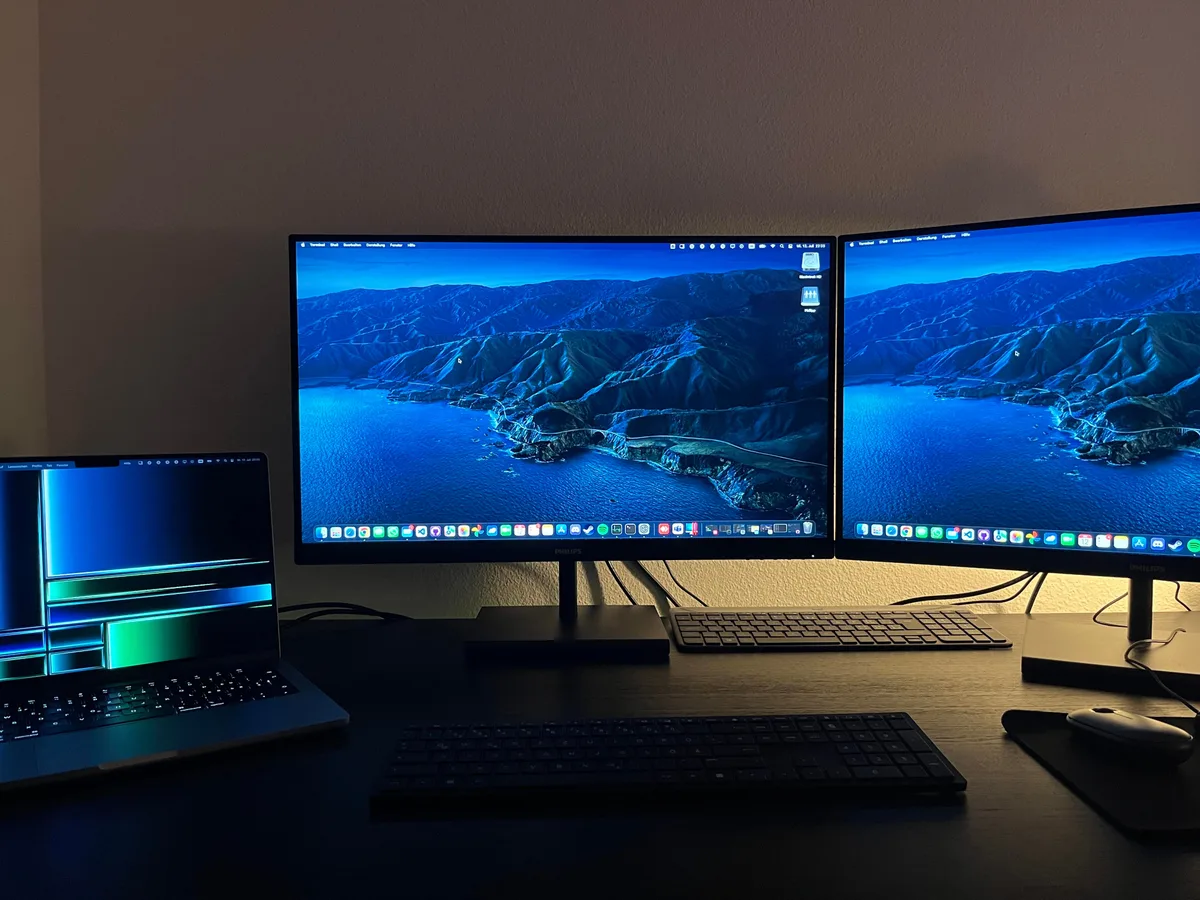
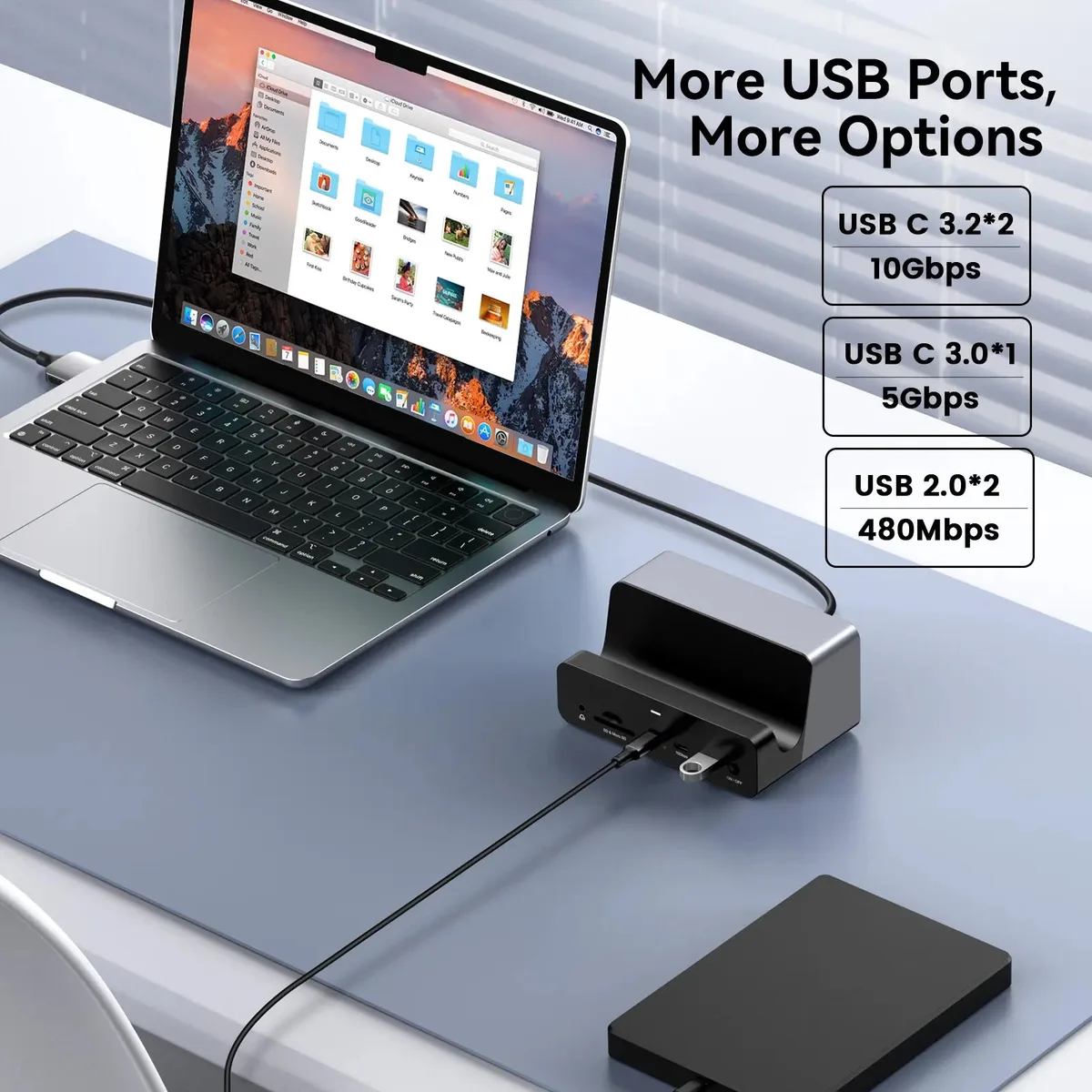
Docking stations are designed to be the central hub for your workspace, connecting your laptop to monitors, keyboards, mice, external drives, and more, all through a single cable. Traditionally, they’ve relied on their own power supplies to run all these peripherals and, importantly, to charge your laptop. With the advent of USB PD 3.1 and its higher wattage capabilities, next-gen docking stations are evolving significantly.
These newer docking stations can leverage the 140W and 240W EPR profiles to not only power multiple demanding peripherals but also to charge your laptop at speeds comparable to its native charger, or even faster. This consolidates your power needs into one sleek unit, freeing up wall outlets and reducing clutter. If you’re looking to simplify your setup while maintaining high performance, a docking station with robust USB PD 3.1 support is key.
Key Features: 140W Power Delivery
The 140W power delivery capability, enabled by USB PD 3.1 EPR, represents a substantial upgrade over previous standards. This wattage is achieved by utilizing new voltage profiles up to 28V, specifically capable of delivering 28V at 5A. This combination allows a single USB-C connection to reliably power a wide range of high-performance laptops, including many mobile workstations and some gaming laptops, without needing their original dedicated power adapters.
When looking at docking stations, 140W means you can typically expect your laptop to charge at full speed while it's also connected to external displays and other accessories. For example, aggregate user feedback suggests that most modern ultrabooks and performance-oriented laptops will charge fully within 1.5 to 2 hours using a 140W PD source when under moderate load. It’s a sweet spot that balances significant power with widespread compatibility for many high-end consumer and professional machines.
Key Features: 240W Power Delivery
Pushing the boundaries even further, 240W power delivery via USB PD 3.1 EPR is the current peak for this standard. This higher wattage is enabled by additional voltage profiles, reaching up to 36V at 5A, or other combinations that sum to 240W. This level of power is designed for the most demanding devices on the market, such as high-end desktop replacement laptops, professional workstations, and even some gaming PCs that have compact form factors.
A docking station offering 240W charging means it can confidently power nearly any portable computer, regardless of its power requirements. Manufacturer specifications often highlight that this wattage can fully charge even the most power-hungry laptops in under an hour, even while simultaneously powering multiple 4K monitors and other high-draw peripherals. This makes a 240W docking station a true, single-cable desktop replacement for even the most demanding professional workflows.
Who Needs 140W? Use Cases and Devices
If your daily driver is a high-performance laptop, think a mobile workstation for video editing, a robust machine for CAD software, or a powerful laptop for software development, then 140W Power Delivery is likely what you need. Aggregate reviews indicate that many professional-grade laptops, which often come with 130W to 150W original chargers, can be fully supported by a 140W USB PD connection. This wattage allows your device to charge at its maximum intended speed even when it's actively working hard.
For instance, connecting a laptop that requires 135W to a 140W docking station means you won't experience the frustrating scenario where your battery drains slowly even while plugged in, a common issue with lower-wattage chargers. It’s also ideal for users who frequently connect and disconnect their laptops, wanting a seamless transition to a fully powered workstation with just one cable. This is particularly relevant for hybrid workers who need a powerful setup at home and a capable machine on the go.
Who Needs 240W? Powering Demanding Setups
If you're pushing the limits with your computing needs, think demanding 3D rendering, complex simulations, or high-end video editing on a desktop-replacement laptop, then 240W Power Delivery is likely your target. This wattage is designed for the absolute power-hungry machines, those that often come with two separate power bricks or an exceptionally large single one. Aggregate manufacturer data indicates that certain professional workstations and high-performance gaming laptops can draw upwards of 200W under peak load.
A docking station offering 240W means you can confidently power these devices at their full potential. It eliminates the need for proprietary chargers and ensures your system won't throttle performance due to insufficient power. As of 2026, devices capable of utilizing the full 240W are becoming more common in professional and enthusiast markets, making this a forward-looking specification for anyone with cutting-edge hardware.
Docking Station Power: Is 140W Enough or Do You Need 240W?
Deciding between 140W and 240W for your docking station comes down to the specific power demands of your primary connected device, usually your laptop. If your laptop's original power adapter is rated at 130W, 135W, or even 140W, then a 140W PD docking station will likely be sufficient to charge it at its maximum rate while powering peripherals. Our research shows this covers most premium ultrabooks and many mainstream performance laptops.
However, if your device is a high-end mobile workstation or a gaming laptop with a 180W, 230W, or 240W power brick, you absolutely need a 240W PD docking station to match its needs. Connecting such a device to a 140W dock could result in slower charging, or worse, the laptop battery draining even while plugged in if the workload is heavy. It’s a straightforward if/then scenario: match the dock’s output to your device’s input requirement.
Critical Cables: Why Your USB-C Cable Matters
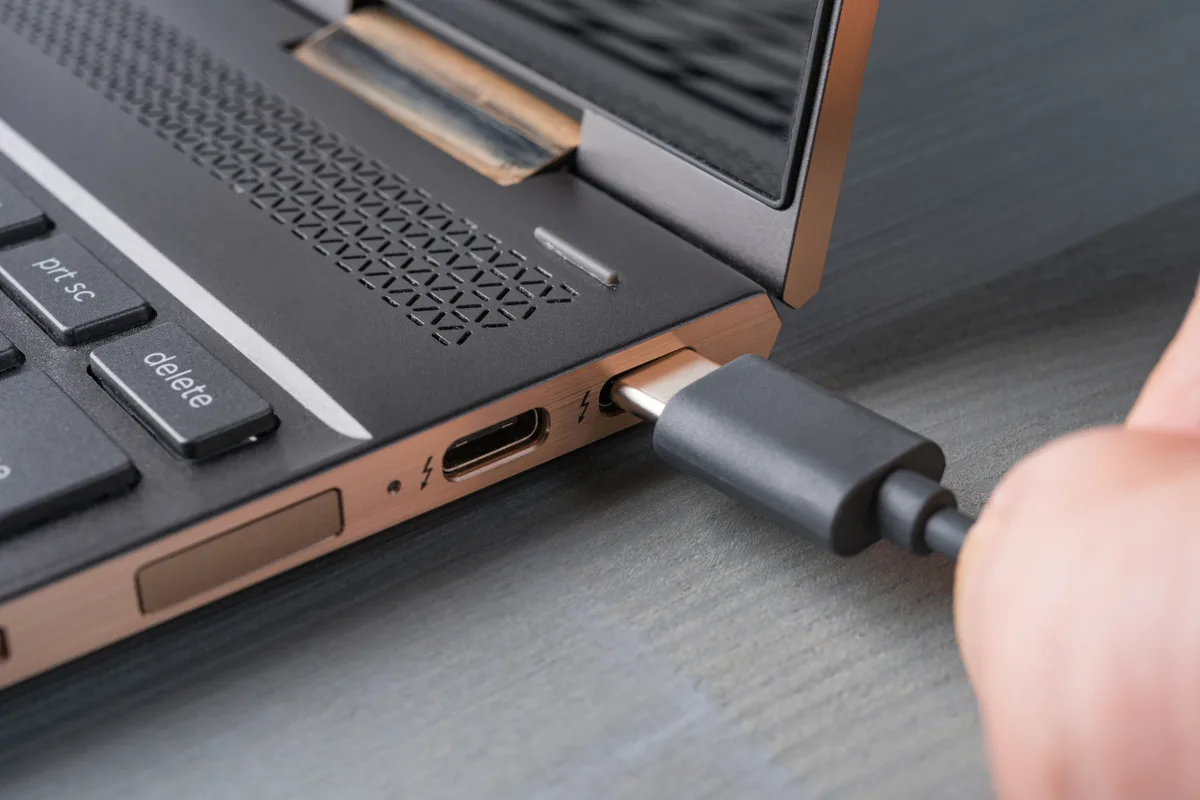
You can't talk about high-wattage USB Power Delivery without talking about the cable. Not all USB-C cables are created equal, especially when dealing with 140W or 240W. Older or standard USB-C cables might only be rated for 60W or 100W.
Using one of these with a 140W or 240W charging source and a high-power device can be ineffective at best, and potentially dangerous at worst.
The USB-IF has specific standards for these high-power cables, often called "EPR cables" or "140W/240W cables." These cables contain special authentication chips and thicker conductors to safely handle the increased power. When purchasing a docking station or charger that supports 140W or 240W, always ensure you have a compatible cable. Look for markings on the cable or packaging that explicitly state support for 140W or 240W USB PD, or the USB-IF's "100W" or "240W" logos.
Manufacturer specifications will detail these requirements.
Common Mistakes When Choosing or Using High-Wattage Docking Stations
One of the most common errors people make is assuming any USB-C port on their laptop can handle the full power from a high-wattage docking station. This isn't always true. While USB PD 3.1 allows for up to 240W, your laptop itself must also support receiving that level of power through its USB-C port.
If a laptop only supports up to 100W PD, it won't magically accept 140W or 240W, even if the dock can provide it. Always check your laptop’s specifications for its maximum USB-C PD input.
Another frequent mistake is skimping on the USB-C cable. As mentioned, using an underrated cable with a high-power dock is a recipe for disappointment or worse. Verified buyer feedback often points to users who experience slow charging or faulty connections because they overlooked the cable's rating.
Always pair a 140W or 240W docking station with a certified 140W or 240W USB-C cable. This simple step ensures optimal performance and safety.
Expert Tips for Maximizing Your Docking Station Power
To truly get the most out of your high-wattage docking station, treat it as the central nervous system of your workspace. Ensure your laptop’s operating system and firmware are up to date, as manufacturers often release updates that improve power management and USB PD compatibility. For example, our research indicates that some laptop manufacturers, like HP, release BIOS updates that can enhance how their devices communicate with external power sources; you can find guides on how to factory reset an HP laptop which sometimes includes firmware checks.
Consider your peripheral power draws. While a 240W dock can power your laptop and multiple devices, be mindful of the total power budget. If you connect a high-power external monitor that draws significant wattage, plus several USB-powered hard drives, you might be approaching the dock's limit.
It's good practice to know the approximate power needs of your connected devices. This foresight prevents the frustration of insufficient power for your essential peripherals.
Docking Station Power: Is 140W Enough or Do You Need 240W?
Deciding between 140W and 240W for your docking station comes down to the specific power demands of your primary connected device, usually your laptop. If your laptop's original power adapter is rated at 130W, 135W, or even 140W, then a 140W PD docking station will likely be sufficient to charge it at its maximum rate while powering peripherals. Our research shows this covers most premium ultrabooks and many mainstream performance laptops.
However, if your device is a high-end mobile workstation or a gaming laptop with a 180W, 230W, or 240W power brick, you absolutely need a 240W PD docking station to match its needs. Connecting such a device to a 140W dock could result in slower charging, or worse, the laptop battery draining even while plugged in if the workload is heavy. It’s a straightforward if/then scenario: match the dock’s output to your device’s input requirement.
Critical Cables: Why Your USB-C Cable Matters
You can't talk about high-wattage USB Power Delivery without talking about the cable. Not all USB-C cables are created equal, especially when dealing with 140W or 240W. Older or standard USB-C cables might only be rated for 60W or 100W.
Using one of these with a 140W or 240W charging source and a high-power device can be ineffective at best, and potentially dangerous at worst.
The USB-IF has specific standards for these high-power cables, often called "EPR cables" or "140W/240W cables." These cables contain special authentication chips and thicker conductors to safely handle the increased power. When purchasing a docking station or charger that supports 140W or 240W, always ensure you have a compatible cable. Look for markings on the cable or packaging that explicitly state support for 140W or 240W USB PD, or the USB-IF's "100W" or "240W" logos.
Manufacturer specifications will detail these requirements.
Common Mistakes When Choosing or Using High-Wattage Docking Stations
One of the most common errors people make is assuming any USB-C port on their laptop can handle the full power from a high-wattage docking station. This isn't always true. While USB PD 3.1 allows for up to 240W, your laptop itself must also support receiving that level of power through its USB-C port.
If a laptop only supports up to 100W PD, it won't magically accept 140W or 240W, even if the dock can provide it. Always check your laptop’s specifications for its maximum USB-C PD input.
Another frequent mistake is skimping on the USB-C cable. As mentioned, using an underrated cable with a high-power dock is a recipe for disappointment or worse. Verified buyer feedback often points to users who experience slow charging or faulty connections because they overlooked the cable's rating.
Always pair a 140W or 240W docking station with a certified 140W or 240W USB-C cable. This simple step ensures optimal performance and safety.
Expert Tips for Maximizing Your Docking Station Power
To truly get the most out of your high-wattage docking station, treat it as the central nervous system of your workspace. Ensure your laptop’s operating system and firmware are up to date, as manufacturers often release updates that improve power management and USB PD compatibility. For example, our research indicates that some laptop manufacturers, like HP, release BIOS updates that can enhance how their devices communicate with external power sources; you can find guides on how to factory reset an HP laptop which sometimes includes firmware checks.
Consider your peripheral power draws. While a 240W dock can power your laptop and multiple devices, be mindful of the total power budget. If you connect a high-power external monitor that draws significant wattage, plus several USB-powered hard drives, you might be approaching the dock's limit.
It's good practice to know the approximate power needs of your connected devices. This foresight prevents the frustration of insufficient power for your essential peripherals.
Can I Hibernate My Laptop Through the Dock?
Yes, in many cases, you can initiate a hibernate command through a docked setup. Hibernation saves your current session to the hard drive and powers down the laptop completely, using almost no power. While the dock itself provides power, the hibernation command originates from the operating system, not directly from the power delivery system.
You can typically initiate hibernation using keyboard shortcuts, such as those designed for quick system control, potentially accessible via a USB keyboard connected to the dock. These shortcuts offer a fast way to save your work and shut down without needing to open your laptop lid.

Similar Posts