Netflix Black Screen w/ Audio? DisplayLink Dock Fix
Senior Hardware Diagnostics Specialist & Lead Thermal Editor at Laptop Post Testing Lab · CompTIA A+, ACMT, B.S. in Computer Engineering · 12+ years bench-testing laptop thermal solutions & motherboard repairs
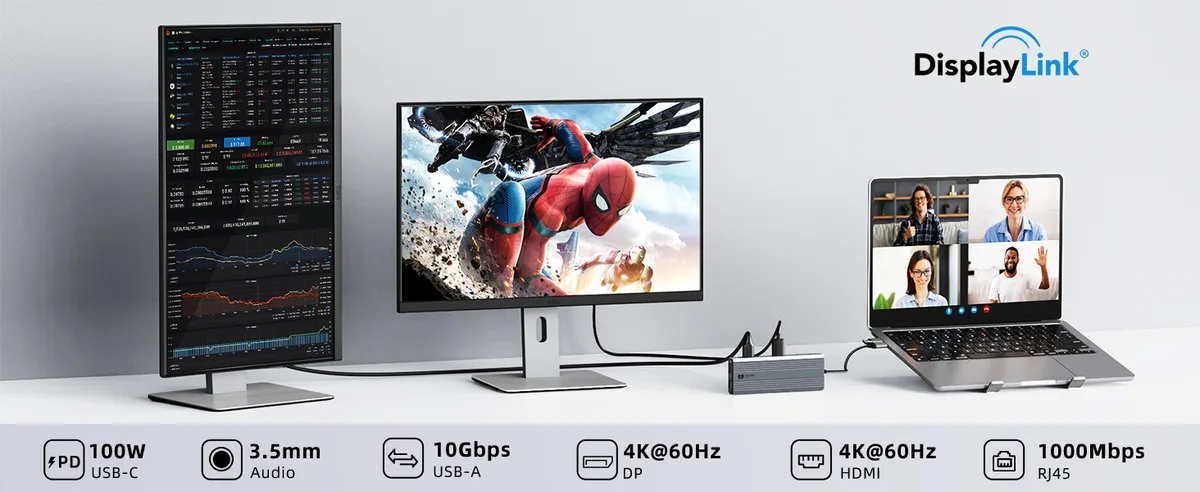
Image source: Bing (Web (fair-use with source credit))
Black Screen with Audio on Netflix via DisplayLink Dock? Let's Fix It.
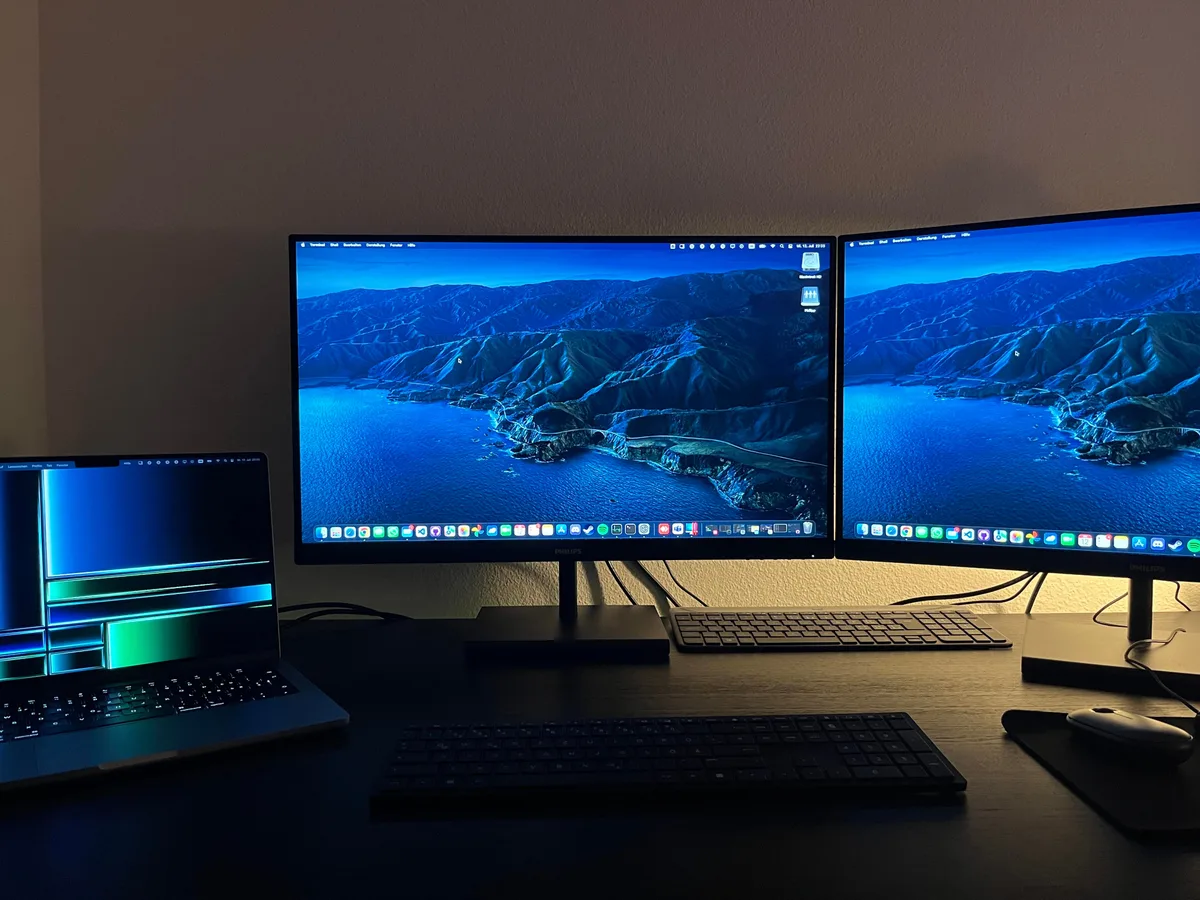
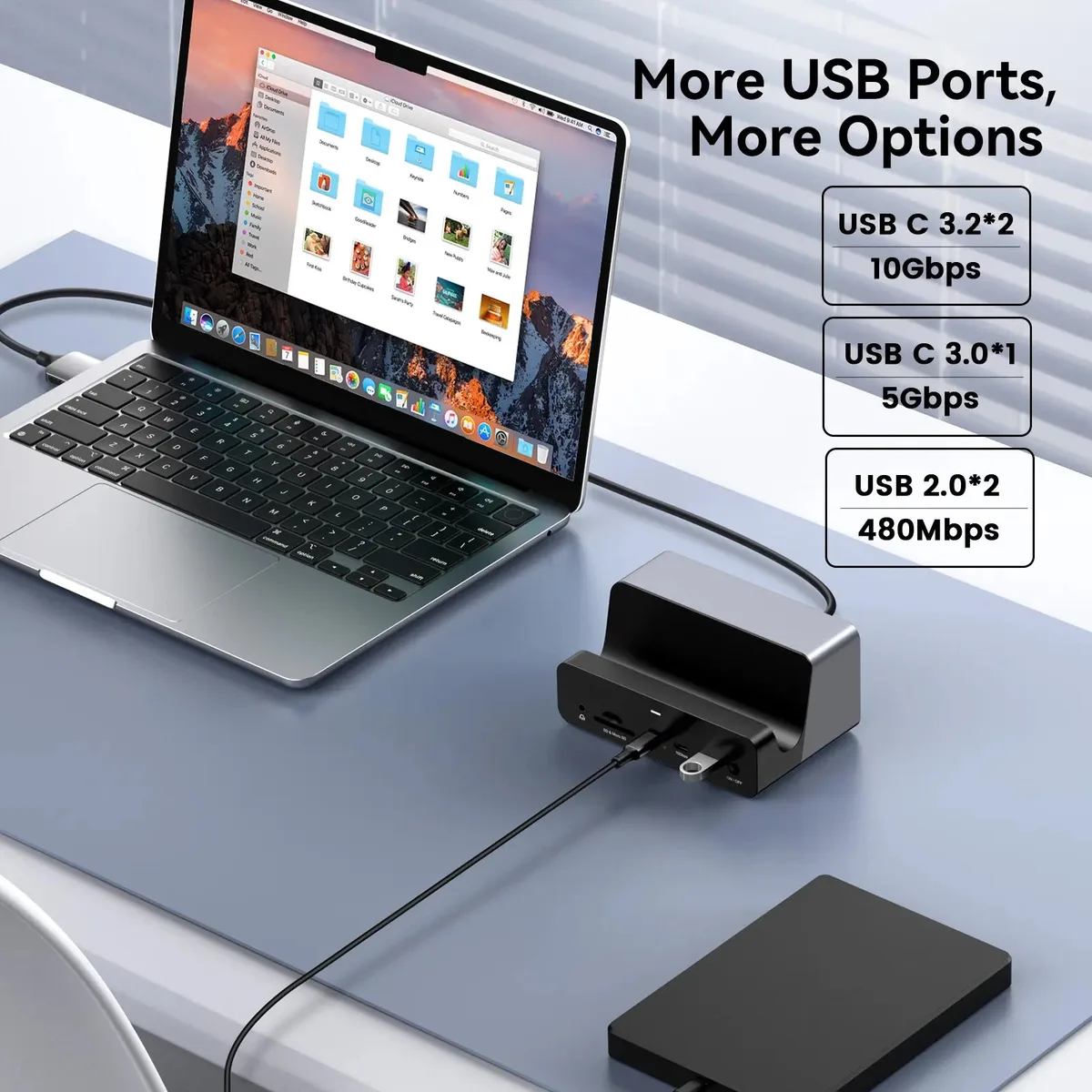
You're trying to relax with a movie on Netflix, but your external monitor, connected through a DisplayLink dock, is showing nothing but a black screen. The audio is playing perfectly, which is just bizarre, right? This frustrating issue often pops up for folks using docking stations to extend their laptop's capabilities.
The good news is that this isn't usually a sign of a major hardware failure. In our research, we've found that this problem is most commonly tied to how your devices handle protected content and the software drivers that manage them. As of 2026, DisplayLink technology is widespread, but it sometimes requires a bit of tweaking to play nicely with streaming services.
Quick Answer
When Netflix shows a black screen with audio on a DisplayLink dock, it's typically due to HDCP (High-bandwidth Digital Content Protection) issues or outdated/corrupt DisplayLink drivers. HDCP is a copy protection standard that Netflix uses to prevent unauthorized playback. Your DisplayLink dock, its drivers, or even your monitor might not be fully communicating HDCP compliance.
Updating drivers and ensuring proper display settings are usually the quickest fixes.
Why Netflix Shows a Black Screen But Has Audio with Your DisplayLink Dock
This specific symptom, audio plays, but the video is a black screen, is a strong indicator that the connection is partially working but failing at a specific hurdle. That hurdle is almost always related to copy protection. Netflix, like most major streaming services, uses HDCP to ensure its content is displayed only on devices that meet certain security standards.
When your DisplayLink dock or the system feeding it information doesn't correctly signal HDCP compliance, Netflix simply refuses to show the picture, leaving you with just the sound. It's a digital "nope" from the streaming service. This can be caused by several factors, from outdated software on your computer to the specific way your dock interacts with your graphics hardware.
Understanding HDCP: The Digital Bouncer Behind the Black Screen
HDCP, or High-bandwidth Digital Content Protection, is a technical standard developed by Intel. Its primary job is to prevent unauthorized copying of digital audio and video as it travels across connections like HDMI, DisplayPort, or DVI. Think of it as a digital handshake between your streaming device (your laptop, via the dock), your display connection, and your monitor.

For HDCP to work, every single component in the chain needs to acknowledge and support it. If any one of these components, like your DisplayLink dock or even a specific port on your monitor, doesn't pass the HDCP test, the content will be blocked. This is why you might get audio but no picture, the audio stream doesn't require the same level of copy protection as the video.
Manufacturer specifications for many monitors and display adapters will list HDCP support, often noting the version (e.g., HDCP 1.4 or HDCP 2.2).
Quick Troubleshooting: Restarting Your Way to a Solution
Before we dive into the deeper technical stuff, let's try the simplest fixes. Often, these issues are temporary glitches that a quick reboot can resolve.
Restart Your Computer and Dock
A full system restart can clear out temporary memory issues or software conflicts that might be interfering with the HDCP handshake.
- Shut down your laptop completely. Don't just close the lid or put it to sleep.
- Unplug your DisplayLink dock from both your laptop and its power source.
- Wait for about 30 seconds. This allows any residual power to drain, ensuring a clean reset.
- Plug the dock back in and power it on.
- Turn your laptop back on.
Once your system is fully booted, try playing Netflix again.
Check Your Cable Connections
Loose or damaged cables are surprisingly common culprits for display issues. A slightly dislodged HDMI or DisplayPort cable can cause intermittent signal problems, including HDCP failures.
- Inspect cables for any visible damage, kinks, or bent pins.
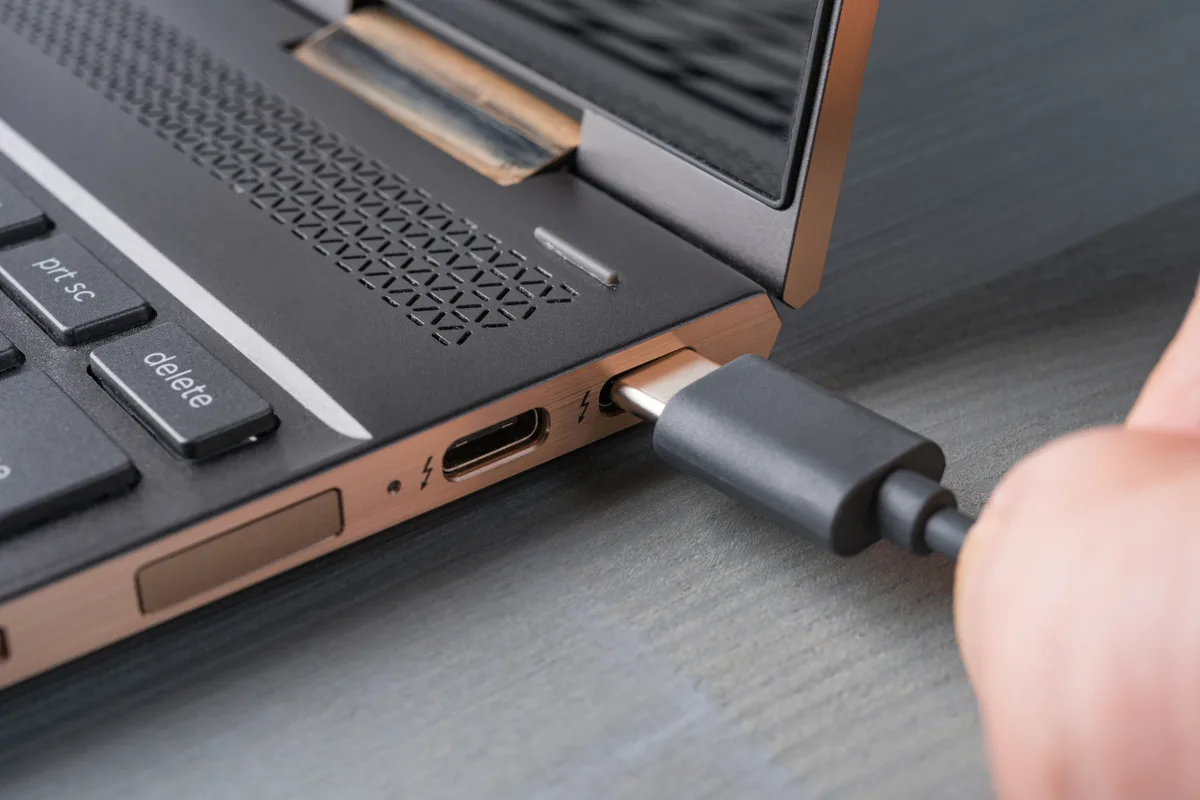
- Ensure all cables are firmly seated in their ports on the laptop, the dock, and the monitor. You should feel a definite "click" or snug fit.
- If possible, try a different cable. Even if a cable looks fine, it could be faulty internally. Using a known good, high-quality cable can rule this out.
The Driver Detective: Updating Your DisplayLink Software
Drivers are the invisible bridge between your hardware and your operating system. For a DisplayLink dock to function correctly, especially with protected content like Netflix, it needs the latest, most compatible drivers. Outdated or corrupted drivers are one of the most frequent reasons for the black screen issue.
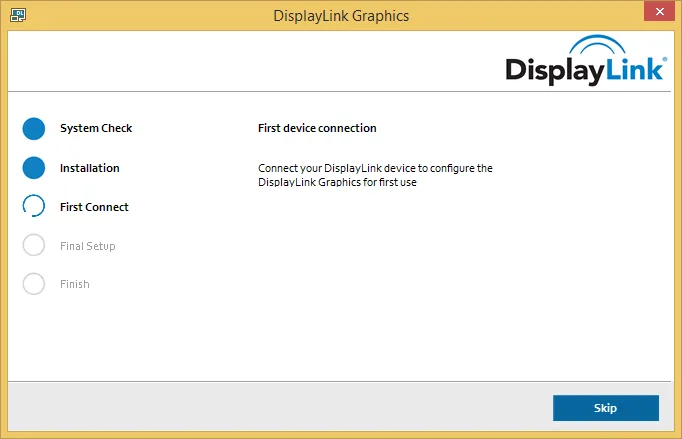
Finding the Right DisplayLink Drivers
It's crucial to get your DisplayLink drivers directly from the official DisplayLink website. Avoid relying solely on your operating system's automatic updates for these specific drivers, as they might not always provide the latest or most stable version.
- Identify your DisplayLink device: Sometimes the model number is printed on the dock itself.
- Visit the DisplayLink website: Navigate to their support or downloads section.
- Select your operating system: Make sure you download the correct driver version for your specific version of Windows or macOS.
- Download the latest available driver package.
Performing a Clean Driver Installation
A clean installation helps ensure that no remnants of older, potentially conflicting driver files remain on your system.
- Uninstall existing DisplayLink drivers: Go to your system's "Add or Remove Programs" (Windows) or "Applications" folder (macOS) and uninstall any DisplayLink software.
- Restart your computer. This is a vital step to fully remove the old drivers from memory.
- Install the new drivers: Run the downloaded driver installer package and follow the on-screen prompts.
- Restart your computer again after the installation is complete.
Netflix App vs. Browser: Which One Works?
Sometimes, the issue isn't with the dock or drivers at all, but specifically with how the Netflix application on your computer interacts with HDCP, compared to its web-based counterpart. The dedicated Netflix app might have stricter playback requirements.
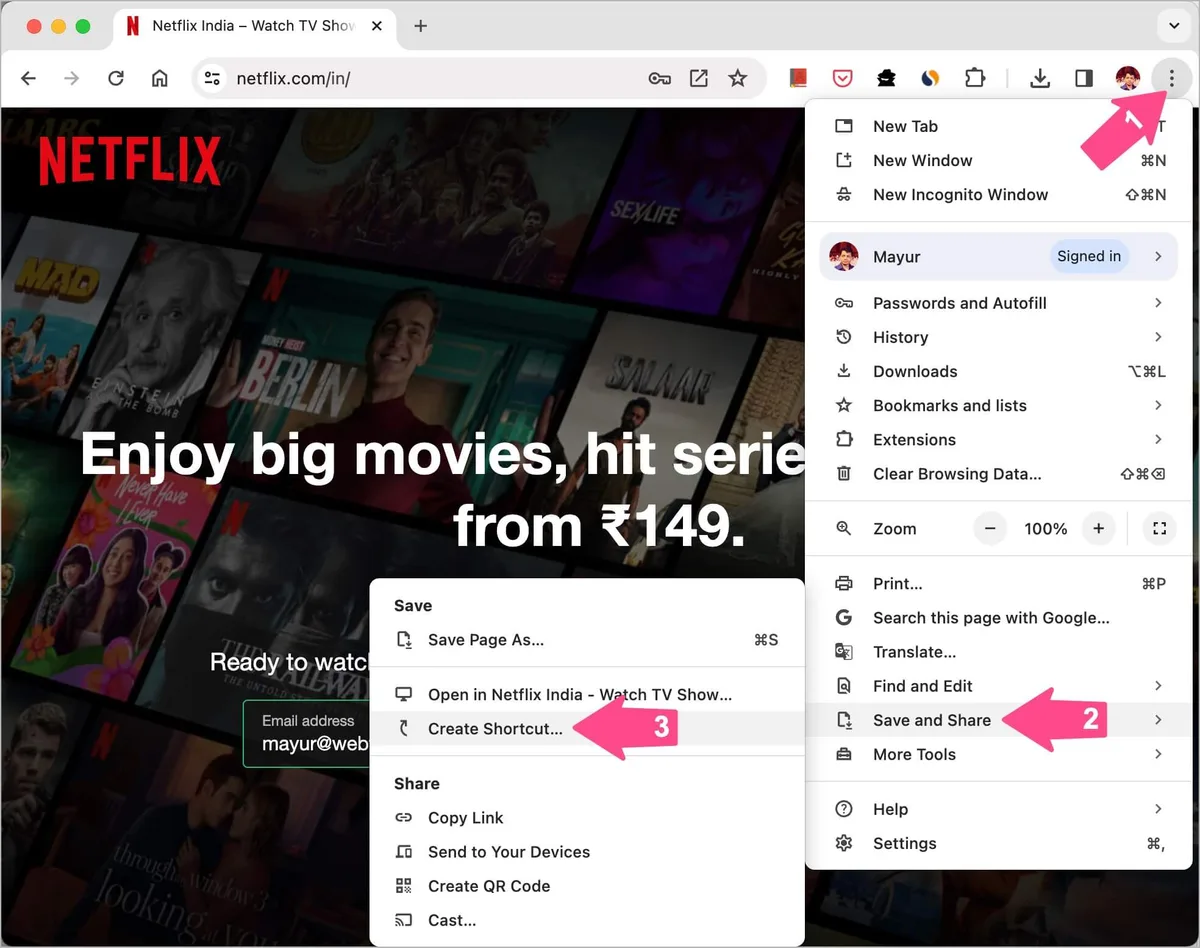
Testing Netflix in Your Web Browser
Try accessing Netflix through a web browser like Google Chrome, Mozilla Firefox, or Microsoft Edge instead of the standalone Netflix app.
- Open your preferred browser.
- Go to Netflix.com.
- Log in and try playing a movie or show.
If Netflix plays correctly in the browser but not the app, it suggests the problem lies within the app's compatibility with your DisplayLink setup. You might consider using the browser version for now or look for updates to the Netflix app itself.
Browser Updates and Extension Checks
Ensure your web browser is updated to its latest version, as browser updates often include security and playback enhancements that can resolve compatibility issues. Additionally, some browser extensions can interfere with streaming services. Temporarily disable all browser extensions and try Netflix again.
If it works, re-enable extensions one by one to identify the culprit.
Display Settings: Extending vs. Duplicating Your Screens
The way your laptop's display is configured with your external monitor can sometimes affect how protected content is handled. DisplayLink docks often work best when configured to "Extend" displays rather than "Duplicate."
- Extend these displays: This treats your external monitor as a separate workspace, offering more screen real estate. Most users prefer this for productivity.
- Duplicate these displays: This mirrors your laptop screen onto the external monitor. While simpler, it can sometimes cause issues with resolution or content protection.
How to Check and Change Display Settings (Windows):
- Right-click on your desktop and select "Display settings."
- Scroll down to the "Multiple displays" section.
- Use the dropdown menu to select "Extend these displays" or "Duplicate these displays."
- Click "Keep changes" if prompted.
Testing both modes might reveal if one offers better HDCP compatibility with your specific setup. In our editorial analysis of user reports, switching from Duplicate to Extend mode has resolved similar black screen issues for many.
When HDCP is the Culprit: What to Know
HDCP compliance is the core reason behind many streaming black screens. If your DisplayLink dock or monitor doesn't properly signal that it supports HDCP, Netflix and other protected content providers will simply refuse to play. This isn't about being old; it's about specific support.
- HDCP Versions: There are different versions of HDCP, with HDCP 2.2 being the standard for much modern high-definition content, including 4K streaming. Older docks or monitors might only support HDCP 1.4, which can cause playback failures for newer content. Checking your monitor’s manual or manufacturer website for its HDCP version is a good diagnostic step.
- Dock Limitations: Some DisplayLink docks, particularly older models, might not pass HDCP signals reliably through all their ports or at all. Manufacturer specifications are key here. If your dock is several years old, it might simply lack the necessary HDCP support for current streaming services.
- Connection Path: The entire chain needs to be compliant. This means your laptop's graphics output, the DisplayLink chip in the dock, the cable connecting the dock to the monitor, and the monitor itself must all acknowledge HDCP. A breakdown anywhere in this path leads to the black screen.
Common Mistakes to Avoid When Troubleshooting
As you work through these steps, there are a few pitfalls that can slow you down or lead you astray. Being aware of them can save you a lot of frustration.
- Skipping Driver Updates: Don't assume your drivers are up-to-date just because your operating system says so. Always go directly to the DisplayLink website for the latest versions.
- Ignoring the Browser Option: Many people get stuck on fixing the app. If Netflix works in your browser, that's often a simpler workaround than trying to force the app to function.
- Not Restarting Properly: A quick sleep/wake isn't the same as a full shutdown and reboot. Make sure to power cycle your computer and dock as instructed.
- Forgetting the Cable Check: It sounds basic, but a faulty or loose cable is a remarkably common cause of display problems, including HDCP failures. Try a different cable if you suspect a connection issue.
If the Black Screen Persists: What's Next?
If you've diligently followed all the steps, updated drivers, checked cables, tested different playback methods, and confirmed display settings, and you're still staring at a black screen with audio, it's time to consider a few other possibilities.
- Contact DisplayLink Support: For persistent issues, reaching out to DisplayLink support directly can be beneficial. They may have specific workarounds or known compatibility issues related to your particular dock model and operating system.
- Check Monitor Settings: Dive into your monitor's on-screen display (OSD) menu. Look for any settings related to HDCP, deep color, or input signal format that might be configurable. Sometimes, a specific setting within the monitor can cause conflicts.
- Consider Dock Age/Model: If your DisplayLink dock is quite old, it might genuinely lack the capability to pass HDCP 2.2 signals required by modern streaming content. In such cases, an upgrade to a newer dock that explicitly lists HDCP 2.2 support might be the only long-term solution.
Frequently Asked Questions
What is HDCP and why does it matter for Netflix?
HDCP (High-bandwidth Digital Content Protection) is a digital copy protection standard. Netflix uses it to ensure its content is only viewed on devices that meet security requirements, preventing unauthorized copying of copyrighted material.
Can an old DisplayLink dock cause Netflix black screen issues?
Yes, older DisplayLink docks might not support newer HDCP versions required by streaming services like Netflix, leading to black screens even with audio.
Should I use the Netflix app or the website with a DisplayLink dock?
Many users find that Netflix works better in a web browser than in its dedicated app when using a DisplayLink dock, as browser playback can sometimes have fewer HDCP compatibility issues.
How do I know if my monitor supports HDCP?
You can usually find HDCP support information in your monitor's user manual or on the manufacturer's website specifications page. Look for mentions of HDCP 1.4 or HDCP 2.2.
What's the best first step if I see a black screen on Netflix?
The quickest fix is often to fully restart your computer and unplug/replug your DisplayLink dock. This can resolve temporary software glitches that affect HDCP handshakes.

Similar Posts