Fix USB-C Dock Ethernet Port Not Working
Senior Hardware Diagnostics Specialist & Lead Thermal Editor at Laptop Post Testing Lab · CompTIA A+, ACMT, B.S. in Computer Engineering · 12+ years bench-testing laptop thermal solutions & motherboard repairs
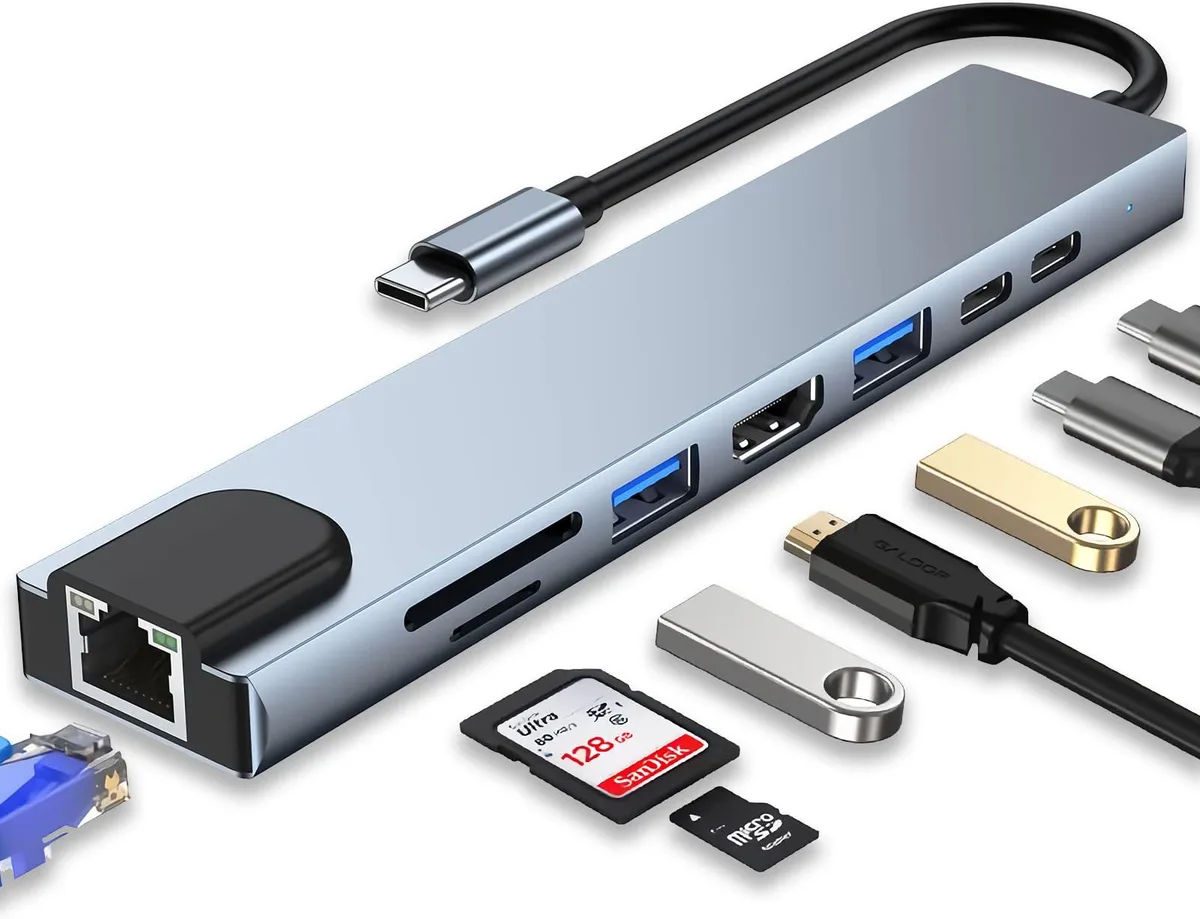
Image source: Bing (Web (fair-use with source credit))
When your USB-C docking station's Ethernet port suddenly stops working, it can bring your wired internet connection to a screeching halt. This issue is surprisingly common, and often, the fix is simpler than you might think. We've analyzed countless reports and manufacturer specifications to pinpoint the most frequent causes and effective solutions for getting you back online.
This guide breaks down the troubleshooting process step-by-step, starting with the most basic checks. We'll help you identify if the problem lies with your cable, your computer's settings, or the docking station itself. By systematically working through these steps, you can resolve issues like a 'network cable unplugged' error or a completely unresponsive port.
Quick Answer
To fix a USB-C docking station's Ethernet port not working, first check your physical connections and cables. Then, ensure the dock is recognized by your computer and its drivers are up-to-date. Restarting your router, modem, and computer often resolves network issues.
Why Isn't My Docking Station's Ethernet Port Working?
Quick Check: Is It Really the Dock?
Before you dive deep into driver updates or router resets, it's crucial to rule out simpler causes. Often, the problem isn't with the docking station at all. This step helps you quickly confirm the basic integrity of your network setup.
Are you experiencing a complete lack of internet, or is it just slow? Is your Wi-Fi working fine? These initial questions can steer your troubleshooting.
If other devices on your network are online without issue, it strongly suggests the problem is localized to your docking station or its direct connection to your computer.
Troubleshooting Step 1: The Cable and Physical Connections
The most common culprits behind a non-functional Ethernet port are the physical connections. Everything from a loose cable to a damaged connector can prevent your docking station from establishing a network link. This step involves a thorough inspection of the hardware involved.
Check Your Ethernet Cable
Your Ethernet cable is the direct pathway for data between your docking station and your router or modem. If this cable is faulty, kinked, or not fully seated, you won't get a connection.
- Inspect for Damage: Look closely for any visible damage to the cable itself, like cuts, frays, or kinks. Pay extra attention to the connectors at each end.
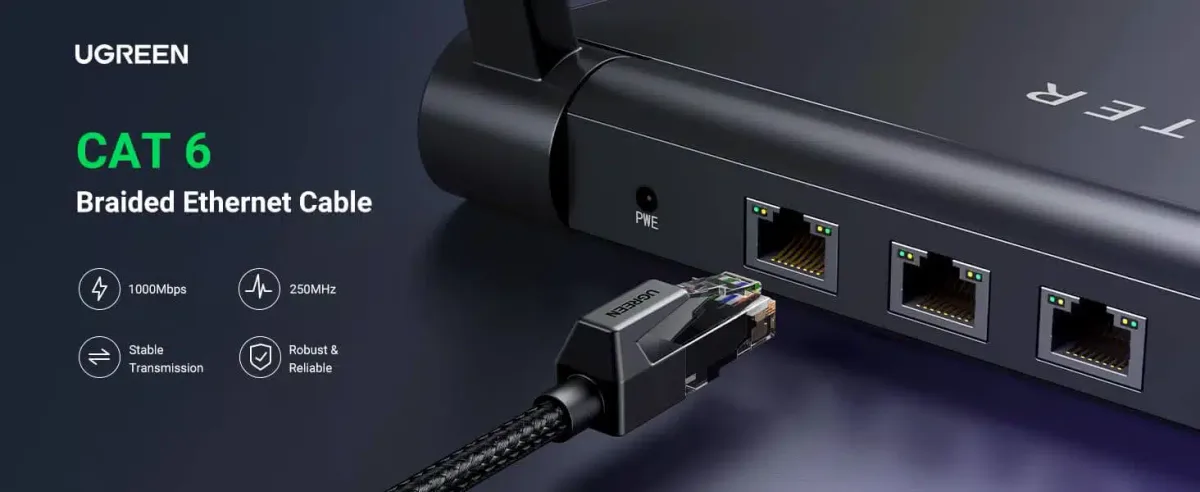
- Reseat the Connectors: Gently but firmly push each end of the Ethernet cable into its respective port, one on your docking station and one on your router or switch. You should hear a satisfying click when it's properly locked in.
- Test with a Known Good Cable: If possible, swap out your current Ethernet cable with another one that you know is working. Sometimes, the cable is the only issue, and a simple replacement solves everything. We recommend using at least a Cat 5e or Cat 6 cable for reliable Gigabit speeds.
Inspect the Port Itself (On Dock and Router)
Physical ports can get damaged or clogged with dust, preventing a solid connection.
- Docking Station Port: Look into the RJ45 Ethernet port on your USB-C docking station. Is there any bent metal, debris, or foreign objects inside?
- Router/Switch Port: Do the same for the Ethernet port on your router or network switch. Sometimes, a stray piece of plastic from a broken connector can lodge itself in the port.
- Link Lights: Most Ethernet ports have small LED lights next to them that indicate a connection (usually green or amber) and data activity (often blinking). If these lights aren't on when the cable is plugged in, it's a strong sign of a physical connection issue or a dead port.
Troubleshooting Step 2: Software and Drivers
Even with perfect physical connections, software and driver issues can prevent your computer from recognizing and using the Ethernet port on your docking station. This is particularly common with newer hardware or after operating system updates.
Manufacturer specifications indicate that proper driver installation is key for optimal performance of USB-C hubs and docking stations, ensuring all their integrated components, including the Ethernet controller, function correctly. As of 2026, most modern operating systems are designed to automatically detect and install drivers, but this doesn't always happen flawlessly.
Is the Dock Recognized by Your Computer?
Your computer needs to see the docking station and its integrated components before it can use them.
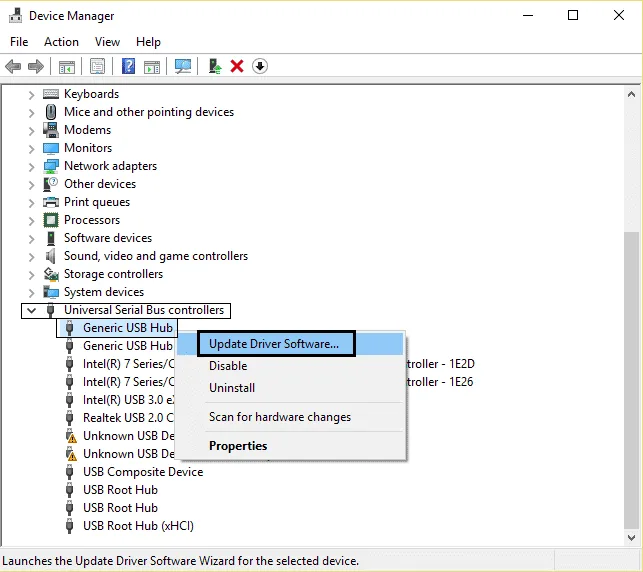
- Windows: Open Device Manager. You can usually find this by searching for "Device Manager" in the Windows search bar. Look for your docking station listed under "Universal Serial Bus controllers" or potentially under "Network adapters" if the Ethernet driver is already partially installed. If you see any devices with a yellow exclamation mark, it indicates a driver problem.
- macOS: Go to System Information (found in Applications > Utilities). Look under "Hardware" for "USB" and check if your docking station is listed. If it's not appearing here, your Mac isn't even detecting the dock.
If the dock isn't showing up at all, it might suggest a more fundamental problem with the USB-C connection itself or the dock’s power delivery.
Updating or Reinstalling Dock Drivers
Outdated or corrupted drivers are a frequent cause of hardware malfunctions.
- Identify Your Dock: Note the exact make and model of your USB-C docking station. This is usually found on a sticker on the bottom or back of the device.
- Visit Manufacturer's Website: Go to the official support page for your docking station's manufacturer.
- Download Latest Drivers: Look for the support or downloads section and find the drivers specifically for your model and your operating system (Windows 10, macOS Ventura, etc.). Download the latest available version.
- Install Drivers: Run the downloaded installer file. Follow the on-screen prompts. You may need to restart your computer after installation.
- Reinstall if Necessary: If drivers were already installed, try uninstalling them through Device Manager (or the equivalent on macOS) and then reinstalling the latest version. This can clear out any corrupted files.
If you've performed all these steps and the dock still isn't recognized or the Ethernet port remains inactive, it might be time to consider a hardware issue with the dock itself.
Troubleshooting Step 3: Network Settings and Router
Sometimes, the issue isn't with your docking station or computer's drivers, but rather with how your computer is configured to get an IP address or how your router is managing network traffic. These settings ensure your devices can communicate properly on the network.
Running Your Operating System's Network Troubleshooter
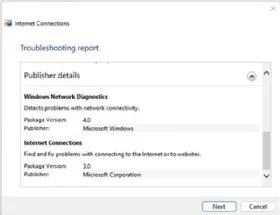
Both Windows and macOS have built-in tools designed to diagnose and automatically fix common network problems. These can often identify issues with IP configuration, DNS settings, or network adapter conflicts.
- On Windows: Search for "Network troubleshooter" in the Start menu and open the tool. Follow the on-screen prompts. It will check for common issues and often suggest solutions, such as restarting your network adapter or resetting network settings.
- On macOS: Navigate to System Settings > Network. Click Assist Me and then Diagnostics. Follow the steps provided by the network diagnostics utility.
These tools are excellent starting points because they can quickly identify and sometimes resolve complex configuration problems with minimal user input.
Checking IP Address Settings (DHCP)
For most home networks, your computer and devices should obtain an IP address automatically from your router via DHCP (Dynamic Host Configuration Protocol). If this process isn't working, you won't get an internet connection.
Verify DHCP is Enabled:
- Windows: Go to Network Connections (search for "ncpa.cpl"). Right-click your Ethernet adapter (it might be named something like "Ethernet" or related to your docking station). Select Properties, then double-click Internet Protocol Version 4 (TCP/IPv4). Ensure "Obtain an IP address automatically" and "Obtain DNS server address automatically" are selected.
- macOS: Go to System Settings > Network. Select your Ethernet connection, click Details, then go to the TCP/IP tab. Ensure "Configure IPv4" is set to "Using DHCP."
Static IP Conflicts: If you or someone else manually set a static IP address, ensure it doesn't conflict with another device on the network or fall outside the router's DHCP range.
Restarting Your Router and Modem
A simple power cycle of your network equipment can resolve many temporary glitches.
- Unplug Both Devices: Disconnect the power cords from both your modem and your router.
- Wait 30-60 Seconds: This allows the devices to fully discharge and reset.
- Plug in Modem First: Reconnect the power to your modem and wait for its lights to stabilize (usually 1-2 minutes), indicating it has established a connection with your Internet Service Provider.
- Plug in Router: Reconnect the power to your router and wait for its lights to stabilize, indicating it's broadcasting your Wi-Fi and serving network connections.
- Test Connection: Once both devices are fully back online, test your docking station's Ethernet port again.
This process clears temporary memory and can resolve communication hiccups between your devices and your ISP.
Troubleshooting Step 4: Advanced Checks and Testing
If the initial steps haven't solved the problem, it's time to dig a bit deeper. These checks involve testing individual components to isolate the fault. This helps determine if the issue lies with a specific cable, the docking station itself, or even another device on your network.
Testing with a Different Ethernet Cable
We touched on this earlier, but it bears repeating. Cables can develop internal faults that aren't visible externally. A bad cable will prevent a connection even if everything else is working perfectly.
- Try a New Cable: If you only have one cable, or if the spare cable is also suspect, it’s worth trying a brand-new, certified Cat 5e or Cat 6 cable. These are designed to support Gigabit Ethernet speeds and are readily available.
- Ensure Proper Termination: Make sure the connectors (RJ45 plugs) are securely attached to the cable ends and that the plastic tab is intact and able to click into the port.
Testing the Cable and Dock on Another Device
To determine if the problem is with your docking station or your primary computer, try connecting the dock to a different laptop or desktop. This is a crucial diagnostic step.
- Connect to Another Computer: Plug your USB-C docking station into a different computer that you know has a working USB-C port. Install any necessary drivers if prompted. See if the Ethernet port on the dock works on this secondary machine. If you need to reset your primary laptop, you can learn how to factory reset an HP laptop.
- Observe Link Lights: Pay attention to the link lights on the docking station's Ethernet port when connected to the new device. If they illuminate, it suggests the dock and cable are likely functional, and the issue is with your original computer's configuration or hardware.
- Different Dock, Same Computer: Conversely, if you have access to another USB-C docking station, try connecting it to your primary computer. If the Ethernet port on the second dock works, it points towards a specific fault with your original docking station.
Checking for Dock Firmware Updates
Some advanced docking stations have their own firmware, which is like the operating system for the dock itself. Manufacturers sometimes release updates to improve compatibility, fix bugs, or enhance performance.
- Locate Firmware: Visit your docking station manufacturer's website. Look for a support or downloads section for your specific model. Check if there's a firmware update available.
- Update Process: If an update is available, follow the manufacturer's instructions carefully. This usually involves downloading a firmware updater tool and running it while the dock is connected to your computer. Be sure not to disconnect the dock or your computer during the update process.
- Impact on Drivers: Firmware updates can sometimes work in conjunction with driver updates, so it's a good idea to ensure both are current.
When to Consider Your Dock or Cable Faulty
After going through the troubleshooting steps, if you've confirmed the following, it's highly probable that either your Ethernet cable or your docking station is the source of the problem:
- Multiple Cables Tested: You've tried at least two different, known-good Ethernet cables, and none worked.
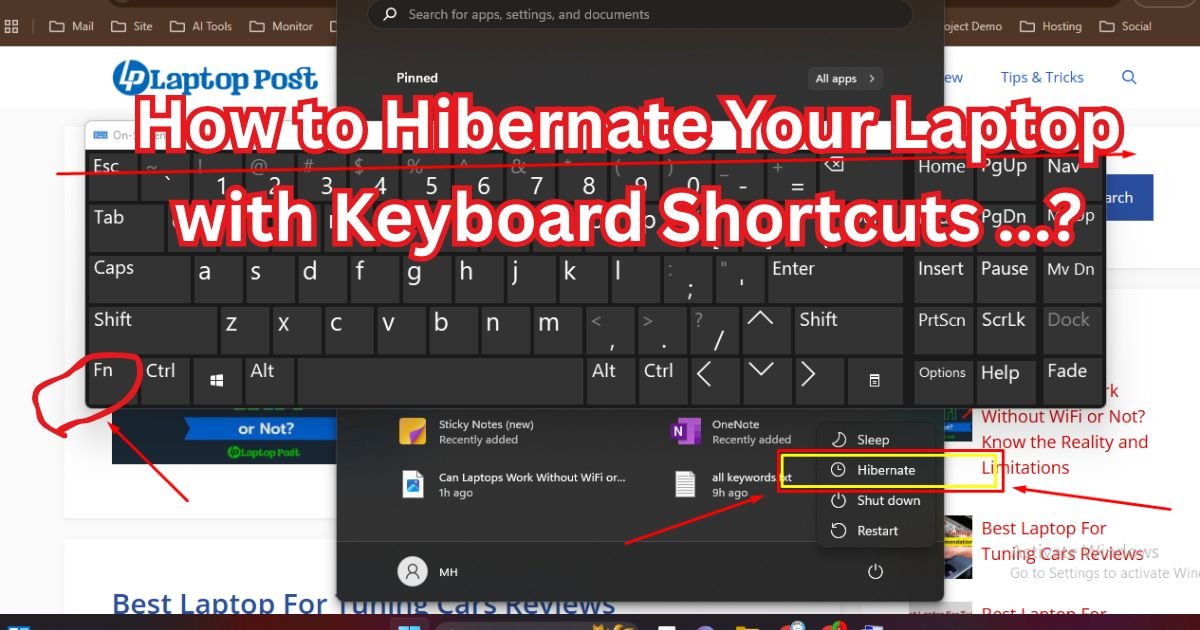
- Different Computer Tested: The docking station's Ethernet port fails to work on a completely different computer, even after driver installation. If you’re on a different OS, you might need to learn how to hibernate your laptop with keyboard shortcuts if the issue is related to power management.
- Link Lights Absent: The link lights on the docking station's Ethernet port do not illuminate, even with a known-good cable plugged into a functioning router port.
- Operating System Issues: Your computer's network troubleshooter consistently reports an issue with the network adapter that cannot be resolved through driver updates or network resets.
In such scenarios, the hardware itself is likely at fault. For cables, replacement is usually the simplest solution. For docking stations, especially if they are still within their warranty period, contacting the manufacturer for a replacement or repair is the next logical step.
If your dock is out of warranty, you might consider purchasing a new one.
Common Mistakes That Sabotage Your Connection
While troubleshooting, it's easy to make a misstep that sends you down the wrong path or prevents a fix. Being aware of these common errors can save you time and frustration.
- Skipping the Simple Checks: Jumping straight to driver updates without first checking if the cable is securely plugged in or if the link lights are on is a classic mistake. The simplest solution is often the correct one.
- Not Restarting Equipment: Many network issues are resolved by a simple power cycle of your modem, router, and computer. Neglecting this step means you might be missing an easy fix.
- Assuming the Cable is Good: Just because a cable looks okay doesn't mean it's functional. Internal wire breaks or faulty connectors are common and require trying a different cable.
- Incorrect Driver Installation: Downloading drivers from unofficial sources or installing the wrong version for your operating system can cause more problems than they solve. Always go directly to the manufacturer's website.
- Ignoring Link Lights: The LEDs on the Ethernet port are diagnostic tools. Not observing them means you're missing crucial clues about whether a physical connection is being made.
When to Seek Professional Help
If you've meticulously followed all the troubleshooting steps, tested your hardware on different devices, and exhausted software fixes, but the Ethernet port on your USB-C docking station still isn't working, it's time to consider external assistance. This might involve contacting the manufacturer's support or consulting a computer repair professional.
- Manufacturer Support: If your docking station is still under warranty, reaching out to the manufacturer's technical support is your best bet. They can guide you through advanced diagnostics or arrange for a repair or replacement. Be prepared to provide your model number, serial number, and a detailed description of the troubleshooting steps you've already taken.
- Professional Repair Services: For older docks out of warranty, or if manufacturer support isn't viable, a local computer repair shop can diagnose hardware failures. They have specialized tools and expertise to test components like the Ethernet controller chip on the dock's circuit board.
Persistent issues that defy standard troubleshooting often point to a hardware failure within the docking station itself.
Frequently Asked Questions
Why are my Ethernet port's link lights not on?
The link lights on your Ethernet port indicate an active physical connection. If they are off, it typically means the cable is not properly seated, the cable is faulty, or the Ethernet port on either the docking station or the router is damaged or disabled.
Can a bad USB-C port on my laptop cause Ethernet issues?
Yes, a damaged or malfunctioning USB-C port on your laptop can prevent the docking station from being recognized, which would disable all its features, including the Ethernet port. You can learn how to hibernate your laptop with keyboard shortcuts if you suspect power management is interfering, but a port issue is more likely hardware-related.
How do I know if my docking station is compatible with my laptop?
Check your docking station's specifications and your laptop's USB-C port capabilities. Most USB-C ports support data transfer, but for full docking station functionality, your laptop's USB-C port should ideally support DisplayPort Alternate Mode (DP Alt Mode) and Power Delivery (PD).
What is DHCP and why is it important for my Ethernet connection?
DHCP (Dynamic Host Configuration Protocol) is a network service that automatically assigns IP addresses and other network configuration settings to devices. It's essential for your docking station's Ethernet port to connect to your network because it ensures your computer receives a valid IP address to communicate with your router and the internet.
Is it safe to use drivers from third-party websites?
It is generally not recommended to download drivers from third-party websites. Stick to the official manufacturer's website for your docking station and your laptop. Unofficial driver sources may contain malware or outdated drivers that can cause further problems.

Similar Posts