CalDigit TS4 Dock Overheating? Causes & Fixes
Senior Hardware Diagnostics Specialist & Lead Thermal Editor at Laptop Post Testing Lab · CompTIA A+, ACMT, B.S. in Computer Engineering · 12+ years bench-testing laptop thermal solutions & motherboard repairs
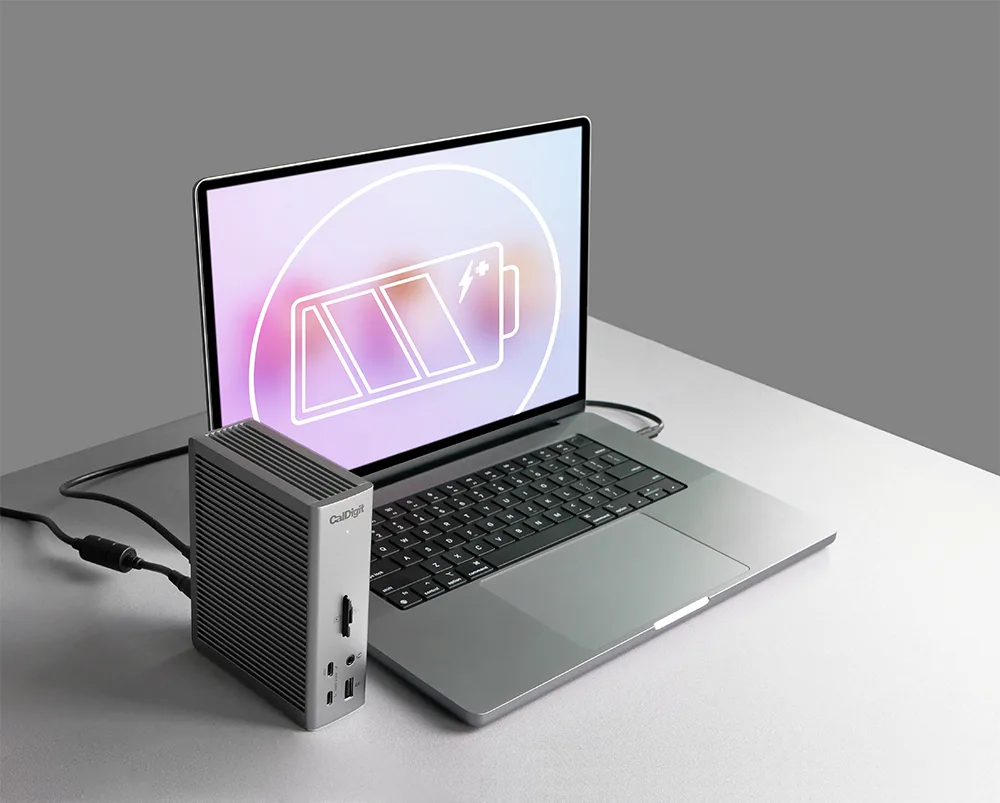
Image source: Bing (Web (fair-use with source credit))
Why Your CalDigit TS4 or Thunderbolt Dock Gets Hot to the Touch
When you reach for your CalDigit TS4 or another Thunderbolt dock and it feels unusually warm, it's natural to wonder what's going on. Docks are packed with technology designed to keep your workstation running smoothly, and some warmth is just a sign they're working hard. Understanding when that warmth is normal and when it might signal an issue is key to keeping your gear in top shape.
Per manufacturer specifications, these devices manage significant power and data throughput, and their internal components operate within specific thermal parameters. Understanding these thermal behaviors helps you maintain optimal performance and longevity for your valuable peripherals.
Quick Answer
Your CalDigit TS4 or Thunderbolt dock gets hot because its components process power and data. Heavy workloads, power delivery for charging laptops, and active signal management all generate heat. Ensure proper ventilation and check connected devices to prevent excessive warmth.
This heat is often normal operation, but extreme temperatures could indicate an issue needing attention.
Is Your Dock Just "Warm" or Actually "Hot"?
It's important to differentiate between normal operating temperature and concerning heat levels. A dock that feels warm to the touch after extended use, especially when it's charging your laptop and running multiple peripherals, is usually functioning as intended. This warmth is the byproduct of electrical components doing their job.
Think of it like your laptop itself; when it's performing demanding tasks, the chassis often becomes warm. For docks, this warmth is a sign that the power supply unit and data management chips are actively engaged.
Understanding Normal Heat vs. Concerning Heat
Normal warmth indicates that the dock's thermal management system is effectively dissipating heat generated by its internal circuitry. This typically occurs during periods of high activity. For instance, a dock providing 90W of power delivery to a laptop and simultaneously running multiple high-resolution displays can certainly feel warm.
However, "hot" suggests an issue. If the dock is too hot to comfortably touch for more than a few seconds, or if you notice a persistent burning smell, that's a strong signal to stop using it and investigate. This could point to a problem like poor ventilation or a failing component, which could potentially lead to performance degradation or damage.
As of 2026, manufacturer guidelines consistently advise users to ensure ample airflow around docking stations to prevent such scenarios.
The Science Behind the Warmth: What's Happening Inside?
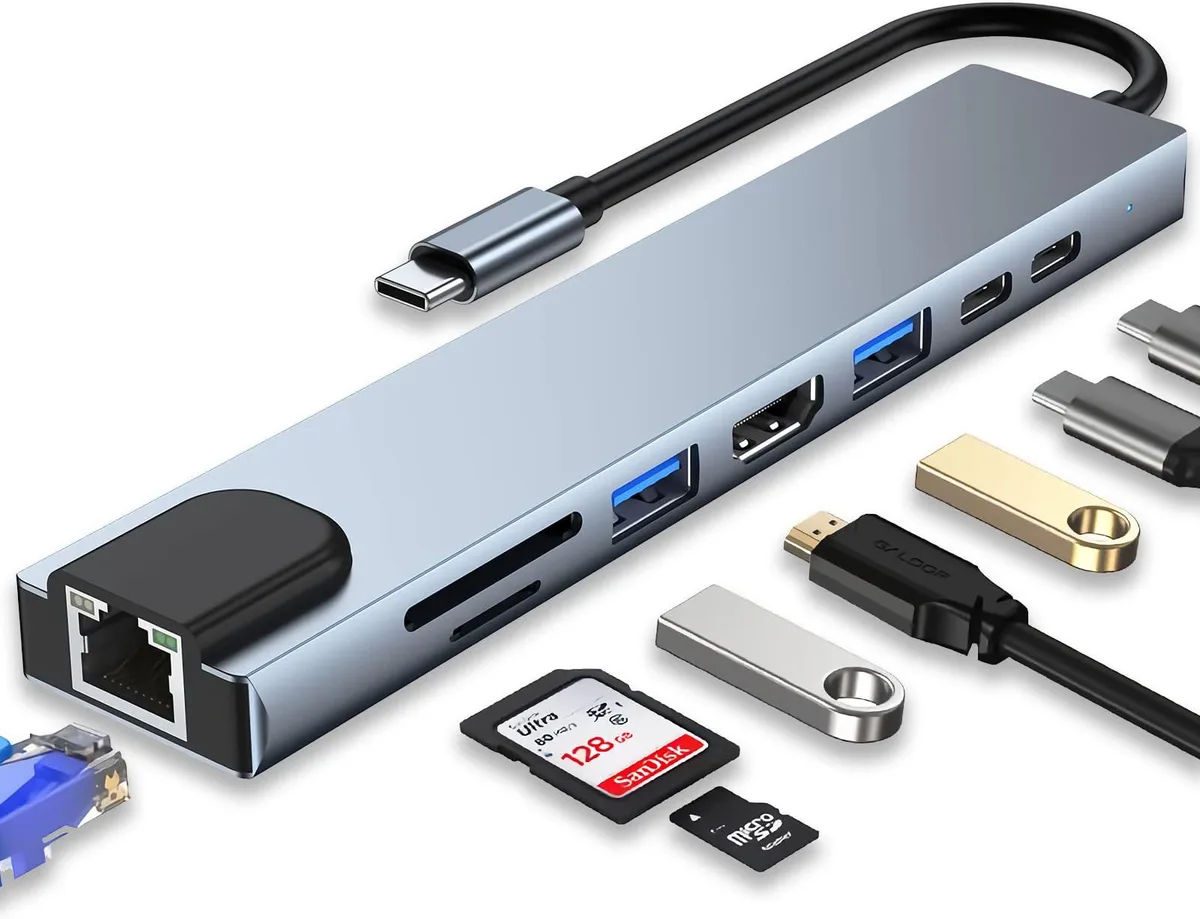
At its core, your Thunderbolt dock is a sophisticated piece of technology designed to expand the connectivity of your laptop. It acts as a central hub, managing a multitude of signals and power flows simultaneously. This constant activity is what generates heat.
How Thunderbolt Docks Work Under the Hood
Thunderbolt technology allows for incredibly high data transfer speeds and power delivery over a single cable. Your dock utilizes complex integrated circuits, or chips, to interpret and manage these signals. These chips, along with power regulation components, are the primary sources of heat generation.
When they are actively processing data for multiple devices, like external hard drives, displays, and network connections, they consume power and, in turn, produce heat.
The Role of Power Delivery and Data Processing
Power Delivery (PD) is a crucial feature of modern docks, enabling them to charge your laptop while also powering connected peripherals. This power conversion process is inherently inefficient; some energy is always lost as heat. The more power the dock is supplying to your laptop or other devices, the warmer it can become.
Similarly, high-speed data transfers, such as moving large video files or running multiple 4K displays, require significant processing power, which also contributes to heat buildup.
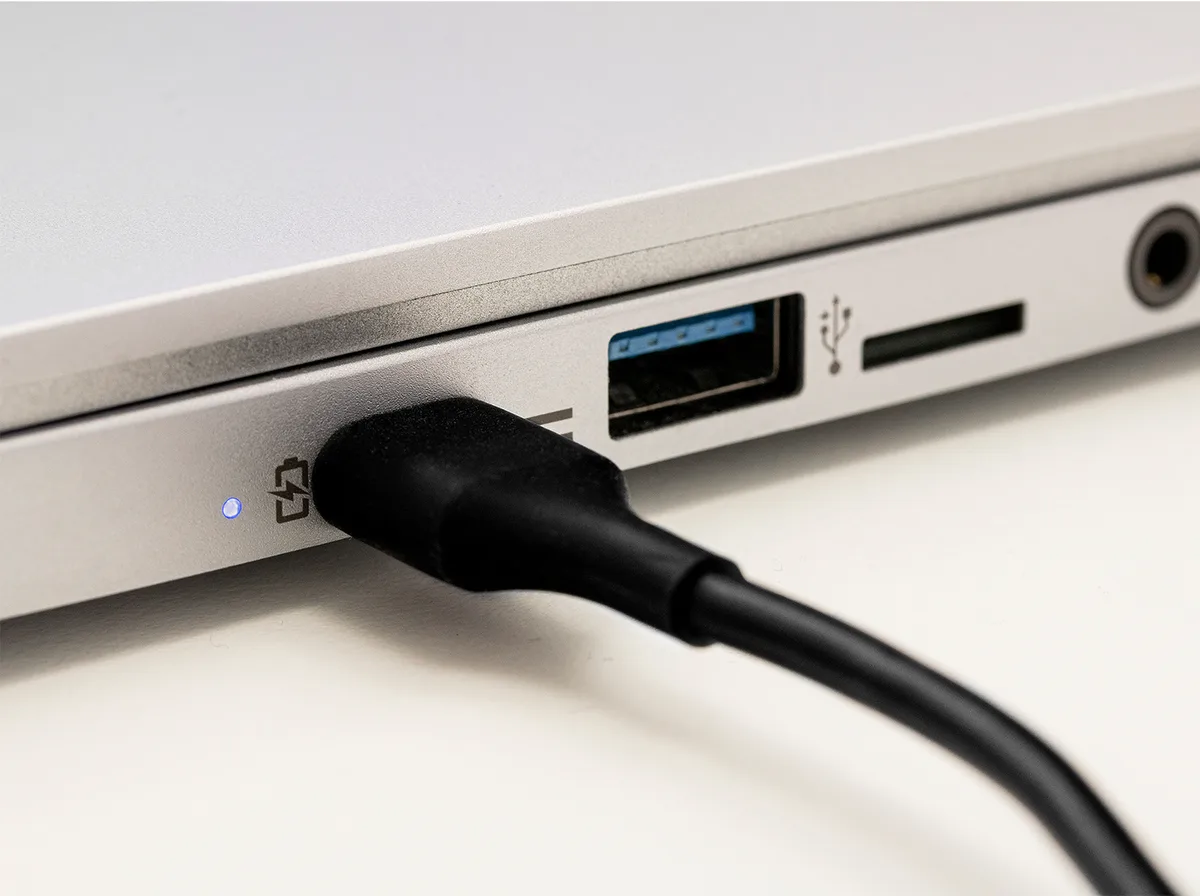
Image source: Bing (Web (fair-use with source credit))
This intense activity can be compared to how a high-performance CPU in a computer generates heat when running demanding applications. The faster and more complex the operations, the more heat is produced.
Key Factors Causing Your Dock to Heat Up
Several elements contribute to the temperature of your Thunderbolt dock. Understanding these factors can help you troubleshoot and ensure your device operates within its normal thermal range.
The Impact of Your Connected Devices and Workload
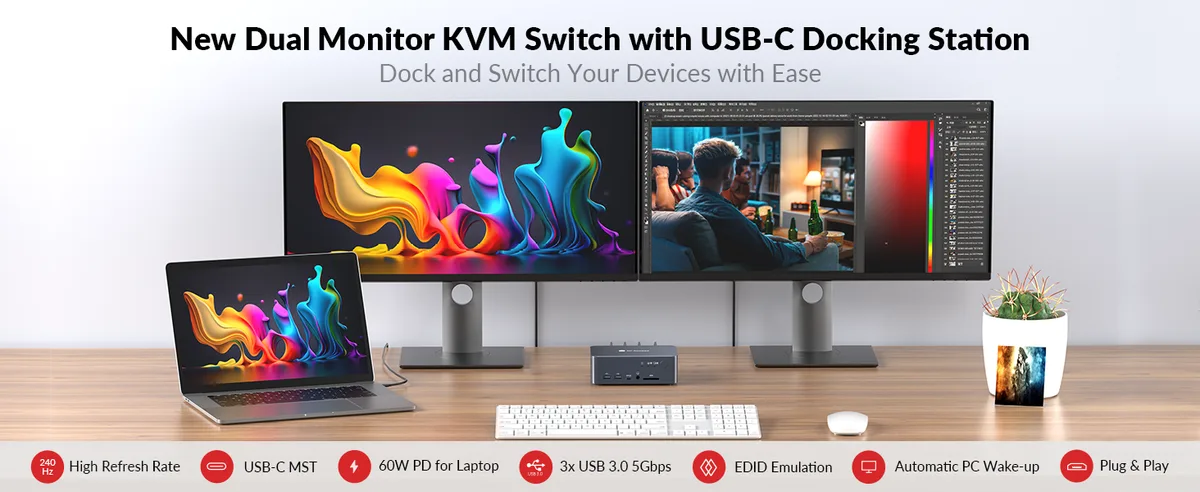
The number and type of devices you connect to your dock significantly influence its operating temperature. Each connected device draws power and requires data management. If you're running multiple high-resolution monitors, fast external SSDs, a network connection, and other USB peripherals simultaneously, your dock is under a heavy workload.
This sustained high activity means the internal components are constantly working at or near their capacity, leading to increased heat production. Imagine a busy intersection with many cars; more traffic means more activity and potentially more "friction" (heat). This is analogous to how your dock's internal processors and controllers operate under a demanding load.
Why Power Delivery Matters for Heat
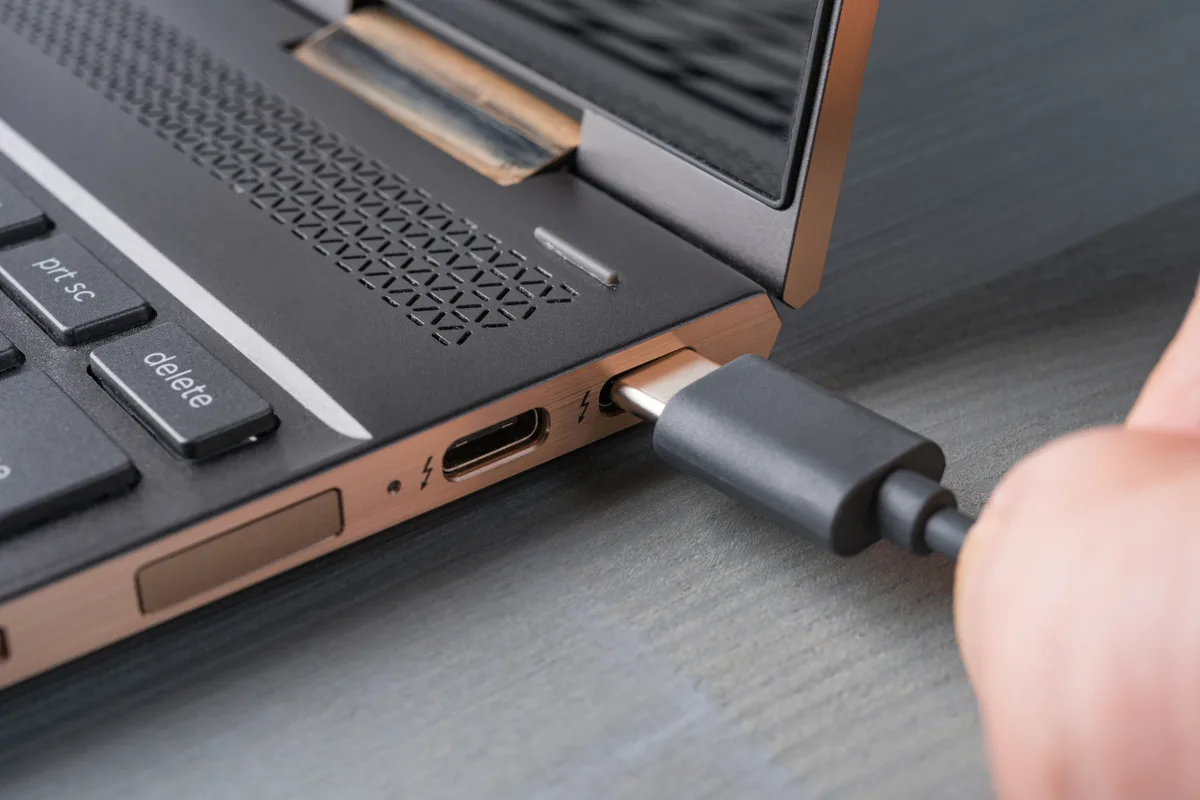
Power Delivery (PD) is a standard that allows USB-C ports to deliver higher power for charging devices, including laptops. Thunderbolt docks often provide substantial power, sometimes up to 90W or even 100W, to charge your laptop quickly. The process of converting and delivering this power is a major source of heat.
For example, when your laptop's battery is low and it's connected to a high-wattage charger via the dock, the dock's power circuitry is working hardest. This intense power conversion is similar to how a power adapter can get warm while charging your phone or laptop. The greater the wattage being delivered, the more energy is converted, and a portion of that energy is inevitably dissipated as heat.
This is a fundamental aspect of electrical engineering, often quantified by the efficiency rating of the power supply components.
Troubleshooting a Hot Dock: A Step-by-Step Guide
If you notice your dock is warmer than usual, don't panic. Often, a few simple checks can help identify the cause and resolve the issue. Following these steps can help you diagnose whether the heat is normal or a sign of something needing attention.
Step 1: Check Ventilation and Airflow
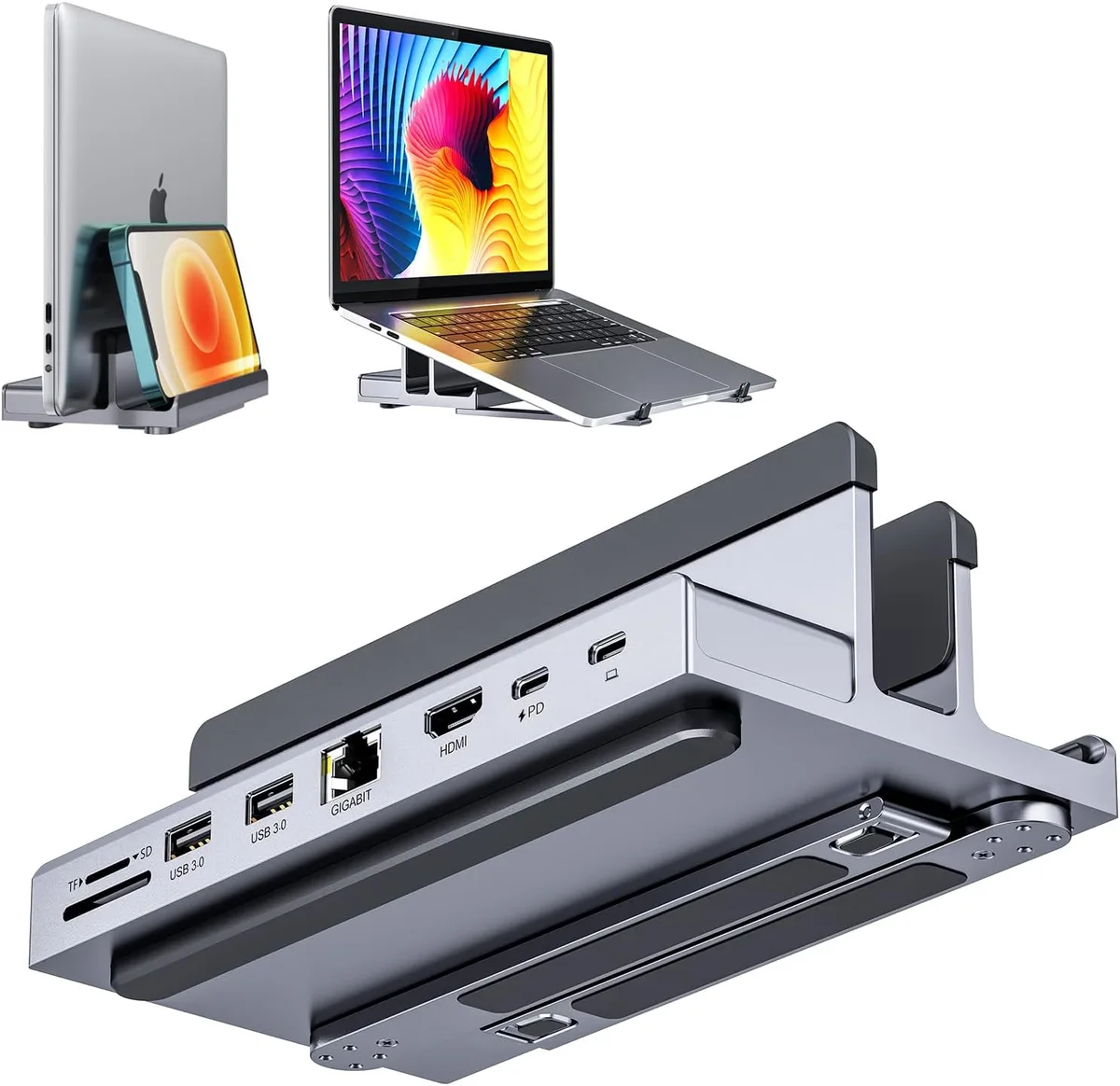
Proper airflow is critical for any electronic device that generates heat. Docking stations often have vents designed to allow cool air in and hot air out. If these vents are blocked, the heat can build up inside the enclosure, leading to higher operating temperatures.

Image source: Bing (Web (fair-use with source credit))
- Clear Obstructions: Ensure there's at least a few inches of clear space around all sides of the dock. Avoid placing it in tight cabinets, under piles of paper, or directly against a wall.
- Surface Matters: Make sure the dock is on a hard, flat surface. Soft surfaces like cloth mats or carpet can impede airflow underneath.
- Dust Buildup: Periodically check the vents for dust and use compressed air to gently clean them.
Step 2: Assess Connected Devices and Their Power Draw
The devices connected to your dock can significantly impact its heat output. Some peripherals draw more power or generate more data traffic than others. If your dock is hotter than usual, try disconnecting devices one by one.
- Identify High-Power Devices: External SSDs, high-resolution displays, and even certain USB hubs can demand substantial power.
- Test Individually: Start by unplugging all devices except the essential ones (like your laptop connection). If the temperature drops noticeably, reconnect devices one at a time to pinpoint the culprit.
- Check Device Health: Occasionally, a malfunctioning connected device might draw excessive power, indirectly causing the dock to overheat.
Step 3: Verify Your Power Adapter
Using the correct power adapter is crucial for the stable operation and thermal performance of your dock. Thunderbolt docks come with specific power supplies designed to meet their power requirements. An underpowered or incompatible adapter can force the dock to work harder, leading to overheating.
- Use Original Equipment: Always use the power adapter that came with your CalDigit TS4 or Thunderbolt dock.
- Check Wattage: Ensure the adapter's wattage rating meets or exceeds the dock's requirements, as specified by the manufacturer. Using a lower-wattage adapter is a common cause of overheating and performance issues.
Step 4: Update Your Dock's Firmware
Like any complex electronic device, Thunderbolt docks can benefit from firmware updates. These updates often include performance optimizations and improvements to power management, which can sometimes help reduce heat generation.
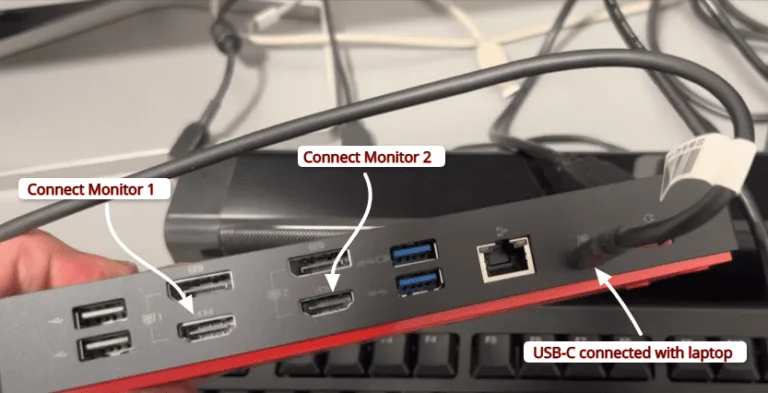
Image source: Bing (Web (fair-use with source credit))
- Visit Manufacturer Website: Go to the official CalDigit support page or the manufacturer's website for your specific dock model.
- Check for Updates: Look for firmware or driver updates. Follow the instructions provided carefully to download and install any available updates.
- Read Release Notes: Firmware updates sometimes address thermal management issues, so reviewing the release notes can be informative. This is a standard practice for maintaining modern computing peripherals and ensuring they operate efficiently.
Beyond Warm: Identifying Excessive Heat
Distinguishing between normal warmth and potentially damaging heat is crucial for the longevity of your Thunderbolt dock. While a warm dock is usually fine, an excessively hot one can signal underlying problems that need addressing. This section helps you identify those warning signs.
Potential Performance Impacts of Overheating
When a Thunderbolt dock overheats, its internal components can throttle their performance to prevent damage. This means you might experience slower data transfer speeds, intermittent disconnections for your peripherals, or even graphical glitches on connected displays. If your setup suddenly becomes unreliable, an overheating dock could be the cause.
Persistent high temperatures can also lead to premature component failure over time. Think of it like pushing a car engine too hard for too long; it can lead to long-term damage. While specific temperature thresholds are often proprietary, a dock that feels too hot to touch for more than a second or two is a strong indicator of an issue that warrants immediate attention.
Maintaining Your Dock for Optimal Performance and Longevity
Regular maintenance is key to keeping your Thunderbolt dock performing at its best and preventing issues like overheating. Simple practices can make a big difference in its operational lifespan and your overall user experience.
Best Practices for Placement and Care
Proper placement is the first line of defense against overheating. Ensure your dock has ample space around it for air circulation. Avoid placing it in enclosed cabinets or directly on soft surfaces that can block its vents.
- Clearance is Crucial: Aim for at least 2-3 inches of free space on all sides and the rear of the dock.
- Hard Surface Priority: Always place your dock on a firm, flat surface like a desk or shelf. This allows for unimpeded airflow from its base.
- Dust Management: Dust can accumulate in vents and impede airflow. Gently clean the dock's exterior and vents with a soft brush or compressed air periodically.
When to Be Concerned: Signs of Real Trouble
While warmth is normal, certain indicators suggest your dock might be overheating beyond acceptable limits. Recognizing these signs can help you act quickly to prevent potential damage or data loss.
Is it Too Hot to Touch?
A simple test: if the surface of your dock is too hot to comfortably hold your hand on for more than a few seconds, that's a clear sign of excessive heat. This is not just about discomfort; it's a physical indicator that internal temperatures are likely high enough to stress components.
This level of heat can degrade performance. You might notice lag when connecting or disconnecting devices, or intermittent connection drops for your monitors and storage. If these issues arise concurrently with the extreme heat, it's a strong signal to investigate further.
Official Support and Next Steps
If you've gone through the troubleshooting steps and your dock continues to exhibit signs of excessive heat, it's time to seek expert assistance. Manufacturer support is the best resource for diagnosing and resolving persistent hardware issues.
When to Contact CalDigit Support
If your CalDigit TS4 or another Thunderbolt dock remains excessively hot after ensuring proper ventilation, checking connected devices, and confirming the correct power adapter is used, reaching out to CalDigit's customer support is the logical next step. They can guide you through advanced diagnostics or arrange for a repair or replacement if necessary. This ensures that your device operates within its designed thermal parameters, safeguarding your data and workflow.
Frequently Asked Questions
Why does my dock feel warm when nothing is connected?
Even with no devices connected, your dock's internal components are often in a low-power standby state. These components, like the power management circuitry and network interface, still generate a small amount of heat as they remain active and ready for connection.
Can using an underpowered charger cause my dock to overheat?
Yes, using a power adapter with insufficient wattage can cause the dock to work harder to deliver the required power, leading to overheating. Always use the original, high-wattage adapter that came with your dock.
How often should I clean my dock's vents?
It's advisable to clean your dock's vents every 3-6 months, or more frequently if you live in a dusty environment. Accumulations of dust can significantly impair airflow and contribute to overheating.
What are the risks if I ignore an overheating dock?
Ignoring an overheating dock can lead to reduced performance, intermittent connectivity issues, premature component failure, and in extreme cases, potential damage to the dock or connected devices. It's best to address excessive heat promptly.

Similar Posts