How to Stop Your Laptop From Sliding Off a Mesh Stand
Senior Hardware Diagnostics Specialist & Lead Thermal Editor at Laptop Post Testing Lab · CompTIA A+, ACMT, B.S. in Computer Engineering · 12+ years bench-testing laptop thermal solutions & motherboard repairs
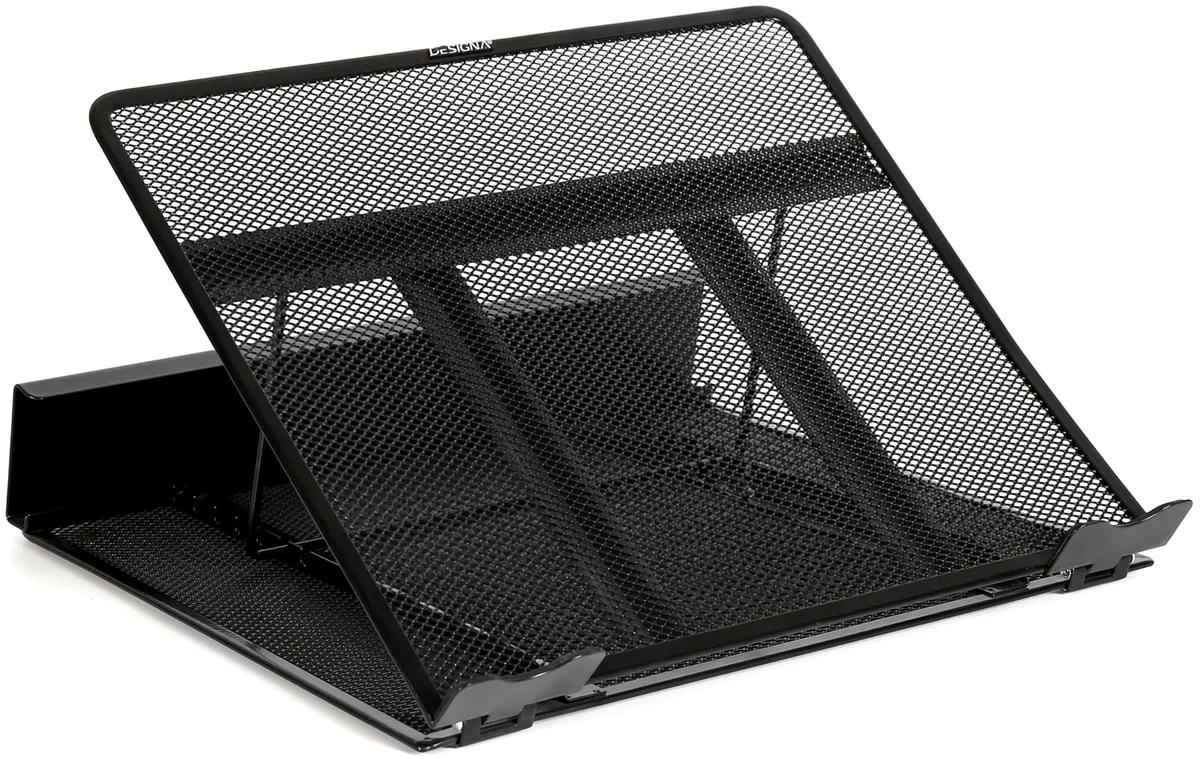
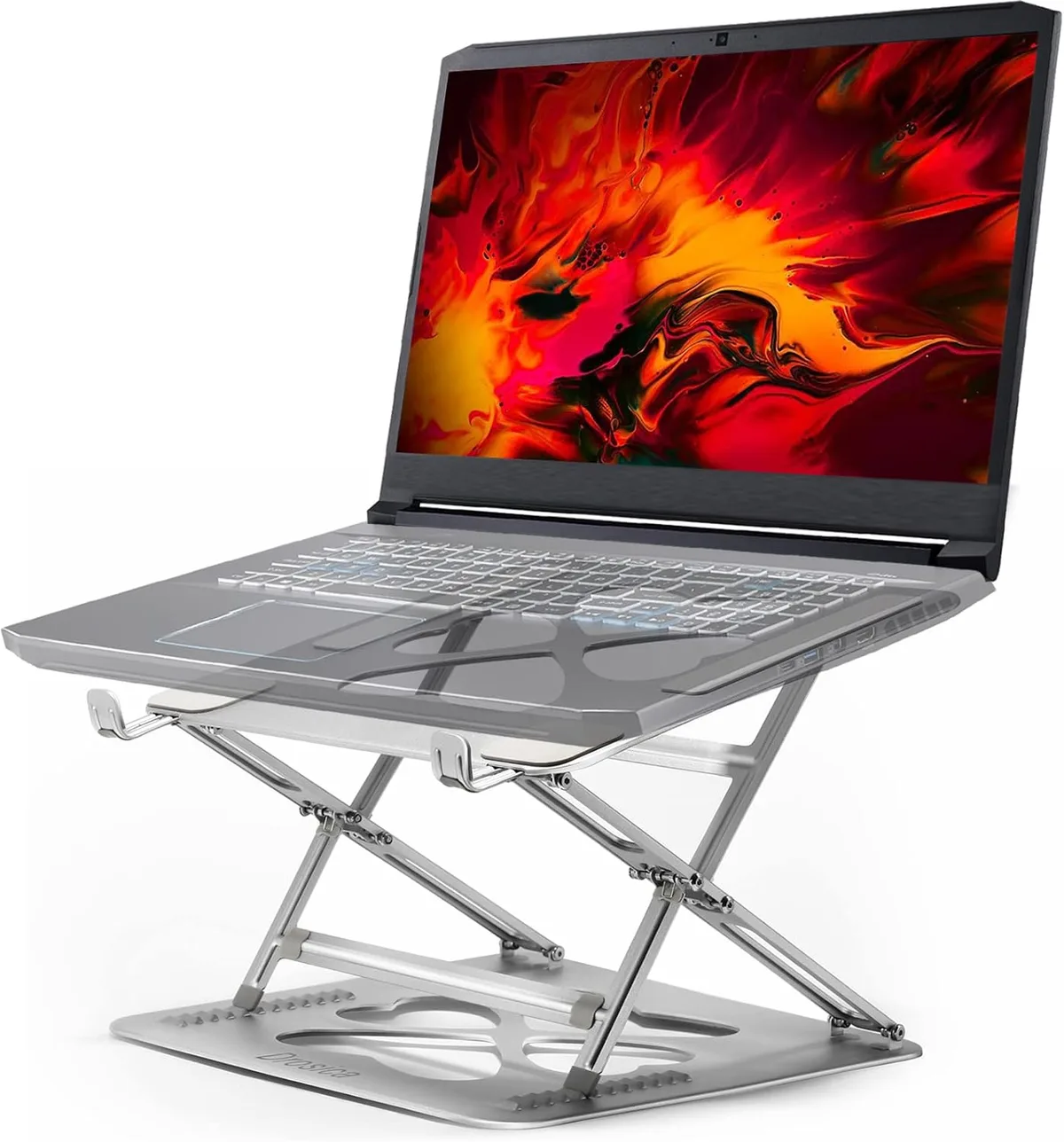
If you are wondering how to stop laptop from sliding off angled mesh stand units, you are not alone. These ergonomic tools use a perforated design to maximize airflow, but their metallic surfaces often lack the necessary friction to hold a device steady at steep inclines.
Many laptop chassis are made of smooth aluminum, which creates a low-friction interface with metal mesh. As of 2026, most office safety guidance from OSHA emphasizes the importance of stable equipment to maintain neutral wrist and neck posture. Implementing simple, high-friction modifications is the most effective way to secure your workstation setup.
Quick Answer
To stop a laptop from sliding, increase friction at the base. Apply small silicone bumpers or adhesive traction strips to the mesh. Place these grips near the bottom lip of the stand.
Ensure they do not obstruct your laptop cooling vents. You can also lower the stand's angle to reduce gravity.
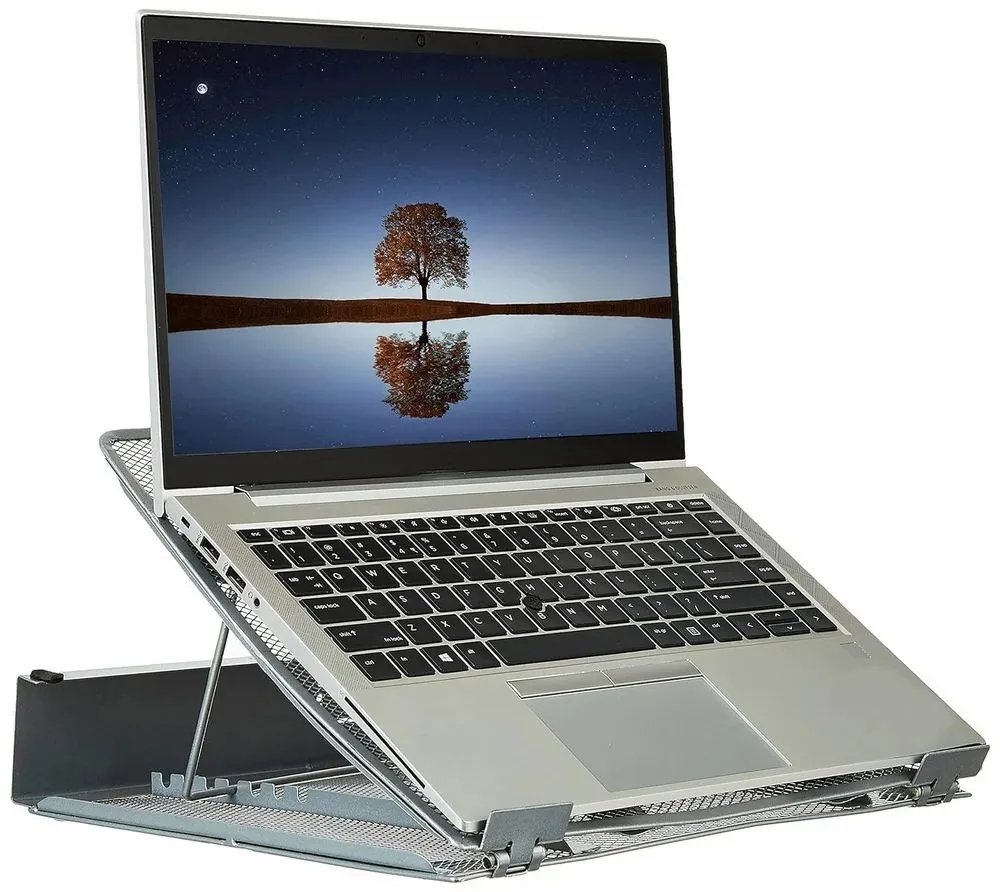
Image source: Bing (Web (fair-use with source credit))
The Quickest Fixes for Instant Stability
The most reliable way to secure your computer is to introduce a physical barrier that prevents downward movement. These fixes focus on creating an anchor point at the bottom edge of your mesh stand. You don't need expensive equipment to achieve this.
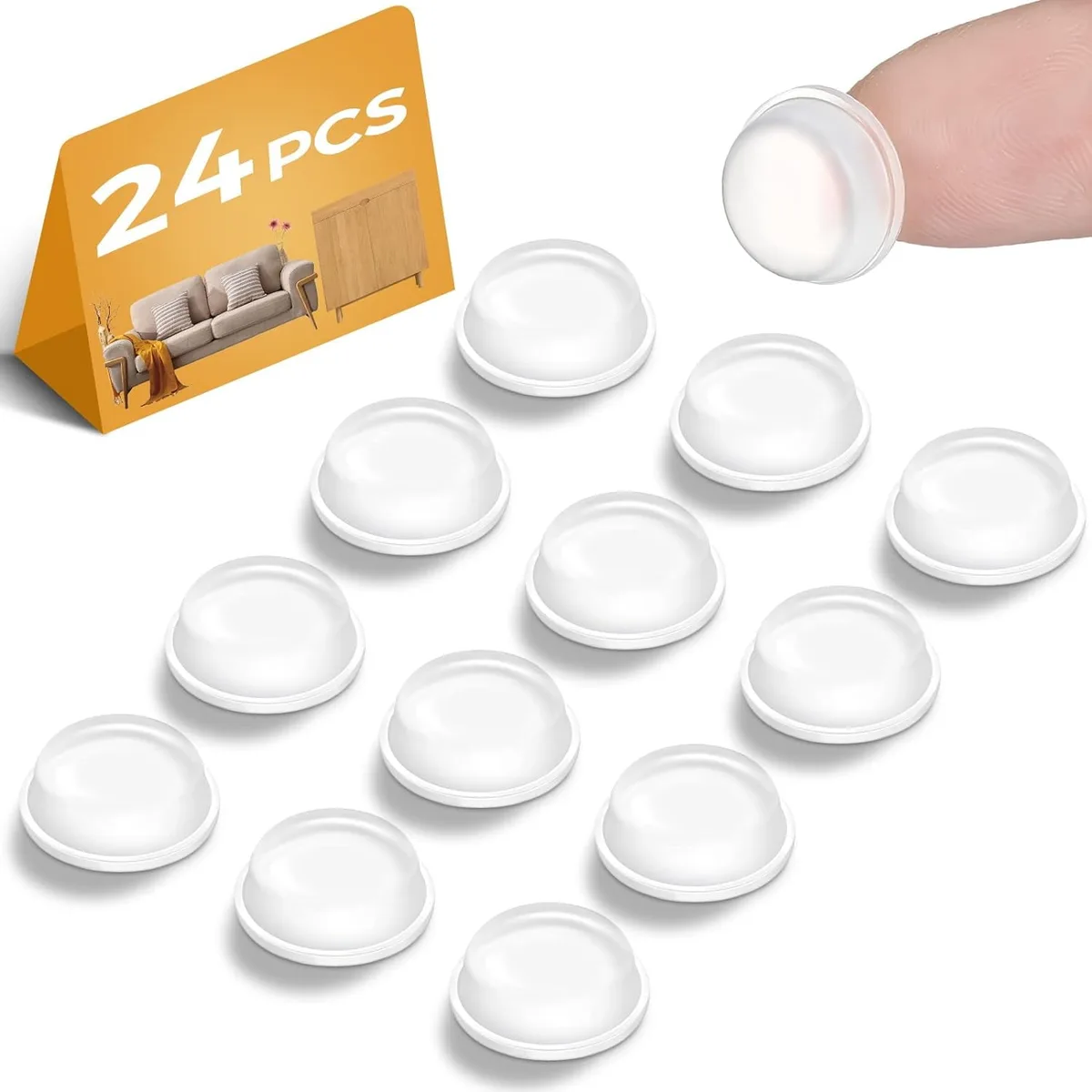
Image source: Bing (Web (fair-use with source credit))
- Silicone Cabinet Bumpers: These clear, self-adhesive pads provide excellent grip. Place two or three along the bottom edge of the stand where the laptop rests.
- Rubber Bands: Loop a thick, high-quality rubber band around the bottom lip of your stand. This creates a soft, textured stop that holds the laptop casing in place.
- Binder Clips: Attach two binder clips to the bottom edge of the mesh. Fold the silver arms down to create a physical bracket for your laptop.
Step-by-Step: Installing Anti-Slip Modifications
Preparation is the key to ensuring your modifications last. If the mesh is dusty or greasy, adhesives will fail within days. Follow this workflow to ensure your chosen grip stays put.
- Degrease the surface: Wipe the bottom portion of your mesh stand with 70% isopropyl alcohol. Let it air dry for three minutes.
- Test the placement: Gently place your laptop on the stand while it is off to find the exact point of contact. Mark this with a small piece of painter's tape.
- Apply the adhesive: Peel your silicone bumper or traction strip and press firmly onto the mesh. Apply consistent pressure for 30 seconds.
- Allow for curing: Wait at least one hour before putting the laptop back on the stand. This gives the adhesive bond time to set properly.
| Step | Action | Purpose |
|---|---|---|
| 1 | Cleaning | Removes oils that weaken adhesive |
| 2 | Testing | Ensures alignment with device feet |
| 3 | Bonding | Creates a permanent friction anchor |
| 4 | Curing | Maximizes long-term adhesive strength |
Choosing the Right Material: Silicone vs. Traction Tape
Selecting the right material depends on your stand's mesh aperture, which refers to the size of the holes in the metal. You want a material that covers enough surface area to provide grip without peeling off when the laptop heats up.
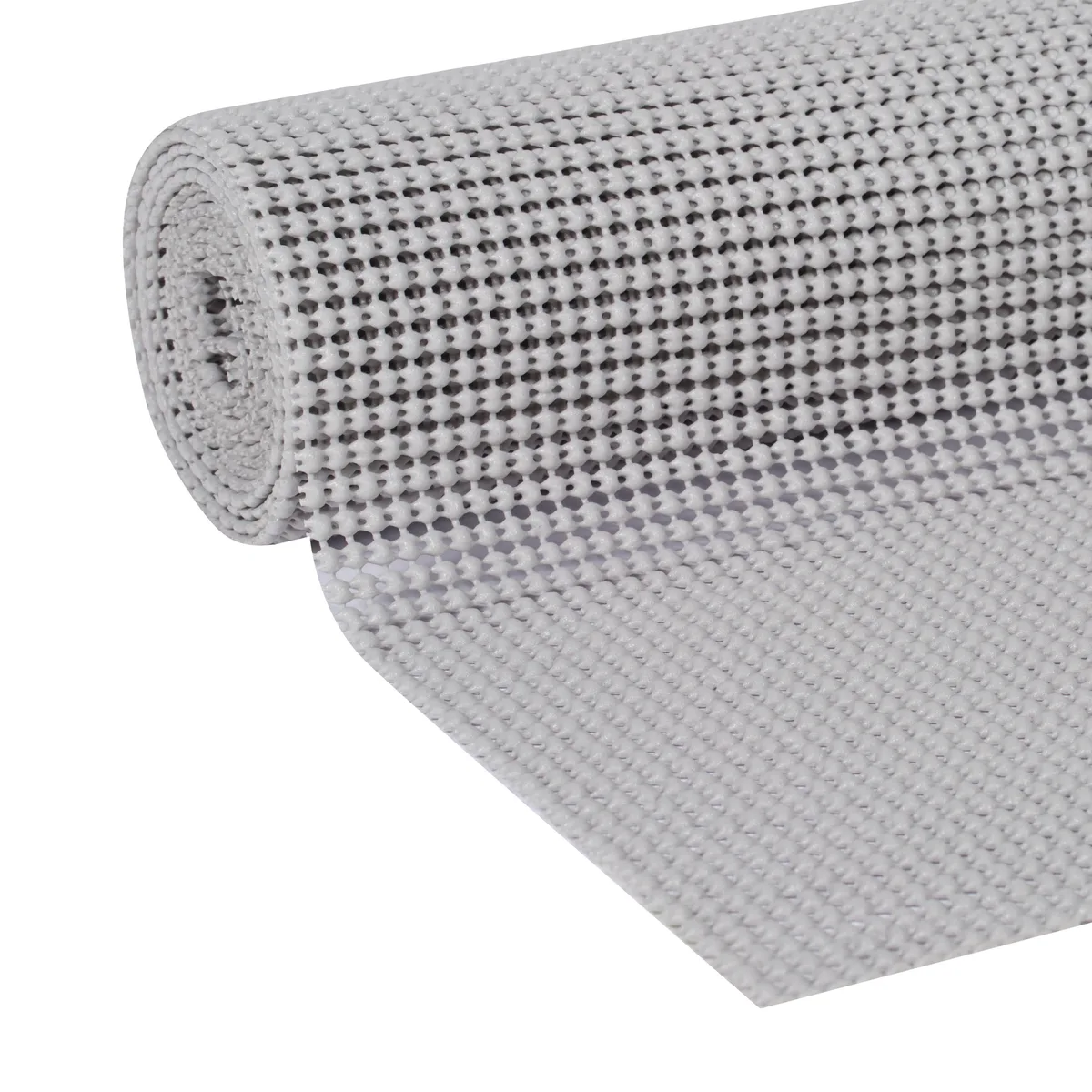
Image source: Bing (Web (fair-use with source credit))
Silicone is ideal for most users because it is heat-resistant and leaves no residue. It creates a soft buffer that won't scratch your laptop's finish. Traction tape, often used for stairways, provides a more aggressive grip.
However, traction tape can be abrasive. If you choose this route, look for fine-grit versions intended for indoor use. Avoid industrial-grade anti-slip tapes, as they are often too thick for a laptop stand and can catch on clothing or cables.
Why Your Stand’s Angle Might Be the Real Culprit
If your laptop is sliding at every angle, the issue may be the physics of your workstation. As you increase the incline, you increase the gravitational force pulling the device toward the floor. Many mesh stands offer five or more height settings, but the highest setting is rarely the most ergonomic.
Research into human factors engineering indicates that the ideal viewing angle is usually just enough to bring the top third of your monitor to eye level. If you are struggling to keep the device stable, drop the stand by one or two notches. This simple adjustment shifts the weight distribution, putting more of the laptop's load vertically onto the stand rather than horizontally.
Reducing the angle also keeps your wrists in a neutral, flat position. This reduces the strain on your tendons during long typing sessions. You gain both stability and better health by opting for a slightly flatter setup.
Mistakes to Avoid: Protecting Your Laptop’s Chassis and Vents
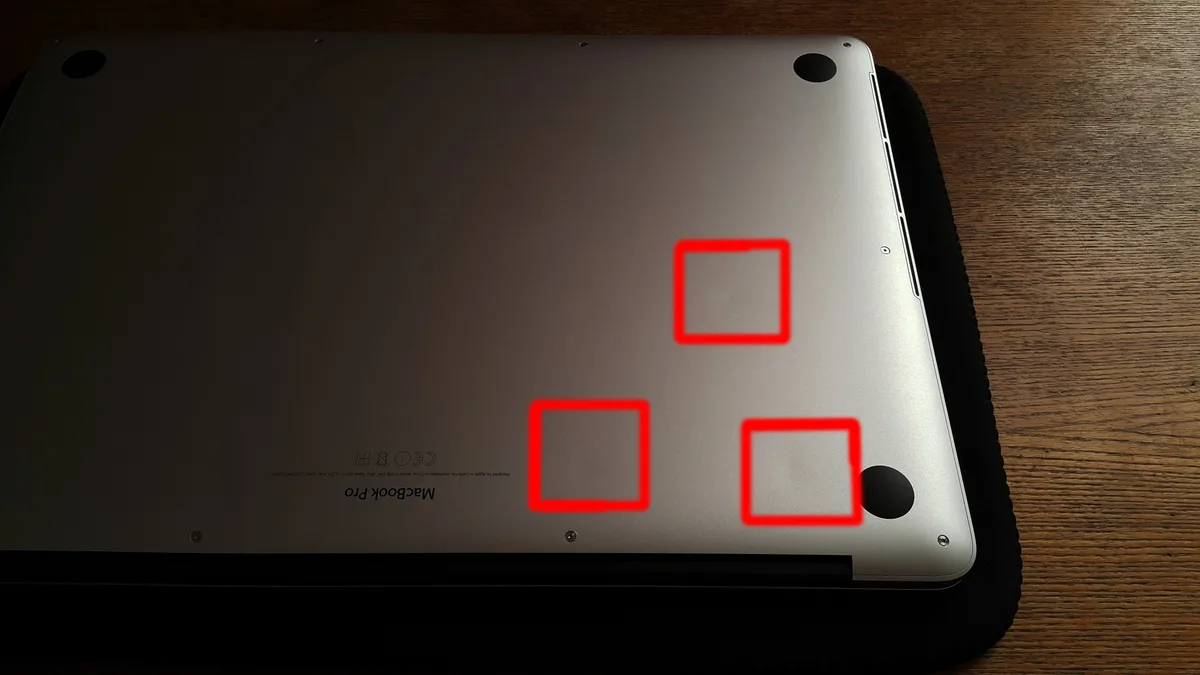
The most common error is placing adhesive strips directly over the intake grills on the bottom of the device. Many high-performance laptops rely on these openings to draw in cool air for the CPU and GPU. If you block them, you force the internal fans to work harder, which leads to thermal throttling and loud noise.
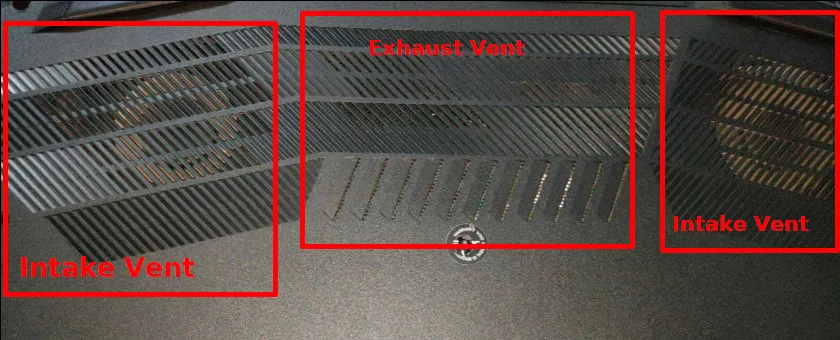
Image source: Bing (Web (fair-use with source credit))
Before you stick anything to the stand, flip your laptop over and observe where the air intake holes are located. As a general rule, ensure that at least 80% of the ventilation area remains unobstructed. If you notice your laptop case getting unusually warm, adjust the grips so they sit toward the corners of the stand, away from the intake zones.
Also, avoid using superglue or liquid adhesives. These substances can seep through the mesh and onto your desk or inside the laptop itself. Stick to pressure-sensitive adhesives that are designed to be removed cleanly.
If you accidentally get residue on the mesh, use a small amount of rubbing alcohol on a microfiber cloth to lift it off without scratching the paint.
Balancing Airflow and Security: A Thermal Perspective
Achieving a balance between a secure laptop and a cool laptop is the main challenge of using a mesh stand. Metal mesh is designed to allow heat to dissipate away from the chassis, but adding too much material to the stand acts as an insulator. You want to use the minimum amount of grip material necessary to provide the required friction.
Start by placing two small squares of non-slip material at the lowest points where the rubber feet of your laptop make contact. You do not need to cover the entire surface of the stand in rubber. In fact, a full sheet of shelf liner can significantly reduce the airflow benefits of the mesh.
Focus on point-contact stability. This keeps the underside of your computer exposed to the air while effectively stopping the downward slide.
Alternatives to Mesh: When to Consider a Solid-Surface Stand
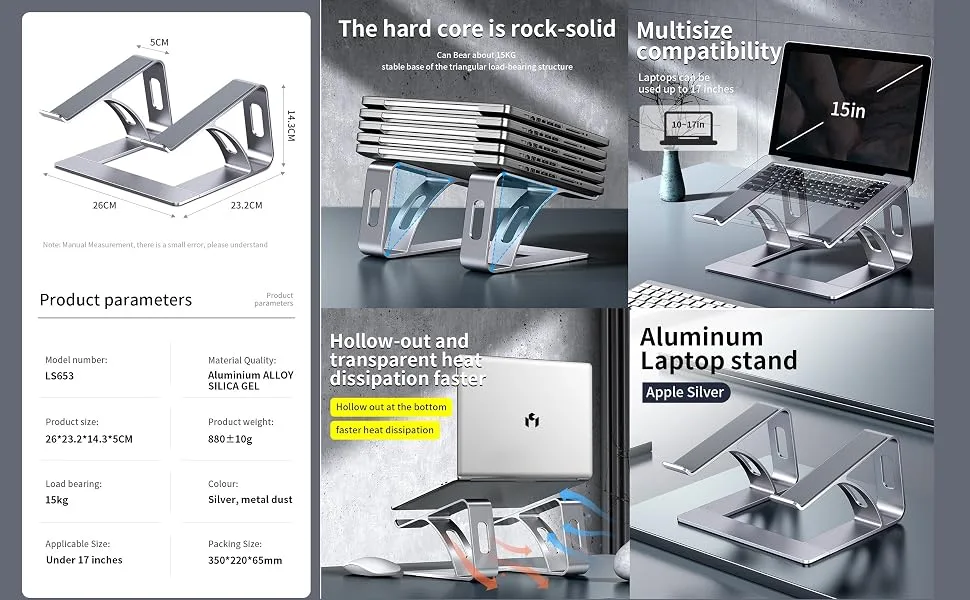
Sometimes the design of a mesh stand simply does not accommodate your specific laptop feet. If you find yourself constantly battling the slide, it might be time to consider a solid-surface stand with a built-in front lip. These stands offer a dedicated shelf that physically blocks the device from moving forward.
Solid stands often come with silicone padding pre-installed in the correct locations. They trade a small amount of passive airflow for a high level of physical security. If you use a heavy gaming laptop with a unique base shape, these stands usually provide a more reliable footing than mesh versions.
They are also easier to clean and tend to look more integrated into a permanent desk setup.
Maintenance and Long-Term Adhesive Care
Even the best silicone grips will eventually collect dust and lose their tackiness. Once a month, take a moment to refresh your setup. Wipe the silicone bumpers with a damp, lint-free cloth to remove surface oils and dust.
If they are heavily soiled, a drop of mild dish soap and water will restore their original gripping power.
Check the bond of your adhesive strips every few months. Environmental factors like humidity and heat cycles from the laptop can soften the glue over time. If a piece starts to peel at the edges, remove it entirely and start with a fresh strip.
Keeping the mesh clean prevents buildup that can lead to scratches on your laptop casing, ensuring your gear stays looking new while remaining perfectly stable.
Comparison of Stabilization Methods
Choosing the right stabilization method depends on your device weight and how often you travel. For users with heavy gaming laptops, high-friction silicone bumpers provide the most secure anchor. If you have a lighter ultrabook, simple rubberized shelf liner is often sufficient and easier to adjust.
| Method | Best For | Pros | Cons |
|---|---|---|---|
| Silicone Bumpers | Heavy laptops | Durable, firm grip | Requires careful placement |
| Shelf Liner | Lightweight ultrabooks | Covers large area | Can look DIY, traps dust |
| Rubber Bands | Occasional use | Cheap, no adhesive | Can snap over time |
| Traction Tape | Professional setups | Industrial strength | Can be abrasive |
Silicone bumpers are generally the preferred choice for long-term setups because they don't leave residue. Traction tape is superior if your stand is frequently moved, as the adhesive bond is much stronger than standard pads. Evaluate your specific needs before committing to a permanent adhesive solution.
Best Practices for Ergonomic Workstation Layouts
An ergonomic setup should prioritize eye level and wrist neutrality. Place your mesh stand so the top third of your display aligns with your eye height. This position keeps your neck muscles relaxed throughout the day.
Use an external keyboard and mouse to keep your hands flat on the desk surface. Typing on a laptop keyboard while it sits on a stand creates awkward wrist angles. This common mistake leads to carpal tunnel strain over time.
Keep the stand centered in your field of vision to avoid twisting your neck.
Common Mistakes to Avoid During Setup
Don't ignore the importance of surface preparation before adding any grippers. Applying tape or silicone to a dusty stand causes the adhesive to fail almost immediately. Always clean the metal mesh with a degreasing agent to ensure a tight, lasting bond.
Another mistake is overloading the stand with accessories. Hanging heavy USB hubs or cable organizers on the stand can throw off its center of gravity. This makes your laptop more prone to sliding even if you have applied friction bumpers.
Keep your stand dedicated solely to your laptop for maximum stability.
Safety Warnings and Component Integrity
Safety in the workplace starts with preventing equipment damage. Avoid placing your laptop near the very edge of your desk, even if your stand is secure. A minor bump to the table can send the entire assembly sliding if it isn't positioned safely.
Be careful with the type of adhesive you use on painted mesh stands. Strong solvents in some tapes can strip the finish or cause the metal to oxidize over time. Use only non-corrosive, pressure-sensitive adhesives designed for electronic hardware.
These materials protect both the stand's finish and your laptop's outer casing.
Final Decision Guide for Setup Optimization
If your laptop continues to slide after adding grips, evaluate the tilt angle first. Lower the stand to a less aggressive incline until you reach a balance between stability and screen height. This is the most effective way to eliminate sliding without adding extra materials.
If the stand still fails to hold the device, consider upgrading to a stand with a solid-lipped front edge. This transition is often necessary for users with very slick, modern laptop casings that lack high-friction rubber feet. Prioritize stability and thermal clearance, and you'll maintain both your equipment and your posture for years.
Periodically inspect the contact points between your laptop feet and the mesh. Even the best modifications can compress over time due to the weight of the device. If the laptop starts to settle or feel less secure, it is a clear indicator that the friction material has reached the end of its functional life.
Replacing these small parts ensures your workspace remains a secure environment for your hardware.
Frequently Asked Questions
Will silicone bumpers melt if my laptop runs hot?
High-quality silicone is heat-resistant and will not melt at temperatures typical for a laptop, which usually stay well below 100 degrees Celsius. Ensure the bumpers are made of genuine silicone and not a lower-grade plastic. Genuine silicone stays firm and tacky even when the metal mesh heats up during heavy processing tasks.
Can I use masking tape to stop the sliding?
Avoid masking tape or duct tape for this purpose. The adhesive on these tapes is not designed for heat cycles and will eventually turn into a gooey residue that is extremely difficult to remove from mesh. Once the adhesive breaks down, it can transfer onto your laptop chassis, potentially causing permanent staining or grime accumulation.
Does a tilted laptop put extra stress on its hinges?
Using an angled stand does not put stress on your laptop hinges. Laptop hinges are designed to support the weight of the display. Since the base of the computer rests on the stand, the weight is distributed across the chassis rather than the screen components.
You can safely adjust your stand to any comfortable angle without worrying about the screen's integrity.
Should I remove the laptop feet to make it sit flatter?
Never remove the original rubber feet from your laptop. These feet are engineered to provide the necessary clearance for airflow and to protect the casing from scratches. If your laptop slides, modify the stand instead of your computer.
The original feet are essential for maintaining the device's internal thermal performance and protecting your desktop surface.
How often should I replace the grips on my stand?
You should replace your grip strips whenever they lose their tactile tackiness or show visible signs of fraying. For most users, this occurs every six to twelve months. If you notice your laptop starting to creep forward again despite clean bumpers, it is a sign that the friction material has hardened and needs a quick swap.
Is it safe to leave my laptop on a mesh stand overnight?
It is perfectly safe to leave your laptop on a mesh stand when it is powered off or in sleep mode. Ensure the stand is on a level desk surface to prevent any accidental nudges. If you frequently move the laptop, verify that your friction bumpers remain secure so the device does not slide when you go to pick it up in the morning.
Does using a mesh stand require specific laptop weight limits?
Most mesh stands are rated by the manufacturer to support between 10 and 20 pounds. While your laptop is likely much lighter, the force exerted by the weight increases as the angle steepens. If you are using a large, heavy workstation laptop, check the stand's technical documentation to ensure it can handle the load at extreme tilts.
A stable stand should never flex or bow under the weight of your device.
How do I stop a heavy workstation laptop from sliding?
Heavy laptops exert more force due to their mass, so focus on the contact area. Use larger, high-density silicone pads that distribute the weight across multiple mesh openings. This creates a wider friction surface, preventing the laptop from crushing the bumpers.
If the problem persists, lower the stand angle to move the center of gravity closer to the base.
Can I use double-sided tape for a stronger grip?
Double-sided tape is generally discouraged because it creates a permanent, messy bond. It often tears when you need to reposition your laptop or clean the stand. Stick to single-sided silicone bumpers or non-slip shelf liner.
These options are much easier to remove or adjust without leaving behind a layer of degraded, sticky adhesive that attracts dust and debris.
Why does my laptop slide only when the fans turn on?
The vibration from high-speed laptop fans can cause the device to gradually migrate down the stand. This micro-vibration breaks the static friction between the laptop feet and the mesh. Adding soft, dampening silicone bumpers helps absorb this vibration.
This extra layer of cushioning decouples the laptop from the mesh, effectively stopping the sliding caused by internal mechanical movement.
Will non-slip mats restrict my laptop's warranty?
Using non-slip materials does not affect your hardware warranty as long as you do not block the air intake vents. Most manufacturers require proper ventilation to keep internal components within operating temperatures. As long as your modifications are limited to the corners of the stand and leave the fan grills clear, your device's cooling system will function exactly as intended.

Similar Posts