How Hollow Carved Aluminum Stands Boost Laptop Airflow
Senior Hardware Diagnostics Specialist & Lead Thermal Editor at Laptop Post Testing Lab · CompTIA A+, ACMT, B.S. in Computer Engineering · 12+ years bench-testing laptop thermal solutions & motherboard repairs
A hollow carved aluminum stand improves laptop airflow by removing the solid surface barrier that typically traps heat beneath your device. When a laptop sits flat on a desk, the intake vents are often starved of oxygen, forcing the internal fans to work harder.
As of 2026, thermal management standards emphasized by organizations like the IEEE confirm that reducing air impedance is key to preventing hardware throttling. By replacing solid support with an open frame, you allow the cooling system to pull from the entire room’s ambient air. This setup effectively separates the laptop chassis from the heat-retaining surface of the desk.
Quick Answer
A hollow carved aluminum stand improves laptop airflow by creating an open intake. It eliminates the solid surface barrier beneath your laptop. This allows fans to pull in cool ambient air freely.
It prevents hot air from being trapped under the chassis. Proper ventilation keeps your processor running at higher speeds for longer periods.
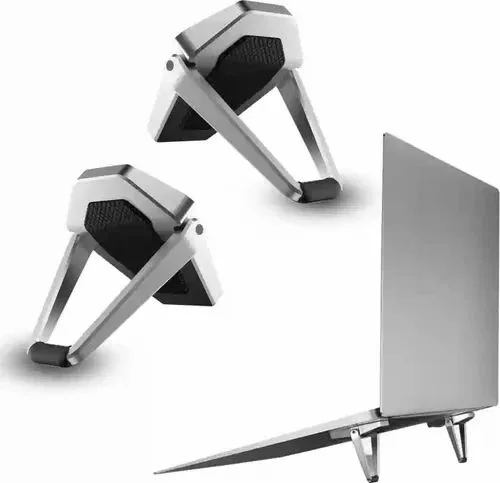
Image source: Bing (Web (fair-use with source credit))
The Laptop Choke Point: Why Surface Airflow Matters
Your laptop relies on a constant stream of cool air to keep its internal components safe. Most modern high-performance machines feature intake vents on the bottom, which is a major design challenge when the device is placed on a flat, solid surface.
When you place a laptop directly on a desk, the gap between the chassis and the surface is often less than a few millimeters. This creates a high-pressure zone where hot air gets trapped. The laptop eventually re-circulates this warm air, which causes internal temperatures to spike quickly.
Without a way to vent this heat, your system triggers thermal throttling. This is a built-in safety mechanism that forces the CPU and GPU to slow down to prevent permanent damage. You’ll notice this as a sudden drop in performance, sluggishness during heavy tasks, or loud fan noise as the system works to cool itself.
How Hollow Designs Bypass Heat Soak
Heat soak occurs when a material absorbs heat from your laptop and holds onto it. If you use a solid metal or plastic stand, that material heats up as the laptop runs. Once the stand reaches a high temperature, it stops helping you and starts heating the bottom of your machine.
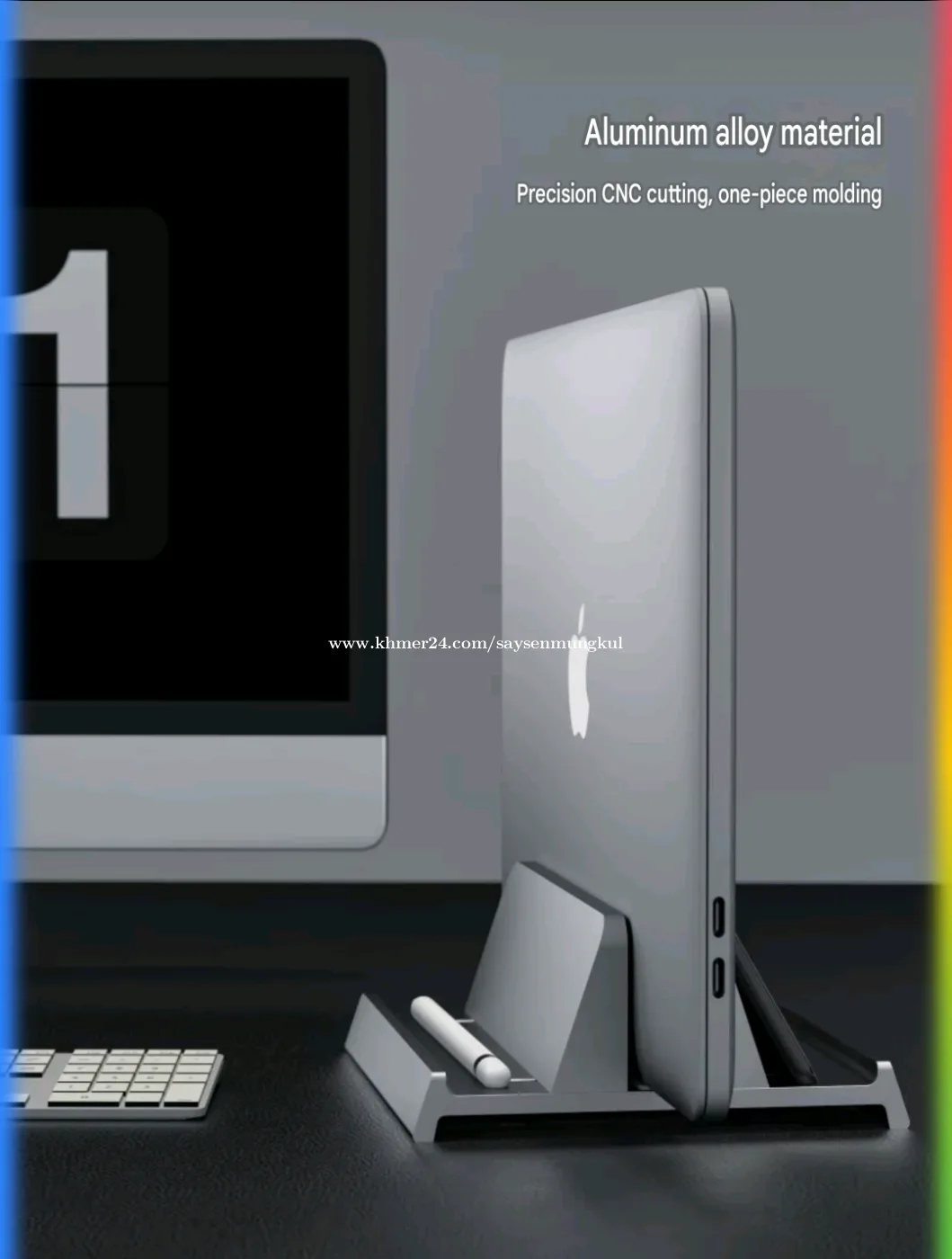
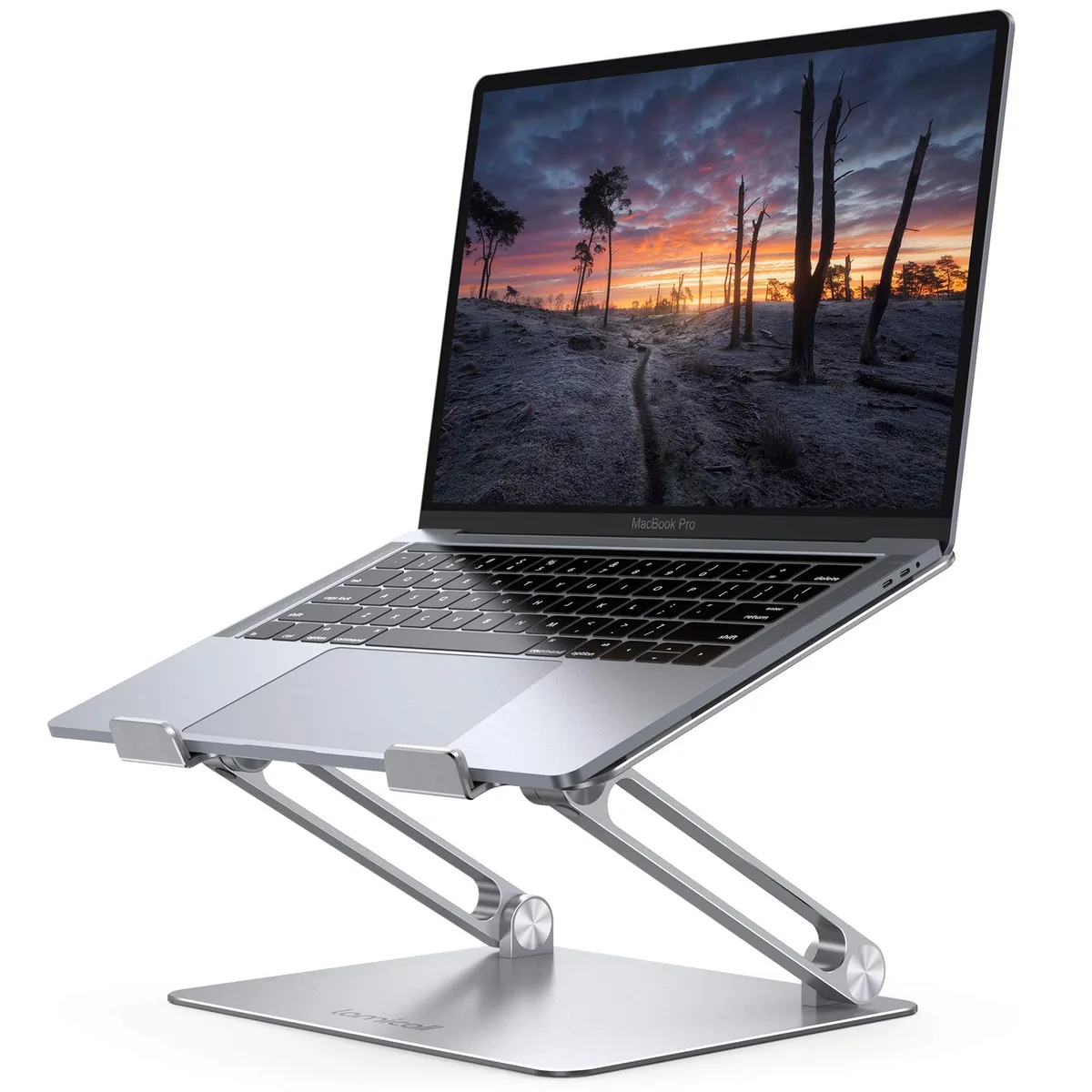
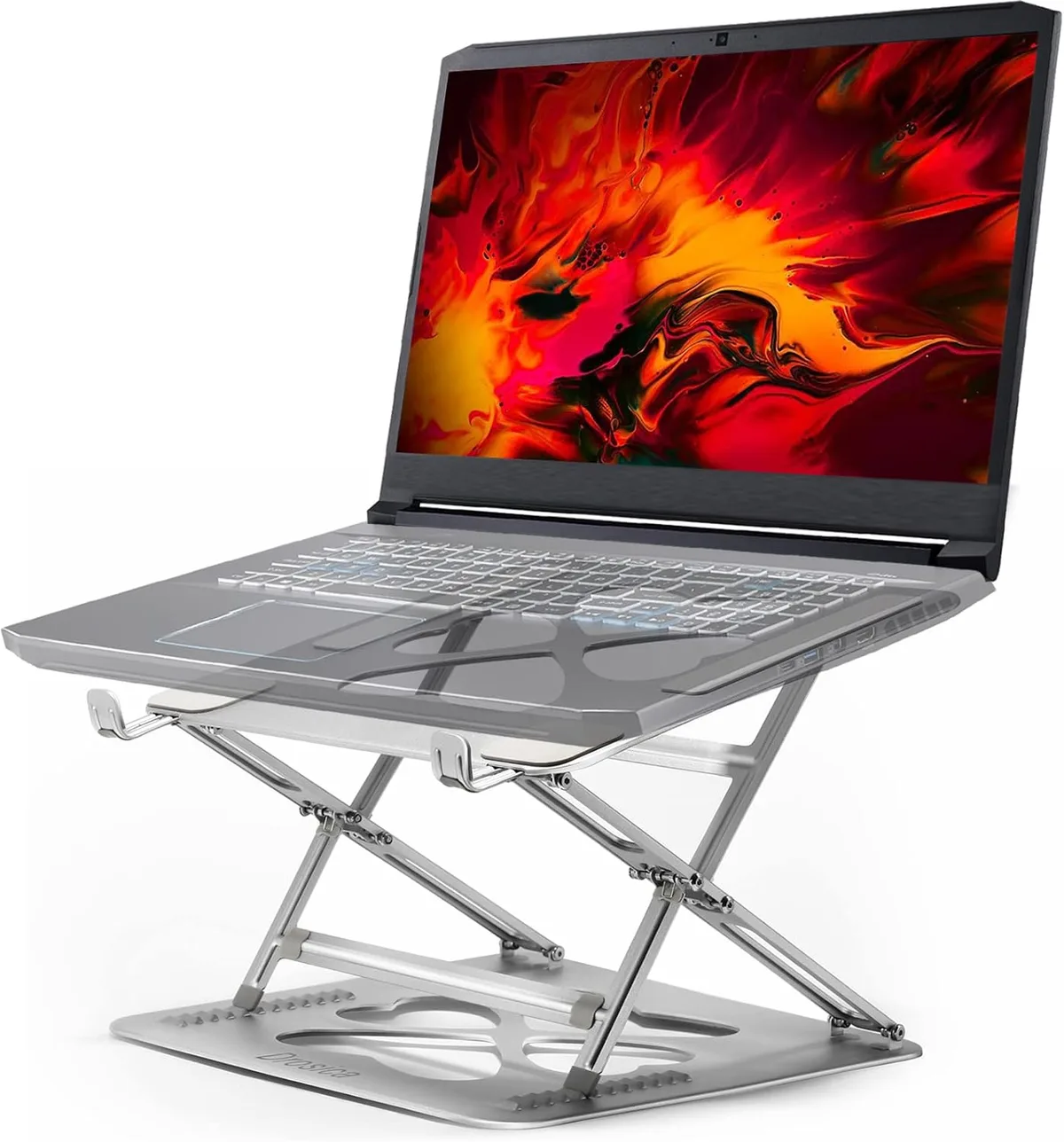
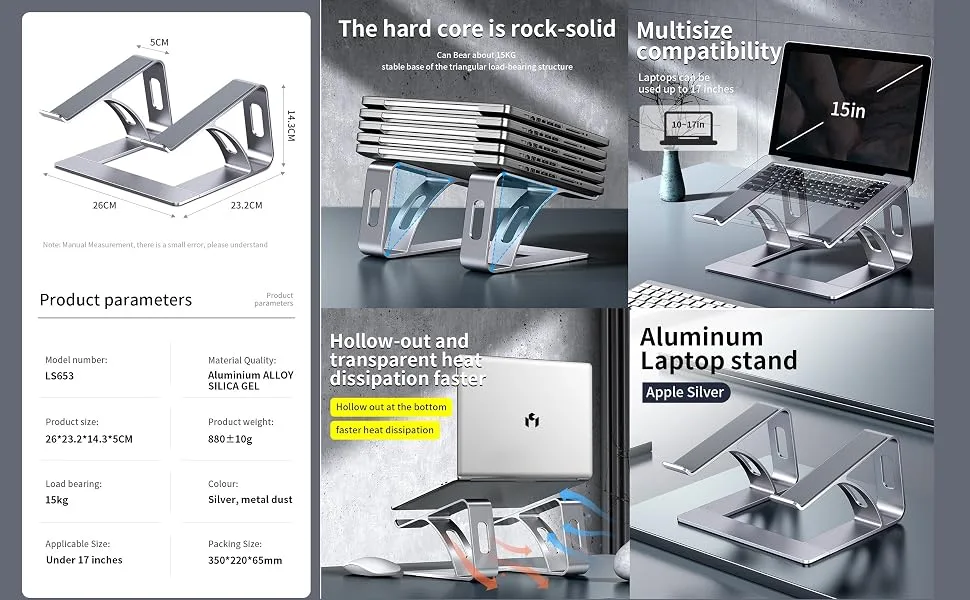
Hollow carved stands utilize an open-frame architecture to solve this. By removing the bulk of the material directly under the device, you minimize the surface area that makes contact with the laptop chassis. This reduction in contact area prevents the stand from becoming a thermal reservoir.
The stand stays near room temperature, allowing it to act as a physical bridge rather than a heat sponge. This design also utilizes natural convection principles to encourage air movement. As hot air naturally rises, the open structure provides an easy exit path, ensuring that heat isn't simply being moved from one trapped spot to another.
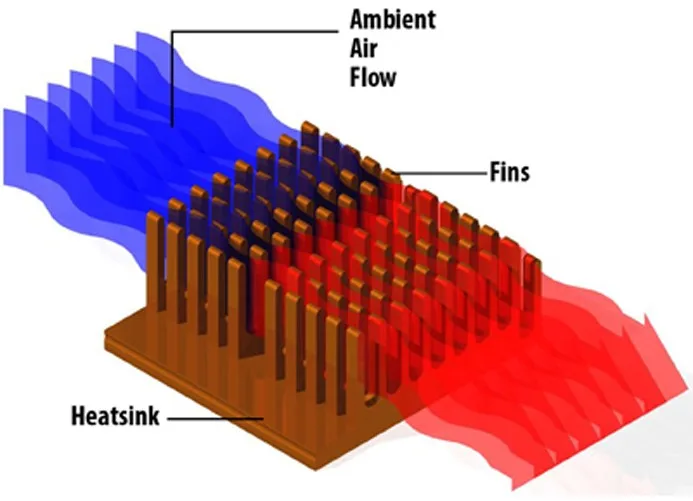
Image source: Bing (Web (fair-use with source credit))
Anatomy of an Efficient Aluminum Stand
Aluminum is the preferred material for these stands because of its high thermal conductivity. It can pull heat away from the chassis much faster than plastic or wood. A well-designed hollow stand acts as a heat sink, even if it does not have internal fans.
The structural skeleton needs to be rigid enough to support the weight of the laptop without bowing. Manufacturers carve these stands to maintain structural integrity while maximizing the void space. The goal is to maximize the open air percentage of the base.
Look for a stand that features:
- A wide, skeletonized center cutout for maximum air intake.
- Rubberized grips that provide enough lift to create at least a 2-inch gap.
- Angled geometry that keeps the laptop in an ergonomic position while prioritizing ventilation.
Visualizing Air Intake: Finding Your Vent Path
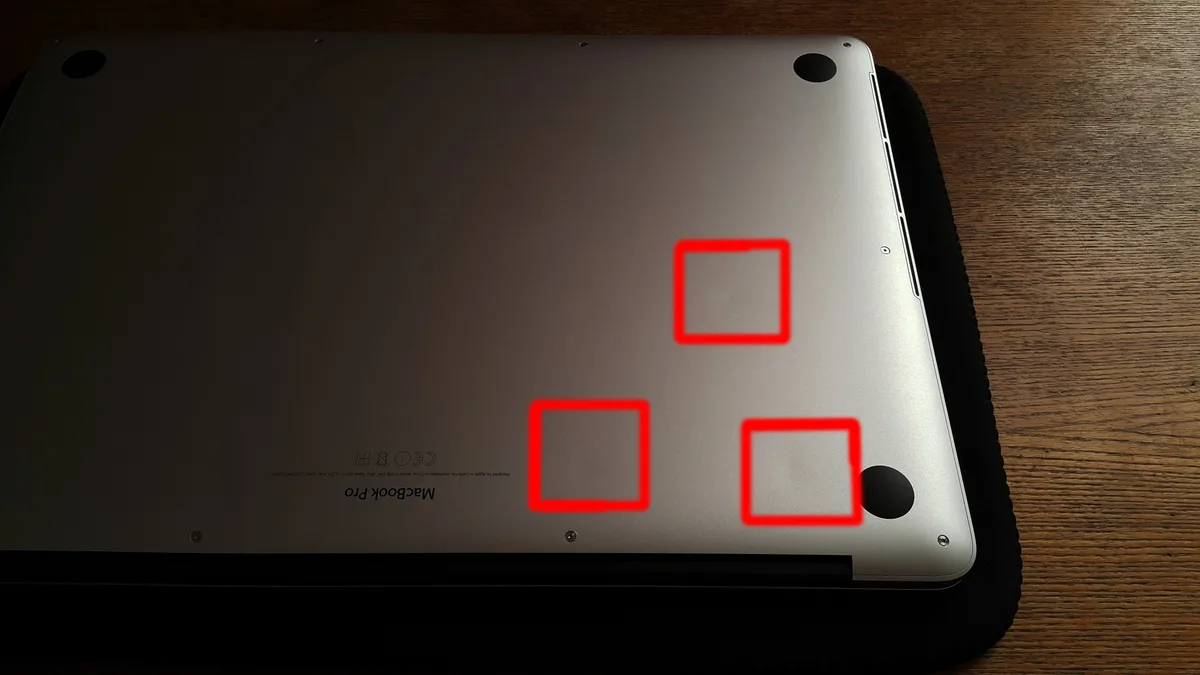
Airflow only works if the path is clear. Not all laptops are built the same, so you need to look at your specific device to understand where it breathes. Some laptops have vents along the entire bottom, while others only pull air through specific grilles on the left or right side.
If you block the intake, the fan creates a vacuum effect. This pulls dust into the chassis, which eventually clogs your internal heatsinks. A hollow stand should be positioned so that the void of the stand matches the location of your laptop's intake grilles.
Take a look at the underside of your machine before buying or positioning your stand. If the stand’s support bars run directly across your intake vents, you are creating a new obstacle rather than solving the old one. Ideally, the center cutout should be large enough to accommodate various vent configurations, ensuring that no matter your brand, the airflow remains unobstructed.
Performance Gains: From Thermal Throttling to Sustained Speeds
The primary goal of using a hollow stand is maintaining sustained clock speeds. When your processor stays below the thermal threshold, it doesn't need to slow down. This provides a measurable increase in performance during long rendering sessions, gaming, or multitasking.
You might not see a 20-degree drop in CPU temperature immediately, but you will see stability. Instead of a temperature graph that looks like a rollercoaster of spikes and dips, your machine will maintain a flat, manageable thermal profile. This is the difference between a system that crashes or lags during a peak load and one that handles the task easily.
| Metric | Solid Stand | Hollow Carved Stand |
|---|---|---|
| Thermal Soak | High | Minimal |
| Air Intake | Partially Blocked | Unobstructed |
| Fan Noise | High (Constant) | Lower (Variable) |
| Performance | Throttled under load | Sustained |
This performance stability is critical for the long-term health of your components. Excessive heat cycles weaken the solder joints and stress the internal capacitors of your motherboard. By keeping the operating temperature within a tighter, cooler range, you are essentially extending the life of your hardware.
Comparing Solid Plates vs. Hollow Frames
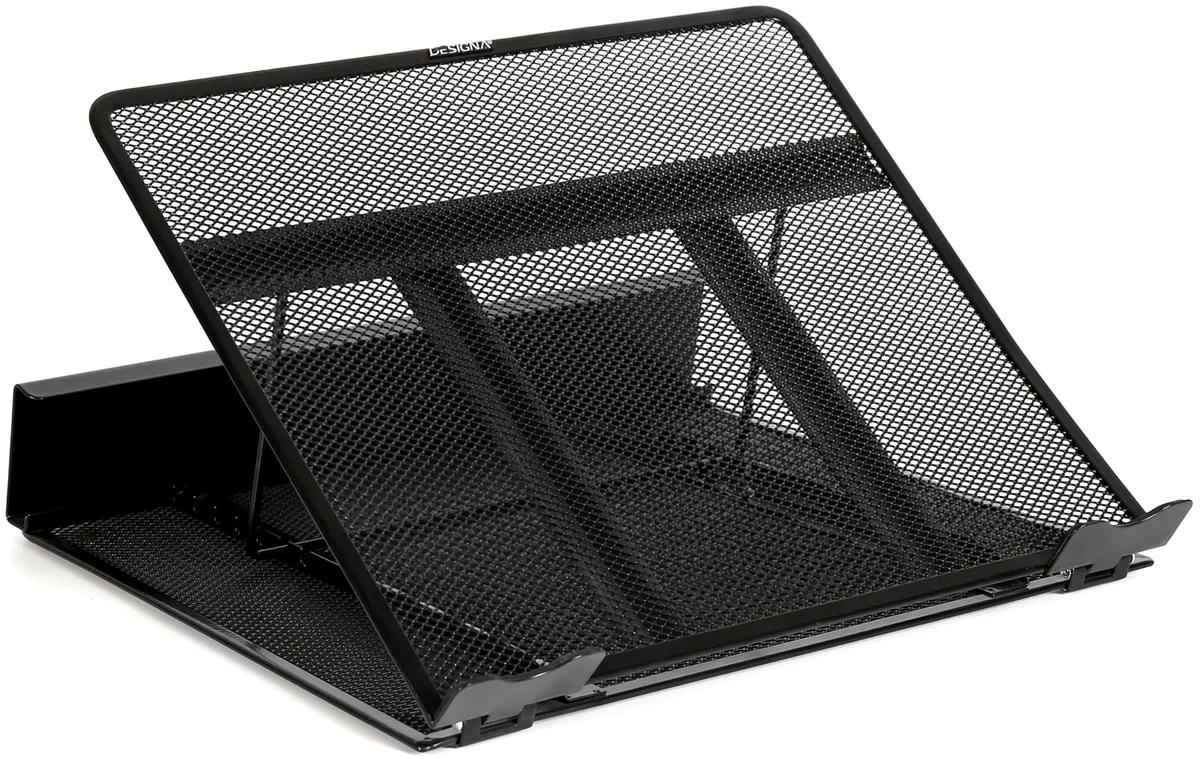
Solid plate stands offer a stable surface, but they essentially act as a hot plate under your laptop. They trap heat in the small space between the desk and the bottom of the device, which forces your laptop’s fans to work significantly harder. Over time, the material itself warms up, contributing to a cycle of heat retention that limits how long you can work at peak performance.
Hollow frames take the opposite approach by prioritizing vertical airflow. By creating a wide opening, they ensure the hot air coming out of your system doesn't have a chance to pool or recirculate. Choosing between these comes down to your primary use case: if you are running resource-heavy software, the hollow design is almost always the superior choice.
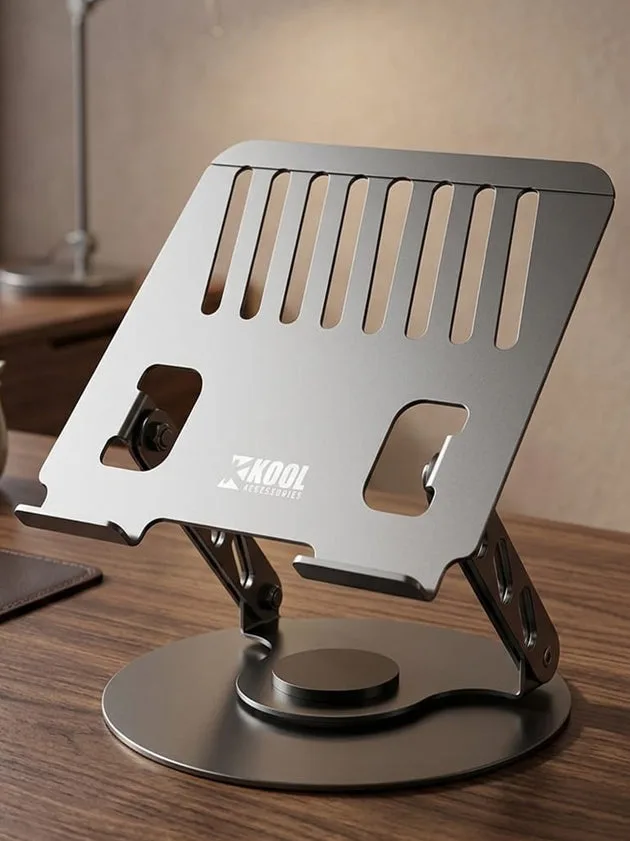
Image source: Bing (Web (fair-use with source credit))
Ideal Use Cases for Open-Frame Cooling
These stands are a perfect fit for mobile workstations or gaming setups where thermal consistency is non-negotiable. If you spend your day editing video, compiling large codebases, or playing games, your laptop’s internal cooling system is constantly hitting its limit. The hollow design provides the extra headroom needed to prevent throttling during those intense sessions.
This setup is also ideal for home office setups where you use an external keyboard and mouse. Because the stand raises the screen height, you’re correcting your posture while simultaneously cooling the machine. Even in casual office settings, these stands are useful because they allow your machine to run quieter.
With more available air, the fans don't need to spin up to maximum RPM as often.
Step-by-Step: Aligning Your Laptop for Maximum Intake
Proper alignment ensures you aren't just raising the laptop but actually unlocking its potential. First, locate the air intake vents on the bottom panel of your laptop. Some machines have them in the center, while others place them near the rear hinge or along the side edges.
Once you identify the intake zone, place your laptop on the stand. Ensure the frame of the stand does not cross the vent path. You may need to shift the laptop forward or backward by an inch to ensure a direct, unobstructed channel for cool air.
Check that the rubberized pads on the stand are not pressing against the intake grilles themselves.
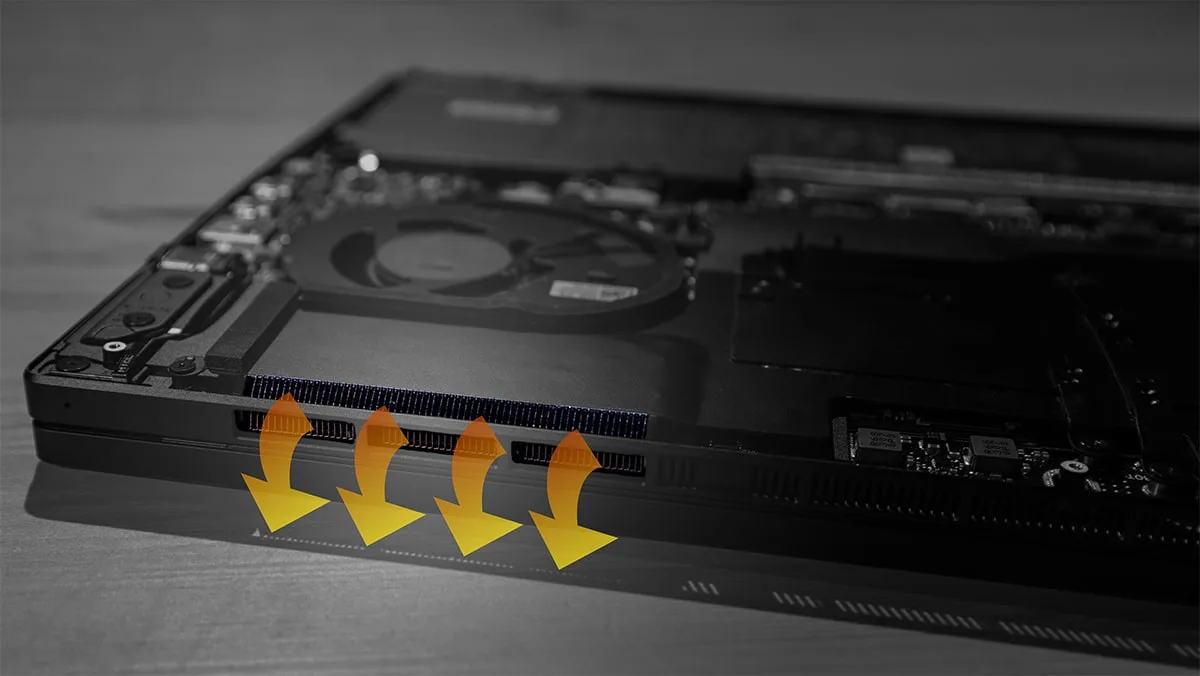
Image source: Bing (Web (fair-use with source credit))
Common Mistakes in Stand Positioning
One of the most frequent errors is placing the stand on an uneven or soft surface, like a thick carpet or a plush duvet. Soft surfaces can easily block the bottom intake, essentially defeating the purpose of the stand. If you must use a laptop in bed, always ensure the stand is sitting on a hard tray or a flat surface to maintain that vital airflow gap.
Another common mistake is ignoring dust accumulation. Because these stands improve the efficiency of your intake, they can pull in more dust from your desk surface than a flat, solid stand would. Make sure you lift the laptop and wipe away any accumulated dust from the stand and the desk surface every few weeks.
This keeps the intake path clear and prevents debris from being pulled into your cooling fans.
Maintenance: Keeping Your Intake Path Dust-Free
Routine maintenance is necessary to keep your cooling system efficient over the long term. Start by blowing out the laptop’s internal vents with compressed air while the device is powered off. This clears any dust that may have built up on the heatsinks despite the improved airflow from your stand.
Next, wipe the aluminum frame of your stand with a microfiber cloth to remove oily residue or dust buildup. If you notice the stand sliding around on your desk, clean the rubber feet with a damp cloth to restore their grip. A clean stand ensures the structural integrity of your setup, and it keeps your workspace free of the dust that inevitably collects around fans.
When to Consider Active Cooling Pads
You should look into active cooling pads when a passive stand no longer keeps your system temperature stable. If you are running intensive workloads for many hours at a time, such as professional 3D rendering or high-end competitive gaming, passive cooling might hit its limit. These scenarios push hardware to the absolute edge of its thermal design power.
Active cooling pads include built-in USB-powered fans that force air directly into the laptop vents. They essentially boost the effectiveness of your existing internal fans by increasing the static pressure of the intake air. While an aluminum stand is great for standard daily performance, active cooling provides the extra thermal headroom needed for extreme, sustained system stress.
Final Verdict: Is a Hollow Stand Right for Your Workflow?
A hollow aluminum stand is usually the best balance between performance, noise, and ease of use. It provides significant thermal benefits by opening the intake path without adding the extra complexity or power requirements of active fans. If your main goal is to stop thermal throttling and extend hardware longevity, this is the most reliable path.
Choose this type of stand if you want a set-it-and-forget-it solution that improves your ergonomics at the same time. If you rarely hit maximum load, you’ll still benefit from the cooler chassis and quieter fan operation. For the vast majority of users, this combination of passive thermal design and structural lift is all that is required for a more stable and efficient workstation.
Frequently Asked Questions
Will a hollow stand help if my laptop vents are on the sides?
If your intake vents are on the side edges, a center-carved stand might be less effective than one that provides elevation without blocking those specific paths. Always check your laptop's specific vent locations before choosing a stand. Elevating the machine regardless of the cutout shape still allows for better ambient airflow than placing the device flat on a desk.
Can a metal stand cause condensation inside my laptop?
Condensation usually occurs only when there is an extreme difference between the ambient room temperature and the surface of your hardware, which is rare in standard office environments. Passive aluminum stands do not cool the laptop to a level that would cause moisture buildup. You are simply allowing the machine to operate at its intended design temperature.
How much height is enough to improve cooling?
Aim for a stand that provides at least 2 to 3 inches of clearance between the desk and the laptop chassis. This height is typically sufficient to overcome the boundary layer of stagnant air that forms near surfaces. Increased height beyond this point provides diminishing returns on thermal performance and may negatively impact your typing comfort.
Does the thickness of the aluminum matter for cooling?
Thinner aluminum allows for less thermal mass, which means the stand itself is less likely to hold onto heat. While thicker metal offers more structural stability for heavy, 17-inch workstations, thinner carved designs are often better for heat dissipation. Look for a balance that supports your specific laptop weight while prioritizing an open, skeletonized design.
Do hollow stands require special cleaning?
These stands collect dust faster than solid platforms because the open design encourages higher airflow through the underside. Use a simple microfiber cloth to wipe the desk surface and the stand’s contact points every few weeks. Keeping the desk surface clean prevents dust from being drawn into your laptop's cooling system, which is a common performance bottleneck.

Similar Posts