How to Prevent Neck Strain While Working on a Laptop All Day
Senior Hardware Diagnostics Specialist & Lead Thermal Editor at Laptop Post Testing Lab · CompTIA A+, ACMT, B.S. in Computer Engineering · 12+ years bench-testing laptop thermal solutions & motherboard repairs
If you are wondering how to prevent neck strain during 8 hour laptop remote work, the answer lies in modifying your environment rather than just trying to sit still. Laptops naturally force you to look downward, which creates a biomechanical imbalance that stresses the muscles of your upper back and neck.
By elevating your device and adjusting your peripheral setup, you can neutralize this force and prevent long-term discomfort. As of 2026, research from the Occupational Safety and Health Administration confirms that proactive workstation adjustment remains the most effective defense against musculoskeletal fatigue. Small, consistent changes to your physical alignment will protect your spine during those long shifts.
Quick Answer
Elevate your laptop screen to natural eye level. Use an external keyboard and mouse for better arm positioning. Keep your feet flat on the floor at all times.
Follow the 20-20-20 rule to rest your eyes. Adjust your chair to support your lower back properly.
Why Tech Neck Is a Genuine Health Risk
Tech neck is a specific type of repetitive strain injury caused by the consistent, static flexion of the cervical spine. When you look down at a laptop screen, you create an unnatural curve in your neck. This posture forces the muscles in your upper traps and shoulders to work continuously to hold your head up.
Over an eight-hour day, these muscles become exhausted and inflamed. This condition often results in tension headaches, sharp upper-back pain, and reduced mobility. Ignoring these early warning signs can lead to chronic issues, such as nerve compression or permanent changes in your natural spinal curvature.
The Mechanics of Your Spine Under Load
Your head typically weighs between ten and twelve pounds when held in a neutral, upright position. As you tilt your head forward to view a low screen, the leverage acting on your neck increases significantly. At a 45-degree angle, your neck supports an effective load of nearly 50 pounds.
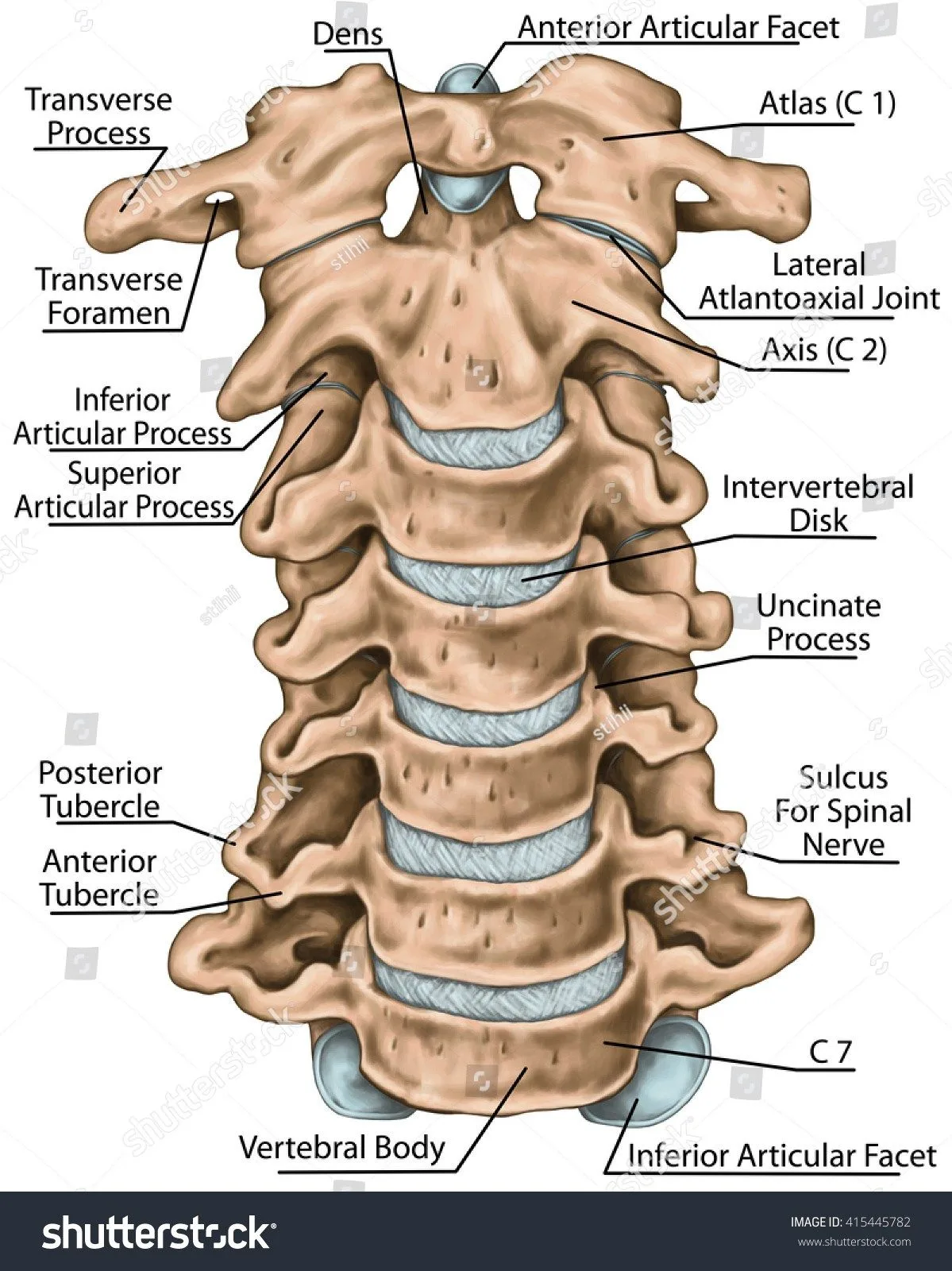
This massive increase in load forces your cervical muscles to work far beyond their design capacity. The mechanical stress doesn't just affect the neck, it radiates down into the thoracic spine. This is why you often feel burning between your shoulder blades after a long day of remote work.
Essential Gear to Shift Your Workstation Ergonomics
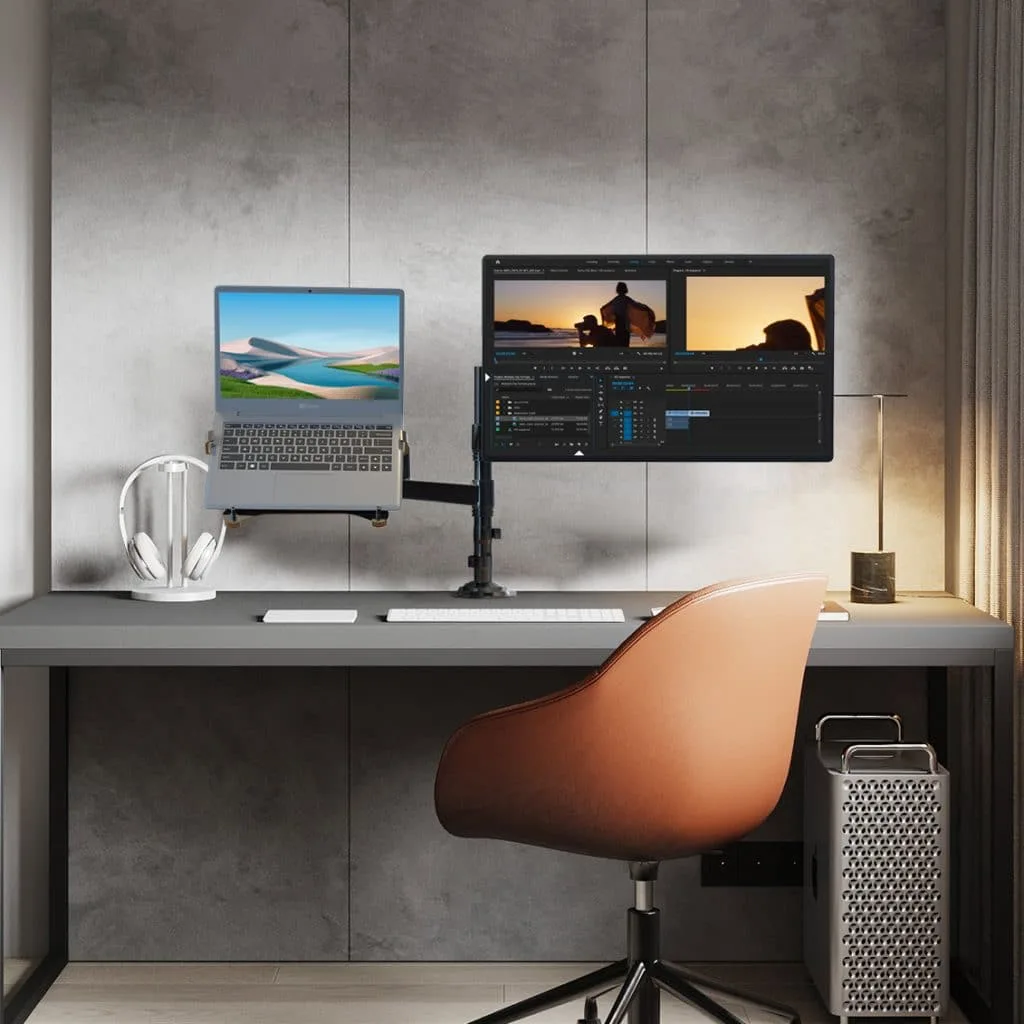
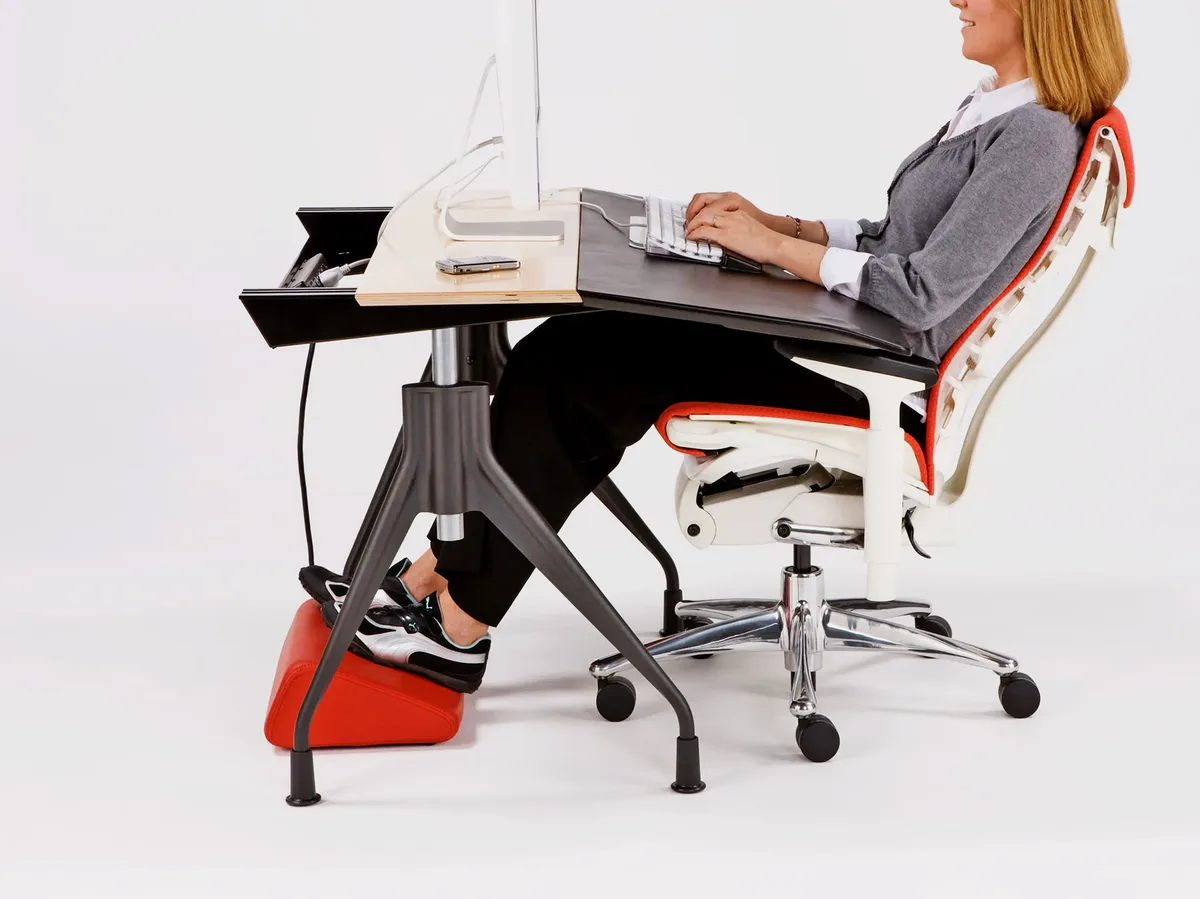
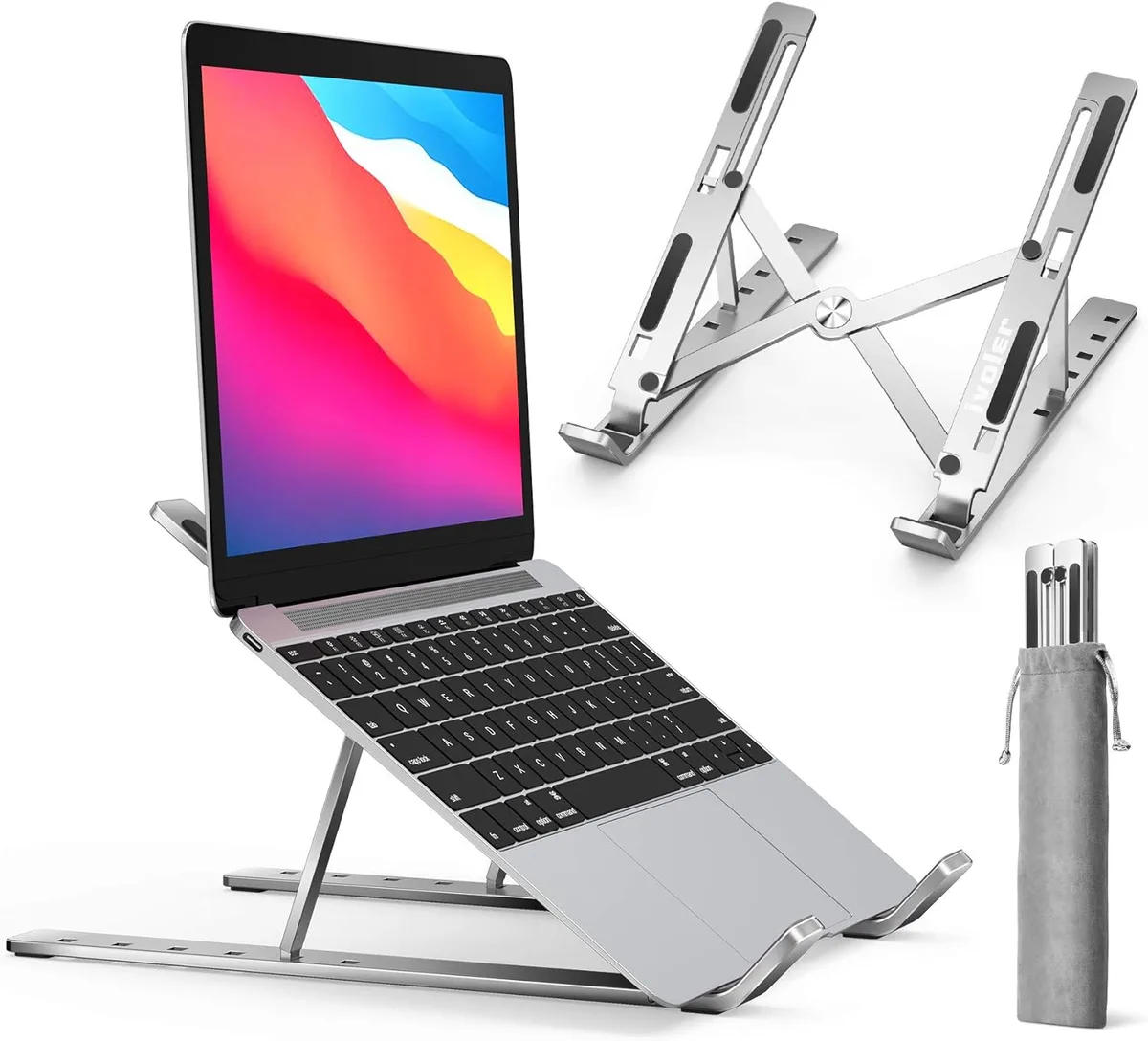
You cannot achieve a healthy posture using only a standard laptop on a flat desk. You need a modular setup that separates the display from the input tools. This separation allows you to put the screen where your eyes need it while keeping your elbows and wrists in a comfortable, relaxed position.
| Essential Gear | Primary Purpose | Setup Requirement |
|---|---|---|
| Laptop Stand | Elevates screen height | Must reach eye level |
| External Keyboard | Allows forearm comfort | Place flat on desktop |
| External Mouse | Prevents wrist pronation | Maintain elbow at 90° |
| Lumbar Support | Maintains spine curve | Position at small of back |
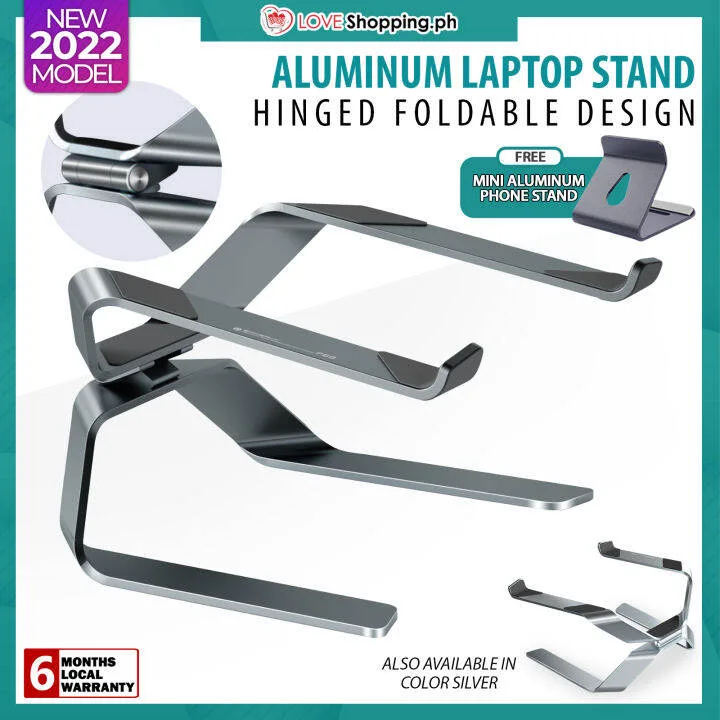
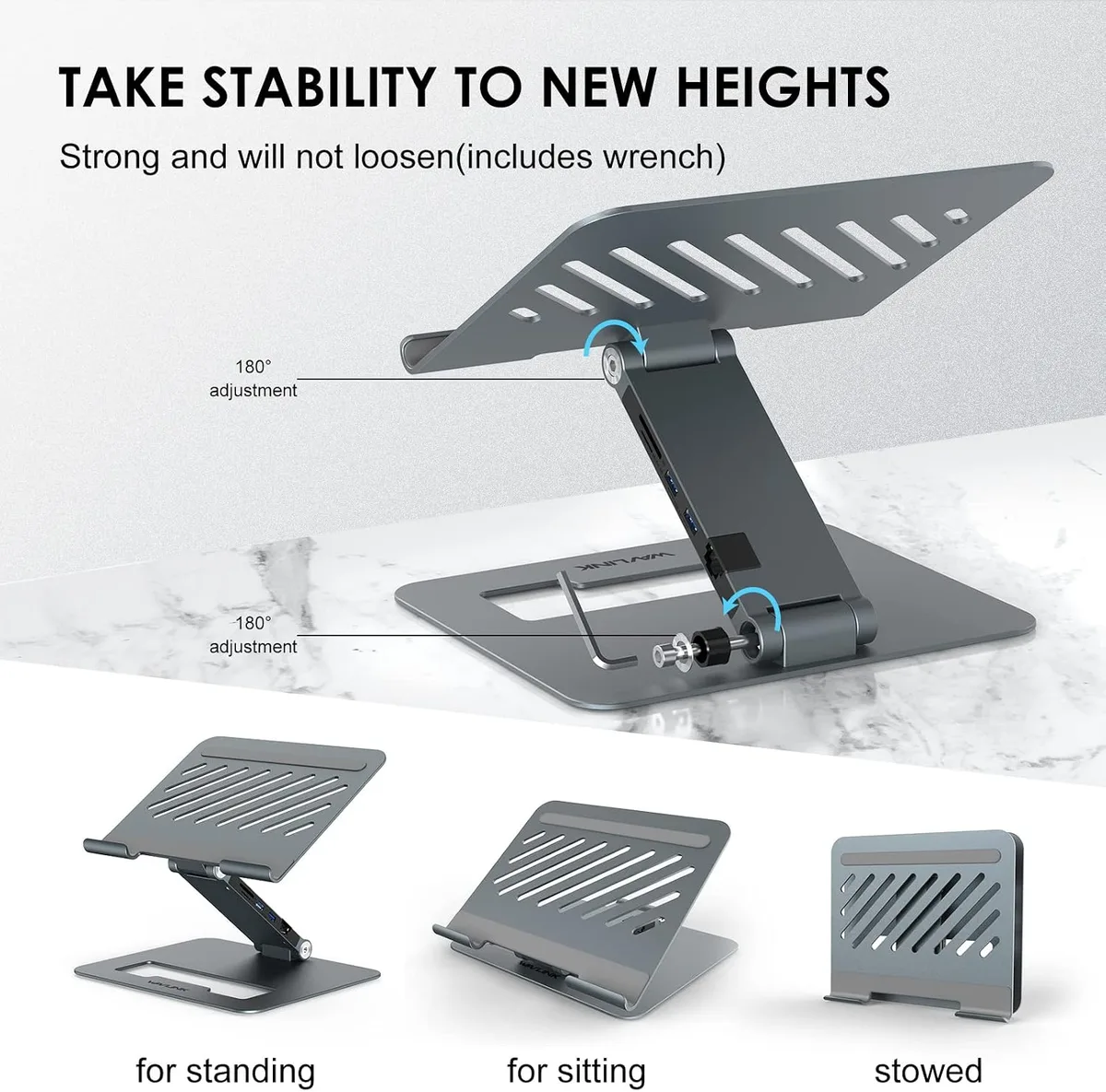
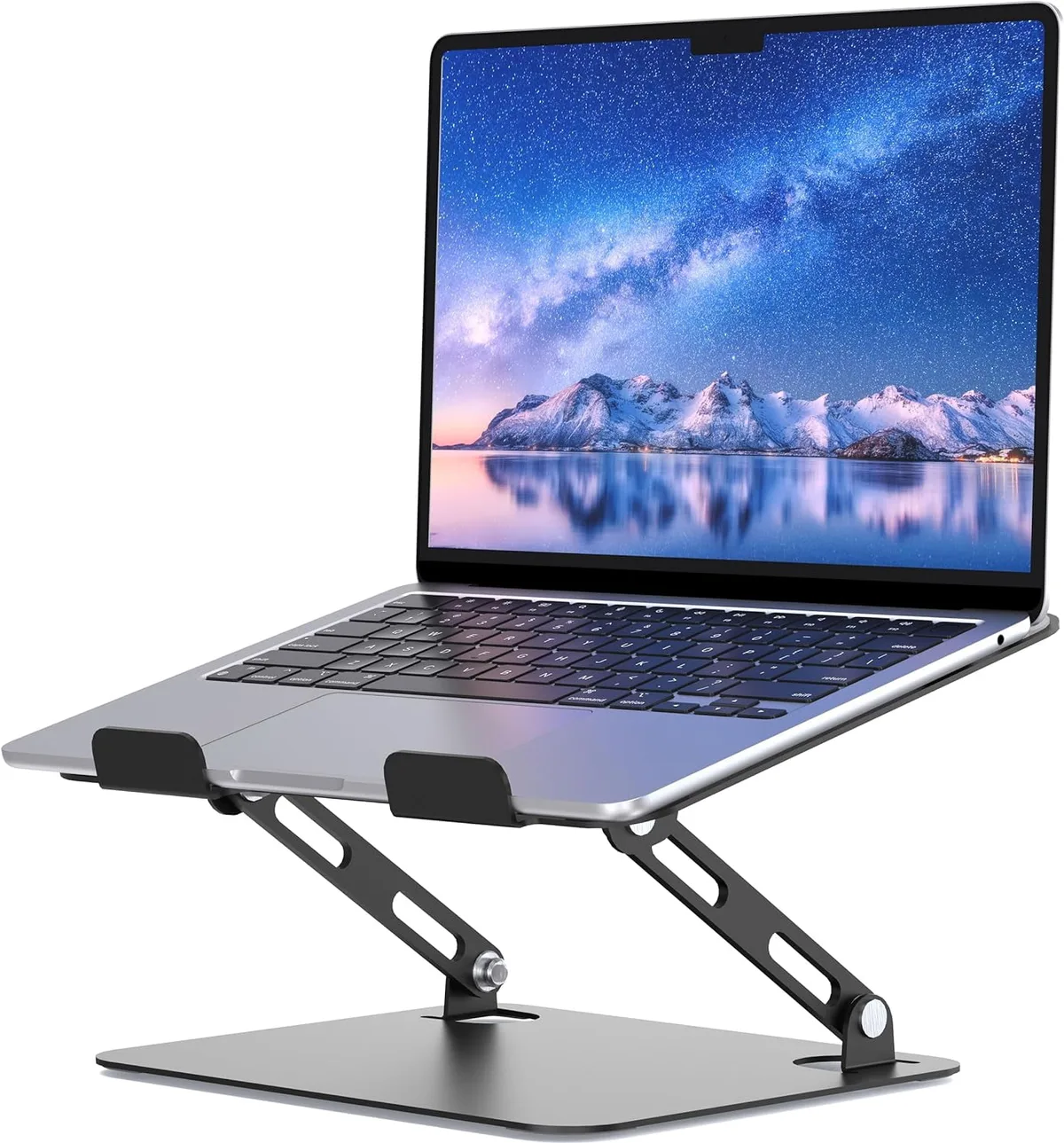
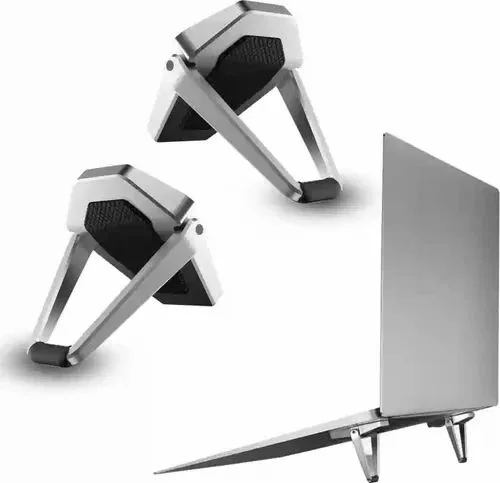
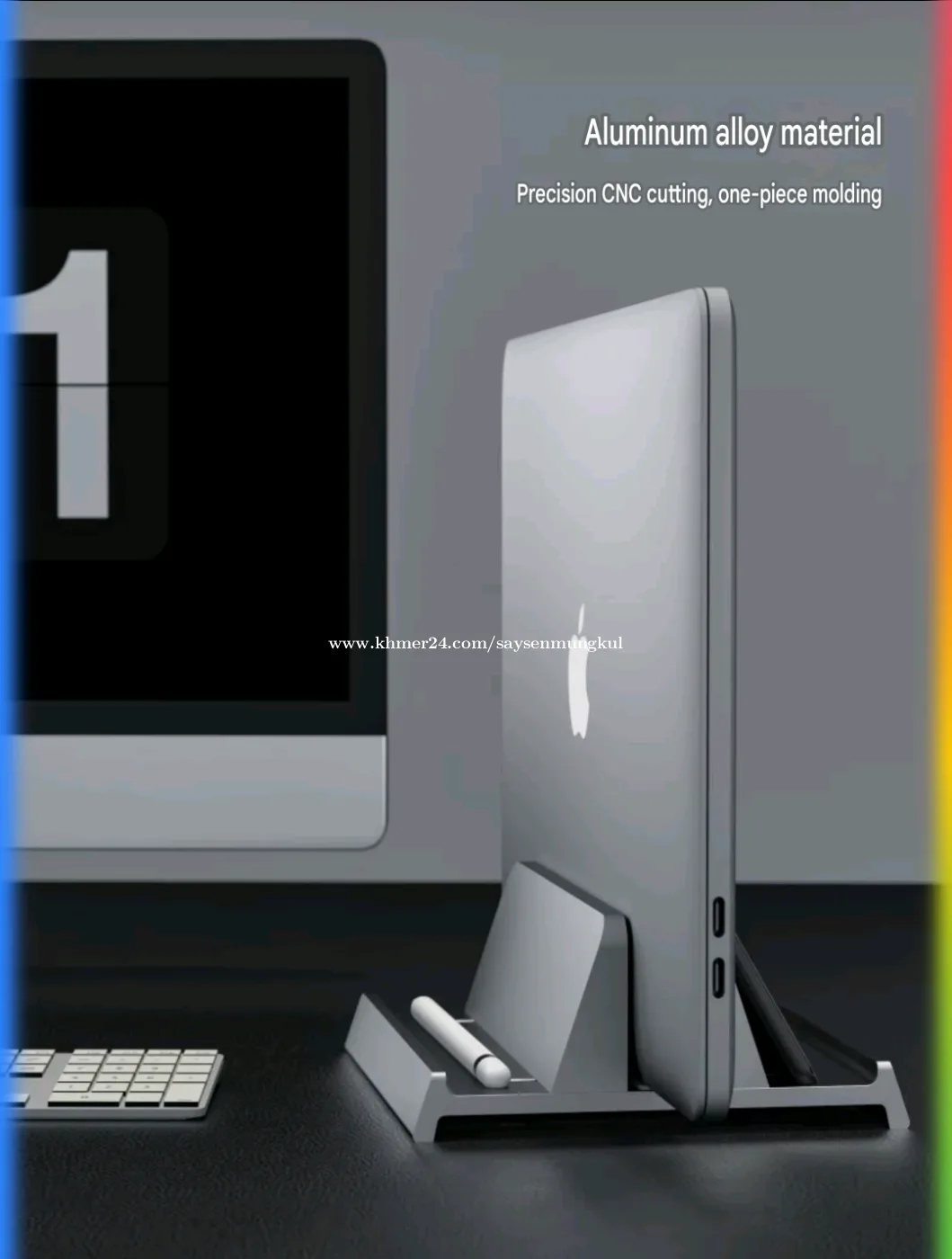
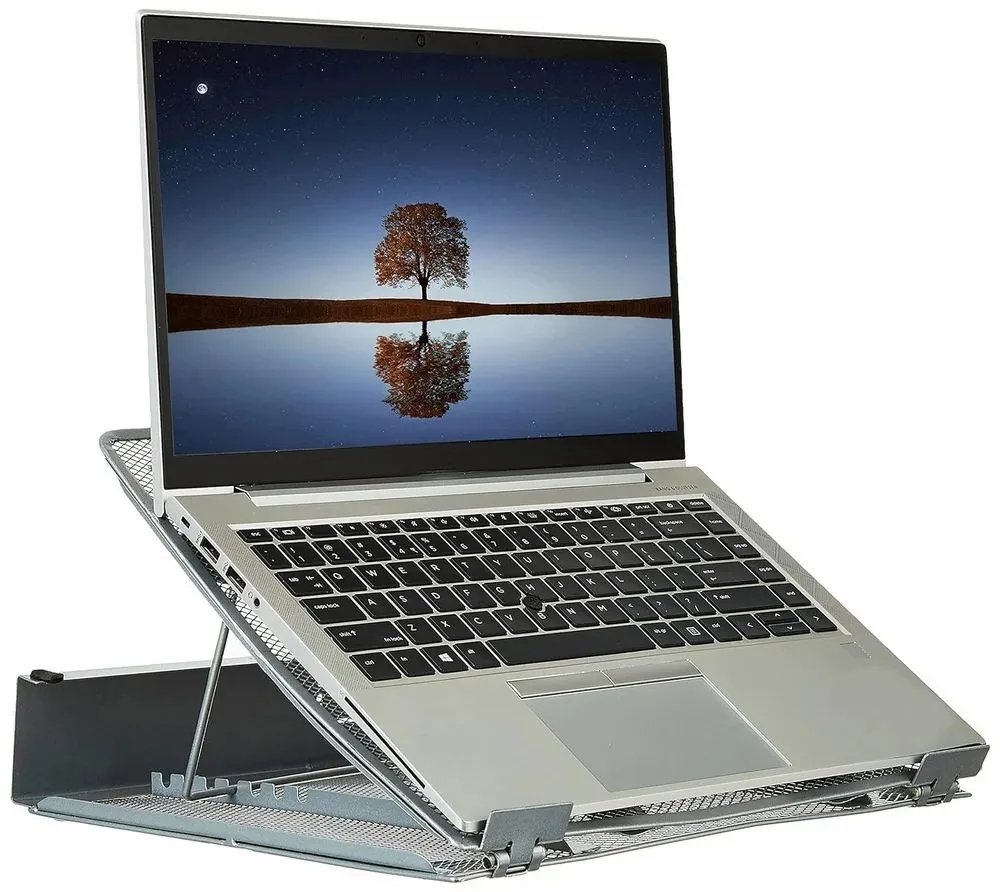
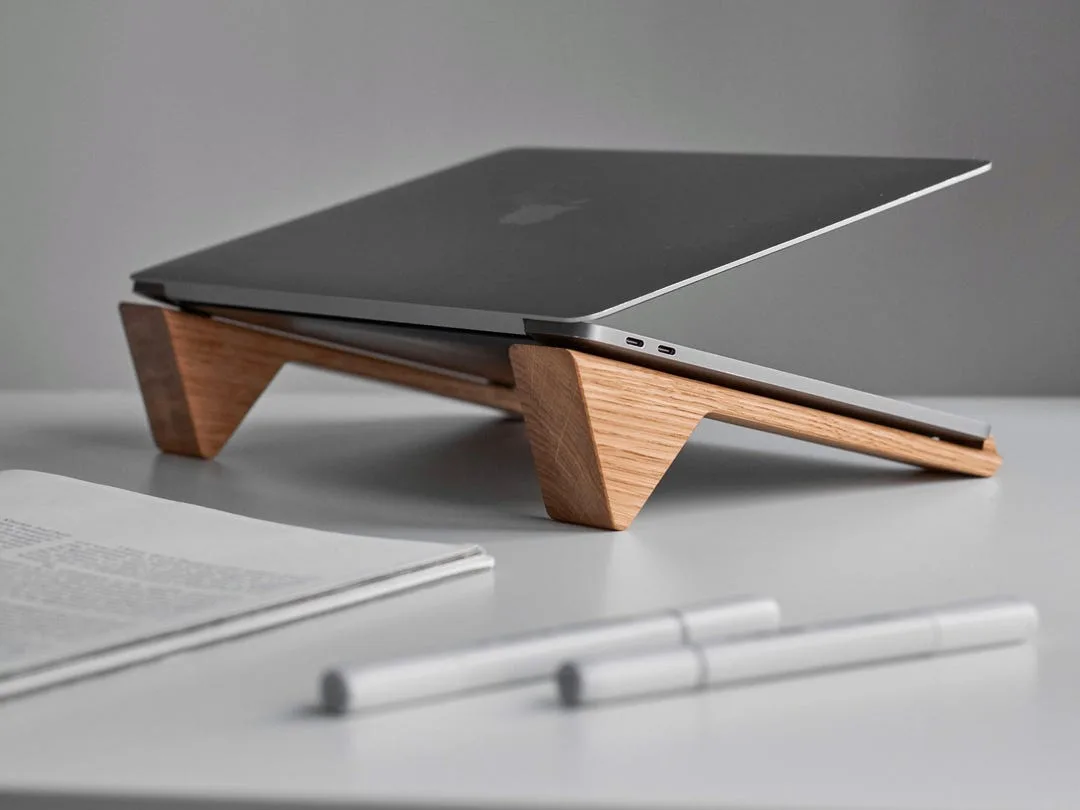
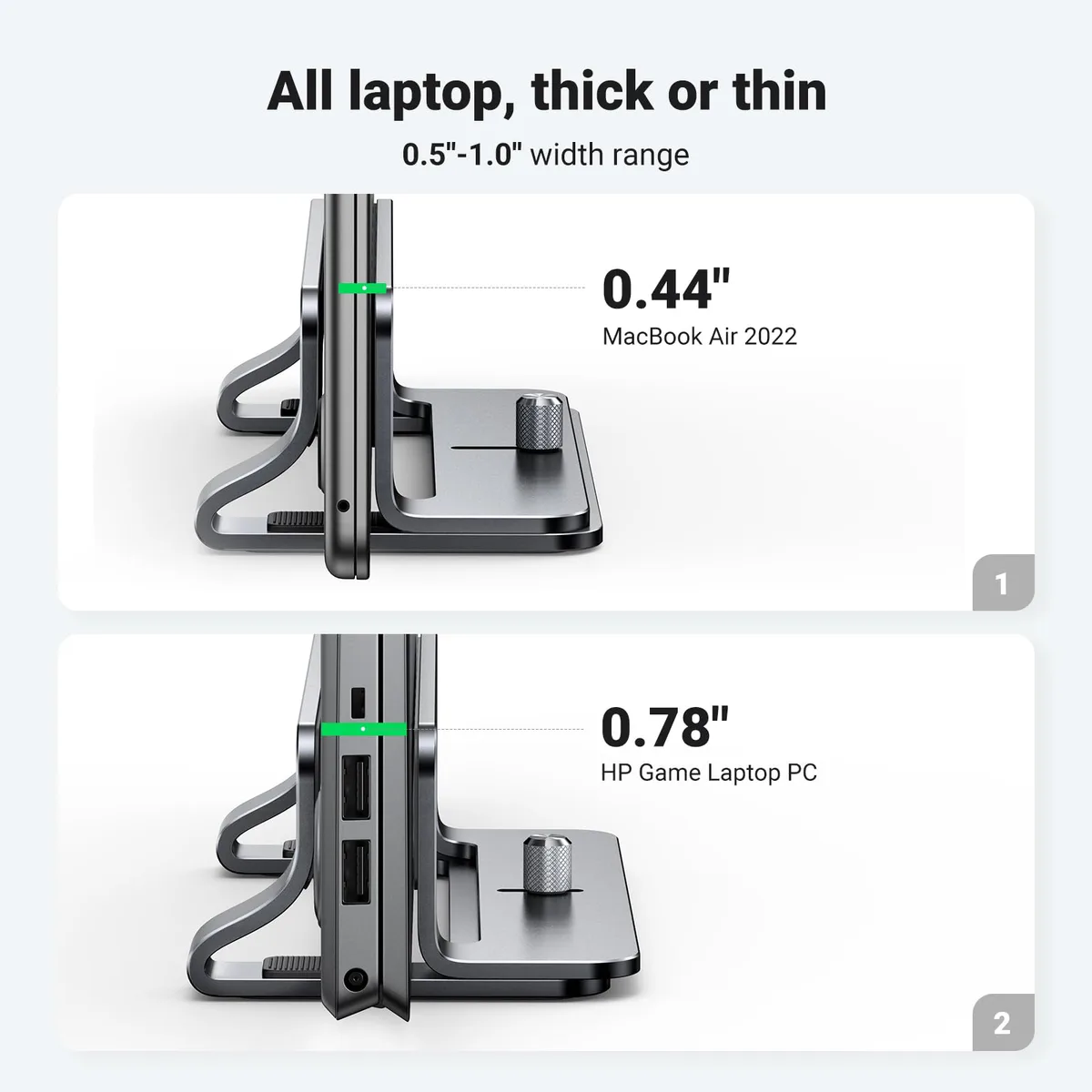
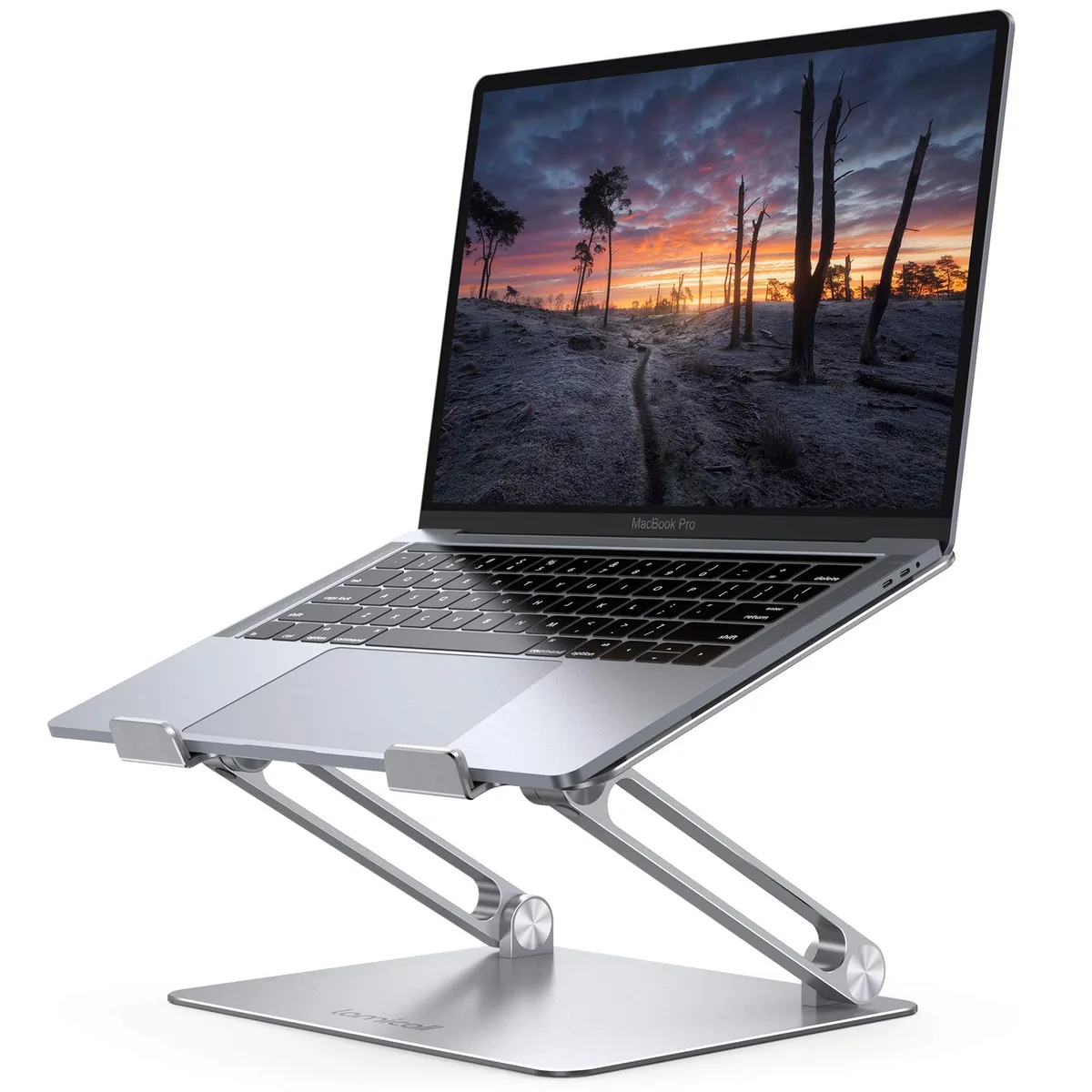
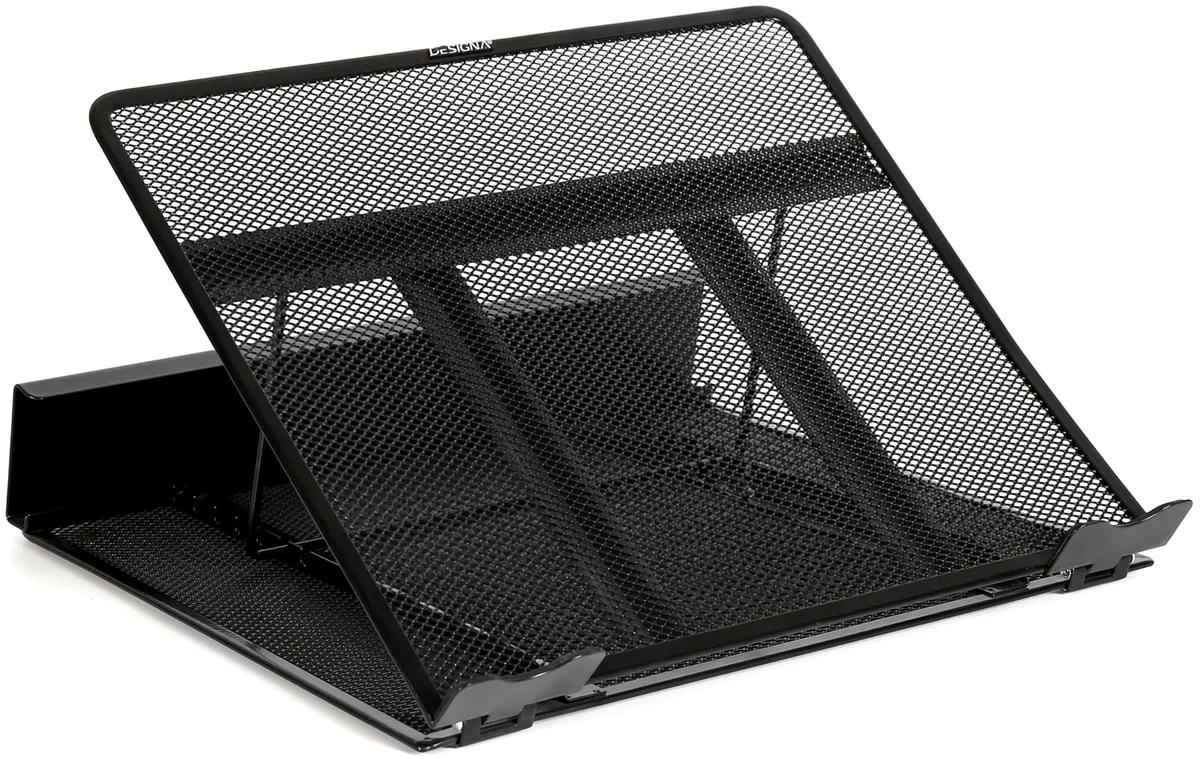
Invest in an adjustable laptop stand that is sturdy enough to handle your device without wobbling. If you are on a budget, a stable stack of books works just as well as a commercial stand. The goal is to ensure the top third of your screen sits exactly at your resting eye level.
Achieving the Perfect 90-90-90 Neutral Posture
The 90-90-90 rule refers to the critical angles required to maintain a neutral spine. You want a 90-degree angle at your hips, your knees, and your elbows. This configuration distributes your body weight evenly across your chair, reducing pressure on your lower back and preventing the slump that triggers forward head posture.
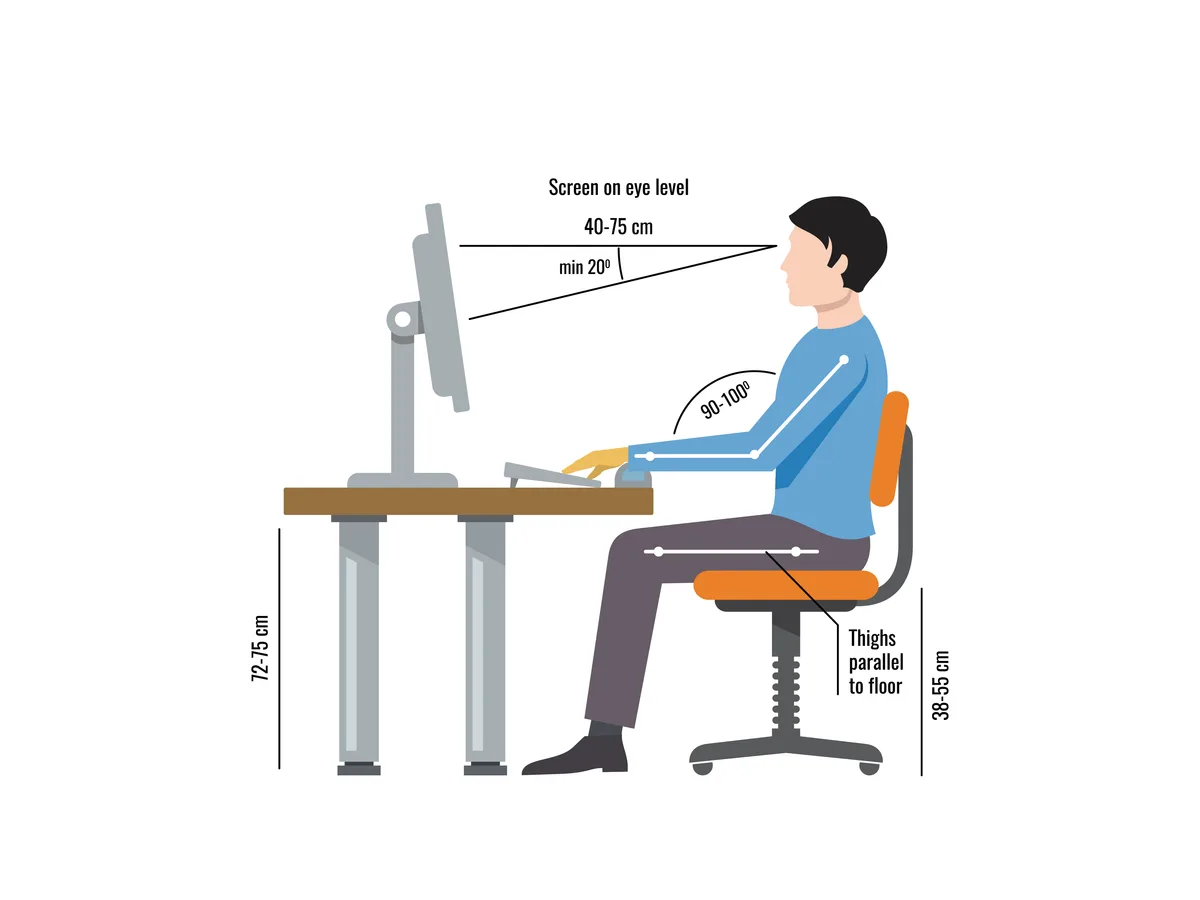
- Hips: Ensure your hips are slightly higher than your knees to open the pelvis.
- Knees: Your feet should rest flat on the floor; use a footrest if you are shorter.
- Elbows: Your elbows should stay tucked near your ribcage at a 90-degree angle.
If you find yourself sliding forward in your chair, adjust your lumbar support to push your chest out slightly. Your shoulders should remain down and back, away from your ears. If you feel your shoulders creeping upward, consciously drop them and shake out your arms to reset the tension.
Why Your Eye Health Directly Impacts Your Neck
Your neck posture is almost always tethered to how well you can see your screen. If your text is too small or your screen has heavy glare, your body will instinctively compensate by thrusting your head toward the monitor. This forward lean happens subconsciously, pulling your cervical spine out of alignment within minutes.
To break this cycle, verify that your text scaling is set to 125% or 150% in your operating system settings. Large, legible text removes the urge to crane your neck forward to read fine print. Additionally, position your monitor so that it is roughly at arm’s length away.
If you have to lean in to read, you are inviting muscle strain that will eventually manifest as a stiff, aching neck.
The 20-20-20 Rule and Daily Movement Protocol
The human body is not built for eight hours of static positioning. Even with the perfect ergonomic setup, remaining in one spot causes your muscles to become fatigued and your joints to lose lubrication. The 20-20-20 rule is a simple, effective way to force regular micro-breaks into your workflow.
Every 20 minutes, take 20 seconds to look at something at least 20 feet away. This action resets your eye focus and allows you to physically shift your posture. While you are looking away, incorporate these three movements to reset your neck:
- Chin Tucks: Slowly pull your chin straight back as if creating a double chin, holding for three seconds.
- Shoulder Rolls: Roll your shoulders up toward your ears, then rotate them back and down to reset your scapulae.
- Gentle Side-to-Side: Slowly turn your head to look over one shoulder, pause, and then repeat on the other side.
Common Setup Mistakes That Trigger Chronic Strain
Many remote workers unknowingly build their own discomfort into their daily routine. The most common mistake is using a trackpad instead of an external mouse. Using a trackpad for eight hours forces your wrist and forearm into constant, repetitive positions that trigger tension in the trapezius muscles.
Another frequent error is failing to manage cords or device clutter. When your desk is crowded, you may be forced to type with your elbows angled outward or your keyboard at a strange, tilted height. A clean, clear workspace allows for natural elbow placement.
If your keyboard is too high, you will naturally hunch your shoulders, which leads directly to neck tightness.
When to Seek Professional Help for Persistent Pain
If you follow these ergonomic changes for two weeks and still experience sharp or radiating pain, it is time to consult a medical professional. Constant neck strain can sometimes mask deeper issues, such as nerve impingement or disc problems, that a chair adjustment cannot fix.
Seek help immediately if you notice numbness or tingling in your hands, loss of grip strength, or pain that persists even when you are lying down. These are signs that your nerves are being affected. A physical therapist can provide targeted exercises to strengthen your deep neck flexors and correct imbalances that your specific body structure might have.
Long-Term Optimization for Remote Workspaces
Once you have your core setup established, treat it as a living system that needs occasional maintenance. Check your chair height and monitor distance every month to ensure nothing has drifted. We often find that our desks become cluttered or our chairs slowly lose their tension, forcing us to slide back into poor habits without realizing it.
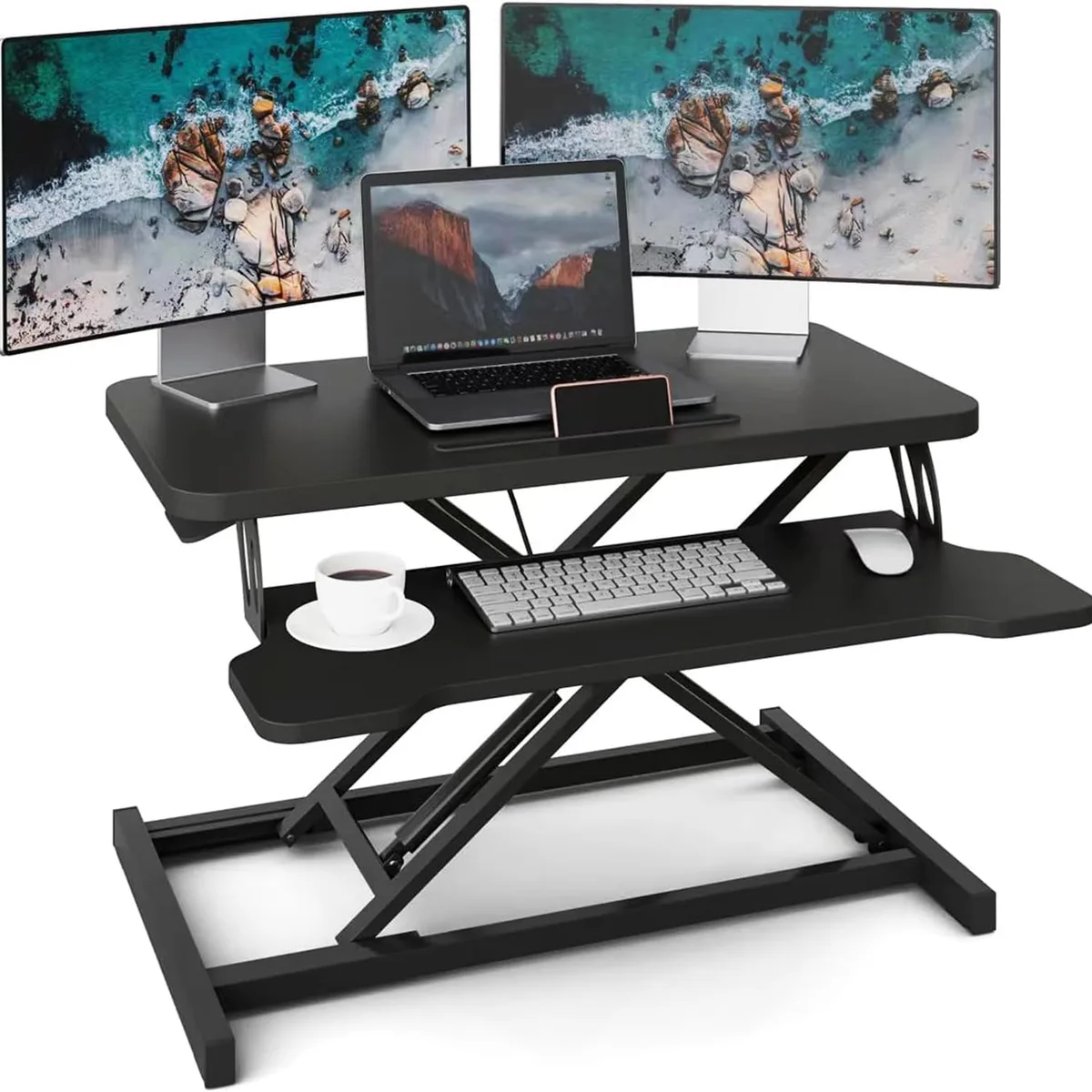
If your role requires high-intensity typing or mouse use, consider alternating between sitting and standing, if you have a standing desk available. The goal is never to find one perfect position to stay in forever. The goal is to provide yourself with the variety and support needed to keep your spine healthy across a full eight-hour shift.
Practical Checklist for Daily Neck Safety
Keep this list at your workstation to ensure you are meeting the basic safety standards for remote work. If you find yourself checking no for any of these, adjust your gear before starting your next task.
- Screen Height: Is the top third of your display at eye level?
- Distance: Is the screen located about one arm’s length away?
- Input: Are your keyboard and mouse positioned for 90-degree elbows?
- Support: Are your feet flat on the floor or a solid footrest?
- Vision: Is your text large enough to read without leaning forward?
Comparison of Peripheral Input Methods
Choosing the right input method is a vital decision for your neck health. A standard laptop keyboard forces your hands together, which rounds your shoulders and pushes your head forward. Using an external keyboard separates your hands to a natural width, allowing your shoulders to stay relaxed.
| Input Type | Impact on Posture | Best For |
|---|---|---|
| Built-in Trackpad | High strain; forces hunching | Short, temporary tasks |
| External Mouse | Low strain; neutral forearm | Precise, long-duration work |
| Split Keyboard | Minimal strain; open chest | Preventing shoulder tension |
If you switch to an external mouse, avoid the mistake of keeping it too far away from your keyboard. Reaching for a mouse creates asymmetric strain in your neck and shoulder. Position it close to your side to keep your elbow tucked in and your spine straight.
Use Cases for Ergonomic Setup Variations
Your ideal setup changes depending on the nature of your remote work. If you spend your day in video meetings, your camera angle is as important as your keyboard height. A camera mounted too high or too low causes you to tilt your head in unnatural ways to maintain eye contact.
For data entry or writing-heavy roles, prioritize keyboard comfort over screen position. If you are a designer using a tablet, keep your workspace clear to allow for frequent position shifts. The best setup is one that you can adjust quickly throughout the day to match the specific physical demands of your current task.
Mistakes to Avoid During Daily Operation
The most common error is ignoring the drift that happens halfway through your shift. You might start your day with perfect posture, but as you get tired, your shoulders will slowly creep toward your ears. This static tension is a leading cause of end-of-day neck pain.
Another dangerous mistake is placing your laptop on a pile of unstable surfaces. A wobbly stack of books or a weak riser can cause you to tense your neck muscles just to steady your gaze. Ensure your elevation tool is stable and rigid so your body can focus on work rather than balance.
Safety Standards for Workspace Certification
While you may not need a formal office audit, you should align your home environment with recognized safety standards. The National Institute for Occupational Safety and Health provides guidelines on how repetitive movements lead to musculoskeletal fatigue. Following these principles helps prevent the inflammation that characterizes long-term neck strain.
Certification bodies suggest that workstations should be adjustable for a wide range of user heights and body types. Don't feel locked into a single layout. If a specific chair or keyboard height makes you feel tight, trust your body and make a minor adjustment immediately.
Maintenance and Long-Term Optimization
Ergonomics is not a one-time setup process. Your equipment will wear out and your posture habits will change over the months. Set a recurring calendar reminder every three months to perform a workstation checkup.
Evaluate if your chair still provides adequate support or if the padding has compressed over time. Check your keyboard for signs of heavy use that might lead to stiffness. Small, preventative maintenance keeps your workstation supportive and prevents minor annoyances from developing into chronic pain that requires medical intervention.
Frequently Asked Questions
How long does it take for neck strain to improve?
Most users report significant relief within one to two weeks of fixing their workstation alignment. Consistency is the most important factor. If you stop the habits, the strain typically returns within a few days of poor posture.
Do I need an expensive ergonomic chair to prevent strain?
No, an expensive chair is not required. You can achieve excellent results with a basic, supportive chair by using a small pillow or a rolled-up towel to provide lumbar support. The height and depth adjustments matter much more than the price tag.
Should I stand all day to avoid neck pain?
Standing all day is not the answer. Standing for too long can cause lower-back fatigue and foot issues. The best approach is to transition between sitting and standing throughout the day, ensuring you maintain a neutral spine in both positions.
Is it normal to feel tension even with a good setup?
Yes, minor tension can still occur due to mental stress or general fatigue. Use the 20-20-20 rule to break up the day. If the tension turns into sharp pain, re-evaluate your posture and consider stretching your chest and upper-back muscles.

Similar Posts