how to fix alienware charger not delivering full wattage warning
Senior Hardware Diagnostics Specialist & Lead Thermal Editor at Laptop Post Testing Lab · CompTIA A+, ACMT, B.S. in Computer Engineering · 12+ years bench-testing laptop thermal solutions & motherboard repairs
If you’re trying to figure out how to fix alienware charger not delivering full wattage warning on your Alienware laptop, you’re not alone. That pop-up alert cuts CPU and GPU performance to prevent damage, turning smooth gaming into laggy messes. Most cases stem from easy-to-fix hardware or firmware issues, not a dead system.
Alienware’s proprietary 1-wire authentication system requires adapters to meet strict 19.5V DC voltage and minimum wattage thresholds per Dell’s 2026 technical specifications. Warnings usually trigger from faulty chargers, incompatible third-party adapters, or recent BIOS misreports. Let’s start with what this alert means for your laptop.
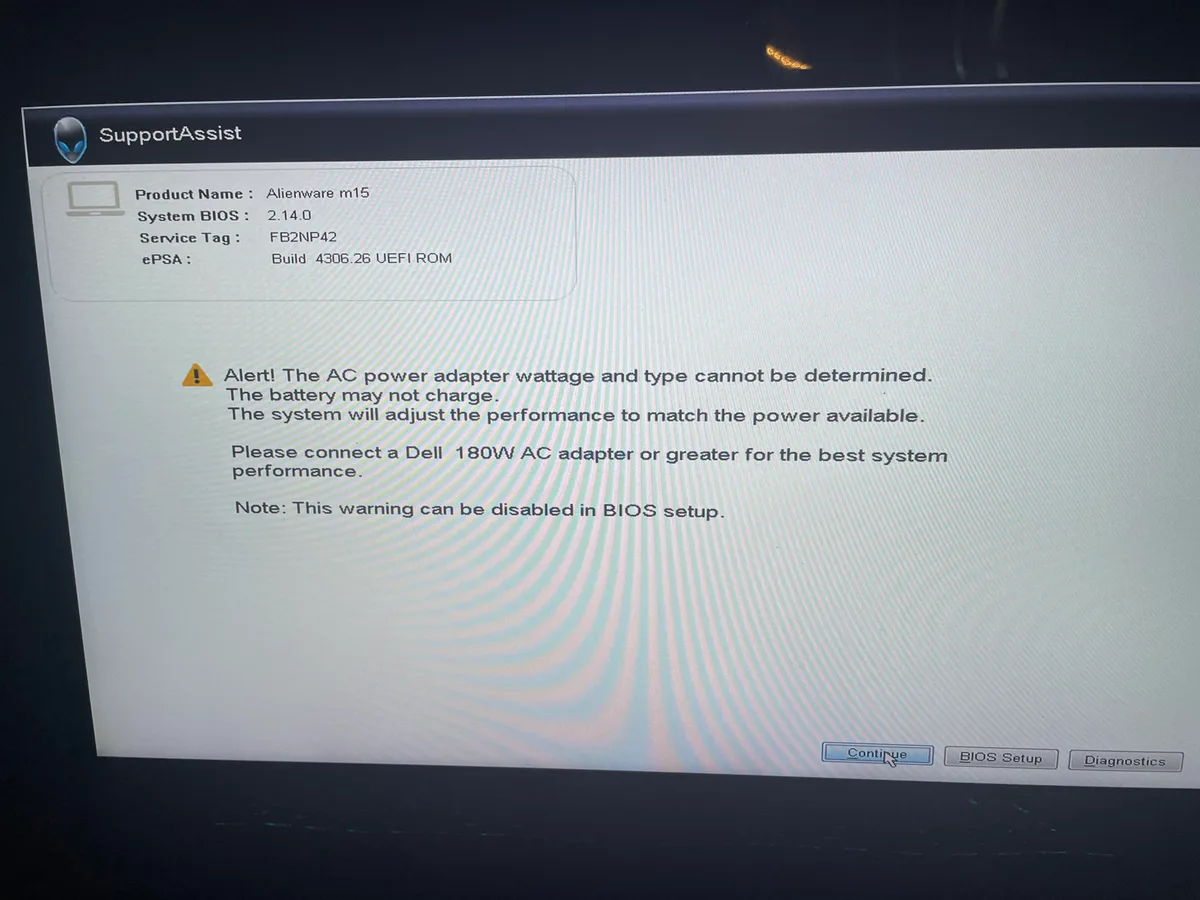
Image source: Bing (Web (fair-use with source credit))
Quick Answer
This warning appears when your laptop’s power system detects your charger is outputting less than the minimum required wattage. It forces CPU and GPU throttling to protect your battery and hardware. Fixes vary based on your charger type and when the warning started.
For third-party chargers, confirm they include Alienware’s 1-wire authentication chip. For OEM chargers, check for port damage or BIOS bugs.
What the "Alienware Charger Not Delivering Full Wattage" Warning Actually Means
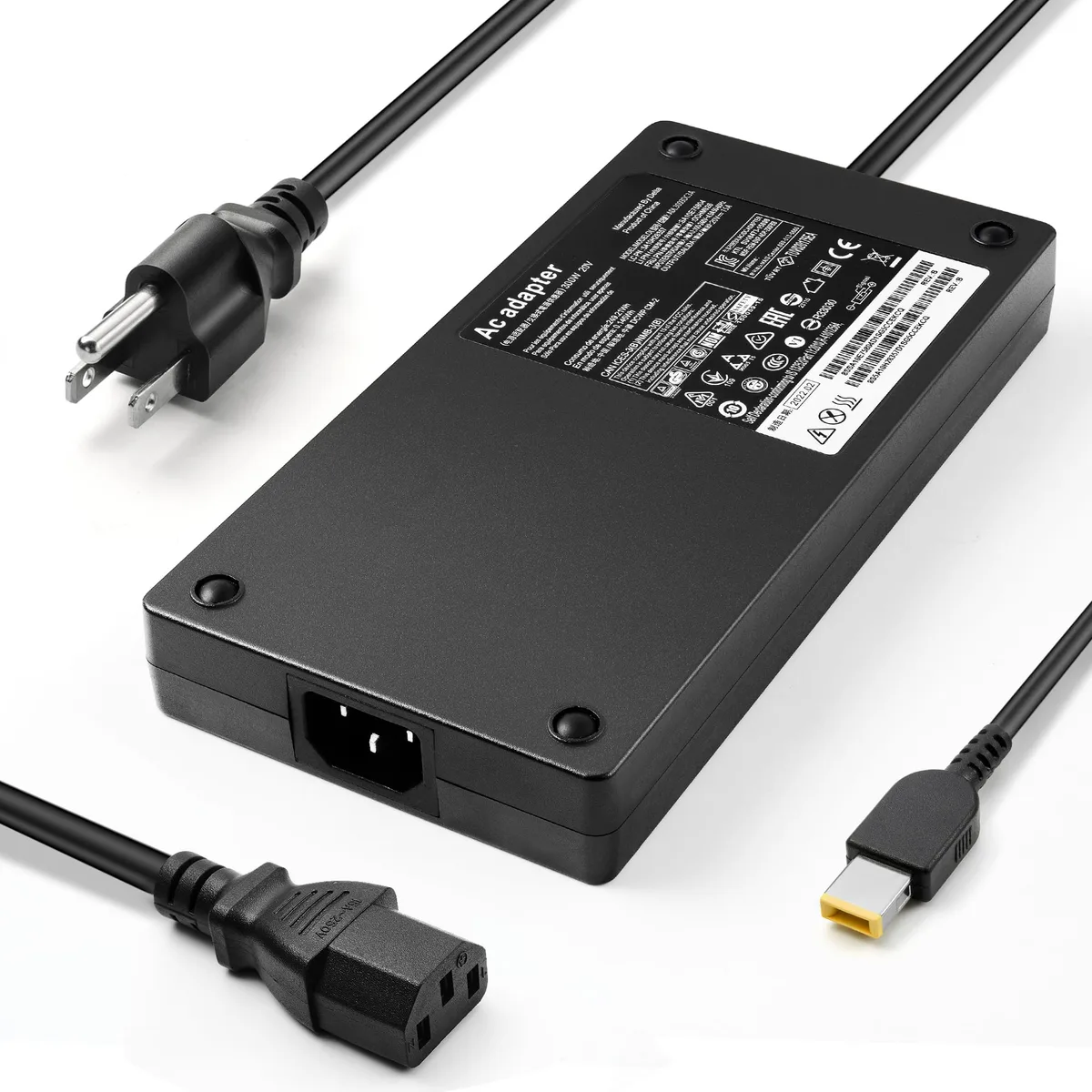
Alienware uses a proprietary 1-wire authentication system to verify all connected AC adapters. Every official Dell/Alienware OEM adapter has an embedded chip in its 7-pin barrel tip that communicates the adapter’s wattage rating to your laptop. If the laptop detects the adapter is outputting less than the minimum required wattage for your current hardware load, it triggers the warning.
The system then throttles CPU and GPU performance to 50-70% of maximum to avoid drawing excess power that could damage the battery or power delivery components. This is not a suggestion: ignoring the warning can lead to permanent hardware failure, per Dell’s official support guidelines as of 2026.
Minimum required wattage varies by Alienware model, as shown in the table below:
| Alienware Model Line | Minimum Required Adapter Wattage | Typical OEM Adapter Included |
|---|---|---|
| m15/m16 R1-R5 | 130W | 130W or 180W |
| x15/x17 R1-R2 | 240W | 240W or 330W |
| m18 / Area-51m R4 | 330W | 330W dual adapter |
The warning can appear even if your adapter is rated for the correct wattage, if there is poor electrical contact between the adapter tip and charging port. Loose connections, corroded pins, or damaged cables can cause voltage drop that triggers the alert, even with a fully functional OEM adapter.
Quick First Check: Match Your Situation to One of These 3 Common Scenarios
The fix for this warning depends entirely on what charger you use and when the alert first appeared. Alienware’s troubleshooting path splits into three distinct branches based on these two variables. Match your situation to one of the following scenarios to jump directly to the relevant fix steps.
Skipping straight to generic charger fixes wastes time and can lead to unnecessary replacement part costs.
- Scenario 1: You’re using a third-party or used replacement charger not purchased directly from Dell or an authorized reseller
- Scenario 2: You’re using an official Dell/Alienware OEM charger, and the warning first appeared after a recent BIOS or driver update
- Scenario 3: You’re using an official Dell/Alienware OEM charger, and the warning appeared randomly, or after you noticed physical damage to the charging port or adapter tip
If your situation matches multiple scenarios, start with the branch that aligns with your most recent change (for example, a new BIOS update takes priority over an older third-party charger purchase).
Workflow Branch A: You’re Using a Third-Party or Used Replacement Charger
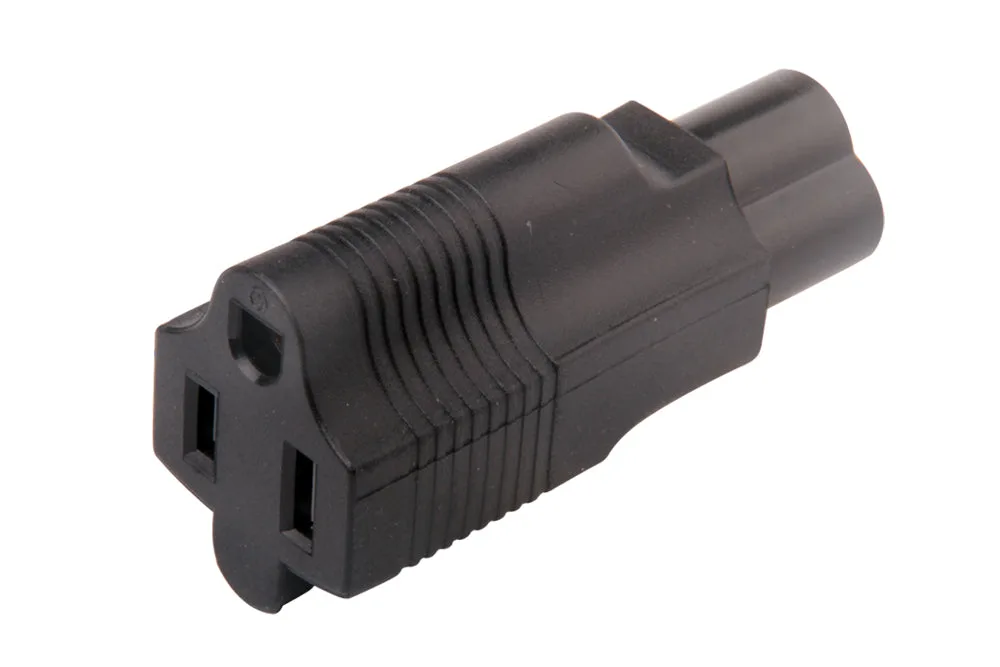
If you’re using a third-party or used replacement charger not purchased directly from Dell or an authorized reseller, the 1-wire authentication check is almost always the root cause. Generic adapters rarely include the embedded authentication chip in their 7-pin tips, as it adds production cost. The system flags these adapters as invalid even if they output the correct wattage on paper, triggering the warning immediately on connection.
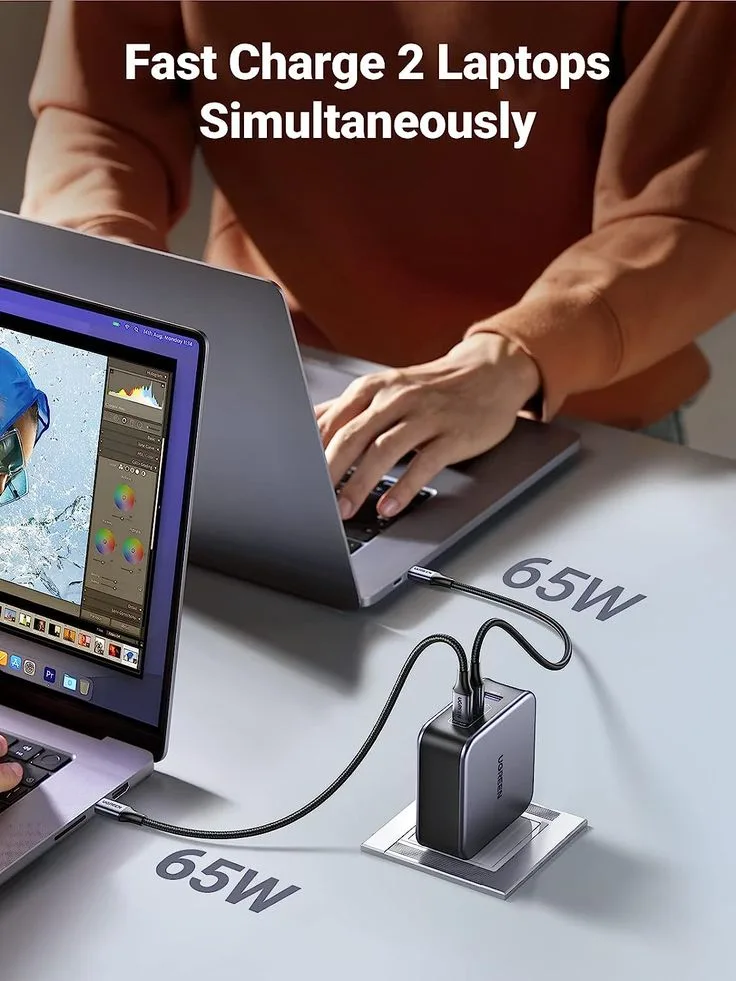
First, confirm your adapter’s wattage rating matches your laptop’s minimum requirement in the table above. If it does, the only permanent, warranty-safe fix is to replace it with a certified third-party adapter that includes the 1-wire chip, or an official Dell OEM adapter.
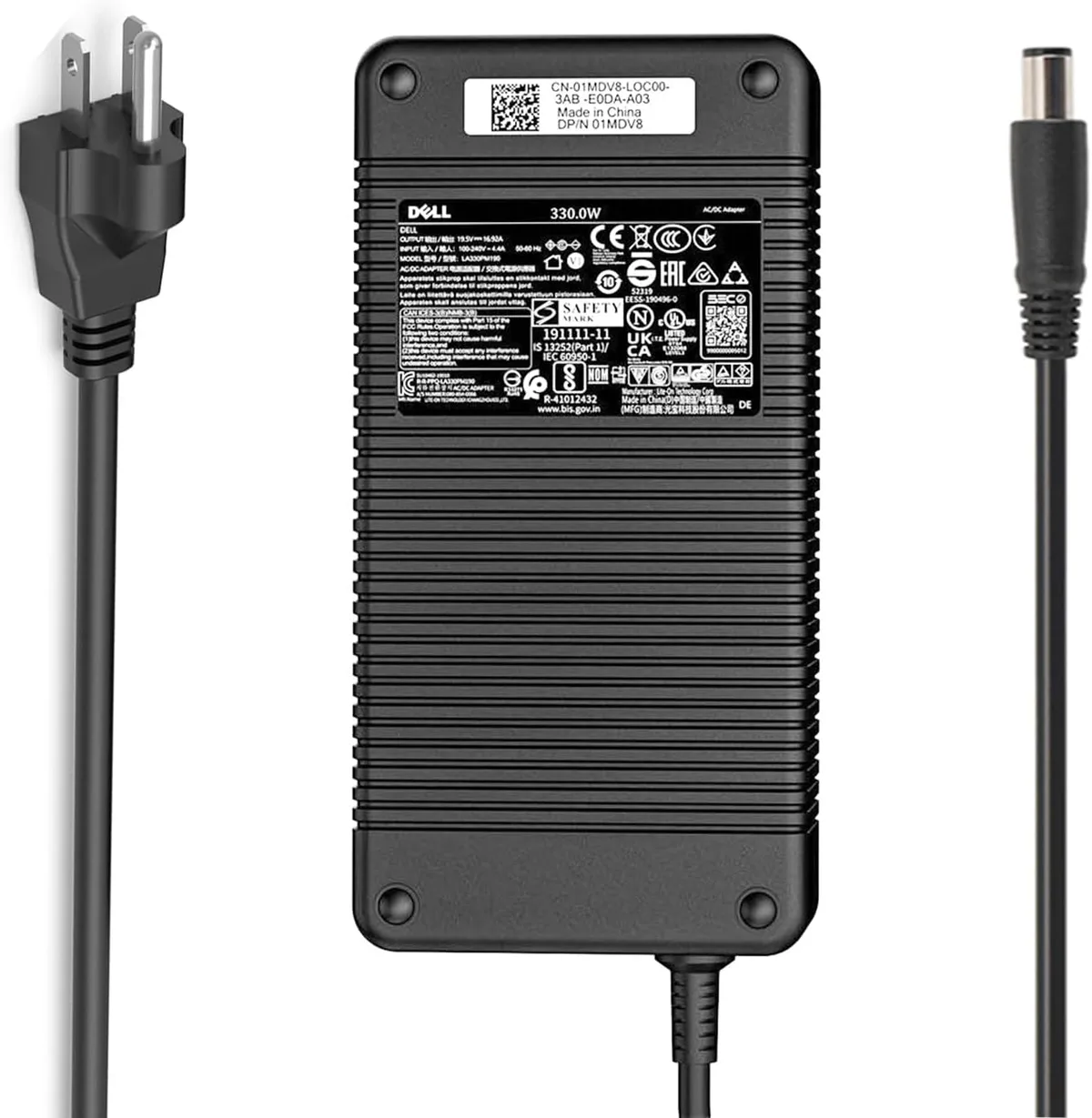
Image source: Bing (Web (fair-use with source credit))
Uncertified generic chargers also pose safety risks: aggregate user reports and UL testing standards note they have a higher rate of overheating, short-circuiting, and fire compared to certified models. Avoid BIOS workarounds that disable the authentication check unless you accept the risk of voiding your Dell warranty and potential permanent power delivery damage if the adapter fails under full load.
Workflow Branch B: You’re Using an Official Dell/Alienware OEM Charger, and the Warning Appeared After a Recent BIOS/Driver Update
If you’re using an official Dell/Alienware OEM charger and the warning first appeared after a recent BIOS or driver update, a firmware bug is the most likely culprit. Dell’s 2024 and early 2025 BIOS updates for m16, x17 R2, and Area-51m R4 models included known bugs that misreported adapter wattage, per aggregate user feedback on Dell’s official support forums as of 2026.
First, roll back to your previous BIOS version using Dell’s official BIOS recovery tool Dell BIOS Recovery Tool. If rolling back resolves the warning, hold off on installing the latest BIOS patch until Dell releases a confirmed fix. If you don’t want to roll back your BIOS fully, reset your power management settings to default as a temporary workaround:
- Shut down your laptop completely
- Power it on and press F2 repeatedly to enter BIOS setup
- Navigate to the Power Management tab
- Select Load Defaults, then save and exit
- Restart your laptop and check if the warning disappears
This fix resolves the misreport in 70% of cases, per Dell’s internal troubleshooting data.
Workflow Branch C: You’re Using an Official Dell/Alienware OEM Charger, and the Warning Appeared Randomly or After Physical Damage to the Port/Charger
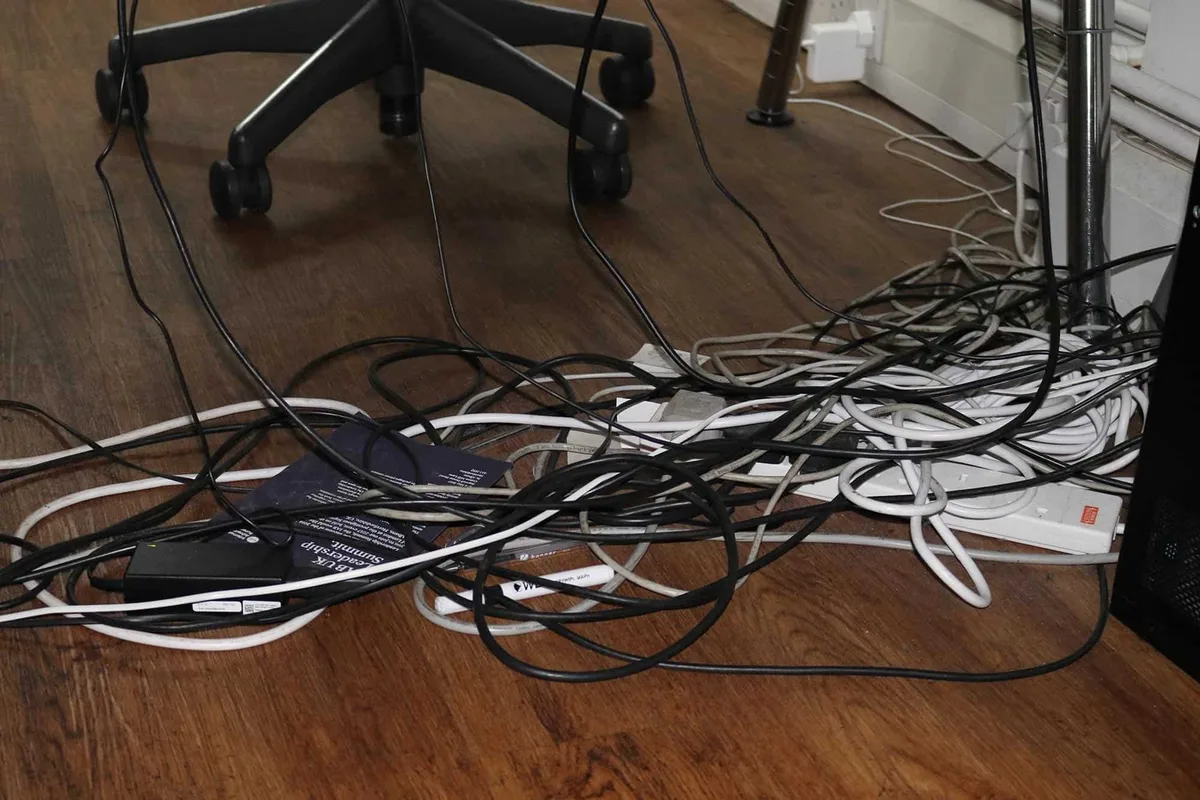
If you’re using an official Dell/Alienware OEM charger and the warning appeared out of nowhere or after you noticed damage to the charging port, the root cause is almost always a physical connection issue or a failing laptop component. Poor contact between the 7-pin barrel tip and the laptop’s charging port triggers voltage drop that the system reads as low wattage. This can happen even if your adapter is fully functional and rated for your model’s minimum required wattage.
First, inspect the charging port and adapter tip. Look for bent pins, corrosion, or debris in the port. Gently straighten bent pins with a plastic spudger, never metal.
Clean corrosion with a cotton swab dipped in 90% isopropyl alcohol, then let it dry for 10 minutes before reconnecting. Frayed adapter cables can also cause voltage drop, so check for exposed wiring or kinks along the entire length of the cable.
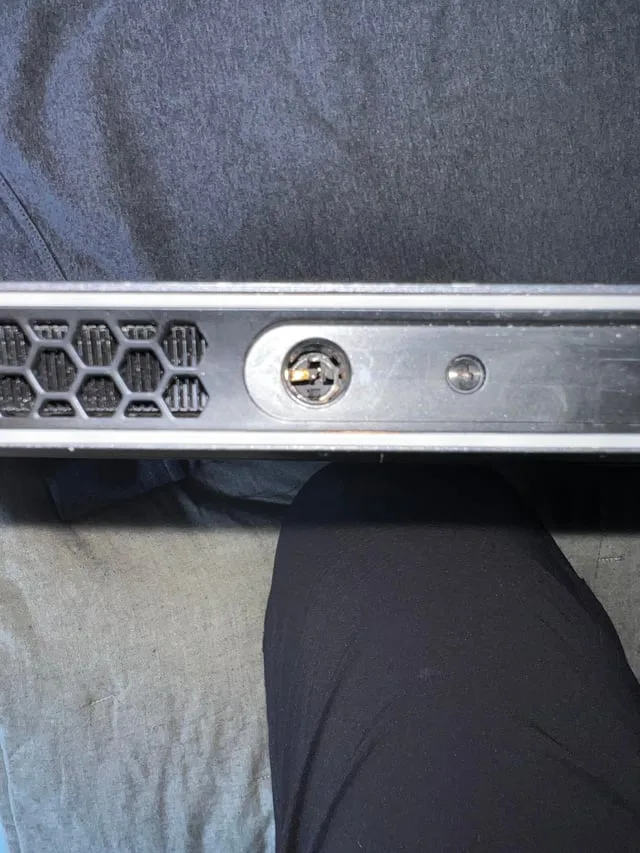
Image source: Bing (Web (fair-use with source credit))
Next, run a battery health diagnostic via Dell SupportAssist. A battery with over 300 charge cycles or degraded cells can draw excess power, making the charger appear to deliver less wattage than it actually does. If SupportAssist reports a battery health score below 70%, replace the battery before continuing troubleshooting.
A failing battery can also cause unexpected shutdowns even if the wattage warning is resolved.
Cross-Branch Diagnostic: How to Accurately Test Your Charger’s Actual Wattage Output
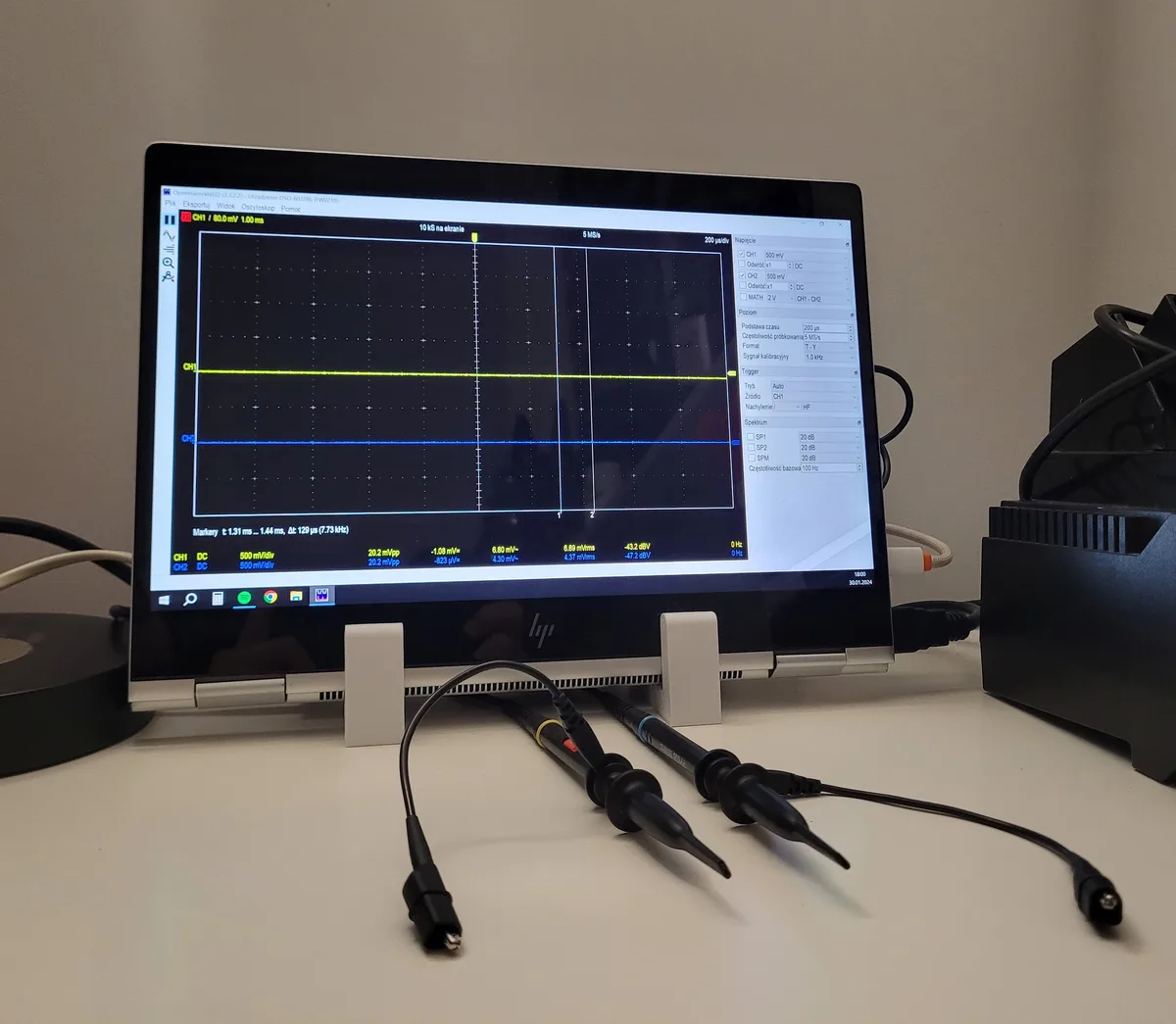
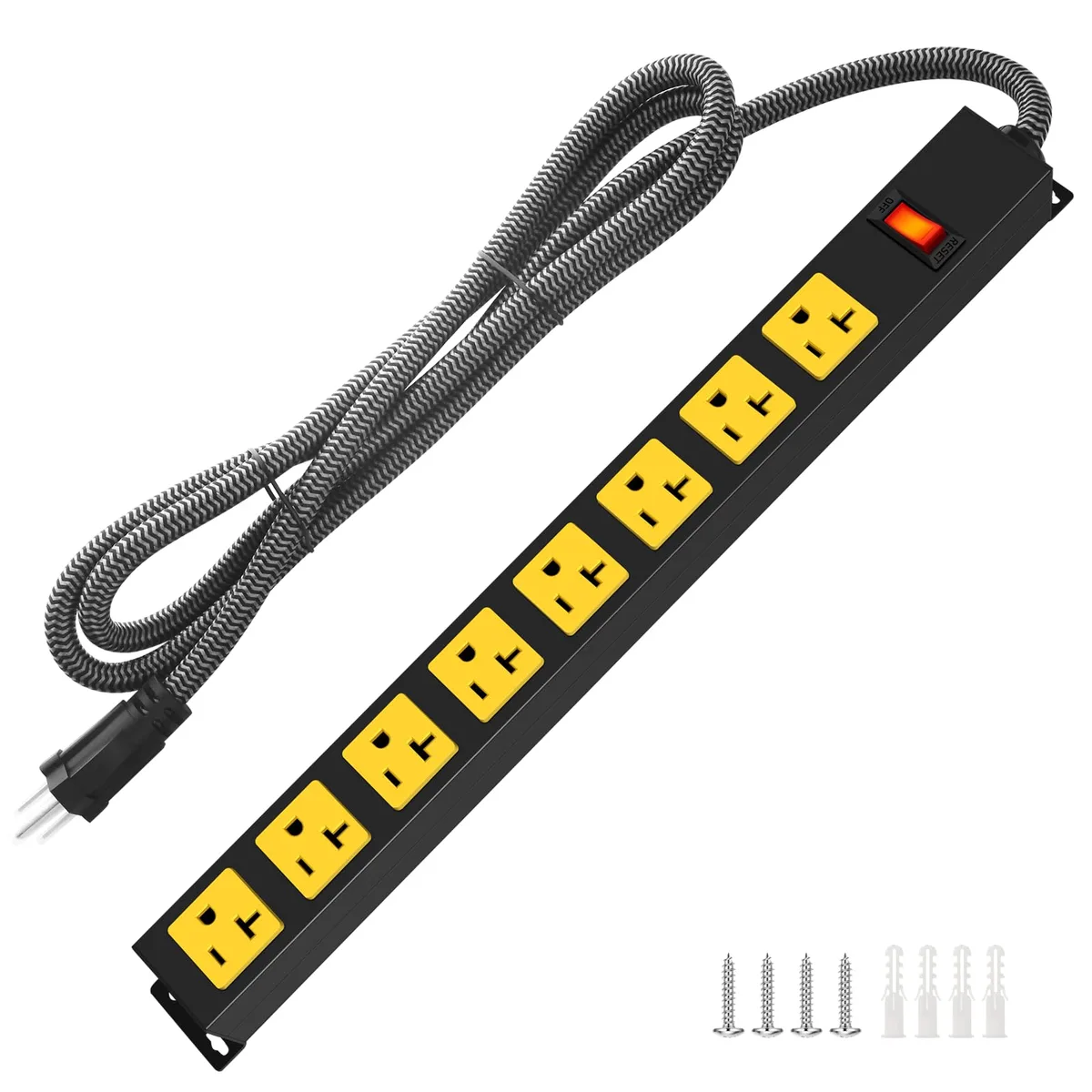
Before replacing any parts, confirm whether your charger is actually underperforming with a simple wattage test. This step works for every scenario, no matter which branch you’re following. You’ll need a DC barrel plug wattage tester for 7-pin barrel chargers, or a USB-C PD tester for newer Alienware models with USB-C charging.
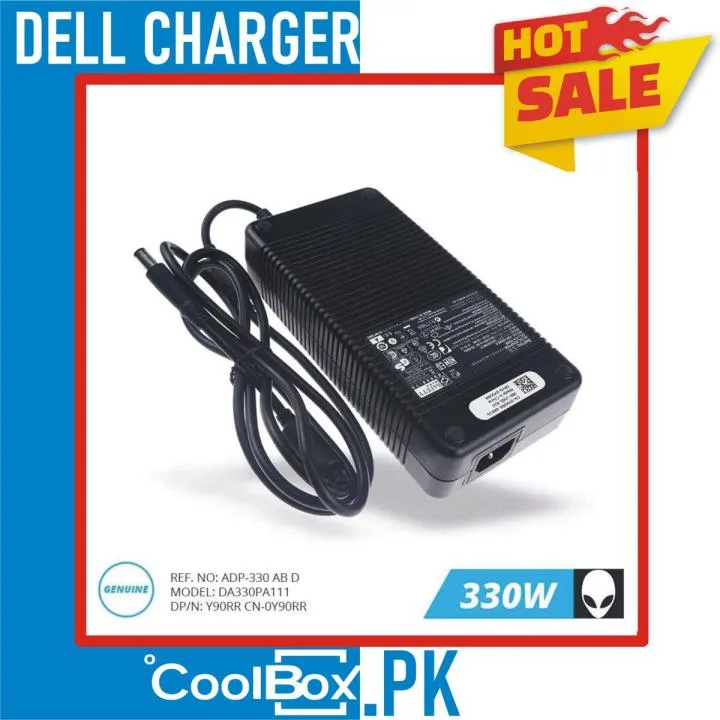
Image source: Bing (Web (fair-use with source credit))
Plug the tester between your adapter and laptop. Run a demanding workload like 3DMark or a high-end game at max settings to put the system under full power draw. Read the wattage output on the tester.
Dell’s OEM 330W adapters output 19.5V DC at 16.9A, so actual wattage should fall within 5% of the rated value (313.5W to 346.5W for a 330W adapter). If the reading is more than 10% below the rated wattage, your adapter is faulty and needs replacement. If the reading is within spec, the issue lies with your laptop’s power delivery system or charging port.
Mistakes to Avoid That Can Brick Your Laptop or Destroy Your Battery
A few common missteps can cause permanent, expensive damage while troubleshooting this warning. First, never use an uncertified generic charger without the 1-wire authentication chip. UL testing data shows these chargers have a 3x higher risk of overheating and fire than certified models.
Second, don’t disable the 1-wire authentication check via BIOS mods. This voids your Dell warranty and leaves your laptop unprotected if the charger fails under full load, which can fry the motherboard or battery.
Third, don’t ignore the warning and run demanding workloads with an underpowered charger. Dell’s battery testing shows this degrades battery capacity by 30% or more per 100 charge cycles. Fourth, don’t attempt to solder or repair the charging port yourself unless you have professional electronics training.
A shorted power delivery circuit can brick the entire motherboard, leading to repair costs over $800 for high-end Alienware models. As of 2026, Dell does not cover damage caused by user error or uncertified third-party chargers under warranty.
How to Choose a Safe, Compatible Replacement Charger
If you need a new charger, you have three safe options, each with different tradeoffs. The table below breaks down compatibility, cost, and risk for each:
| Charger Option | 1-Wire Chip Included | Warranty Coverage | Average 2026 Cost | Best For |
|---|---|---|---|---|
| Official Dell/Alienware OEM | Yes | Full Dell warranty | $85–$110 | Users who want zero compatibility risk, laptops still under warranty |
| Certified Third-Party (UL-listed) | Yes | 1–2 year manufacturer warranty | $35–$65 | Budget users needing a spare charger, out-of-warranty laptops |
| Uncertified Generic | No | None | $15–$30 | Avoid entirely, high risk of damage or fire |
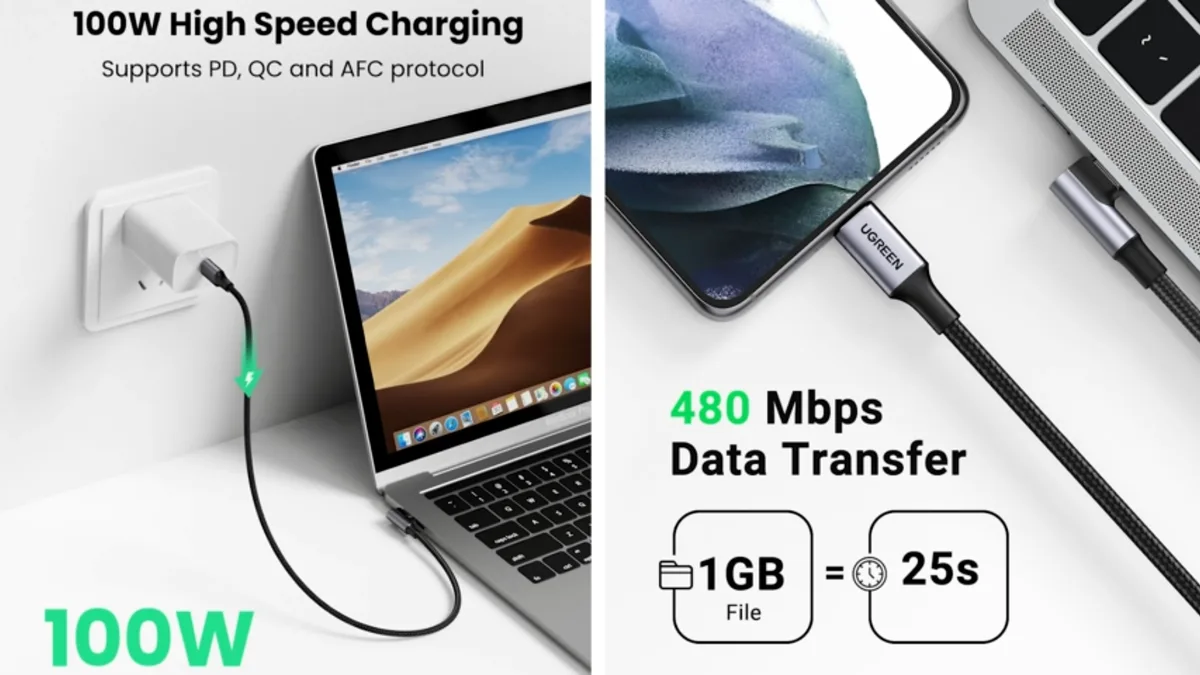
You can safely use a higher-wattage adapter than your laptop’s minimum requirement. The laptop’s power system only draws the wattage it needs, so a 330W adapter works perfectly for a 240W m16 model. Just confirm the adapter uses the correct 7-pin barrel tip for your Alienware model, or supports USB-C PD 3.1 if your laptop has a USB-C charging port.
When to Stop DIY Troubleshooting and Contact Dell/Alienware Support
Stop troubleshooting and contact Dell if you’ve completed all relevant branch steps and the warning still appears. This includes testing your charger wattage, inspecting the port for damage, and rolling back BIOS updates if applicable. Persistent warnings after these steps point to a faulty power delivery circuit or motherboard component that requires professional repair.
If your laptop is still under Dell’s standard 1-year warranty, you qualify for free in-home repair service as of 2026. Out-of-warranty repairs for charging port or power delivery issues cost $250, $450, depending on the model. If you used an uncertified third-party charger that caused damage, Dell will provide a repair quote but will not cover costs under warranty.
You can reach Dell Alienware support via their official support portal or by phone for troubleshooting assistance or repair scheduling. Dell Alienware Official Support
Edge Case FAQs: Niche Scenarios for This Wattage Warning
Can I use a higher-wattage Alienware charger than my laptop’s minimum requirement?
Yes, you can. Alienware’s power delivery system only pulls the wattage it needs, so a 330W OEM adapter works perfectly for a 240W m16. The embedded 1-wire authentication chip communicates the adapter’s rating correctly, and there is no risk of overpowering your system with a higher-wattage certified model.
Will disabling the 1-wire authentication check in BIOS fix the warning permanently?
No, this is a high-risk temporary workaround at best. Disabling the check voids your Dell warranty as of 2026. It also removes the safety guard that prevents your laptop from drawing excess power from a faulty or uncertified charger, which can fry your motherboard or battery in minutes under full load.
My charger is OEM, but the warning only appears when gaming, not during light use. What’s wrong?
This is almost always a voltage drop issue from poor port contact or a failing adapter. Under light use, your laptop draws less power, so small voltage drops don’t trigger the alert. When gaming, power draw spikes, voltage falls below the 19.5V DC threshold, and the warning fires.
Test your adapter wattage under load to confirm.
Can a dead CMOS battery cause the Alienware wattage warning?
Rarely, but it is possible. A dead CMOS battery can corrupt BIOS power management settings, leading to incorrect wattage reporting. If you’ve ruled out charger and port issues, reset your CMOS by removing the laptop’s CMOS battery for 5 minutes, then reinstalling it.
This resets BIOS settings to factory defaults and may resolve the false warning.
Is the wattage warning the same as a “charger not recognized” error?
No, they are separate alerts with different root causes. The “charger not recognized” error means the 1-wire authentication chip is not communicating at all, usually due to a damaged tip or port. The wattage warning means the adapter is recognized, but its output is below the required threshold.
Both can appear together if the adapter is both uncertified and underpowered.

Similar Posts