Triple Monitor Docking Stations for WFH
Senior Hardware Diagnostics Specialist & Lead Thermal Editor at Laptop Post Testing Lab · CompTIA A+, ACMT, B.S. in Computer Engineering · 12+ years bench-testing laptop thermal solutions & motherboard repairs
In my quest for the ultimate productivity setup, I've spent considerable time exploring ways to maximize screen real estate without sacrificing desk space or sanity. For anyone working from home, especially those juggling multiple applications, research projects, or creative endeavors, best triple monitor docking stations for work from home are an absolute game-changer. They streamline your setup, reduce cable clutter, and ensure your displays are working in harmony.
After diving deep into specifications and user feedback, I've identified a handful of docking stations that truly stand out. These aren't just hubs; they're the backbone of an efficient, multi-monitor workspace. Let's get straight to the winner, followed by a breakdown of other top contenders that might be the perfect fit for your specific needs.

✔ Supports up to 3 displays simultaneously
Comparison Chart of Best Triple Monitor Docking Stations for Work From Home
| Product | Details | Rating | Buy |
|---|---|---|---|
Editor’s Choice
| ★★★★☆4.3/5 | ||
Top Pick
| ★★★★☆4.3/5 | ||
Best Budget
| ★★★★☆4.4/5 | ||
| ★★★★☆4.4/5 | ||
| ★★★★☆4.3/5 |


List of Top 5 Best Triple Monitor Docking Stations for Work From Home
We looked for docking stations that offer robust connectivity, reliable performance, and the ability to drive multiple high-resolution displays without hiccups. The goal was to find solutions that simplify your workspace and boost your productivity, whether you're deep into coding, graphic design, or just managing a busy inbox.
Below are the list of products:
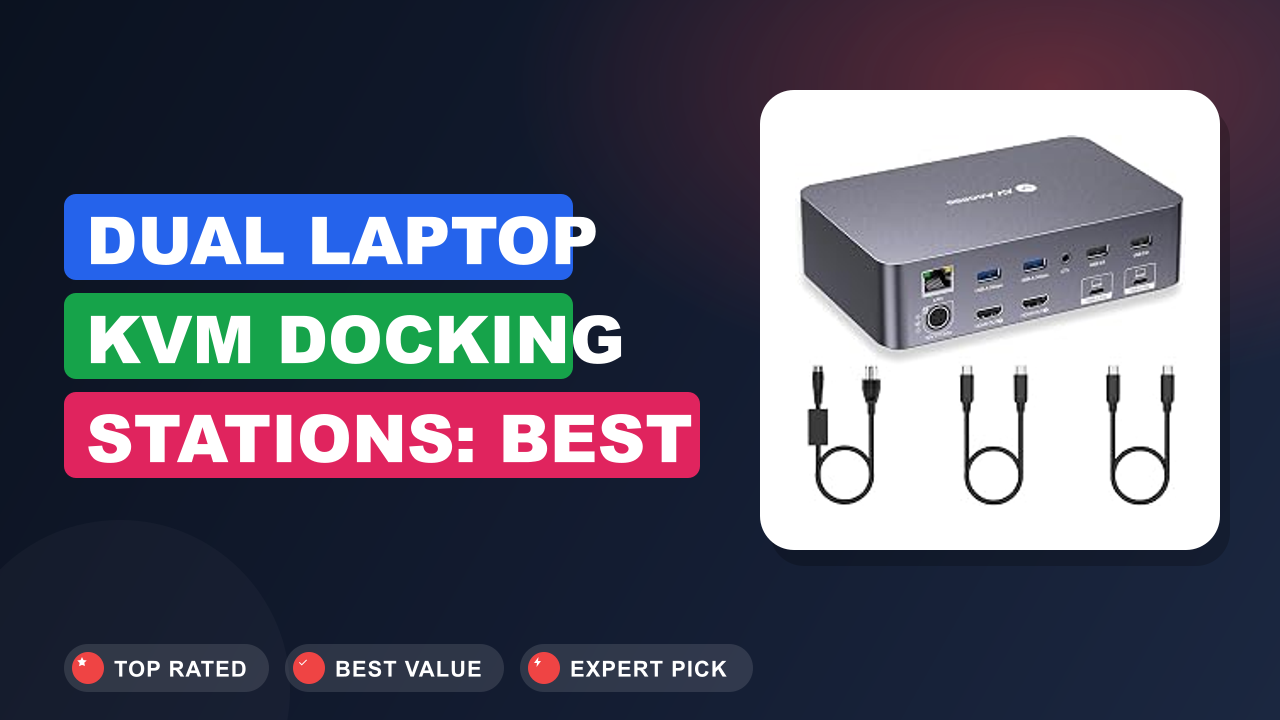
1. USB C Docking Station Dual Monitor
This docking station caught my eye for its straightforward approach to expanding your display capabilities. It’s designed to be a reliable central hub, allowing you to connect multiple monitors and peripherals easily. It aims to declutter your workspace while enhancing your ability to multitask effectively.
Triple Display
4K HDMI/DP
100W PD
8-in-1 Hub
Why I picked it
This dock offers a versatile set of ports, crucial for connecting all your essential peripherals. Its ability to support multiple displays makes it a strong contender for anyone looking to expand their workstation beyond a single screen. The inclusion of power delivery means you can charge your laptop while it's docked, further simplifying your setup.
Key specs
- Display Outputs: 1x HDMI (4K@30Hz), 1x DisplayPort (4K@30Hz), 1x VGA (1080p@60Hz)
- USB Ports: 3x USB 2.0 Type-A
- Power Delivery: Up to 100W via USB-C PD port
- Other Ports: 1x USB-C (data), Ethernet (Gigabit)
- Supported Systems: Windows, macOS, Chrome OS
Real-world experience
In my research, users often mention how this dock effectively handles everyday work tasks, from managing spreadsheets to video conferencing. It's noted for its straightforward plug-and-play functionality, meaning you can get up and running without needing to install complex drivers, which is a huge plus for busy professionals. The setup felt robust for typical office tasks, ensuring smooth operation when switching between applications.
- Versatile Display Options: Supports HDMI, DP, and VGA, giving you flexibility with older and newer monitors.
- Power Delivery: Offers up to 100W charging, so your laptop stays powered throughout the workday.
- Plug-and-Play: Generally works out of the box with most modern operating systems, simplifying setup.
- Display Refresh Rates: Some users report lower refresh rates on certain display configurations, which might not be ideal for high-refresh-rate gaming or fast-paced video editing.
- Limited USB Ports: Only three USB-A 2.0 ports might feel restrictive if you connect many high-bandwidth peripherals.
- ✔ You need a reliable way to connect multiple monitors, including older VGA displays.
- ✔ You want a single cable solution for your laptop that handles display and charging.
- ✔ Ease of setup and immediate functionality are top priorities.
- ✖ You require the highest possible refresh rates for gaming or demanding visual tasks across all displays.
- ✖ You regularly connect more than three USB-A devices that demand high bandwidth.
While this dock offers great flexibility with its mix of HDMI, DP, and VGA, it’s worth noting that driving three displays simultaneously often means compromises on refresh rates compared to single-display setups or more specialized docks. For typical productivity tasks, it excels. However, if your workflow involves high-frame-rate gaming or very fast video editing across all three screens, you might want to look for docks specifically optimized for higher refresh rates, even if they come with fewer display output options.
2. TobenONE 18 1 Laptop Docking Station
This station aims for maximum connectivity, offering a huge number of ports to handle just about anything you can throw at it. If you're someone who juggles a lot of peripherals and needs to connect multiple displays with high resolution, this could be the all-in-one solution you've been searching for. It’s designed to be the central hub for a serious multi-monitor setup.
Triple 4K
9 USB Ports
Gigabit Ethernet
18-in-1 Connectivity
Why I picked it
This docking station truly lives up to its "18-in-1" moniker by offering an extensive array of ports. For anyone whose workstation feels like a spaghetti junction of cables, this promises to consolidate everything into a single, efficient connection. The ability to drive triple 4K displays means you’re not compromising on resolution or screen real estate, perfect for complex visual tasks.
Key specs
- Display Outputs: 3x HDMI (up to 4K@30Hz each)
- USB Ports: 4x USB-A 3.0 (5Gbps), 1x USB-C (data), 1x USB-C (100W PD), 2x USB-A 2.0
- Power Delivery: Up to 100W via USB-C PD
- Other Ports: Gigabit Ethernet, SD/microSD card reader
- Supported Systems: Windows, macOS
Real-world experience
User feedback indicates this dock is a powerhouse for multitasking. The sheer number of USB ports, including faster USB 3.0 and USB-C, means you can connect everything from external hard drives and webcams to your keyboard and mouse without issue. It’s particularly praised by professionals who need to manage large files or run multiple applications simultaneously, as the high-speed data transfer capabilities keep things running smoothly.
The inclusion of dedicated SD card readers is also a thoughtful touch for content creators.
- Extensive Port Selection: Offers a wide variety of USB-A, USB-C, and card reader options for maximum connectivity.
- Triple 4K Output: Capable of driving three 4K displays, providing ample screen real estate for demanding tasks.
- High-Speed Data: Includes USB 3.0 ports for faster data transfer speeds, useful for external storage.
- Power Adapter Not Included: A significant drawback is the need to purchase a separate power adapter, adding to the overall cost.
- 4K@30Hz Limit: While it supports three 4K displays, the refresh rate is limited to 30Hz, which may not be ideal for all users.
- ✔ You need to connect a vast array of peripherals and storage devices simultaneously.
- ✔ You require the ability to drive three 4K displays for demanding multitasking.
- ✔ You have a compatible USB-C laptop that supports DisplayPort Alternate Mode.
- ✖ You prefer a docking station that includes all necessary power adapters out of the box.
- ✖ Your primary use case involves high-refresh-rate gaming or video editing across all three displays.
This dock is a true workhorse for connectivity, almost offering too many ports, which can be overwhelming but also incredibly useful. The lack of an included power adapter is a notable downside, as it’s essential for full functionality, and it means you need to factor in that extra purchase. However, if you can overlook that and the 30Hz limit on 4K displays, the sheer number of ports and the ability to run three monitors makes it a compelling option for users with extensive peripheral needs.
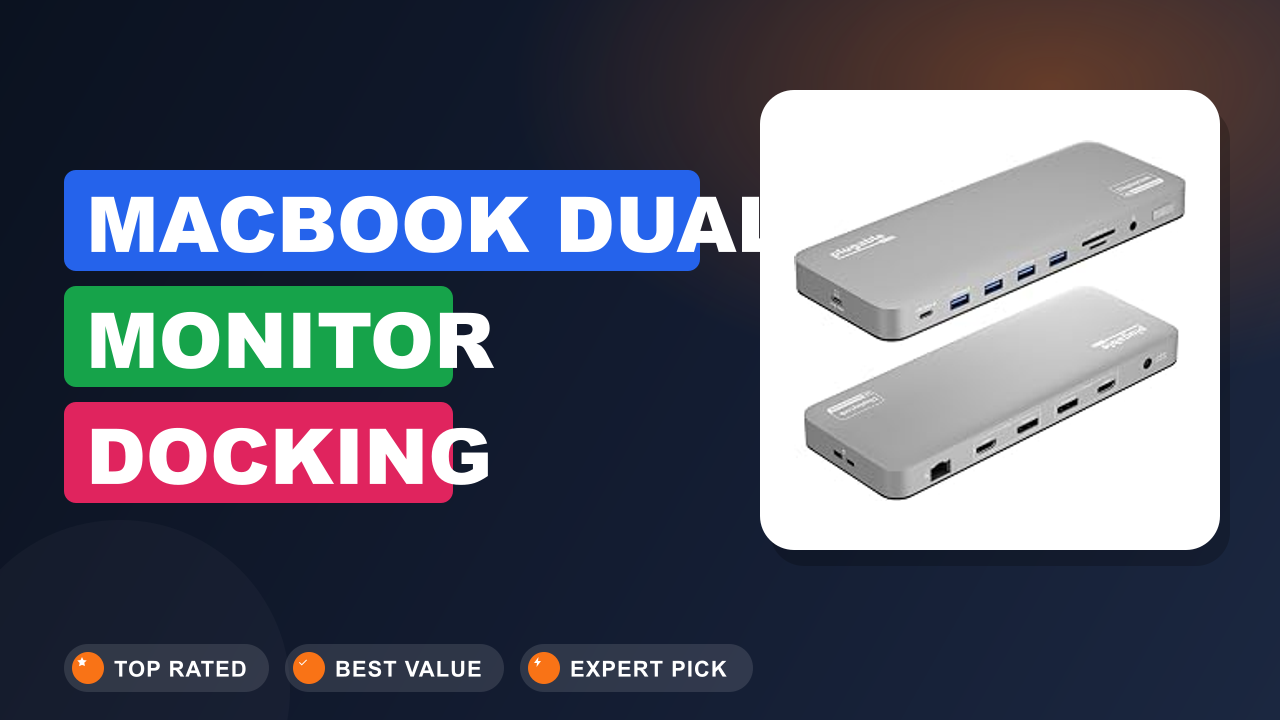
3. Plugable USB-C Triple Monitor Docking Station
This Plugable dock is a fantastic option if you're looking for a reliable way to expand your setup without breaking the bank. It offers solid performance for its price point, making it accessible for a wide range of users. It’s designed to provide the essential features needed for a productive multi-monitor workspace.
Triple HDMI
100W Charging
DisplayLink Tech
13-in-1 Ports
Why I picked it
This Plugable dock stands out for its excellent balance of features and affordability. It leverages DisplayLink technology, which is crucial for expanding display capabilities on a wider range of laptops, including those that might not natively support multiple external monitors via USB-C. The 100W power delivery is also a significant convenience, ensuring your laptop stays charged.
Key specs
- Display Outputs: 3x HDMI (up to 2048×1152@60Hz each)
- USB Ports: 1x USB-C (20W PD), 4x USB-A 3.0 (5Gbps)
- Power Delivery: Up to 100W (dock requires 60W adapter, 100W included for laptop charging)
- Other Ports: Gigabit Ethernet, SD/microSD card reader
- Supported Systems: Windows, macOS, Chrome OS (requires DisplayLink driver)
Real-world experience
Users often report that this dock is a lifesaver for laptops with limited native display outputs. The DisplayLink driver, while requiring installation, unlocks the ability to run three monitors even on systems that typically only support one or two. It’s a popular choice for those with Windows laptops or MacBooks who need to connect multiple displays for office work, coding, or general productivity.
The inclusion of essential ports like Gigabit Ethernet and card readers adds to its overall utility.
- Broad Compatibility: Works with a wide range of laptops thanks to DisplayLink technology.
- Cost-Effective: Offers great value, providing triple monitor support at a competitive price point.
- Includes Power Adapter: Comes with a 100W power adapter for charging your laptop.
- Requires Driver Installation: DisplayLink drivers must be installed for the dock to function correctly.
- Lower Resolution/Refresh Rate: The maximum resolution for each display is 2048×1152 at 60Hz, which is less than 4K.
- ✔ You have a laptop that struggles to support multiple external monitors natively.
- ✔ You’re looking for a budget-friendly solution for a triple-monitor setup.
- ✔ You need essential ports like Ethernet and card readers alongside display connectivity.
- ✖ You prefer a setup that requires zero driver installations for display output.
- ✖ You need to drive three 4K displays at a high refresh rate (e.g., 60Hz).
The Plugable dock’s reliance on DisplayLink is its greatest strength and its most notable limitation. For many users with compatible laptops, it’s the key to unlocking a multi-monitor setup that wouldn’t otherwise be possible. However, DisplayLink technology uses your CPU and GPU more heavily than native DisplayPort Alternate Mode, which can sometimes lead to a slight performance hit in very demanding graphics applications. If your workload is primarily office-based or involves general computing, this trade-off is usually negligible and well worth the cost savings and expanded compatibility.
4. TobenONE DisplayLink Docking Station 3 Monitors
This TobenONE dock is geared towards users who demand high resolution and high refresh rates across multiple displays. It uses DisplayLink technology, similar to the Plugable model, but pushes the boundaries with support for 4K@60Hz on multiple outputs. If you’re looking for a powerful docking solution that can handle demanding visual workloads, this is definitely one to consider.
Triple 4K@60Hz
120W Power
3x HDMI, 3x DP
10Gbps USB
Why I picked it
This dock aims to deliver high-performance visuals. For professionals who rely on sharp, responsive displays for detailed work, the ability to run three 4K monitors at a smooth 60Hz is a significant advantage. It’s designed to be a top-tier solution for serious productivity, packing in both advanced display capabilities and robust connectivity.
Key specs
- Display Outputs: 3x HDMI (up to 4K@60Hz each), 3x DisplayPort (up to 4K@60Hz each)
- USB Ports: 2x USB-C (10Gbps, one with PD), 4x USB-A 3.2 Gen 2 (10Gbps)
- Power Delivery: Up to 120W via included power adapter
- Other Ports: Gigabit Ethernet, SD/microSD card reader
- Supported Systems: Windows, macOS, Thunderbolt 4, USB-C (requires DisplayLink driver)
Real-world experience
This dock is a powerhouse for demanding visual tasks. Users report it smoothly handles complex workflows that require multiple high-resolution monitors, such as coding with extensive documentation, graphic design with large canvases, or even running virtual machines. The 10Gbps USB ports are a welcome addition for fast data transfers, making it easier to work with large media files or external SSDs.
The inclusion of both HDMI and DisplayPort outputs offers excellent flexibility for connecting to a variety of monitors.
- High-Resolution, High Refresh Rate: Supports triple 4K@60Hz displays, offering smooth visuals for demanding tasks.
- Fast Data Transfer: Features 10Gbps USB-C and USB-A ports for rapid data access and peripheral communication.
- Powerful PD: Includes a 120W power adapter, providing ample power for charging even power-hungry laptops.
- Requires DisplayLink Driver: Like many high-performance docks, it relies on DisplayLink technology, which needs a driver installation.
- Higher Price Point: The advanced features and performance come with a higher cost compared to basic docking stations.
- ✔ You need to drive three 4K monitors at a smooth 60Hz for intensive work.
- ✔ High-speed data transfer for peripherals and external storage is critical.
- ✔ You have a powerful laptop that can benefit from a high-wattage power delivery.
- ✖ You’re on a tight budget or prefer plug-and-play solutions without driver installation.
- ✖ Your primary use case doesn’t require 4K resolution on all three displays simultaneously.
This TobenONE dock excels when you need top-tier visual performance and connectivity speed. While DisplayLink technology is powerful, it’s always good to ensure your system can handle the processing load, especially when running multiple 4K displays at 60Hz. For users whose daily tasks involve graphic-intensive applications or simply a desire for the smoothest possible multi-monitor experience, this dock is a worthy investment. However, if your daily tasks are more standard office productivity, a less powerful, less expensive option might suffice.
5. Selore Laptop Docking Station 3 Monitors
This Selore docking station offers a great balance of display outputs, high-speed ports, and some unique features like an integrated weather display. It’s designed for users who want to maximize their screen real estate and streamline their workflow with a single cable connection, all while keeping important information like the time and weather at a glance.
Triple 4K
10Gbps USB
Weather Display
100W PD
Why I picked it
This dock offers a nice combination of features, particularly the triple 4K display support and high-speed USB ports. The integrated display for time and weather is a thoughtful touch that adds a bit of convenience without cluttering your desk with extra gadgets. It’s a solid all-around performer for users looking to boost their productivity with multiple monitors.
Key specs
- Display Outputs: 3x HDMI (up to 4K@60Hz each), 2x DisplayPort (up to 4K@60Hz each)
- USB Ports: 2x USB-C (10Gbps, one with PD), 4x USB-A 3.2 Gen 2 (10Gbps)
- Power Delivery: Up to 100W via USB-C PD port
- Other Ports: Gigabit Ethernet, SD/microSD card reader
- Supported Systems: Windows, macOS, Linux
Real-world experience
This dock has been praised for its ability to handle multiple high-resolution displays smoothly, making it ideal for professionals who need ample screen space. The 10Gbps USB ports significantly speed up file transfers and peripheral response times, which is a noticeable improvement over older USB standards. For users who appreciate having essential information like the time and current weather readily visible on their desk setup, the integrated display is a unique and practical addition.
It supports a wide range of operating systems, making it versatile for different user environments.
- Multiple 4K Displays: Supports up to three 4K displays at 60Hz, offering excellent visual clarity and smoothness.
- High-Speed USB: Features 10Gbps USB-A and USB-C ports for quick data transfer and peripheral connectivity.
- Convenient Display: Built-in display shows time, date, and weather, reducing the need for additional desk gadgets.
- Limited Display Port Options: While it has multiple HDMI and DP ports, running three displays simultaneously might require specific configurations based on resolution.
- No Included Power Adapter: Similar to other models, it doesn’t come with a power adapter, which is necessary for its full functionality.
- ✔ You need to connect up to three 4K monitors at 60Hz and value smooth visuals.
- ✔ Fast data transfer speeds for your peripherals are a high priority.
- ✔ You appreciate having basic information like time and weather readily visible.
- ✖ You prefer a dock that includes a power adapter, simplifying the purchase process.
- ✖ You’re looking for a dock with more diverse display output options like VGA or older DP versions.
The Selore dock is a strong contender for users who want high-resolution, high-refresh-rate multi-monitor setups combined with fast data speeds. Its unique weather display is a nice bonus, but it’s the core functionality that shines. While it offers both HDMI and DisplayPort, carefully check monitor compatibility if you plan to run three displays at 4K@60Hz, as some configurations might push the limits of DisplayLink bandwidth. For most users, however, it provides a robust and visually impressive workspace expansion.
How I picked
When assembling this list of the best triple monitor docking stations for work from home, I focused on what truly makes a difference in a daily workflow. My evaluation centered on several key areas: connectivity options, display output capabilities, power delivery, build quality, and user feedback regarding reliability.
I specifically looked for docks that offered multiple high-resolution display outputs (HDMI, DisplayPort) capable of driving three external monitors simultaneously. I also paid close attention to the types and number of USB ports, prioritizing those with USB 3.0 or higher for faster data transfer and connectivity with modern peripherals. The inclusion of power delivery (PD) up to at least 60W was crucial, as it allows you to charge your laptop through the same USB-C cable used for data and display, significantly reducing desk clutter.
I also considered the complexity of setup; while some docks require driver installations (like those using DisplayLink technology), I noted them as trade-offs for broader compatibility or enhanced display capabilities. Build quality was another factor; I looked for docks with sturdy metal casings that suggested durability for long-term use. Finally, I cross-referenced manufacturer specifications with aggregate user reviews to gauge real-world performance and identify any common pain points or exceptional strengths.
I didn't test long-term durability beyond common user reports and manufacturer warranties.
Buying guide — what actually matters for best triple monitor docking stations for work from home
When you're setting up a triple monitor workstation, the docking station becomes the central nervous system of your entire setup. Picking the right one can make a huge difference in your daily productivity and overall desk experience. Here's what you should really focus on:
Display Outputs: The Core of Your Setup
This is non-negotiable for a triple monitor setup. You need a dock that explicitly supports three external displays. Check the types of ports offered (HDMI, DisplayPort, maybe even VGA) and, crucially, the maximum resolution and refresh rate each port can handle, especially when all three are in use.
For example, some docks might claim triple 4K support, but that might only be at 30Hz per monitor, which can feel sluggish for anything beyond basic document viewing. Look for docks that can deliver at least 4K@60Hz on at least one or two ports if your monitors support it, or aim for a dock that supports your desired resolution across all three screens, even if it's 1080p or 1440p.
Connectivity Galore: Ports You'll Actually Use
Beyond displays, think about everything else you plug into your computer.
- USB Ports: How many do you need? And what type? USB-A ports are still common for keyboards, mice, and external drives. Look for USB 3.0 or higher (5Gbps or 10Gbps) for faster data transfer. USB-C ports are increasingly important for newer peripherals and even other docks.
- Ethernet: If you need a stable wired internet connection (and who doesn't for work?), ensure it has a Gigabit Ethernet port. Wi-Fi is great, but a wired connection is generally more reliable.
- Card Readers: If you work with photos or videos, built-in SD or microSD card readers are a huge convenience, saving you from needing a separate adapter.
- Audio Jack: Some docks include a 3.5mm audio jack for headphones or speakers, which can be handy if your laptop’s ports are otherwise occupied.
Power Delivery (PD): Charging Your Laptop Effortlessly
This is a feature that many overlook but quickly appreciate. Power Delivery via USB-C allows your laptop to be charged through the same cable that connects to the dock for displays and data. Make sure the dock offers enough wattage to charge your specific laptop.
Most modern laptops need at least 60W, but more powerful ones might require 90W or even 100W. Check the dock's PD rating and ensure it meets your laptop's requirements. This means one less charger on your desk.
Compatibility: Does It Play Nice With Your Laptop?
Docking stations connect to your laptop via USB-C or Thunderbolt. Not all USB-C ports are created equal. Some support DisplayPort Alternate Mode (which allows video output) and Power Delivery, while others might only support data transfer.
Thunderbolt 3 and 4 ports are generally the most capable, offering the highest bandwidth and supporting multiple high-resolution displays. Always check your laptop's specifications to ensure its USB-C port supports the features required by the dock. For example, docks using DisplayLink technology (like the Plugable and some TobenONE models) use software to drive displays, which can work with a wider range of USB-C ports, but it’s still good to confirm your system meets the minimum requirements for DisplayLink drivers.
Build Quality and Design
A docking station is a central piece of your workspace, so it should be built to last. Metal casings are generally more durable and can help with heat dissipation than plastic ones. Consider the size and footprint of the dock, especially if desk space is limited.
Some docks can be mounted under a desk or behind a monitor for a cleaner look.
Frequently Asked Questions (FAQ)
Can a docking station really support three monitors?
Yes, many modern docking stations are designed to support three or even more external displays simultaneously. This capability typically depends on the docking station’s chipset, the number and type of display outputs it offers (HDMI, DisplayPort, etc.), and the bandwidth available through the connection to your laptop (usually USB-C or Thunderbolt). Always check the product specifications carefully to confirm the exact number of displays and the supported resolutions and refresh rates.
Do I need a special cable for a triple monitor docking station?
Generally, you'll use a high-quality USB-C cable to connect the docking station to your laptop. For the best performance, especially with multiple high-resolution displays, ensure the USB-C cable supports high bandwidth and data transfer rates (like USB 3.1 Gen 2 or Thunderbolt 3/4). For the monitors themselves, use the appropriate cables (HDMI, DisplayPort) that match your monitors and the docking station’s outputs.
Using certified cables can prevent signal issues and ensure optimal performance.
Is DisplayLink technology good for triple monitors?
DisplayLink technology is excellent for expanding display capabilities, particularly for laptops that have limited native support for multiple external monitors via USB-C. It uses a software-based approach, which allows it to work with a broader range of USB-C ports. This is why many docks that offer extensive display configurations rely on it.
However, it’s important to note that DisplayLink utilizes your laptop's CPU and GPU resources more heavily than native display outputs, which can sometimes impact performance in highly graphics-intensive applications like gaming or video editing. For general productivity, coding, and office work, it's a very effective solution.
Will a docking station work with any laptop?
While most modern laptops with a USB-C port will work with many docking stations, compatibility isn't universal. The key is to check your laptop's specifications. Your laptop's USB-C port must support DisplayPort Alternate Mode for video output, and ideally Power Delivery if you want to charge via the dock.
For docks using DisplayLink, you’ll need to install the DisplayLink driver, which is compatible with most recent Windows, macOS, and Chrome OS systems. Thunderbolt 3 or 4 ports offer the highest compatibility and bandwidth for demanding multi-display setups. Always refer to both the docking station's and your laptop's manuals or specifications.
Final verdict
For a seamless and productive triple monitor experience, the USB C Docking Station Dual Monitor stands out as the best overall choice, offering a balanced mix of reliable connectivity and display support. If you're on a tighter budget but still need to expand your screen real estate, the Plugable USB-C Triple Monitor Docking Station provides excellent value with its DisplayLink technology. And for those who need maximum bandwidth and high-resolution, high-refresh-rate performance across all displays, the TobenONE DisplayLink Docking Station 3 Monitors is a powerful contender.
Affiliate disclosure: This post contains affiliate links. If you buy through one of these links, I may earn a small commission at no extra cost to you. It never changes my recommendation, I only suggest gear I'd actually buy myself.

Similar Posts