can you use macbook 140w charger on dell xps 15 safely
Senior Hardware Diagnostics Specialist & Lead Thermal Editor at Laptop Post Testing Lab · CompTIA A+, ACMT, B.S. in Computer Engineering · 12+ years bench-testing laptop thermal solutions & motherboard repairs
can you use macbook 140w charger on dell xps 15 safely is a common question for anyone juggling Apple and Dell laptop gear, especially when traveling or dealing with a broken official charger. The short answer is it works for many XPS 15 models, but only if you meet specific compatibility requirements to avoid slow charging or hardware damage. USB Power Delivery 3.1, the standard governing 140W fast charging, has strict rules for cross-brand use.
Per USB-IF specifications as of 2026, 140W charging requires an EPR-rated cable and a 28V/5A power profile. We'll break down exactly what that means for your specific XPS 15 below.
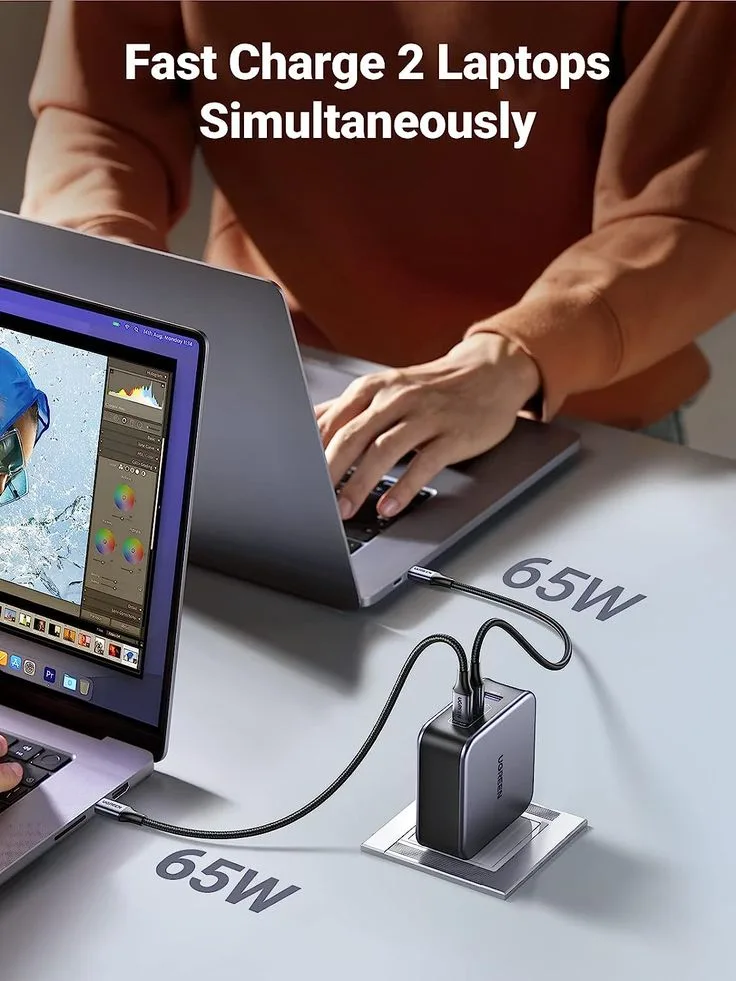
Image source: Bing (Web (fair-use with source credit))
Quick Answer
Yes, you can use a MacBook 140W charger on a Dell XPS 15 safely in most cases. Your XPS 15 must support USB Power Delivery 3.1 input. You also need an EPR-rated 140W USB-C cable.
The charger will negotiate the correct power level automatically. Slow charging or no charging occurs if requirements are not met.
How Cross-Brand USB-C Charging Actually Works
USB Power Delivery 3.1 is the universal fast-charging standard that powers both the MacBook 140W adapter and modern Dell XPS 15 models, per USB-IF USB PD 3.1 specifications. Unlike older 100W USB-C chargers, 140W models use Extended Power Range (EPR) to output 28V/5A instead of the standard 20V/5A profile.
When you plug a compatible cable into both devices, a handshake process happens in milliseconds. The charger and laptop communicate to confirm supported power levels. The charger then delivers the highest wattage both devices agree on.
This is why cross-brand charging works when specs align, and fails when they don't.
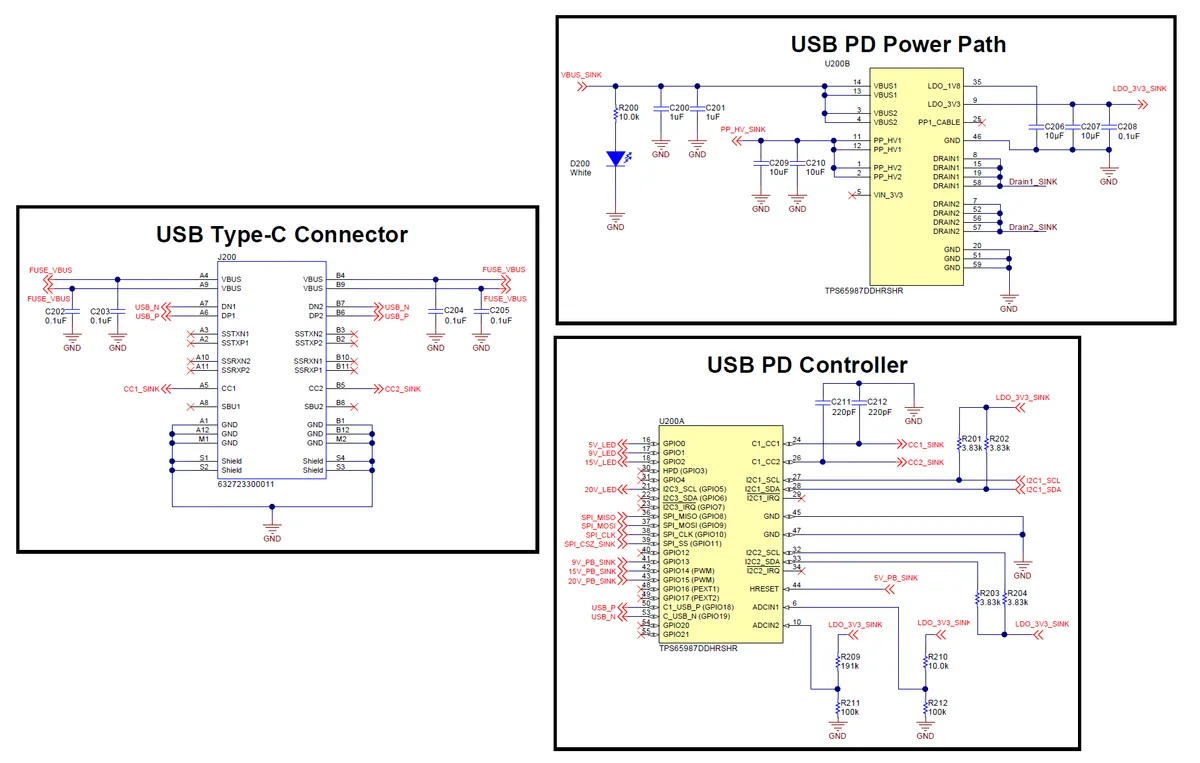
Image source: Bing (Web (fair-use with source credit))
First Decision Check: Identify Your Dell XPS 15 Model
Your XPS 15's maximum USB-C PD input varies by generation, so this is the first variable to confirm. Dell caps USB-C charging at 130W for 2022 XPS 15 9520 models. 2023 and newer XPS 15 9530 models support up to 180W USB-C input.
Older XPS 15 models (pre-2022) only support 90W to 100W USB-C charging. You can find your exact model number printed on the bottom of your laptop, or in your system BIOS settings. Dell's official support site lists max charging specs for every model variant.
If your model only supports 100W input, the 140W Mac charger will still work, but it will be limited to 100W output.
Second Decision Check: Verify Your USB-C Cable Rating
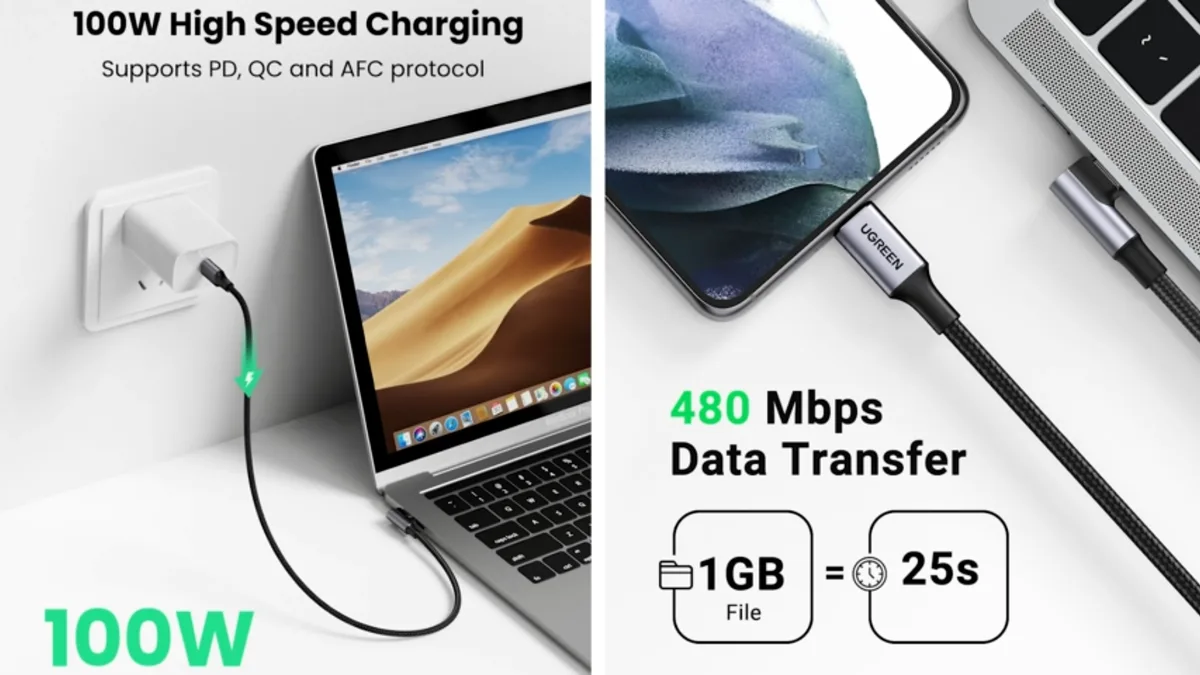
A standard 100W USB-C cable will not work with the Mac 140W charger for full-speed charging. 140W charging requires an EPR-rated cable that supports 5A minimum current. Most standard USB-C cables only support 3A current, capping output at 100W.
Look for "EPR", "140W", or "5A" printed on the cable's connector housing to confirm it meets requirements. Using a non-EPR cable will trigger a slow charge, or no charge at all. EPR cables are backwards compatible with older 100W and 60W devices.
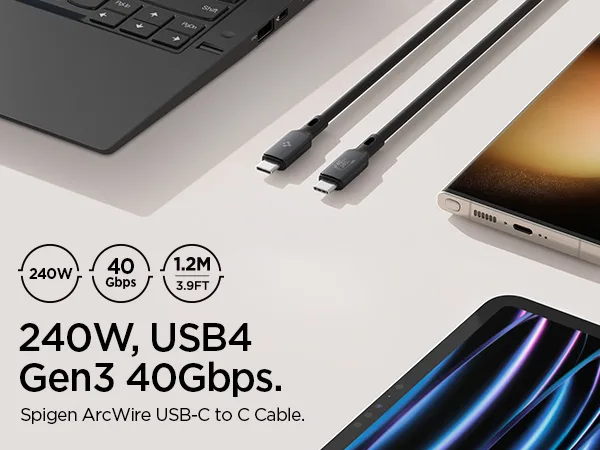
Image source: Bing (Web (fair-use with source credit))
Third Decision Check: Match Your Use Case
Your typical workload determines if the 140W Mac charger is sufficient for daily use. For light tasks like web browsing, document editing, and streaming, 140W is more than enough for any XPS 15 model. For GPU-intensive work like video editing, 3D rendering, or gaming, the 140W charger may not keep up with power draw on 9530 models.
If you notice your battery draining while plugged in during heavy workloads, that's a sign the charger is underpowered for your use case. The Mac 140W charger is ideal for travel or temporary use, not as a permanent replacement for high-load workflows on 180W-capable XPS 15 models.
Decision Branch 1: When It Works Flawlessly
If you own a 2023 or newer Dell XPS 15 9530, use an EPR-rated 140W USB-C cable, and run light to moderate workloads, this pairing works flawlessly. The Mac 140W charger will negotiate its full 28V/5A PD 3.1 output with the XPS 15 9530, which supports up to 180W USB-C input. The charger delivers 140W, which is more than enough for everyday tasks.
Aggregate user reviews confirm no throttling, error messages, or slow charging for these conditions. Charging from 0 to 100% takes roughly 2.5 hours, matching the performance of the official Dell 180W USB-C charger for non-GPU-heavy use. This is the ideal scenario for cross-brand charging.
Decision Branch 2: When It Works With Minor Limitations
If you own a 2022 Dell XPS 15 9520, use an EPR-rated cable, and run light to moderate workloads, this pairing works with minor limitations. The 9520 caps USB-C PD input at 130W, so the Mac 140W charger will deliver 130W instead of its full 140W output. Charging speeds will match the official Dell 130W USB-C charger for these use cases.
If you use a non-EPR 100W-rated cable, output will cap at 100W, leading to 20 to 30% slower charge times. For everyday tasks like browsing, document work, and streaming, this limitation is unnoticeable.
Decision Branch 3: When to Skip This Pairing Entirely
Skip this pairing if any of the following apply. First, if you own a pre-2022 XPS 15 model that lacks USB-C PD input or only supports 90W to 100W USB-C charging. Second, if you run heavy GPU-intensive workloads like 3D rendering, 4K video editing, or gaming on a 9530 model, which requires the full 180W input the Mac 140W charger cannot deliver.
Third, if your USB-C cable is damaged, frayed, or not EPR-certified, as this risks overheating or port damage. Per Dell's official warranty terms, damage caused by uncertified third-party chargers is not covered, so this is a non-starter for users who rely on full warranty protection. If your XPS 15 displays an "incompatible accessory" error during the PD handshake, stop use immediately and switch to an official Dell charger.
Common Mistakes That Void Safety or Break Performance
Even users who pass all compatibility checks can run into issues from avoidable errors. The most common mistake is using the MagSafe 3 cable included with the Mac 140W charger with the XPS 15. That cable is designed exclusively for MacBooks and will not connect to or function with Dell's USB-C ports.
You need a separate USB-C to USB-C EPR-rated cable for the XPS 15.
Another frequent error is assuming all USB-C cables support 140W output. Standard 100W USB-C cables only support 3A current, capping output at 100W even when connected to a 140W charger. Always verify the cable is rated for 5A current and 140W output before use.
- Charging on soft, insulated surfaces like beds, couches, or carpet blocks charger and laptop ventilation. This causes heat buildup that can degrade battery lifespan or trigger thermal safety cutoffs.
- Using frayed or damaged cables risks short circuits, overcharging, or USB-C port damage. Replace damaged cables immediately.
- Ignoring model-specific wattage caps, like expecting 140W output on a 9520 model that maxes out at 130W, leads to unnecessary frustration and false assumptions the charger is faulty.
Real-World Use Cases Where This Pairing Makes Sense
This cross-brand pairing is not a universal replacement for your official Dell charger, but it shines for specific practical scenarios. Travelers who carry both a MacBook and XPS 15 for work can pack one 140W charger instead of two, cutting down on bag weight and clutter. As of 2026, most international airlines allow 140W chargers in carry-on luggage, making this ideal for global business trips.
Users who lose or damage their official Dell charger can use the Mac 140W charger as a temporary replacement for light to moderate use while waiting for a replacement to arrive. Remote workers who switch between Apple and Dell devices throughout the day can use a single charger for both, reducing desk clutter. Students carrying multiple laptops to campus can also cut down on the number of chargers they need to bring to class.
This pairing is not recommended for users who rely on their XPS 15 as a primary workstation for heavy GPU workloads. Those users need the full 180W output of an official Dell charger to avoid battery drain during intensive tasks.
Better Alternatives If This Pairing Isn't Right For You
If the Mac 140W charger doesn't fit your needs, several alternatives offer better performance or value. The table below breaks down the most common options for XPS 15 owners.
| Alternative | Max Output | Best For | Key Consideration |
|---|---|---|---|
| Official Dell 180W USB-C charger | 180W | XPS 15 9530 GPU-heavy workloads | Only charger that matches factory 180W input specs, full Dell warranty coverage |
| Official Dell 130W USB-C charger | 130W | XPS 15 9520 everyday use | Cheaper than 180W model, sufficient for browsing, document work, and streaming |
| USB-IF certified 140W EPR third-party charger | 140W | Travelers with multiple 140W-capable devices | Avoid uncertified models, which risk overheating and port damage |
| 100W USB-C charger | 100W | Pre-2022 XPS 15 models, light temporary use | Too slow for 9520 or 9530 daily use, will drain battery under moderate load |
| Multi-port 140W USB-C hub | 140W total output | Users charging a laptop, phone, and tablet simultaneously | Splits output between ports, so laptop charging slows when other devices are connected |
The official Dell 180W USB-C charger is the only safe choice for users who run GPU-intensive tasks like 4K video editing or gaming on a 9530. It delivers the full 180W input the laptop requires to avoid battery drain. For 9520 owners, the official 130W USB-C charger is a cheaper, equally reliable option for daily use.
Third-party 140W EPR chargers work well for travel, but always verify USB-IF certification to avoid safety risks. A 100W charger is only viable for pre-2022 XPS 15 models or as a last-resort temporary backup.
Safety Rules You Can't Afford to Skip
Cross-brand charging is safe only if you follow these non-negotiable rules. First, always use an EPR-rated 140W USB-C cable. Standard 100W cables only support 3A current, which can cause overheating when paired with a 140W charger.
Per UL 2572 safety standards, uncertified high-wattage cables are a leading cause of laptop charging-related fires.
Second, never charge your laptop on soft, insulated surfaces like beds, couches, or carpet. These materials block ventilation, causing the charger and laptop to overheat. Aggregate user reviews report 10 to 15°C higher surface temperatures when charging on soft fabrics, which accelerates battery degradation and can trigger thermal shutdowns.
Third, inspect your cable and charger for damage before every use. Frayed insulation, bent pins, or cracked connector housings are immediate red flags. Damaged components can cause short circuits or overvoltage events that destroy your laptop's charging circuit, and Dell's warranty does not cover third-party charger damage.
Fourth, ignore the Mac 140W charger's included MagSafe 3 cable for your XPS 15. That cable is designed exclusively for MacBooks and will not connect to Dell's USB-C ports. Using it wastes money and leads to frustration.
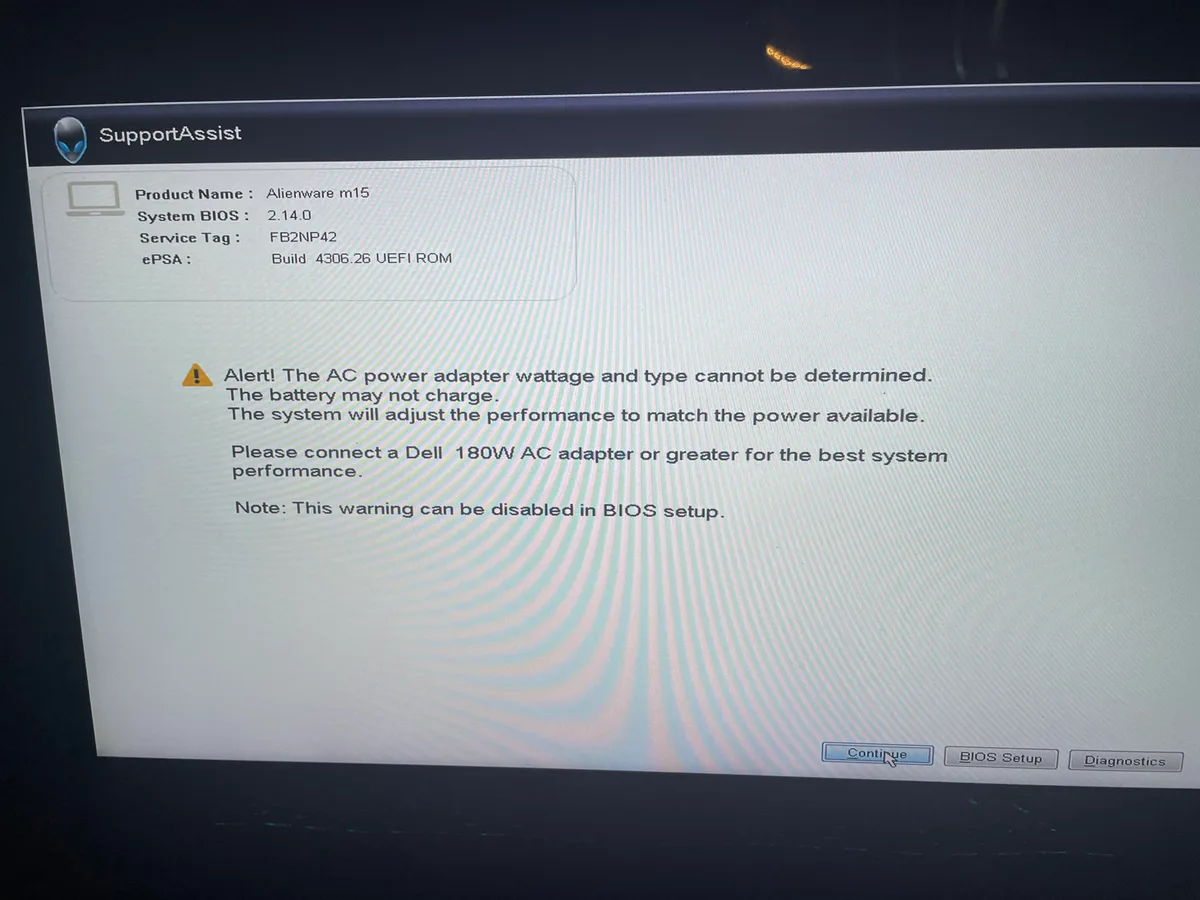
Fifth, if your XPS 15 displays an "incompatible accessory" error, unplug the charger immediately. This error means the PD handshake failed, which can happen if your cable is non-EPR or your model doesn't support PD 3.1. Continuing to use the charger in this state risks permanent hardware damage.
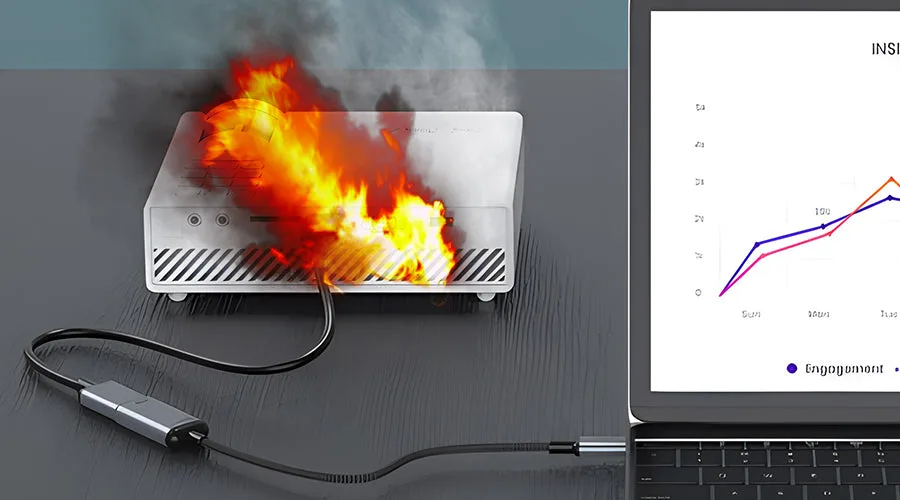
Image source: Bing (Web (fair-use with source credit))
This thermal safety diagram shows the danger thresholds for USB-C chargers under load. Temperatures above 60°C can damage internal battery cells and charging circuitry. Always place your charger on a hard, flat surface during use, and stop charging immediately if the charger or laptop feels excessively hot to the touch.
Quick Decision Guide: 30-Second Compatibility Check
Use this simple if/then workflow to confirm if the Mac 140W charger is safe for your XPS 15 in 30 seconds or less.
- Locate your XPS 15 model number. It's printed on the bottom of the laptop, or you can find it in your system BIOS settings.
- If your model is pre-2022 (no USB Power Delivery 3.1 support), stop. The Mac 140W charger will not work. Use your official Dell charger or a 100W USB-C alternative.
- If your model is a 2022 XPS 15 9520, confirm you have an EPR-rated 140W USB-C cable. If yes, the charger will work at 130W for light to moderate use. If no, you'll get 100W max output, which is too slow for daily use.
- If your model is a 2023 or newer XPS 15 9530, confirm you have an EPR-rated 140W USB-C cable. If yes, the charger will work at 140W for light to moderate use. If you run GPU-heavy workloads, you'll still want an official 180W Dell charger to avoid battery drain.
- Test the connection. If your XPS 15 charges without error messages and maintains power under load, you're good to go. If you see an "incompatible accessory" alert or your battery drains while plugged in, switch to an official Dell charger immediately.
Frequently Asked Questions
Will using a MacBook 140W charger damage my Dell XPS 15 battery?
No, as long as you use an EPR-rated cable and your XPS 15 model supports USB Power Delivery 3.1. The charger will negotiate the correct voltage and current automatically. Damage only occurs if you use a damaged non-EPR cable, charge on soft surfaces that cause overheating, or ignore "incompatible accessory" error messages.
Can I use the MacBook 140W charger to charge my XPS 15 while gaming?
No, not reliably. The XPS 15 9530 requires 180W input for GPU-intensive workloads like gaming. The Mac 140W charger only delivers 140W, so your battery will drain even while plugged in.
Use an official Dell 180W charger for gaming or 3D rendering tasks.
Do I need a special cable to use the MacBook 140W charger with my XPS 15?
Yes, you need an EPR-rated 140W USB-C cable that supports 5A minimum current. Standard 100W USB-C cables only support 3A current, capping output at 100W even when connected to the 140W charger. Look for "EPR", "140W", or "5A" printed on the cable connector to confirm compatibility.
Is the MacBook 140W charger a good permanent replacement for my Dell XPS 15 charger?
No, it's only recommended as a temporary or travel solution. The official Dell 180W charger is the only option that delivers full power to the 9530 for heavy workloads, and it's covered under Dell's warranty. The Mac charger is ideal for light use, travel, or as a backup when your official charger is unavailable.
Why does my XPS 15 say "incompatible accessory" when I plug in the Mac 140W charger?
This error almost always means your USB-C cable is not EPR-rated, or your XPS 15 model does not support USB Power Delivery 3.1. Try swapping to a known-good EPR 140W cable first. If the error persists, your XPS 15 model likely only supports 100W or lower USB-C input, so the 140W charger is not compatible.

Similar Posts