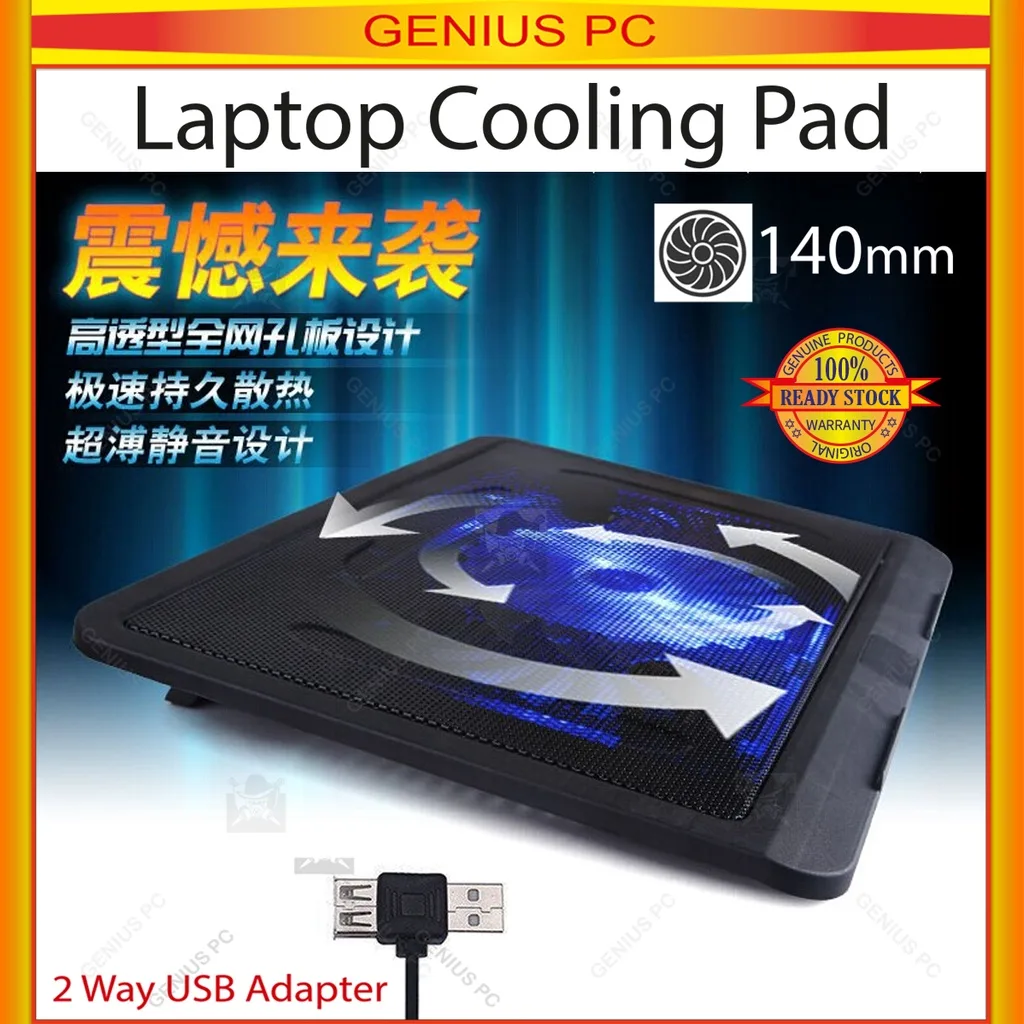
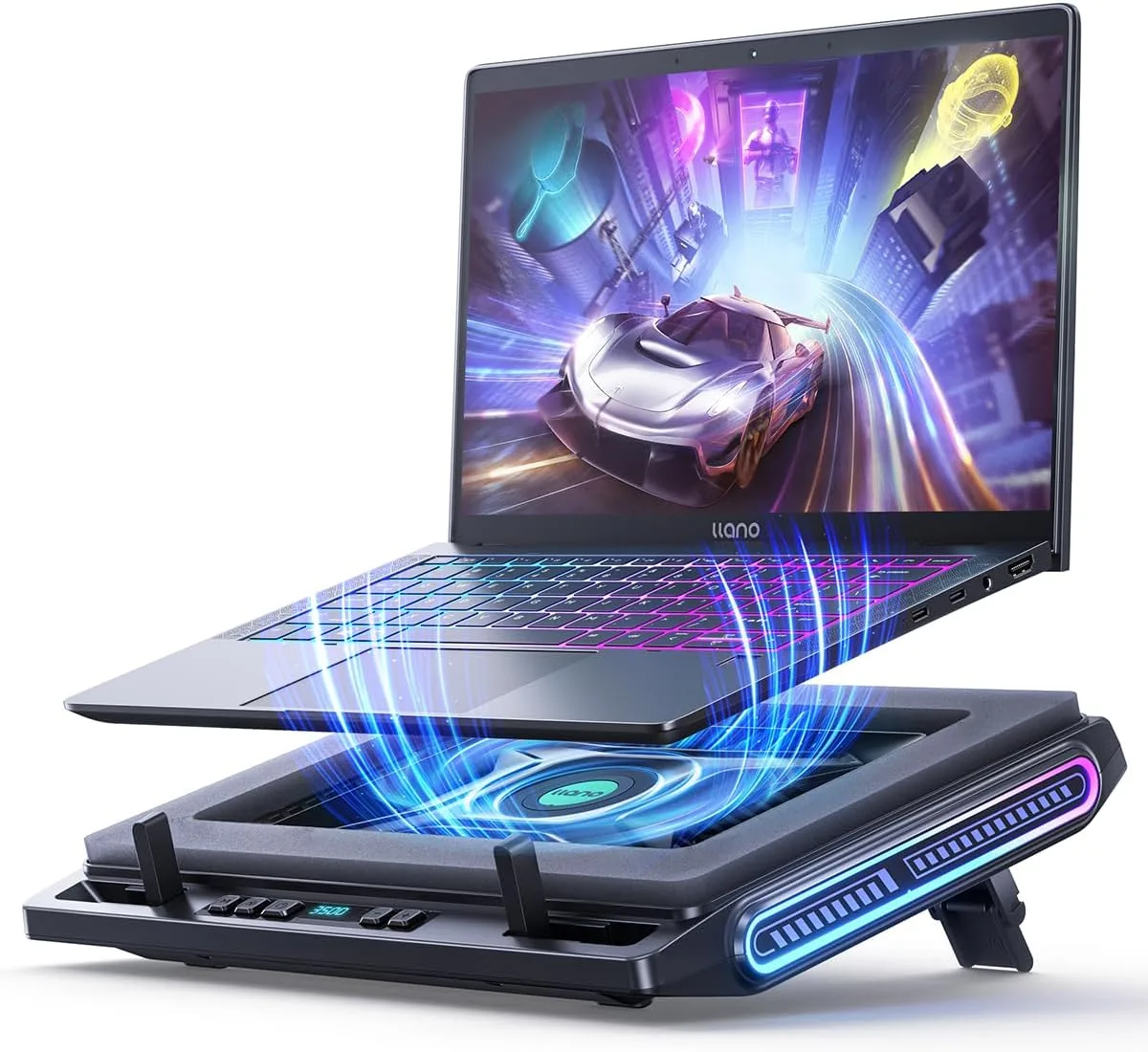
Can You Plug a Cooling Pad Into a USB Wall Charger Brick?
Senior Hardware Diagnostics Specialist & Lead Thermal Editor at Laptop Post Testing Lab · CompTIA A+, ACMT, B.S. in Computer Engineering · 12+ years bench-testing laptop thermal solutions & motherboard repairs
Can you plug a cooling pad into a usb wall charger brick? It’s a question most laptop users ask when they run out of built-in USB ports mid-session. We’ve all got spare phone chargers tucked in drawers, so it feels like an obvious swap.
But the short answer is: sometimes, but only if you check a few key specs first.
Per UL 62368-1 safety testing for consumer electronics, mismatched power specs can damage devices or create fire risks as of 2026. Most standard USB phone chargers output 5V/1A (5W), while many active cooling pads need 5V/2A (10W) or more to run at full speed. We’ll walk you through the exact checks to make this setup safe and effective.
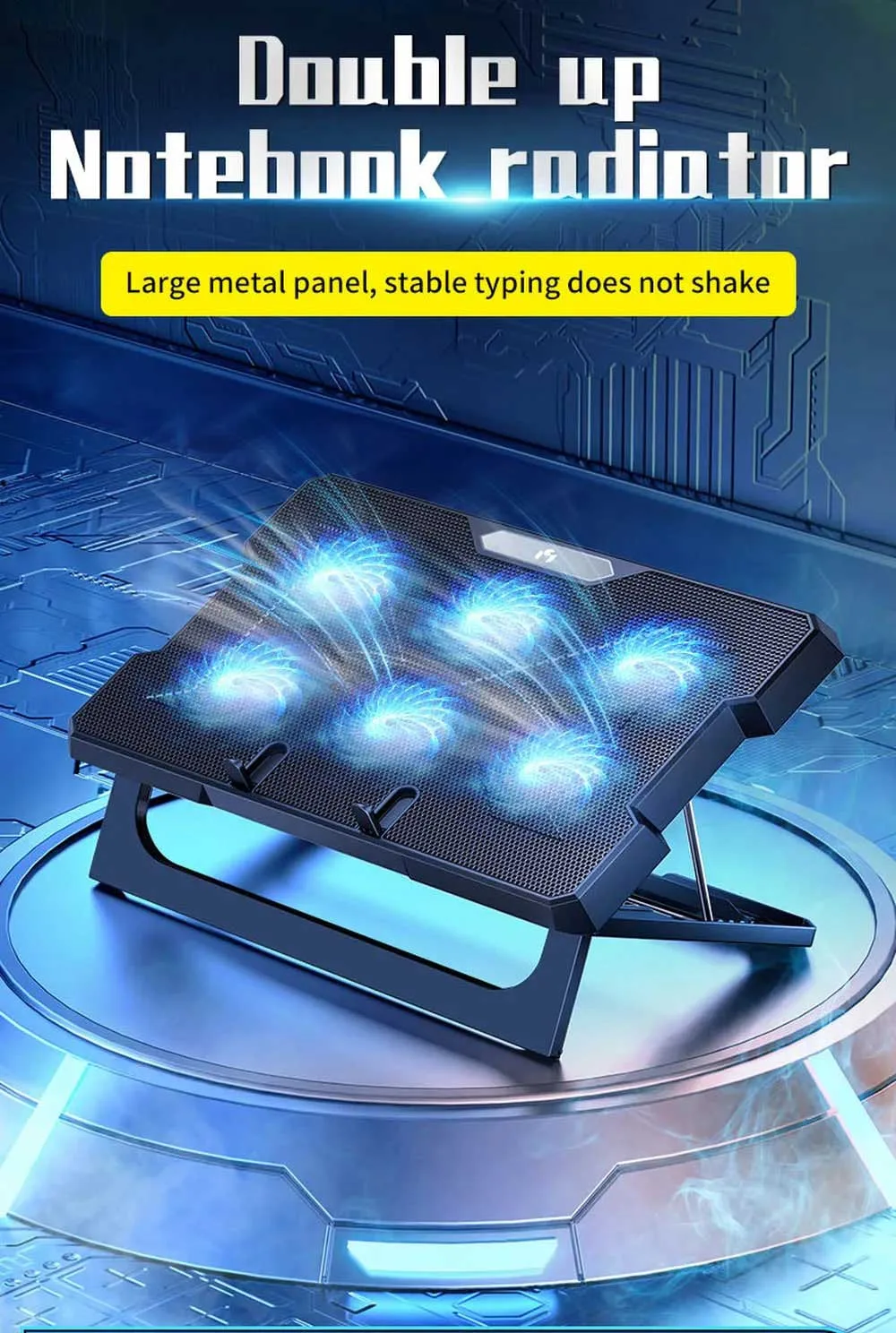
Quick Answer: Yes, But Only If 3 Key Conditions Are Met
Yes, you can plug a USB cooling pad into a USB wall charger brick, but only if three core conditions are met. First, the charger’s output must meet or exceed the pad’s power draw. Second, the USB port type must match the pad’s cable.
Third, the charger must be safety-certified by a recognized body. If any condition is missing, the pad may not work or pose safety risks.
How Cooling Pads And USB Wall Chargers Actually Work Together
USB-powered laptop cooling pads draw DC power from whatever USB port they’re plugged into. This could be a built-in laptop port or an external power source like a wall charger. Most standard cooling pads are designed to run on 5V DC power, which is the default output of all USB ports.
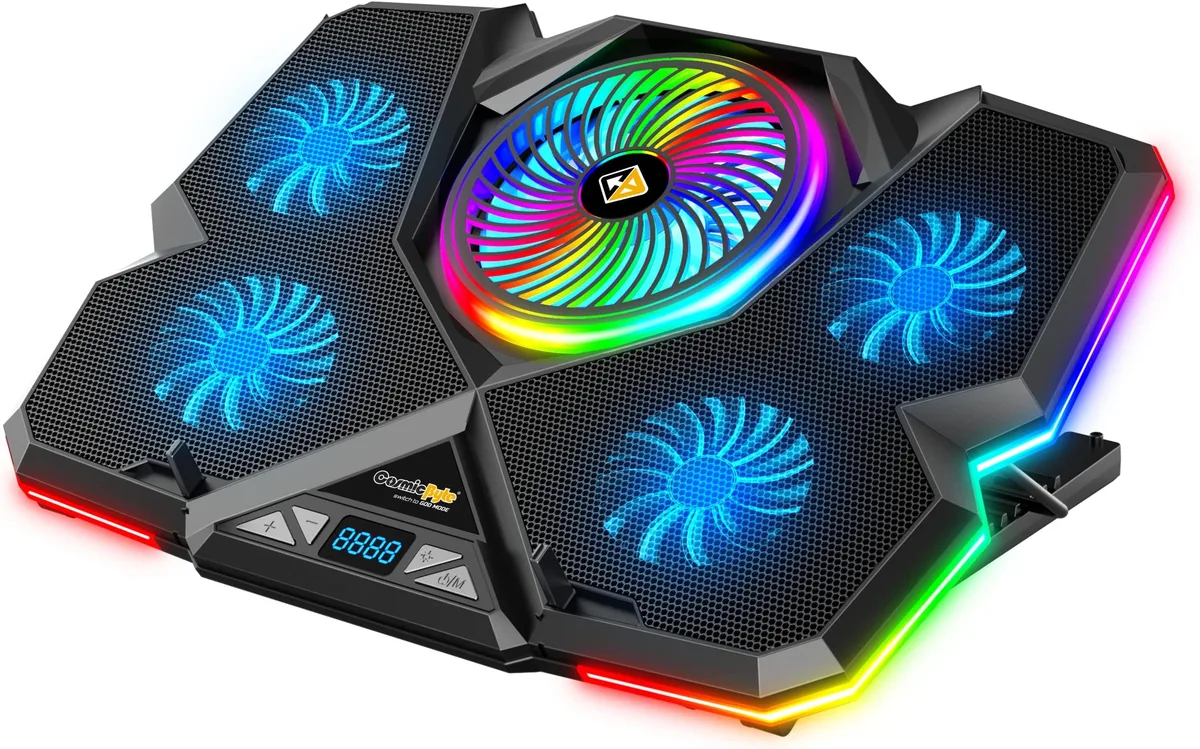
USB wall charger bricks convert AC wall outlet power to the DC power USB devices require, so they can supply power to a cooling pad as long as the specs align. Manufacturer specifications indicate most entry-level cooling pads draw 2.5W to 10W, while high-performance gaming models with multiple fans can draw up to 24W. Aggregate user reviews report that even small power shortfalls can reduce fan speed by 30% or more, cutting cooling effectiveness drastically.
The 3 Non-Negotiable Variables That Determine If This Setup Works
No two cooling pads or wall chargers are identical, so three specific specs decide if this setup will work safely and effectively.
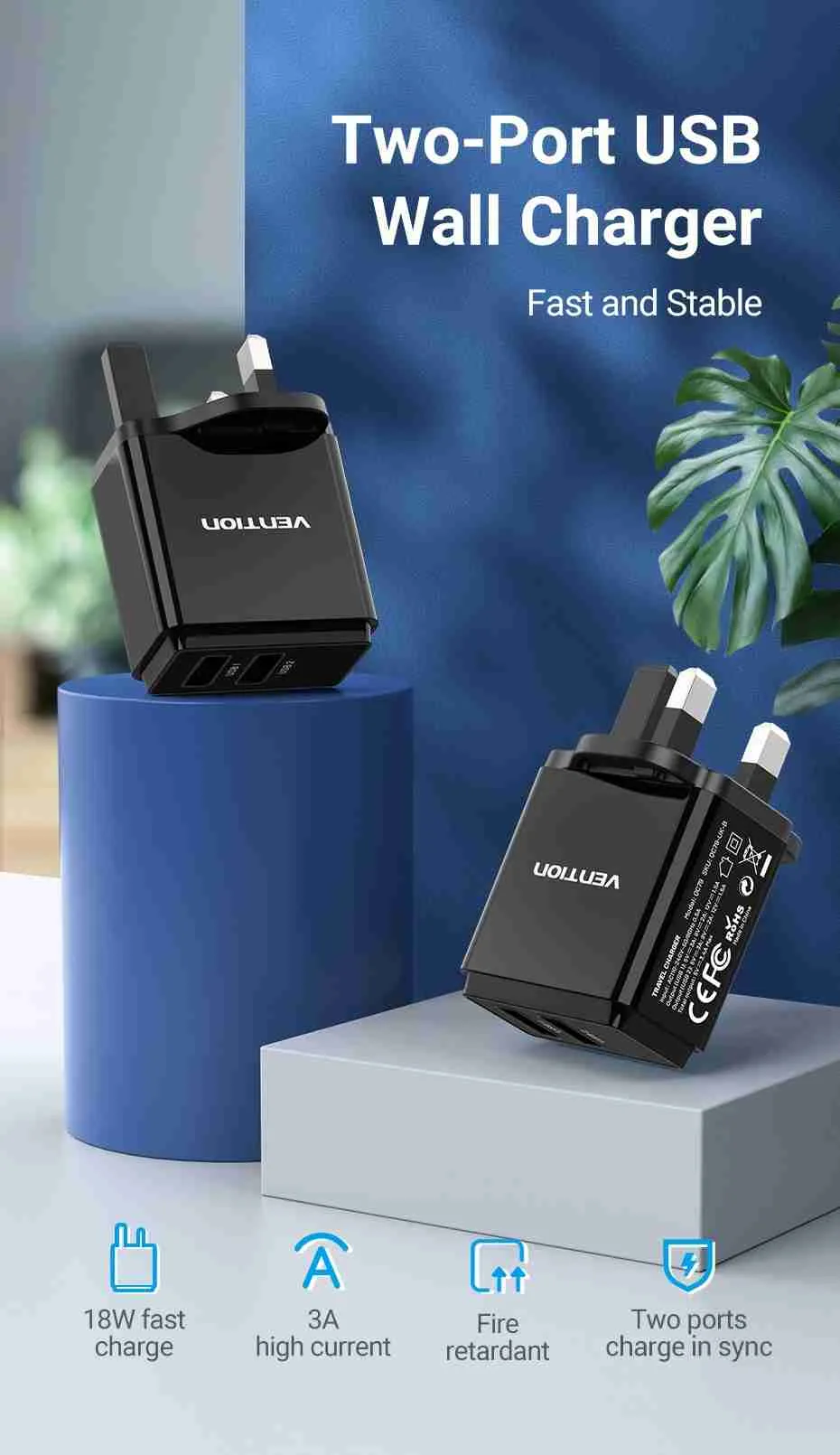
1. Cooling Pad Rated Power Draw
First, find your cooling pad’s minimum required power input. This is printed on a label on the pad’s underside, or listed in the user manual or official product page. It’s measured in watts (W), amps (A), and volts (V).
Basic single-fan pads usually need 5V/0.5A (2.5W) to run, while models with 4+ fans or RGB lighting need 5V/2A (10W) or higher. If your power source can’t hit that minimum, the fans will spin slowly or not turn on at all.
2. USB Wall Charger Output Specs
Next, check your USB wall charger’s maximum output rating, printed on its fine-print label. Standard phone chargers typically output 5W to 12W, which is enough for basic cooling pads. High-performance pads need a USB-C PD (Power Delivery) charger rated for 30W or more, per USB-IF official specifications.
The charger’s output must meet or exceed the pad’s required input, not the other way around. A 5W charger can’t power a 10W pad, no matter how you plug it in.
3. Port And Cable Compatibility
Finally, confirm the ports and cable match. If your cooling pad uses a USB-A cable, you need a wall charger with a USB-A port. If it uses USB-C, you can pair it with a standard USB-A to USB-C cable and any working charger, or a USB-C to USB-C cable with a PD charger for higher power delivery.
A mismatched port or damaged cable will prevent the pad from powering on entirely. Always use cables certified to UL 62368-1 safety standards to avoid fire or shock risks.
Step-by-Step Decision Guide To Test Your Setup
This 4-step workflow will tell you if your cooling pad and wall charger are compatible in 5 minutes or less. Follow each step in order for the most accurate result.
Step 1: Locate Your Cooling Pad’s Power Rating
Check the bottom or back of your cooling pad for a label listing its input power requirements. If there’s no label, check the user manual or the manufacturer’s official product page online. Write down the voltage (V), amps (A), and wattage (W) values.
If you can’t find the rating, assume the pad needs at least 5V/1A (5W) to operate.
Step 2: Check Your USB Wall Charger’s Output Label
Look at the fine print on your USB wall charger brick. It will list its maximum output in watts, or in V/A pairs. If it only lists total output for multiple ports, assume each port can deliver half that wattage unless stated otherwise.
If the charger has no output label, discard it, as uncertified chargers pose serious safety risks.
Step 3: Match Specs And Test The Pad
If the charger’s output is equal to or higher than the pad’s required input, plug the pad into the charger using the correct cable. Turn the pad on and set it to its highest fan speed. If the fans spin at full speed without lag, the setup works.
If the fans are slow or the pad doesn’t power on, the charger is underpowered.
Step 4: Confirm Safe, Stable Operation
Run the pad for 10 to 15 minutes. Touch the charger and pad housing. If either feels excessively hot to the touch, unplug it immediately.
Excessive heat means the charger is struggling to supply enough power, which is a fire risk. Only use the setup if both components stay cool to the touch during operation.
Troubleshooting tip: If the pad doesn’t power on, first check that the cable is fully seated in both the pad and charger, and that the wall outlet is working. If those are fine, the charger is almost certainly underpowered or faulty.
Use Cases Where Plugging A Cooling Pad Into A Wall Charger Is A Great Idea
This setup isn’t just a workaround for missing USB ports. It’s the best power option for several common scenarios:
- You’re using a thin-and-light laptop with only one USB-C port, and you need that port for a mouse or external drive.
- You want to avoid draining your laptop’s battery during 8+ hour remote work or study sessions.
- You need maximum fan speed for intensive tasks like 4K video editing, 3D rendering, or high-FPS gaming that generates extra heat.
- You’re using the cooling pad with a portable gaming console like a Steam Deck or Nintendo Switch that has limited USB power output.
- You want to run the cooling pad when your laptop is turned off but still plugged in, to keep the device cool while charging overnight.
These use cases all solve the problem of limited built-in USB power without sacrificing device battery life. Aggregate user reviews report 10% to 20% less laptop battery drain per hour when using a wall charger instead of the device’s built-in USB port for cooling pad power.
Alternative Power Sources If Your Wall Charger Isn’t A Good Fit
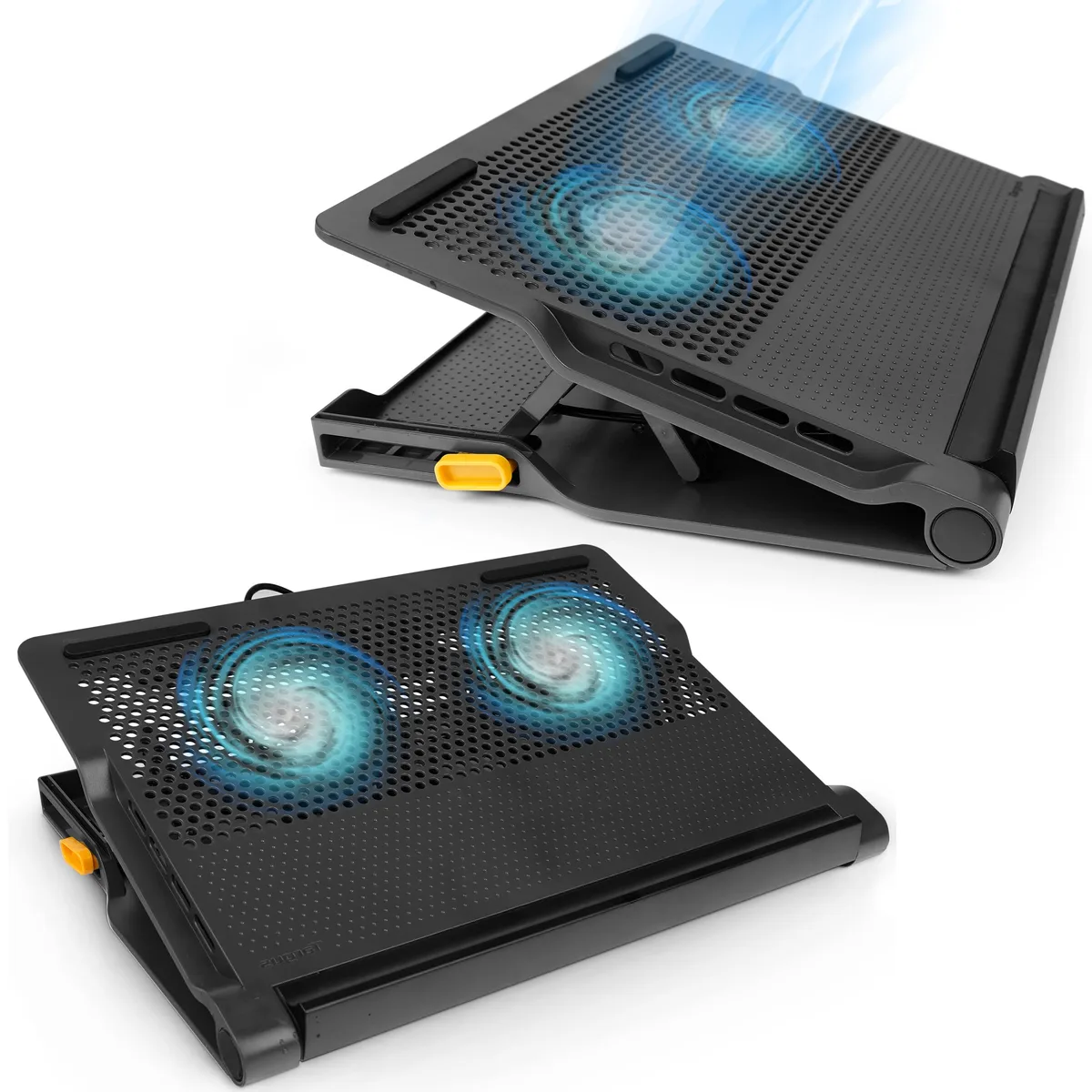
If your current wall charger doesn’t meet the cooling pad’s power requirements, you have three reliable alternative power sources. Each works better for specific situations, so pick the one that matches your use case.
| Power Source | Best For | Pros | Cons |
|---|---|---|---|
| Powered USB hub | Users with multiple USB devices needing shared power | Powers multiple devices at once, often includes surge protection | Bulkier than a single wall charger, higher cost |
| USB power bank | Travelers or users with no nearby wall outlets | Portable, no wall outlet required | Limited capacity, needs recharging, may not support high-wattage pads |
| Laptop built-in USB port | Short, low-intensity use sessions | No extra equipment needed | Drains laptop battery, may underpower high-performance pads |
| Battery-powered passive cooling pad | Users who want zero external power | No cables, no power source needed | Less effective than active fan pads for heavy heat loads |
If you choose a powered USB hub, confirm its per-port output matches your cooling pad’s requirements. Many low-cost hubs share a single 10W power supply across all ports, which can underpower a high-wattage pad if other ports are in use.
Common Mistakes That Can Break Your Cooling Pad Or Cause Safety Risks
Even if specs look compatible on paper, small errors can lead to broken gear or serious safety hazards. The most common mistakes are easy to avoid if you know what to check first.
- Using an uncertified, counterfeit wall charger. Cheap no-brand chargers often lack basic overcurrent protection, which can cause overheating, fire, or permanent damage to your cooling pad or connected device. Always look for UL, CE, or FCC certification marks on the charger body before plugging it in. Per US CPSC safety data, uncertified USB chargers are linked to over 500 residential fire incidents annually as of 2026.
- Assuming all phone chargers work for all cooling pads. A standard 5W phone charger will underpower a high-performance gaming cooling pad, leading to slow fan speeds and almost no cooling effect. The pad’s required minimum wattage is always printed on a label on its underside or listed in its official user manual.
- Forcing a mismatched USB cable or port. Forcing a USB-C cable into a USB-A port, or using a frayed, damaged cable, can short out the pad’s power circuit. Always use a cable that fits snugly without force, and replace any cable with exposed wires immediately. Manufacturer warranty terms almost always void coverage for damage caused by third-party or damaged cables.
- Plugging the cooling pad into a charger that’s already maxed out. If your USB-C PD charger is already powering your laptop at its full 65W output, plugging a 10W cooling pad into its secondary port may not deliver enough power if the charger doesn’t support simultaneous high-wattage output on all ports. Check the charger’s official spec sheet for per-port maximum output when multiple ports are in use.
- Ignoring overheating signs during first use. If the charger or pad feels hot to the touch after 10 minutes of operation, unplug it immediately. This indicates a power mismatch or faulty hardware, and continuing to use it creates a credible fire risk. Let both components cool for 30 minutes before troubleshooting.
Non-Negotiable Safety Rules For This Setup
Using an uncertified or mismatched power source creates real, avoidable risks. Follow these rules to keep your devices and home safe.
- Only use wall chargers with valid safety certification marks: UL (US), CE (EU), or FCC (US). Per CPSC data, uncertified chargers cause over 500 residential fires annually as of 2026. Check for these marks on the charger body before every use.
- Never use a charger with frayed cords, cracked housing, or burnt smells. Internal damage can cause electric shock or fire.
- Don’t plug a cooling pad into a charger already powering a high-wattage device like a laptop at its maximum output. Most multi-port chargers reduce per-port wattage when multiple devices are connected, which can underpower your pad or overload the charger.
- Unplug the setup immediately if either component feels excessively hot after 10 minutes of operation. This signals a power mismatch or faulty hardware. Let both cool for 30 minutes before troubleshooting.
- Avoid DIY or modified wall chargers entirely. These lack basic overcurrent and overheating protection, and they void almost all consumer electronics warranties.
Real-World Scenarios Where This Setup Works (And Where It Doesn’t)
The difference between a functional setup and a broken one comes down to matching specs correctly. These real-world examples, drawn from aggregate user reviews and manufacturer support data, show exactly where the line falls.
When it works perfectly
A remote worker uses a 10W USB-A cooling pad with a 30W USB-C PD wall charger. The charger’s output exceeds the pad’s requirement, so fans spin at full speed with no lag. The setup frees up the laptop’s only USB-C port for a wireless mouse, and the laptop battery stays at 100% during 8-hour work sessions.
When it fails completely
A college student tries to power a 4-fan gaming cooling pad (rated 24W) with a standard 5W phone charger they found in a drawer. The fans spin slowly, making a faint whirring noise, and the pad provides almost no cooling for their laptop during gaming sessions. The setup is useless for its intended purpose.
When it’s a safety hazard
A user plugs a generic uncertified wall charger into their cooling pad. After 15 minutes of use, the charger’s plastic housing melts and emits a burning smell. Per CPSC safety reports, uncertified chargers are linked to over 500 residential fires annually as of 2026.
This incident could have been avoided with a certified unit.
Frequently Asked Questions
Can I use any old phone charger for my cooling pad?
No. Standard phone chargers output 5W to 12W, while high-performance cooling pads need 10W to 24W to run at full speed. Check your pad’s required input wattage first, and only use a charger that meets or exceeds that rating.
Will plugging a cooling pad into a wall charger damage my laptop?
No, as long as you plug the cooling pad into the wall charger, not the laptop. This setup actually protects your laptop battery by removing the cooling pad’s power draw from the device’s USB port.
How do I know if my wall charger is powerful enough?
Check the fine-print output label on the charger. It lists maximum output in watts or volts/amps pairs. If the output is equal to or higher than your cooling pad’s required input, it’s powerful enough.
Lower output means the pad will underperform or not work.
Is it safe to leave a cooling pad plugged into a wall charger overnight?
Yes, if both components are in good condition, certified, and not overheating. Turn the cooling pad off when not in use to avoid unnecessary fan wear. Unplug immediately if you notice strange smells or excess heat.
What happens if I use an underpowered charger for my cooling pad?
Fans will spin slower than their rated speed, providing almost no cooling benefit. The pad may not power on at all. Underpowered operation rarely damages the pad, but it wastes electricity and gives a false sense of cooling during high-heat tasks.
Final Decision Cheat Sheet
Use this quick guide to decide if your setup will work in 30 seconds or less.
- If your wall charger’s output is ≥ your cooling pad’s required input: it will work. Test for 10 minutes to confirm no overheating.
- If your wall charger’s output is < your cooling pad’s required input: it will not work effectively. Use a higher-wattage charger or alternative power source.
- If your wall charger has no safety certification mark: do not use it. Buy a certified replacement to avoid fire or shock risks.
- If your USB cable is frayed or damaged: replace it immediately. Damaged cables can short out the pad’s power circuit.

Similar Posts