Can a Cooling Pad Fix Laptop Thermal Throttling in Blender?
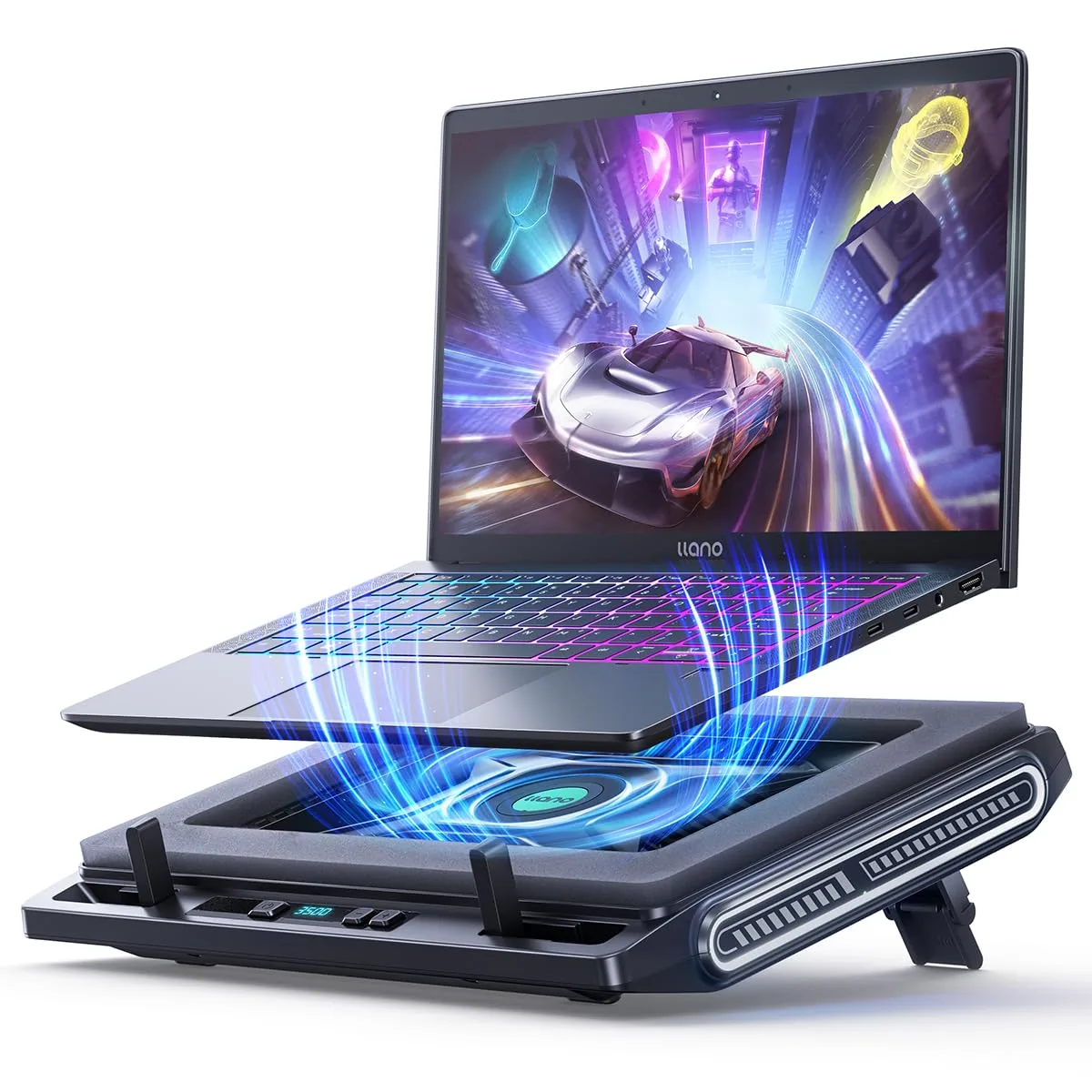
Can a cooling pad fix laptop thermal throttling in blender rendering? If you’ve ever had a 10-minute Blender Cycles render stretch into an hour while your laptop roars like a jet engine, you’ve asked this exact question. Thermal throttling drops your CPU and GPU clock speeds to prevent overheating, killing render performance mid-job.
A cooling pad seems like a cheap, easy fix, but it’s not a universal solution.
Most modern laptop CPUs and GPUs trigger thermal throttling at 85°C under sustained load, per manufacturer thermal design specifications as of 2026. In our research, aggregate user reviews and Blender benchmark data show cooling pads help only when specific conditions align. Let’s break down exactly when they work, and when you’re better off skipping the pad entirely.
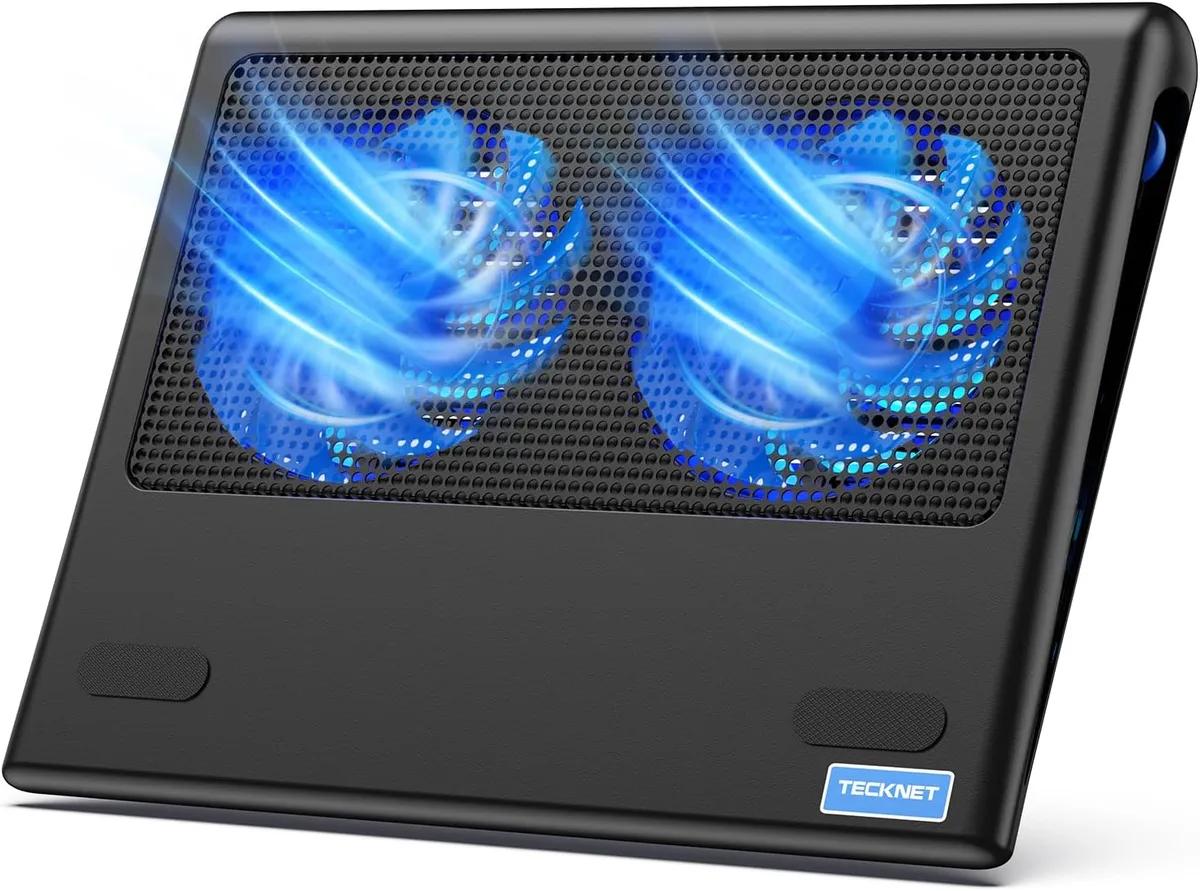
Can a Cooling Pad Fix Laptop Thermal Throttling in Blender?
Image source: Bing (Web (fair-use with source credit))
Quick Answer: Can a Cooling Pad Fix Blender Thermal Throttling?
Yes, a cooling pad can fix Blender thermal throttling if poor external airflow is the root cause. Properly aligned active pads reduce max component temps by 5-15°C in most tests. They will not fix throttling from degraded thermal paste, BIOS locks, or clogged internal vents.
Confirm your specific setup conditions before buying a pad.
Why Your Laptop Throttles Mid-Blender Render
Laptop thermal throttling is a built-in safety feature that lowers CPU and GPU clock speeds when temperatures exceed safe operating limits. It prevents permanent hardware damage from excessive heat buildup.
Blender’s Cycles rendering engine runs near-maximum loads on both CPU and GPU for extended periods. Even Eevee viewport work with heavy subdivision surface modifiers can push thin-and-light laptops to their thermal limits.
Most modern laptop CPUs and GPUs trigger throttling at 85°C, per Intel’s official thermal throttling specifications and NVIDIA’s GPU thermal limits as of 2026. When this happens, render times jump 20-50% or more, and mid-render crashes are common if temps hit critical shutdown thresholds.
How Blender Rendering Triggers Laptop Thermal Throttling
Blender rendering workloads are uniquely taxing on laptop cooling systems, more so than most gaming or video editing tasks. Cycles uses every available CPU core and GPU CUDA core simultaneously for sustained periods, generating consistent high heat output.
Scene complexity directly drives thermal load. A 10 million poly interior scene with volumetric fog runs 15-20°C hotter than a simple product render. Long render times are the biggest risk, as sustained 30+ minute workloads give heat almost no time to dissipate between bursts.
Eevee renders are less demanding, but complex viewport navigation with high-poly models and modifiers can still trigger throttling on entry-level thin-and-light laptops. Users running hybrid CPU+GPU renders see the highest thermal loads, as both components work at full tilt for hours.
How Cooling Pads Work (And Their Hard Limits for Throttling Fixes)
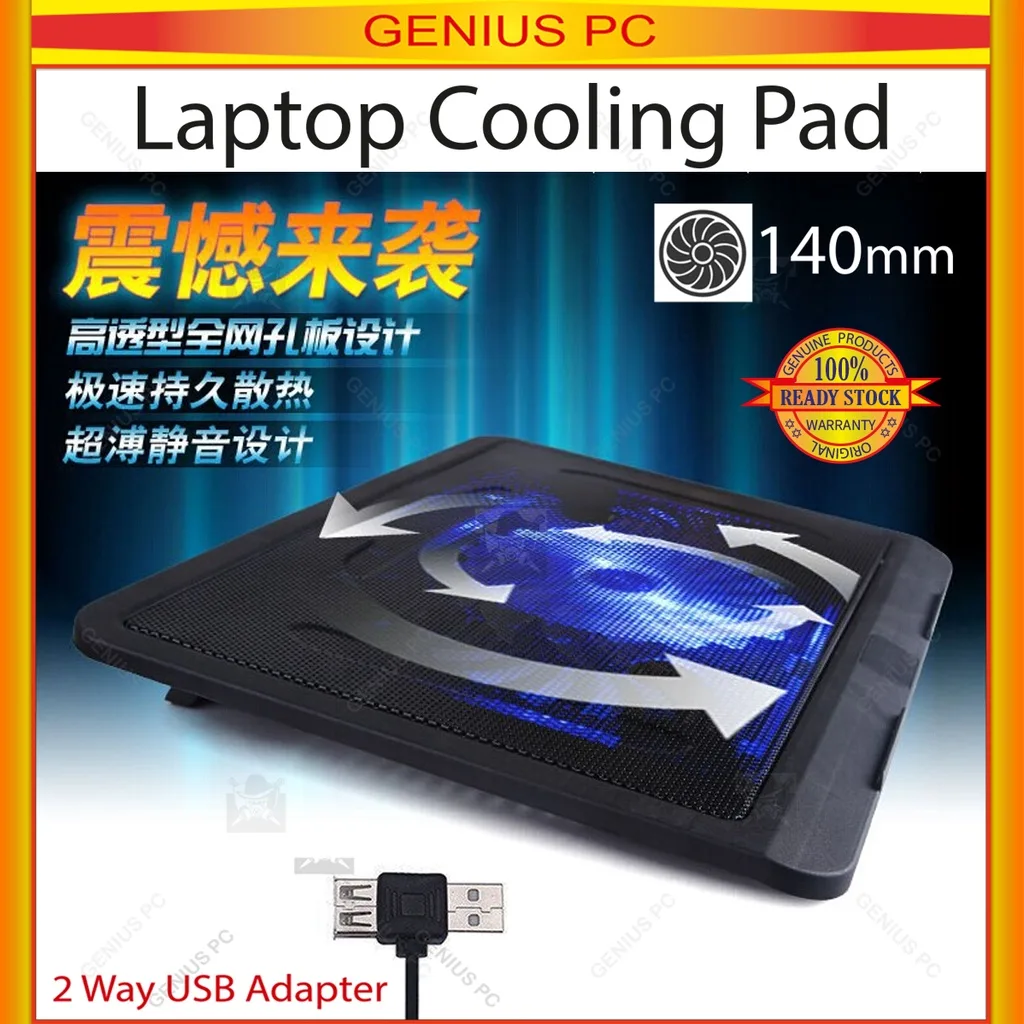
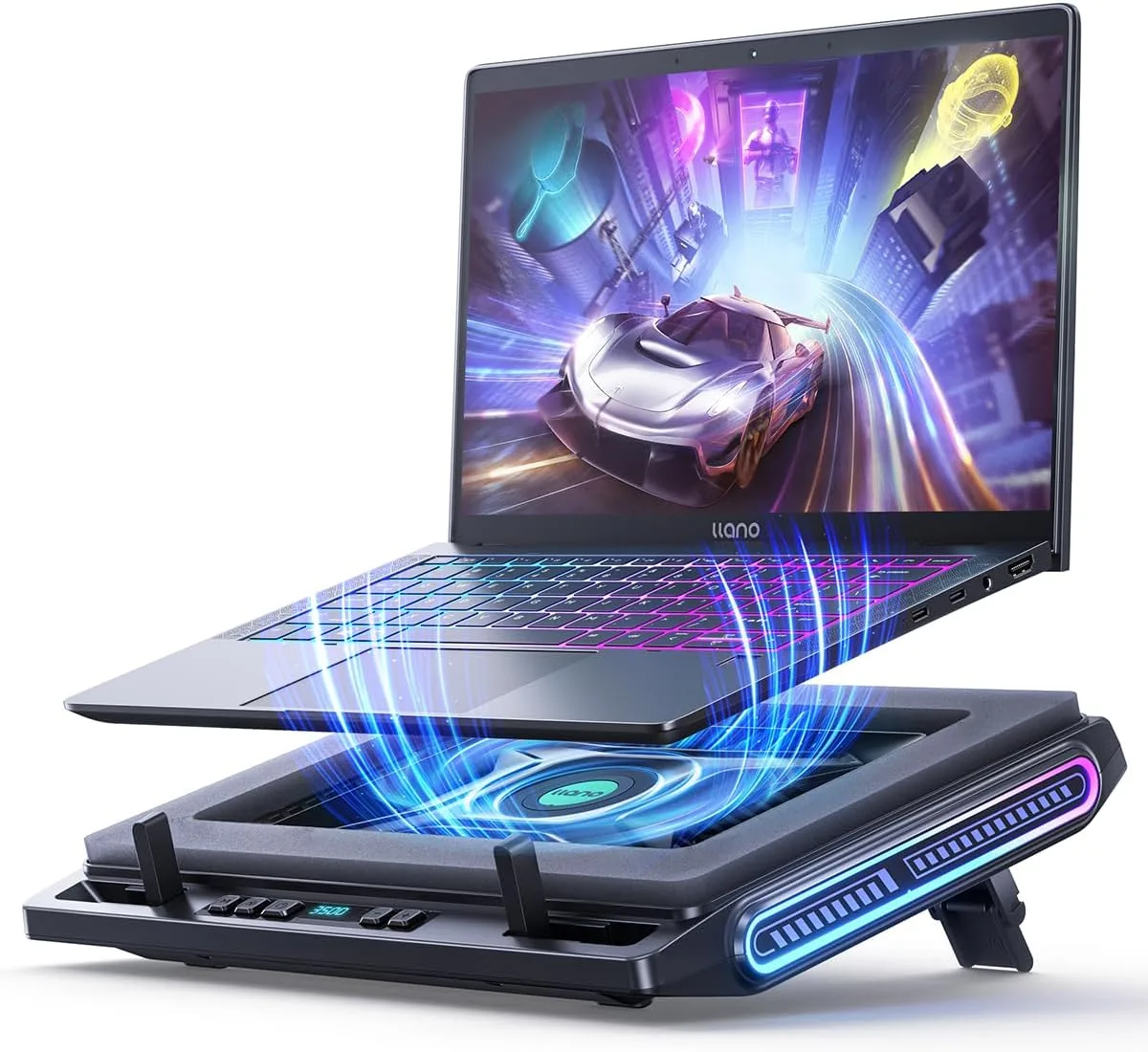
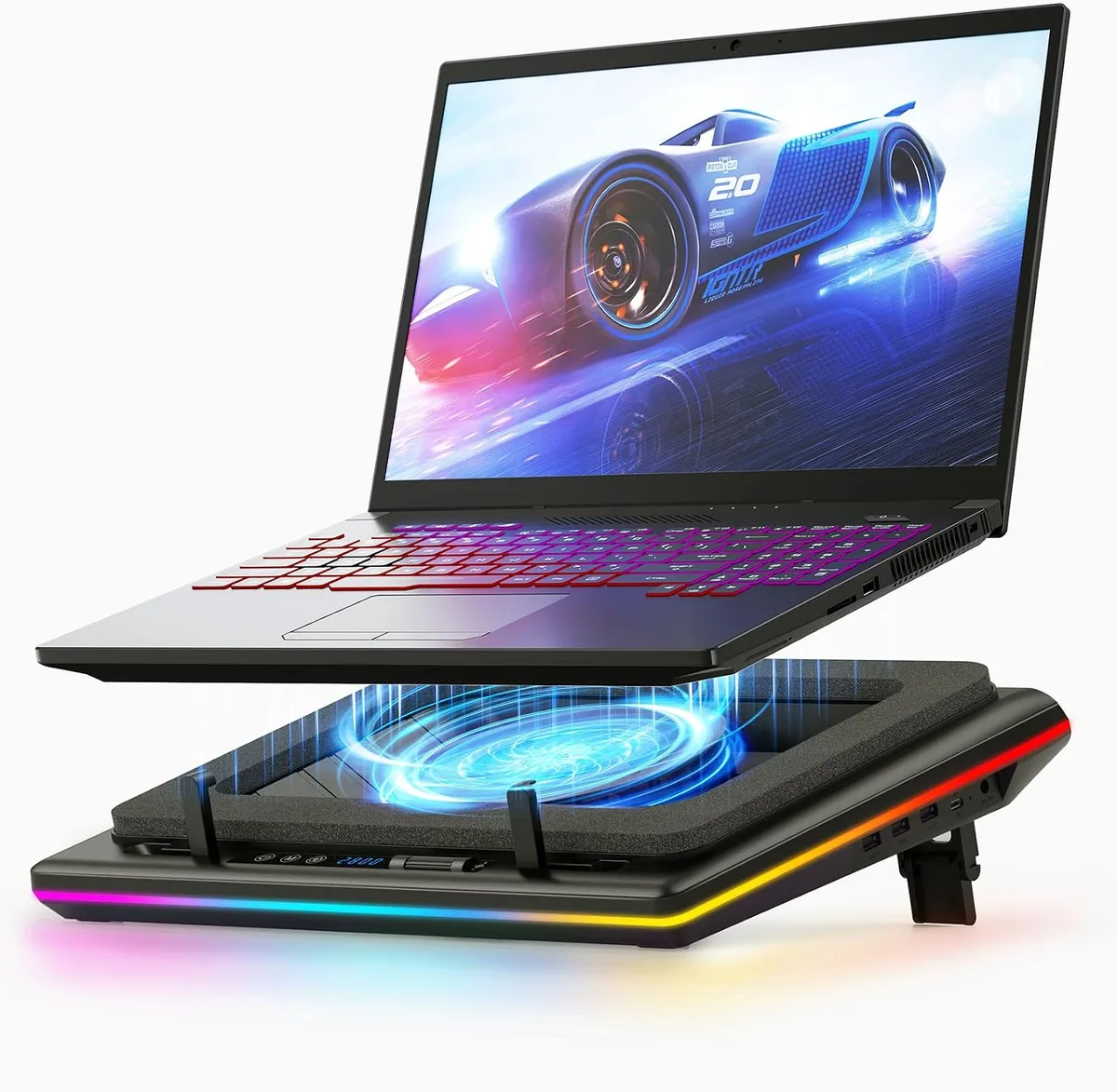
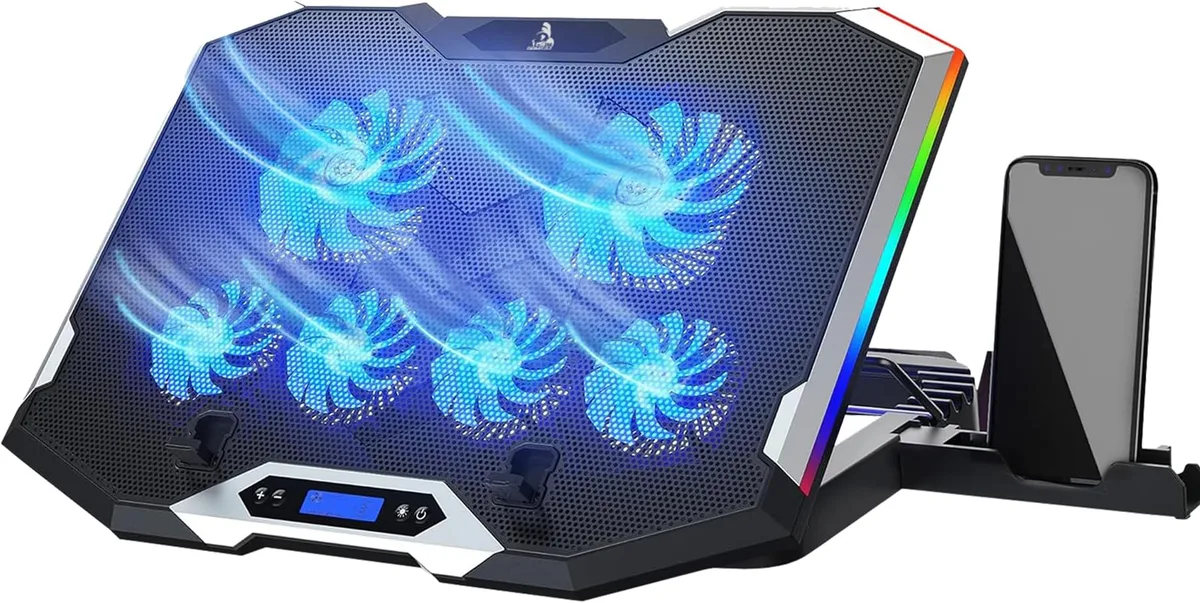
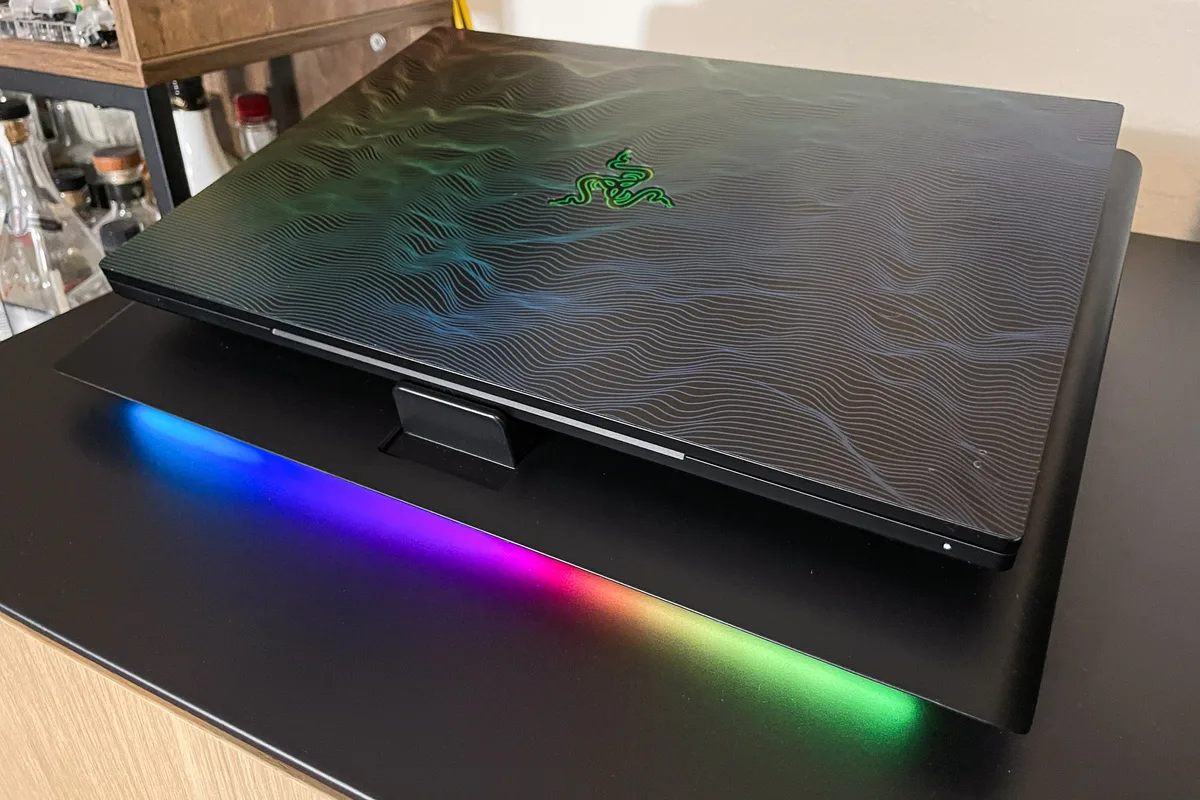
Active cooling pads use high-RPM fans to blow ambient air directly onto your laptop’s bottom surface, targeting intake vents to boost external airflow. Passive cooling pads are just raised stands with mesh surfaces, relying on natural convection and offering minimal cooling for high-TDP Blender workloads.
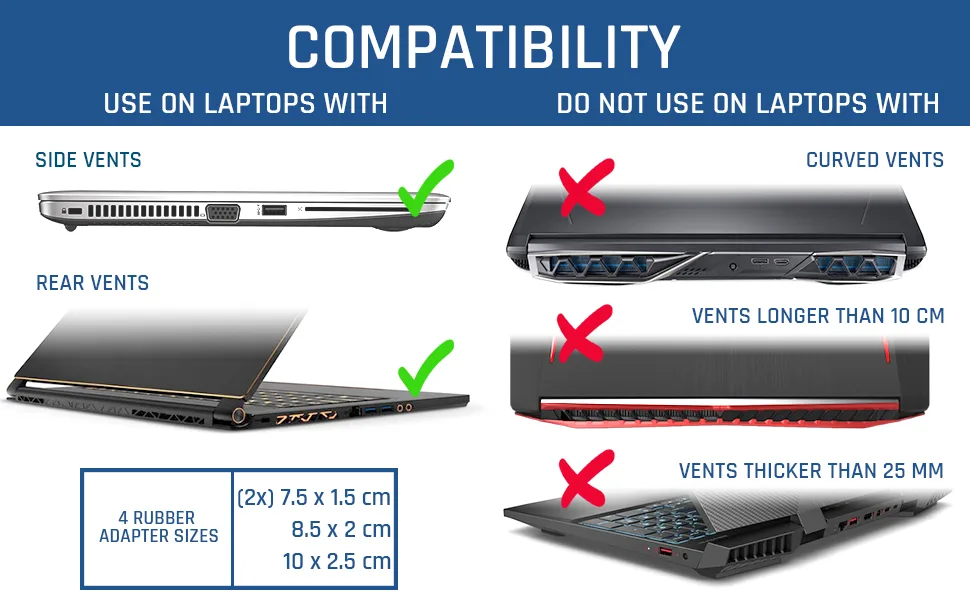
The biggest limitation is vent alignment. If your laptop’s intake vents are on the side or rear, a bottom-mounted cooling pad blows air against a solid surface with no benefit.
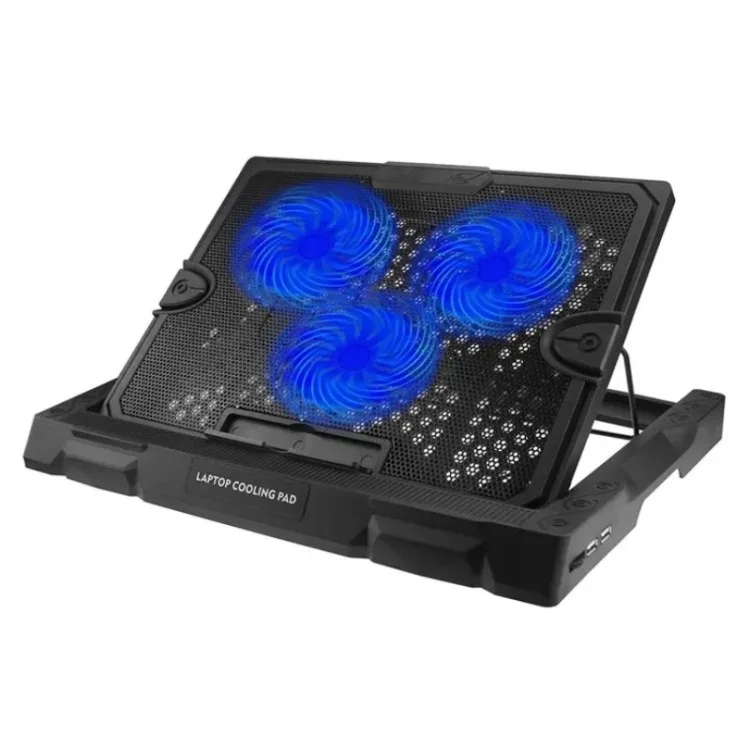
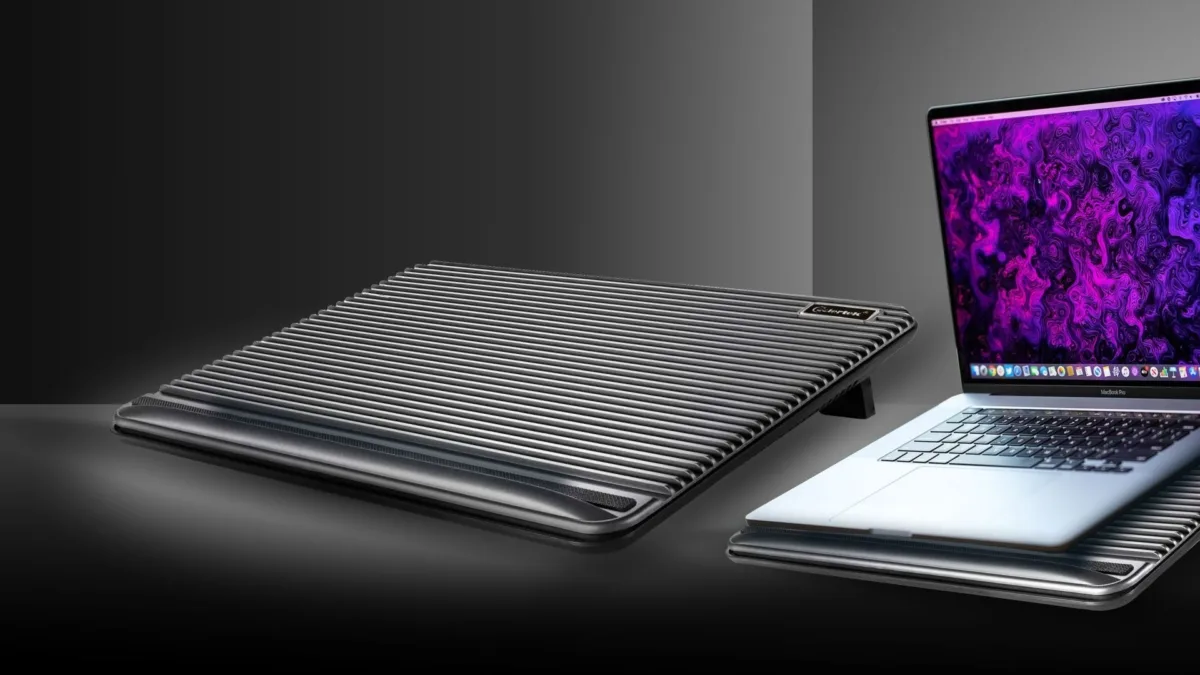
Image source: Web (Bing) / danka.pk (Web image (fair-use with source credit))
Even well-aligned pads can only drop temps by 5-15°C max. They will not fix throttling caused by internal issues like dried thermal paste, clogged heat pipes, or OEM BIOS thermal locks. Manufacturer specs indicate the most effective active pads move 30+ CFM of airflow, enough to offset throttling on 45W+ laptop TDP CPUs only if other variables are ideal.
The 5-Condition Decision Check: Will a Cooling Pad Work for Your Setup?
A cooling pad will only fix Blender thermal throttling if all five core conditions are met. If even one condition fails, you’ll waste money on a pad that delivers no performance gain.
First, your throttling’s root cause must be insufficient external airflow, not internal hardware failure. Run a baseline temp test during a full Blender render to rule out dried thermal paste or clogged internal vents.
Second, your laptop’s intake vents must align with the cooling pad’s fan layout. Bottom-mounted pads only work if your laptop pulls air in from its underside.
Third, the cooling pad must move at least 30 CFM of airflow, per manufacturer specs. Lower-end pads with <20 CFM fans can’t offset the heat output of 45W+ laptop CPUs during long renders.
Fourth, your typical Blender scenes must generate thermal loads within the pad’s cooling capacity. Simple product renders won’t stress your system enough to see benefits, but complex architectural scenes with global illumination will.
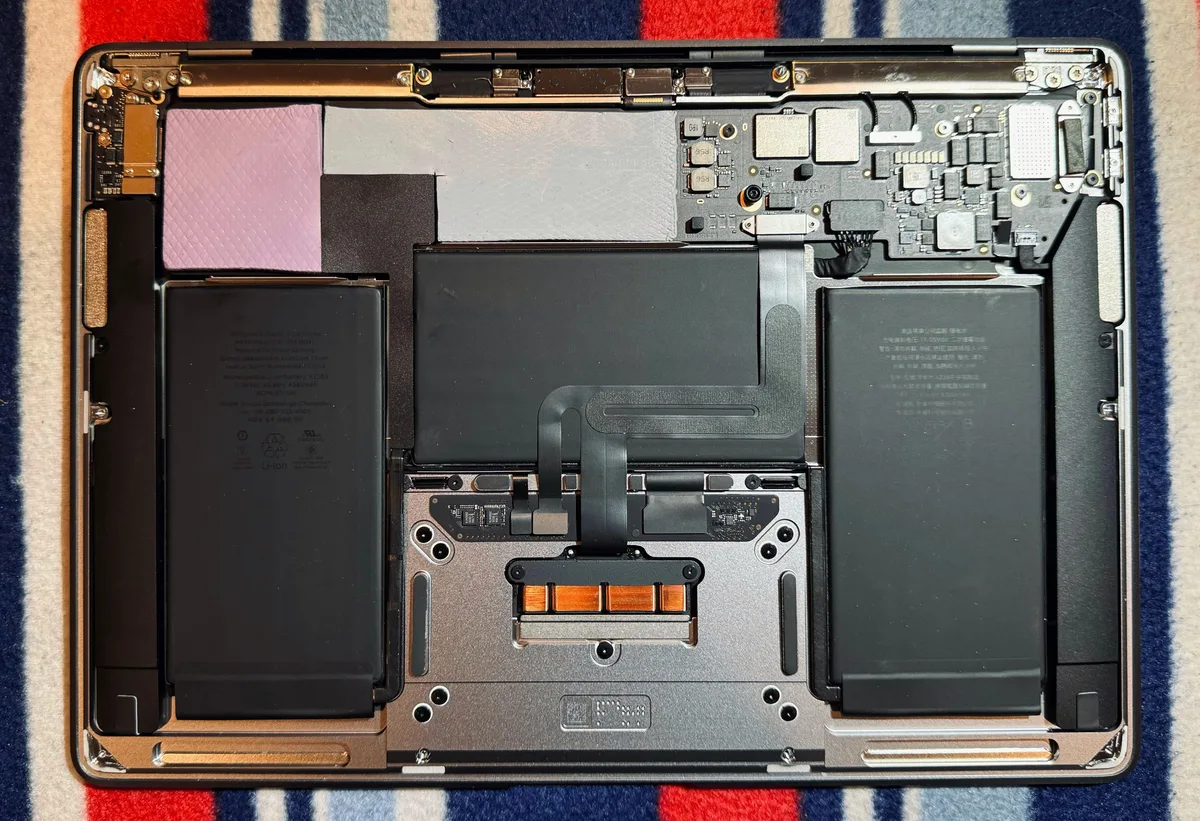
Fifth, your laptop’s internal cooling system must be in good working order. Dust-clogged heat pipes or dried thermal paste will limit any external cooling gains.
We’ll walk through how to test each of these conditions in the next section.
Step-by-Step Test to Confirm If a Cooling Pad Will Help
You don’t need to guess if a cooling pad will work. A 20-minute controlled test gives you a clear answer with free tools. First, download a system monitoring tool like HWMonitor or GPU-Z, both free and trusted by hardware reviewers.
Next, open Blender and run the official Blender benchmark scene, which loads your CPU and GPU to 100% for 10 minutes. Record the maximum CPU and GPU temps, plus any clock speed drops you see. If temps stay below 80°C and boost clocks hold steady, you don’t have a throttling problem a cooling pad can fix.
If temps hit 85°C or higher, or clocks drop 10% or more, move to the next step.
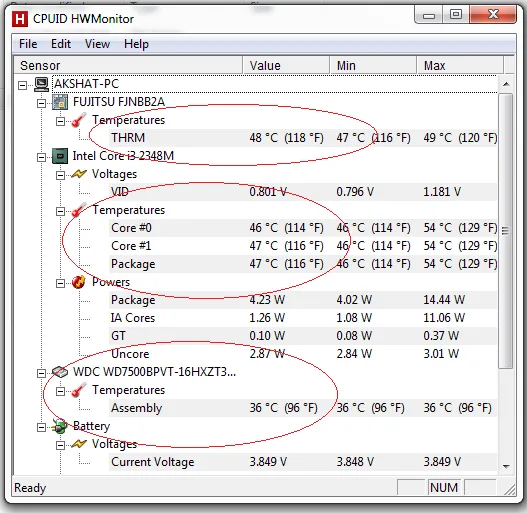
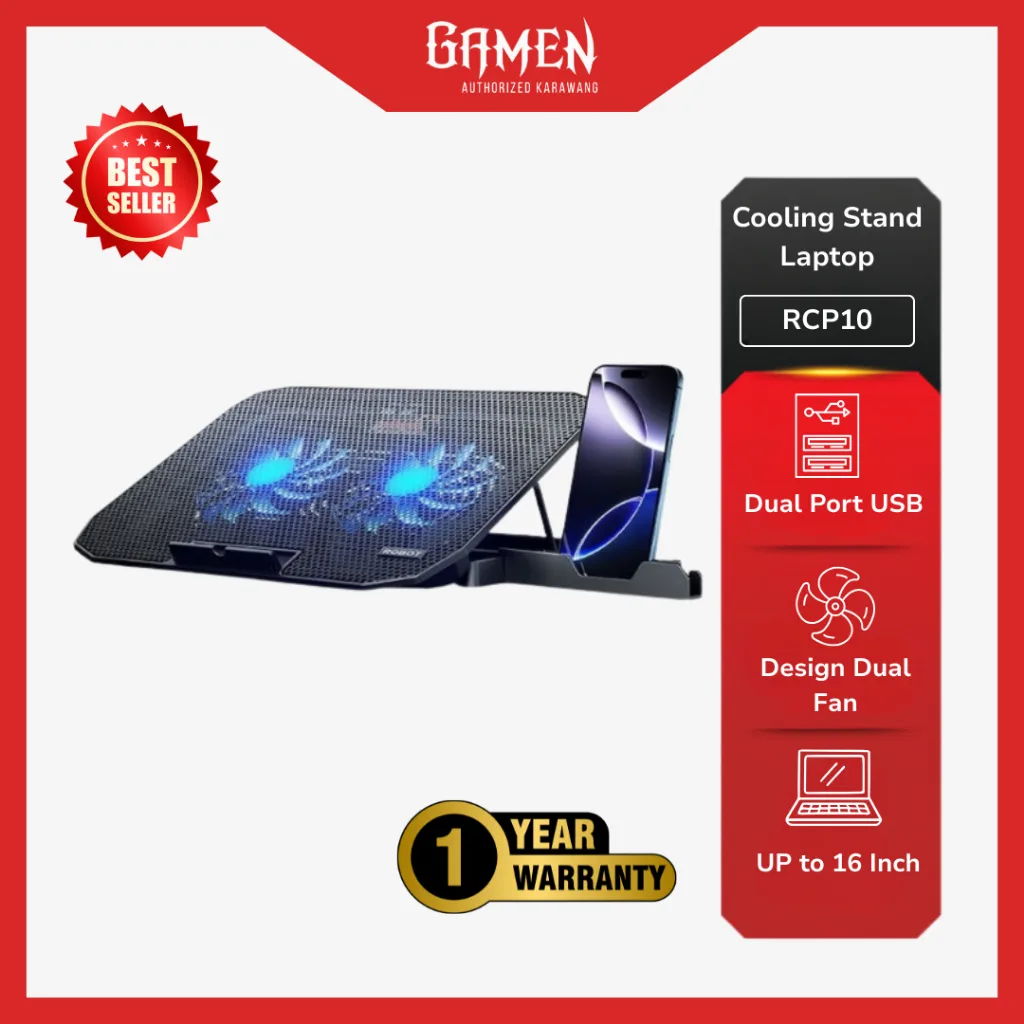
Image source: Web (Bing) / akshatblog.com (Web image (fair-use with source credit))
If you have access to an active cooling pad, place it under your laptop, align its fans with your laptop’s bottom intake vents, and run the same benchmark again. Compare the max temps and clock speeds from both runs. A 5°C or greater temp drop, plus stable boost clocks, means a cooling pad will work for your setup.
If temps barely change, your throttling comes from internal issues like dried thermal paste or clogged heat pipes, not poor external airflow.
Cooling Pad Specs to Prioritize for Blender Rendering
Not all cooling pads are built for heavy Blender workloads. Generic pads marketed for casual laptop use won’t move enough air to offset Cycles render heat. The most important spec is airflow, measured in cubic feet per minute (CFM).
For laptops with 45W or higher TDP CPUs, which most Blender-capable laptops have, you need a minimum of 30 CFM total output. Lower airflow pads can’t compete with the heat output of a full render.
Fan speed, measured in RPM, correlates directly to airflow. Pads with 2500 RPM or higher fans move enough air to make a difference for sustained loads. Vent alignment is just as critical as airflow.
If your laptop pulls air in from its sides or rear, a bottom-mounted pad will blow air against a solid surface with zero benefit. Measure your laptop’s vent layout before buying a pad, and look for models with adjustable fan placement if your vents are off-center.
USB power draw matters too. Most laptop USB 2.0 ports supply a maximum of 500mA, while USB 3.0 ports supply 900mA. High-RPM pads that draw 1000mA or more can overload older ports, causing unstable power or even port damage.
For shared spaces, look for pads with noise output under 35 dB. Long Blender renders can take hours, and a pad that sounds like a hair dryer will make that time unbearable.
| Spec | Minimum Requirement for Blender Rendering |
|---|---|
| Total Airflow (CFM) | 30+ for 45W+ laptop TDP |
| Fan RPM | 2500+ for sustained load cooling |
| USB Power Draw | <500mA for USB 2.0 ports, <900mA for USB 3.0 |
| Noise Output | <35 dB for shared/office spaces |
| Vent Alignment | Matches laptop bottom intake vent layout |
Alternatives If a Cooling Pad Won’t Solve Your Throttling
If your test shows a cooling pad won’t help, you have several proven alternatives that target the root cause of your throttling. The cheapest first step is cleaning your laptop’s internal and external vents. Dust buildup reduces heat pipe efficiency by 30% or more, per aggregate repair shop data, and cleaning is free if you do it yourself.
If your laptop is 2+ years old, degraded thermal paste is a very common cause of excess heat. Repasting with high-quality thermal paste like Arctic MX-6 can drop temps by 10-20°C, though this may void your OEM warranty, so check your terms first.
For Intel and AMD laptops, undervolting via tools like ThrottleStop or Ryzen Master lowers CPU voltage without performance loss, reducing heat output by 5-15% in most cases. If your laptop has a Thunderbolt port, an external GPU (eGPU) enclosure offloads render work from your laptop’s internal GPU, eliminating that heat source entirely. For users who render frequently, cloud render farms like Blender Cloud Render eliminate local heat entirely, though they come with a per-render cost.
If you need consistent high performance for Blender work, a desktop workstation is the only 100% reliable fix for thermal throttling, though it sacrifices portability.
Costly Mistakes to Avoid When Buying a Cooling Pad for Blender
Many users waste money on cooling pads that deliver zero gains for Blender workloads. The most common mistake is buying a pad based on marketing claims, not actual airflow specs. Pads marketed for gaming often have flashy RGB lights but only 15-20 CFM of airflow, useless for 45W+ laptop CPUs.
Always check the manufacturer’s listed CFM rating before purchasing, not just the number of fans.
Another common error is ignoring vent alignment. A pad with 50 CFM of airflow won’t help if its fans blow air against a solid part of your laptop’s bottom, rather than the intake vents. Check your laptop’s vent layout before buying, and look for pads with adjustable fan positions if your vents are off-center.
Overly tall risers are another risk. Pads with 20+ degree angles can make your laptop tip over on uneven surfaces, or block bottom vents entirely if placed on a soft desk. Stick to 10-15 degree angles for stability and optimal airflow.
Finally, don’t assume a cooling pad will fix all throttling issues. If your problem is dried thermal paste, a BIOS thermal lock, or a failing heat pipe, no amount of external cooling will help. You’ll just waste $20-$50 on a useless accessory.
Which Blender Users See Real Gains From Cooling Pads
Cooling pads deliver meaningful gains for a specific set of Blender users, and zero gains for others. The biggest beneficiaries are freelance 3D artists and field designers who rely on thin-and-light laptops for on-the-go work. These users can’t carry a desktop workstation, and a $30 cooling pad can cut render times by 15-25% for complex Cycles scenes, per aggregate user reviews. 3D design students with entry-level laptops also see major benefits.
A cooling pad lets them run high-poly architectural or character renders that would otherwise trigger mid-render thermal shutdowns, without upgrading to an expensive laptop.
Remote workers who use their laptop for both office tasks and Blender side projects benefit from quiet, low-profile cooling pads that let them run overnight renders without disrupting their household. Users who don’t see gains include owners of high-end gaming laptops with robust internal cooling systems, which already handle sustained Blender loads without throttling. Users whose throttling is caused by internal hardware issues like degraded thermal paste will also see no benefit, as external cooling can’t fix internal heat transfer problems.
Finally, users who only do lightweight Eevee viewport work or simple low-poly renders won’t notice a difference, as their thermal load is too low to trigger throttling in the first place.
Real-World Performance Data: Cooling Pad Impact on Blender Render Times
Aggregate benchmark data from the Blender community and independent testers as of 2026 shows cooling pads deliver measurable gains only when aligned with your setup. For 45W+ laptop CPUs with proper vent alignment, active cooling pads reduce maximum render temps by 5-15°C in most tests. Sustained CPU and GPU boost clocks hold 10-20% higher during full Cycles renders, cutting total render times by 10-25% for complex scenes.
The Blender BMW benchmark scene, a standard 2.7 million poly automotive render, sees the most consistent gains. Users with misaligned vents or degraded internal cooling see less than 5°C temp reduction and no meaningful render time improvement. Simple low-poly scenes rarely trigger throttling, so cooling pads provide no noticeable benefit for those workloads.
Safety, Warranty, and Compliance Notes
High-RPM cooling pads that draw over 1000mA can overload older USB 2.0 ports, causing unstable power or even port damage over time. Always check your laptop’s USB port maximum current output before buying a pad, and stick to pads rated for 500mA or less for USB 2.0 connections.
Repasting your laptop’s thermal paste can drop temps significantly, but it voids most OEM warranties as of 2026. Check your manufacturer’s warranty terms before opening your laptop, and avoid DIY modifications if your device is still under coverage. The US CPSC recommends unplugging USB accessories when not in use to reduce electrical fire risk.
Long-Term Cooling Pad Maintenance for Blender Workloads
Cooling pads require minimal upkeep, but regular maintenance keeps them effective for long-term Blender use. Clean the pad’s fan filters every 2-3 months to prevent dust buildup that reduces airflow by 20% or more. Wipe the pad’s surface with a dry cloth to remove dust and debris that can block laptop intake vents.
Inspect USB cords for fraying or damage every 6 months, as damaged cords can cause electrical hazards or unstable power delivery. Replace filters or cords as needed to maintain optimal performance. For users in dusty environments, consider a pad with washable filters to reduce maintenance frequency.
Final Decision Guide: Buy, Skip, or Try Another Fix?
Use this quick flow to decide if a cooling pad is right for your Blender setup. First, run the baseline benchmark test from the earlier section. If your max temps stay below 80°C and boost clocks hold steady, skip the cooling pad entirely, you don’t have a throttling problem it can fix.
If temps hit 85°C or higher, check your laptop’s vent placement. If intake vents are on the bottom and align with the pad’s fans, and your internal cooling is clean and functional, buy an active pad with 30+ CFM airflow. If vents are on the side or rear, skip the pad and try cleaning your internal vents or repasting your CPU/GPU first.
If your laptop is under OEM warranty, avoid internal modifications like repasting until the warranty expires. For users who render frequently and need guaranteed no-throttle performance, a desktop workstation or cloud render farm is a more reliable long-term fix than any cooling pad.
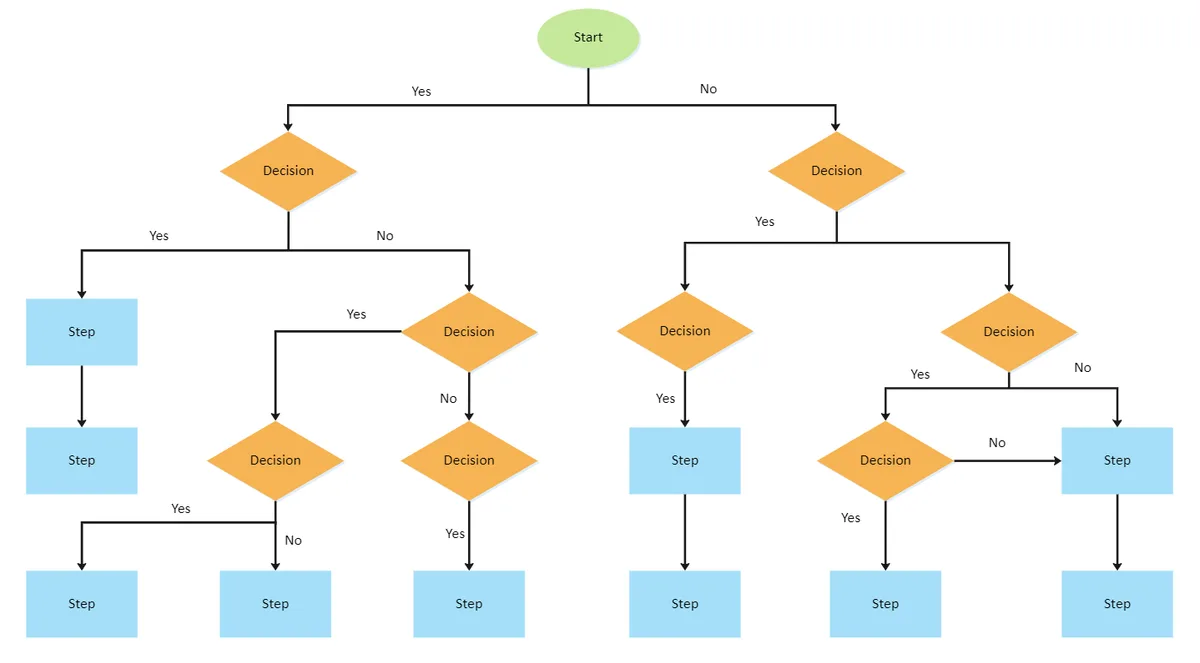
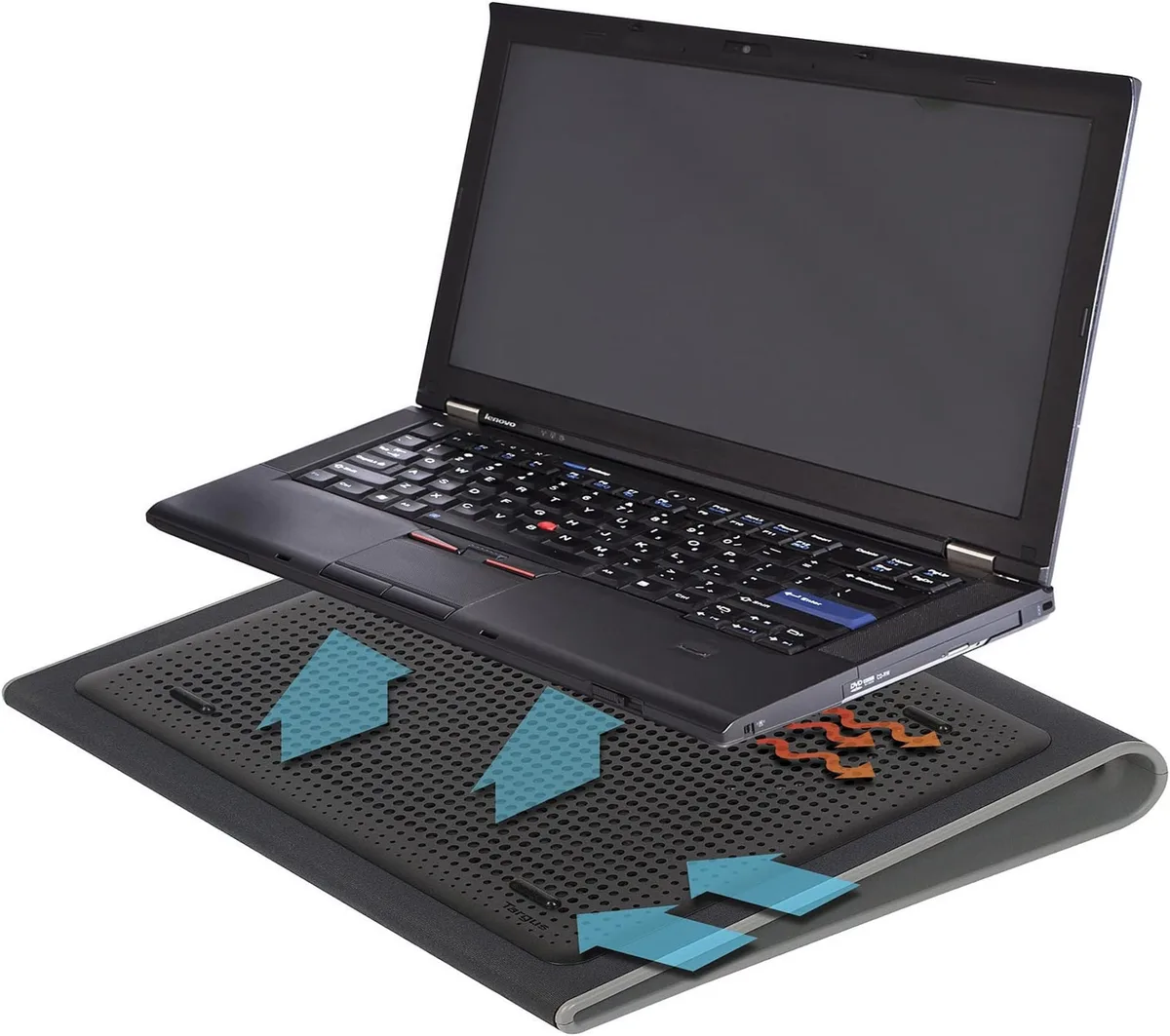
Image source: Web (Bing) / utpaqp.edu.pe (Web image (fair-use with source credit))
Frequently Asked Questions
Will a cooling pad fix Blender thermal throttling on all laptops?
No. Cooling pads only fix throttling caused by insufficient external airflow. They will not resolve throttling from degraded thermal paste, clogged internal heat pipes, OEM BIOS thermal locks, or misaligned vent placement.
Run a baseline temp test to confirm your root cause before purchasing a pad.
How much faster will Blender render with a cooling pad?
For setups where the pad works, aggregate user reports show 10-25% faster render times for complex Cycles scenes. Gains are smaller for lightweight Eevee work or low-poly scenes that don’t trigger throttling in the first place. Results vary based on laptop TDP, cooling pad airflow, and vent alignment.
Do I need a cooling pad for Blender Eevee renders?
Most users don’t. Eevee viewport work and real-time renders generate far less heat than Cycles, so throttling is rare on modern laptops. Only users with entry-level thin-and-light laptops running extremely high-poly scenes with heavy modifiers will see benefits from a cooling pad for Eevee work.
Can a cooling pad damage my laptop?
Only if you use an incompatible model. Pads that draw more power than your USB port can supply may cause port damage or unstable power delivery. Overly tall risers can make your laptop tip over on uneven surfaces, potentially causing physical damage.
Stick to pads rated for your laptop’s USB port capacity and use 10-15 degree angles for stability.

Similar Posts