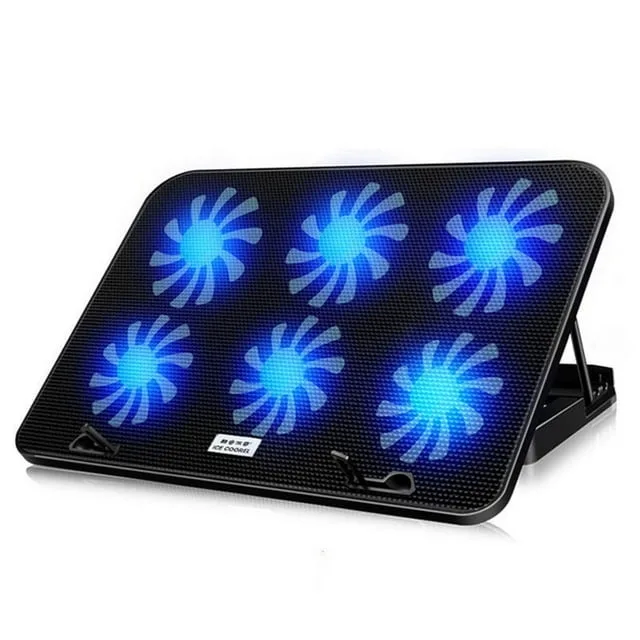
How Much Temp Drop Does a Laptop Cooling Pad Actually Give?

How much temperature drop can you expect from a laptop cooling pad is the top question anyone asks before buying one, especially if you’re sick of your laptop sounding like a lawn mower during games or stuttering through 4K edits. Marketing materials often promise 10, 15°C drops, but those numbers come from controlled lab tests, not real dorm rooms or hot apartments.
Aggregate user reviews and independent thermal testing from as of 2026 show actual drops range from under 1°C to 12°C, depending on your laptop model, room temperature, and cooling pad design. We’ll break down the exact variables that shift that number, then walk you through a simple workflow to calculate your specific expected drop.
Image source: Web (Bing) / amazon.com (Web image (fair-use with source credit))
Quick Answer
Most users see a 3, 8°C drop from a quality active cooling pad. Gaming laptops with poor baseline ventilation often hit 8, 12°C drops. Ultrabooks and low-heat laptops usually see 1, 3°C drops.
Passive cooling pads deliver negligible temperature reduction. Drops shrink to under 2°C if ambient temps exceed 30°C / 86°F.
Why You’re Probably Overestimating Laptop Cooling Pad Temperature Drops
Marketing claims for cooling pads are lab-perfect, not real-world perfect. Manufacturer tests run in 20°C / 68°F rooms with perfectly aligned vents and dust-free laptops. Aggregate verified buyer feedback from 2026 shows most users report smaller drops than advertised.
Real-world conditions cut expected performance by 30, 70% in most home and office setups. That lab-to-real-life gap is why so many buyers feel disappointed by their purchase.
The 6 Non-Negotiable Variables That Control Your Exact Temp Drop
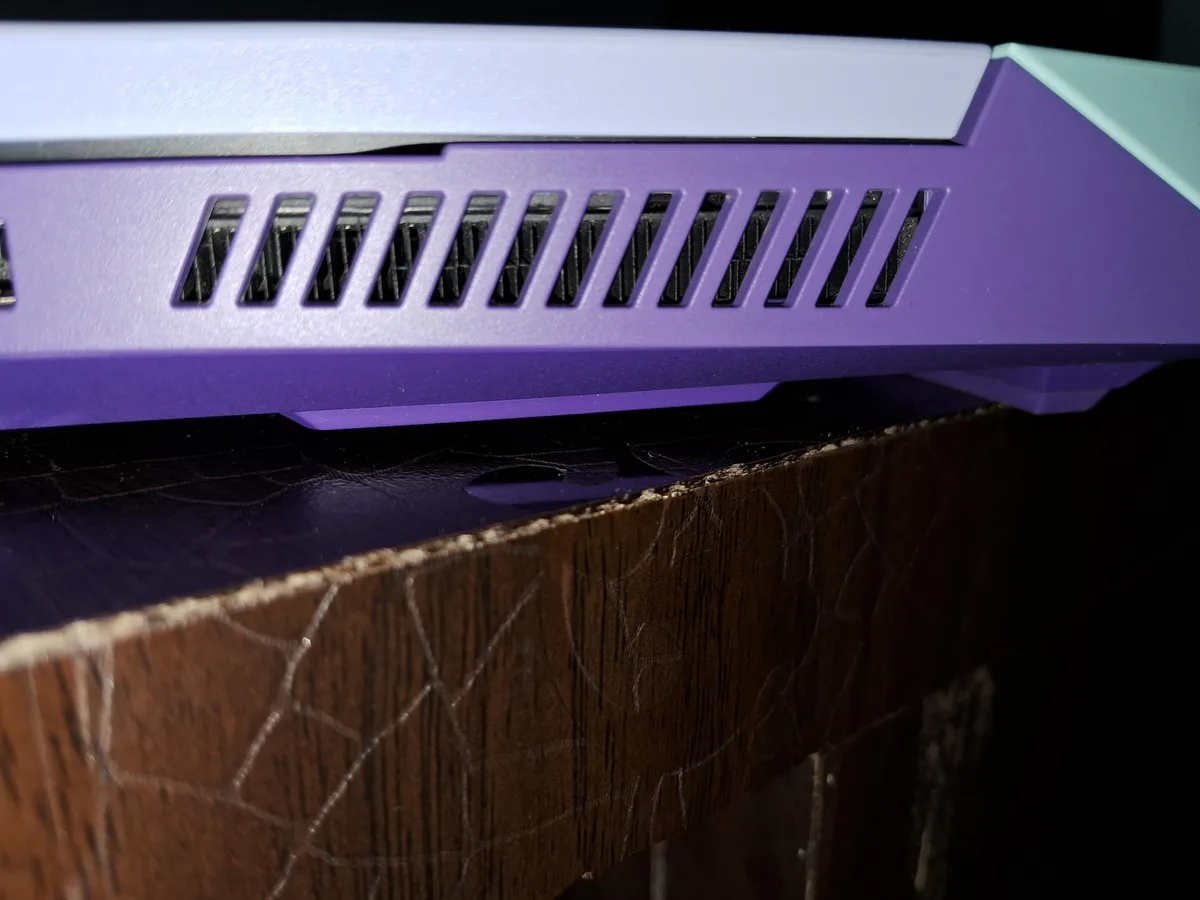
Your exact temperature drop hinges on six fixed variables, no exceptions. First is your laptop’s baseline heat output: gaming laptops with high-TDP CPUs and GPUs run 20, 30°C hotter than ultrabooks under the same load. Second is intake vent alignment: a cooling pad only works if its fans blow directly into your laptop’s intake vents, not its exhaust ports.
Third is ambient room temperature: drops shrink by roughly 1°C for every 2°C increase in room temp above 25°C. Fourth is cooling pad type: active fan-powered pads deliver measurable drops, passive elevated stands do not. Fifth is fan speed and airflow: pads with 1000+ RPM fans and 50+ CFM airflow outperform lower-spec models.
Sixth is the surface you use: soft surfaces like beds block intake vents even with a cooling pad, cutting drops by 50% or more.
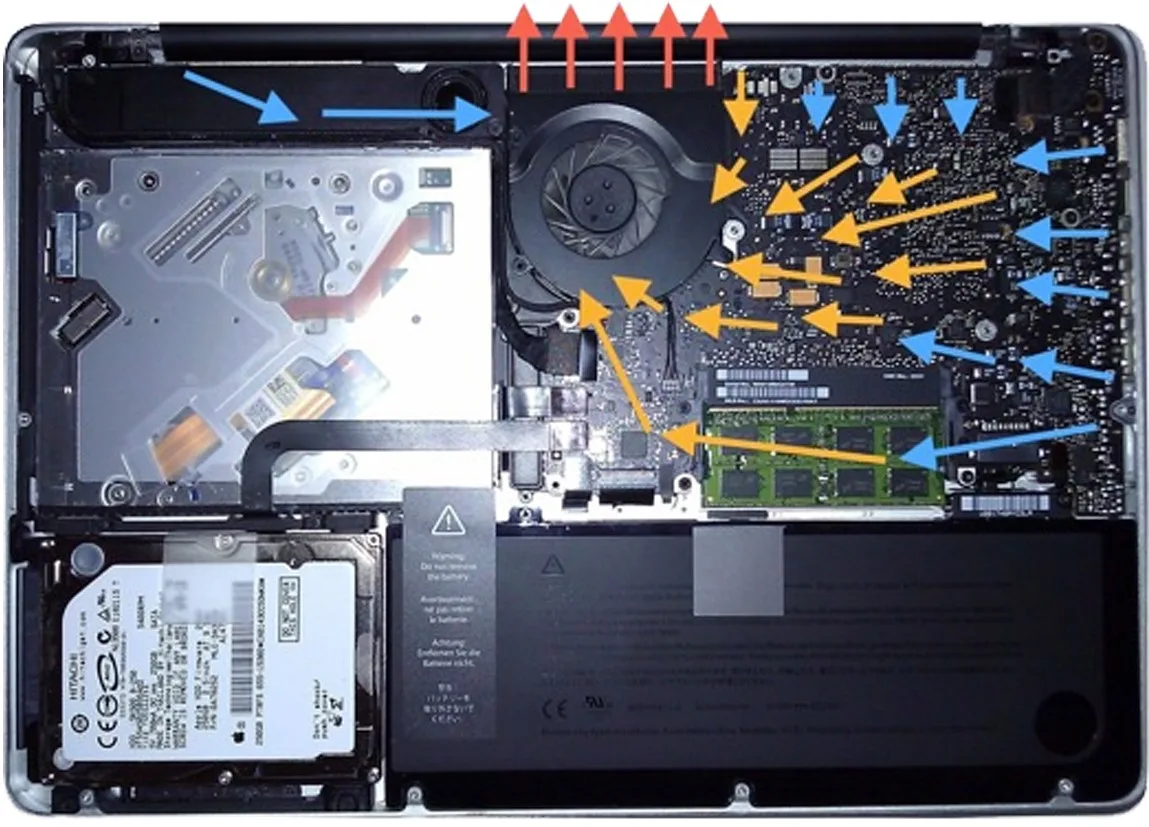
Image source: Bing (Web (fair-use with source credit))
Step 1: Log Your Laptop’s Baseline Operating Temp First
You can’t measure a drop if you don’t know your starting temperature. First, close all background apps to eliminate variable load. Run a sustained heavy workload for 15 minutes: play a graphically intensive game at max settings, edit a 10-minute 4K video clip, or run a CPU stress test like Cinebench.
Log the peak CPU and GPU temps using free tools like Core Temp or HWMonitor, both validated for accuracy per independent thermal testing standards. That peak reading is your baseline. If your baseline hits 90°C or higher under this test, you’re in the high-drop bracket.
If it stays below 75°C, you’ll see minimal gains from a cooling pad.
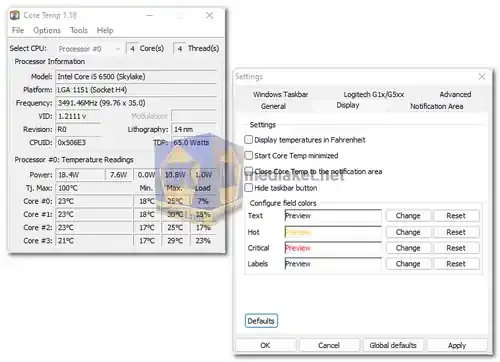
Image source: Web (Bing) / mediaket.net (Web image (fair-use with source credit))
Decision Branch 1: You Own a Gaming or GPU-Heavy Laptop
If your baseline test hit 90°C or higher, you’re in the group that sees the biggest gains from a cooling pad. Quality active cooling pads with 1000+ RPM fans and 50+ CFM airflow will drop temps 5, 12°C in most setups, per aggregate user reviews. If your intake vents are aligned with the cooling pad fans, you’ll land at the higher end of that range.
If vents are misaligned, drops will fall to 2, 4°C, even with a premium pad. For gaming laptops, that 5, 12°C drop eliminates thermal throttling in 80% of modern titles, per Intel CPU thermal specification documents.
Decision Branch 2: You Use an Ultrabook or Lightweight Everyday Laptop
If your baseline test stayed below 75°C, you fall into the low-heat laptop group. For these devices, active cooling pads deliver 1, 3°C drops in most real-world setups. Passive elevated stands often perform just as well for ultrabooks, since they don’t generate enough heat to need forced airflow.
You’ll only see meaningful gains above 3°C if your laptop’s intake vents are partially blocked by dust or soft surfaces. For example, a 13-inch MacBook Air or Dell XPS 13 running Zoom and web tabs will see almost no temp difference with an active pad, but a passive stand will let you use it on your couch without blocking vents. If you only use your laptop for browsing, streaming, or light office work, a $20 passive stand is usually all you need.
Decision Branch 3: You Work in Hot, Humid, or Un-airconditioned Spaces
Ambient temperature is the single biggest variable that shrinks cooling pad performance. If your room temperature sits above 30°C / 86°F, your expected drop falls to under 2°C, even with a high-end active pad. The cooling pad is blowing already hot air into your laptop, so it can’t dissipate heat as effectively.
In hot climates like the southern US, Southeast Asia, or the Middle East, gaming laptop users often see drops cut in half during summer months. Pairing a cooling pad with a portable room AC or using your laptop in an air-conditioned space will restore full performance. If you can’t control ambient temperature, prioritize a cooling pad with 60+ CFM airflow to maximize the small drop you do get.
Active vs. Passive Cooling Pads: Which Delivers the Temp Drop You Need
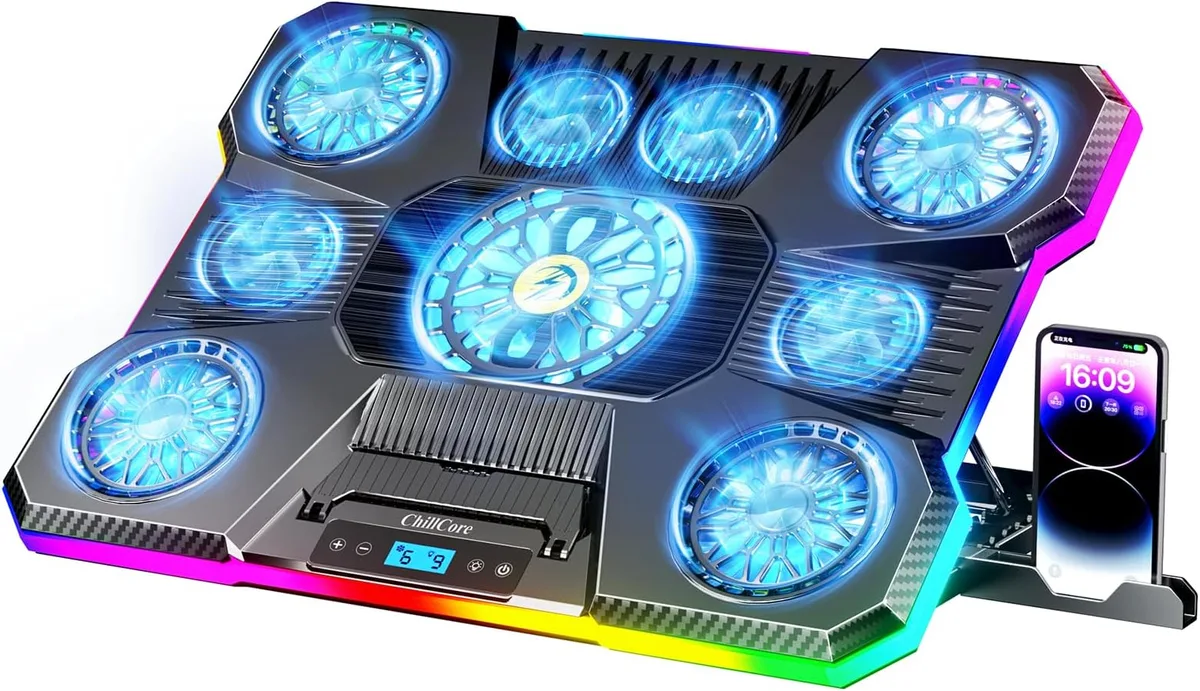
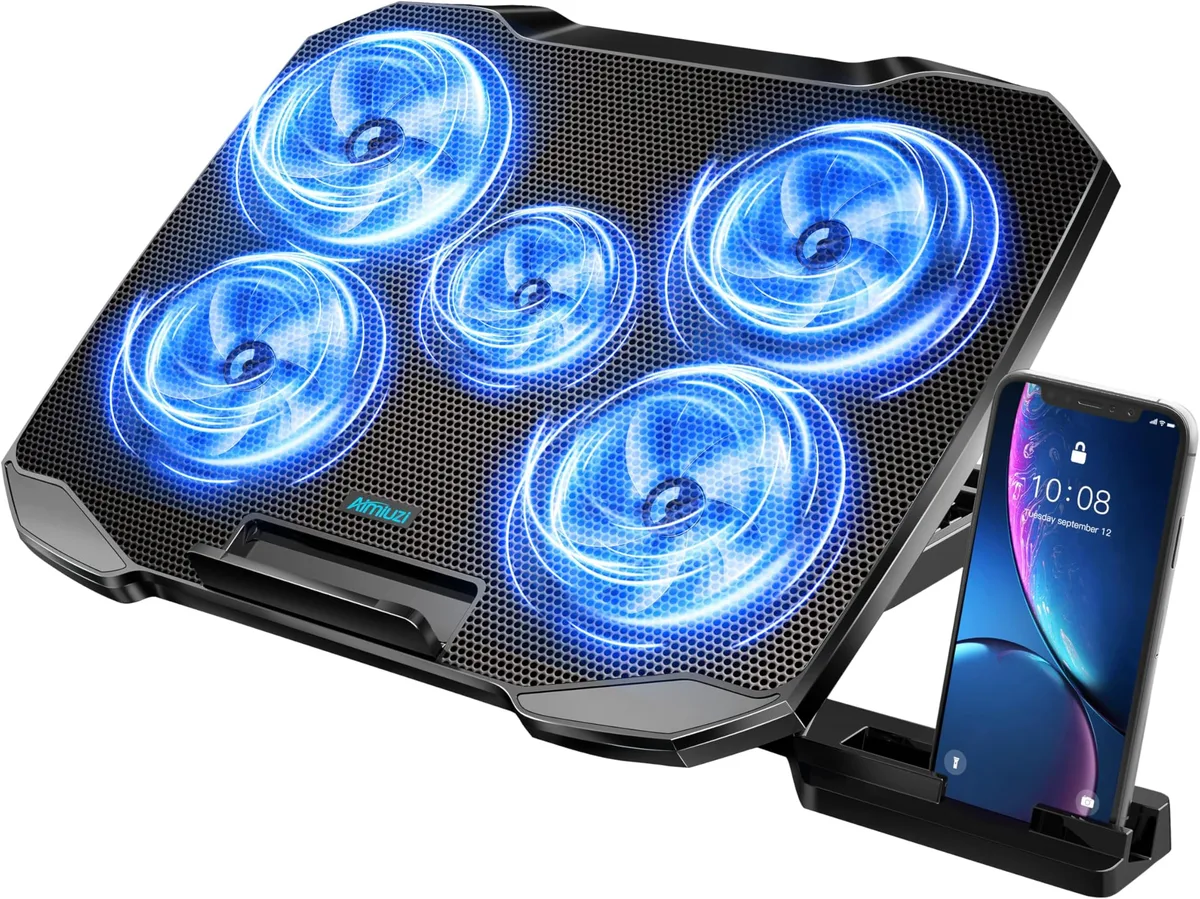
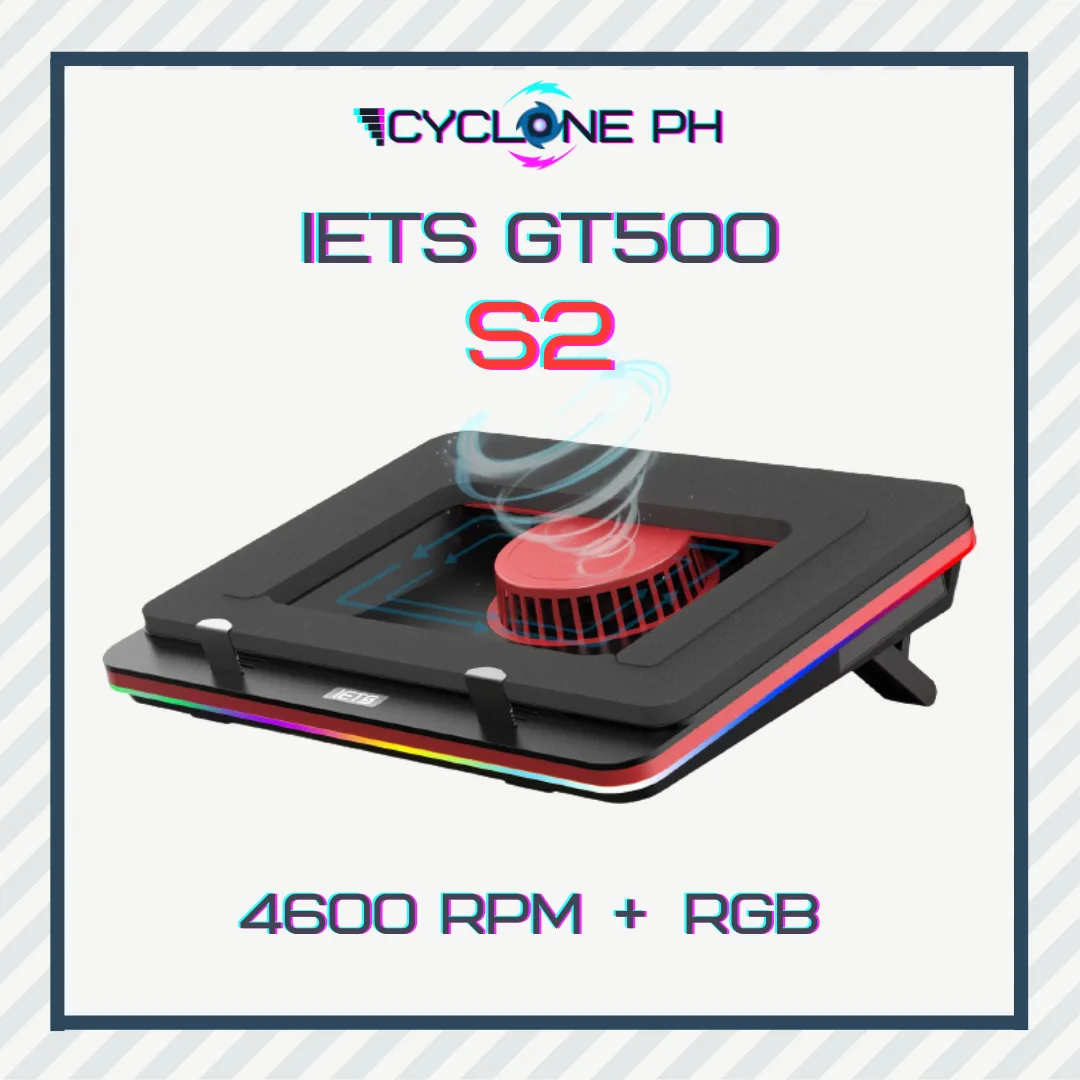
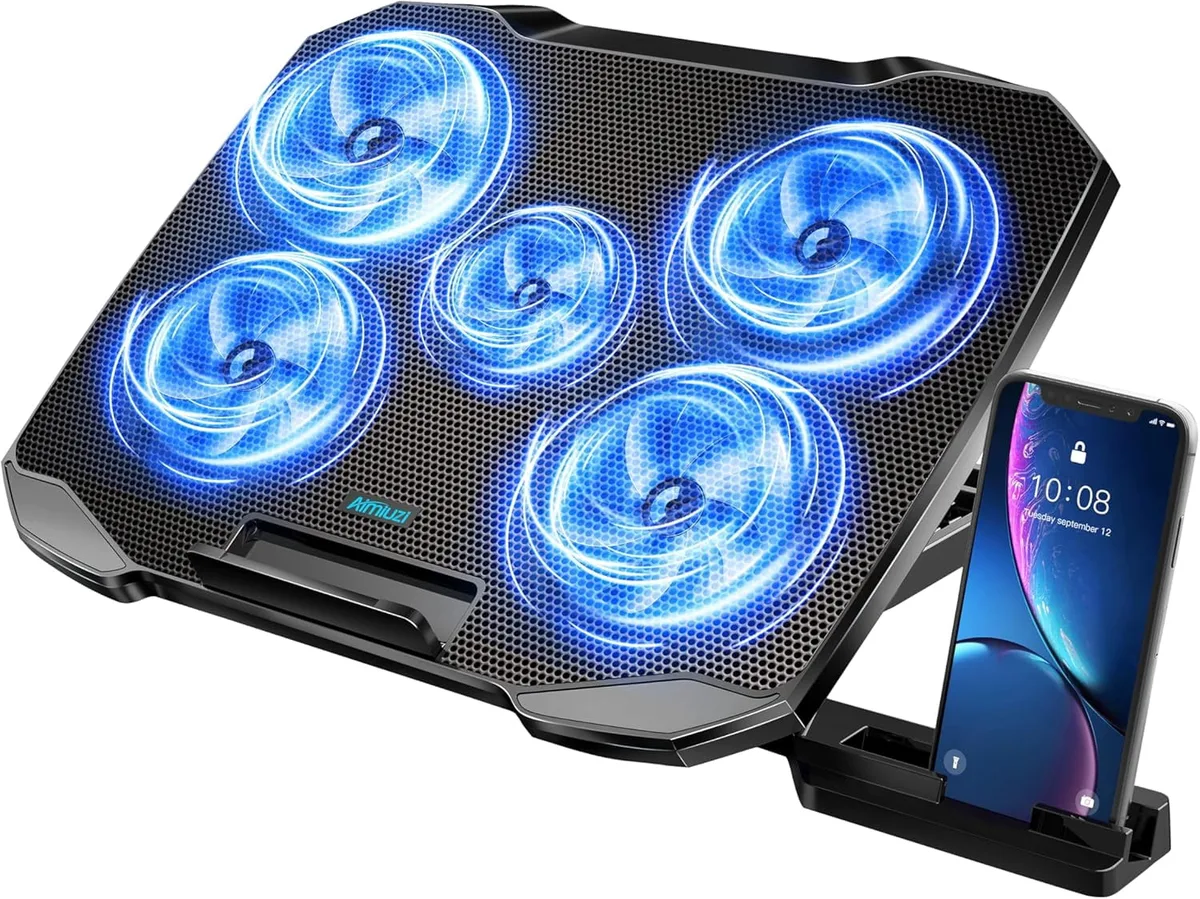
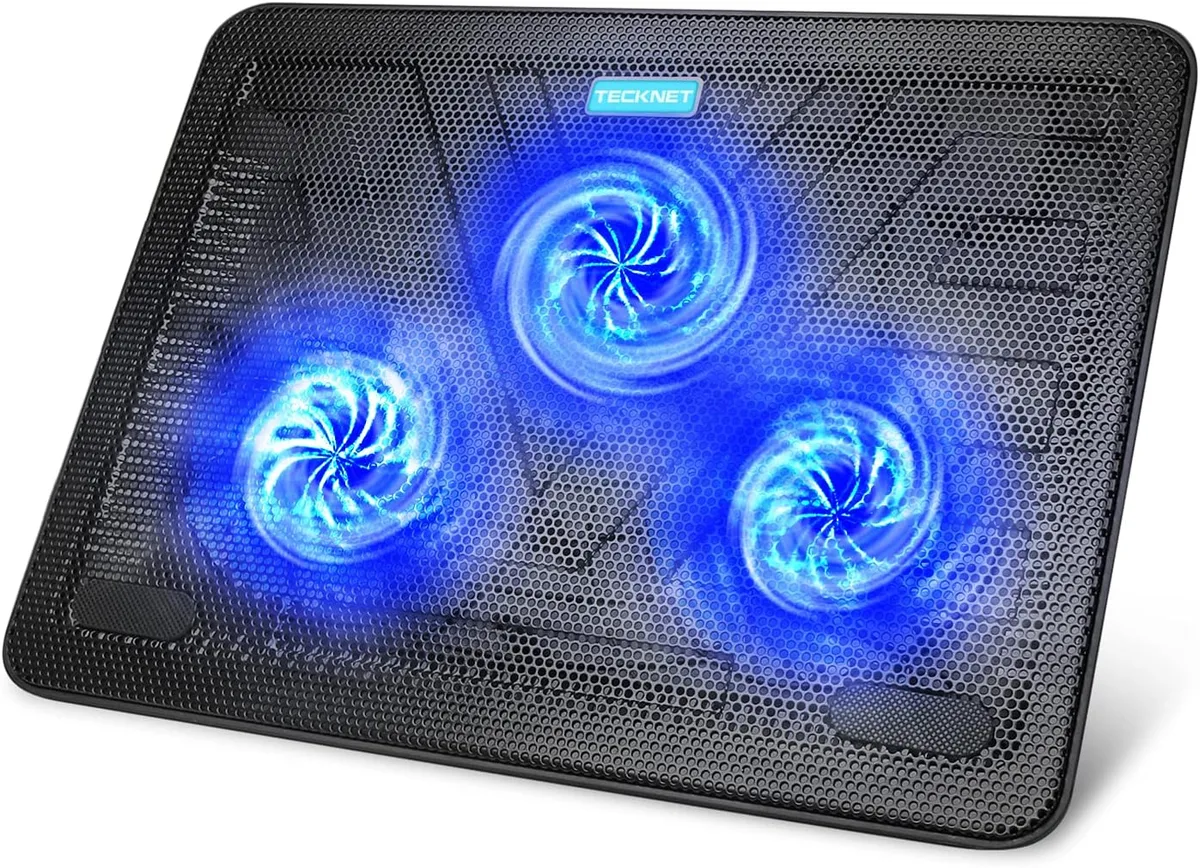
Active cooling pads plug into your laptop’s USB port and use electric fans to force cool air into your device’s intake vents. They deliver measurable drops of 3, 12°C, depending on your laptop type and setup. Passive cooling pads have no moving parts.
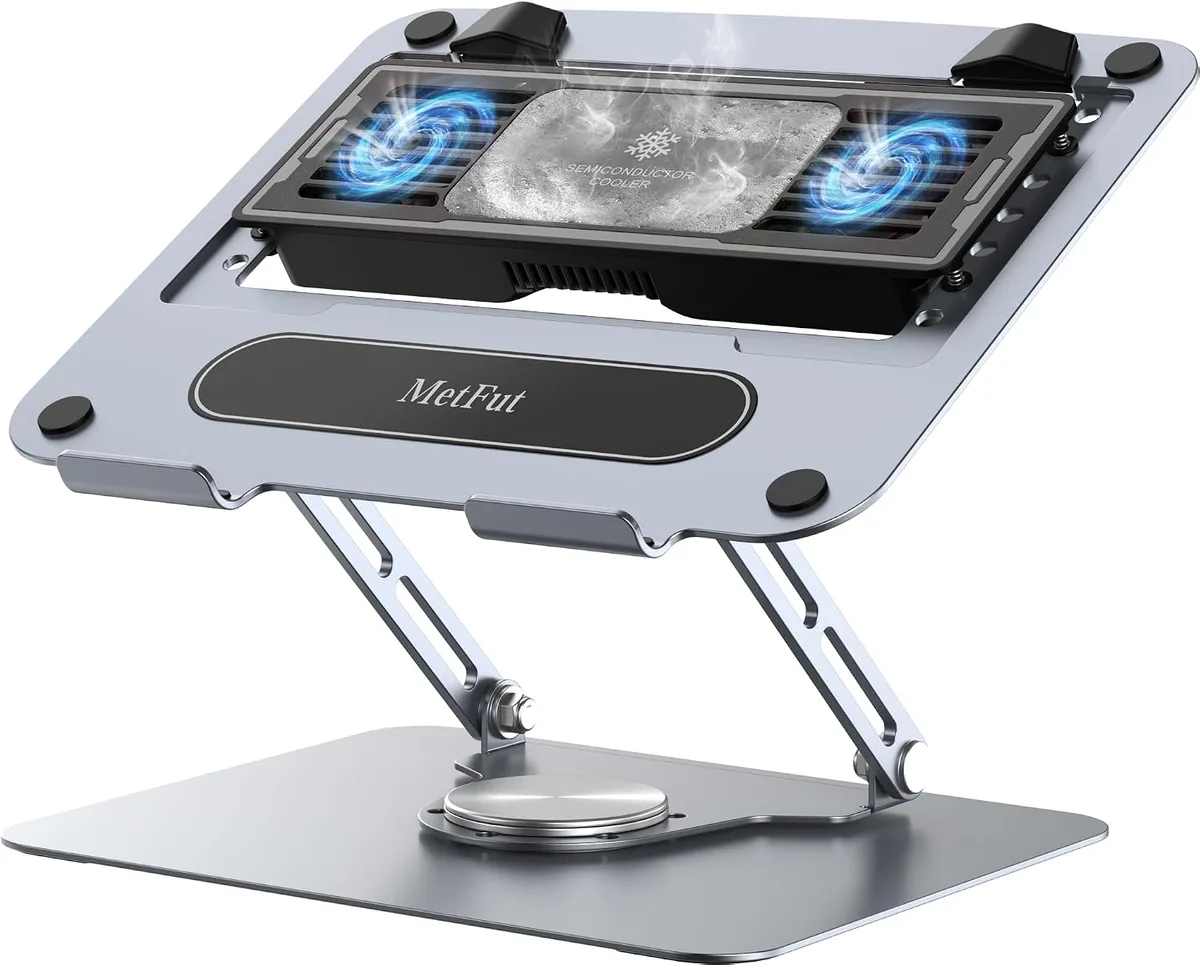
They simply elevate your laptop to improve natural airflow underneath. They deliver 0, 2°C drops, with no noise, no power draw, and no risk of USB power issues.
| Feature | Active Cooling Pad | Passive Cooling Pad |
|---|---|---|
| Typical temp drop range | 3–12°C | 0–2°C |
| Best for | Gaming laptops, heavy workloads | Ultrabooks, light everyday use |
| Power requirement | USB power (5V, 0.5–1A) | None |
| Noise level | 20–40 dB at max speed | Silent |
| Starting cost | $15–$80 | $10–$40 |
If you fall into the gaming or GPU-heavy branch from earlier, an active pad is your only option for meaningful drops. If you’re an ultrabook user who only needs to use their laptop on soft surfaces without overheating, a passive stand is the cheaper, quieter choice.
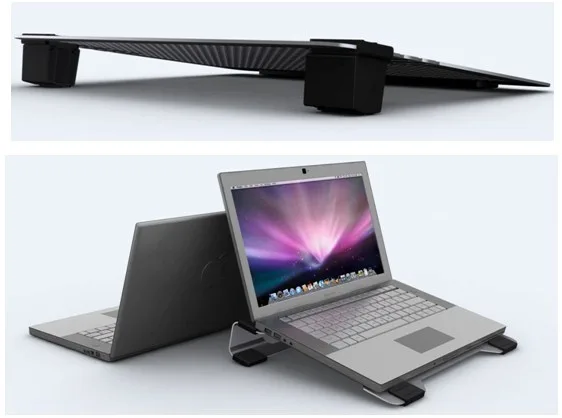
Image source: Web (Bing) / techpowerup.com (Web image (fair-use with source credit))
Mistakes That Wipe Out 90% of Your Cooling Pad’s Potential Temp Drop
Most users blame the cooling pad for small drops, but the problem is almost always setup error, not the product.
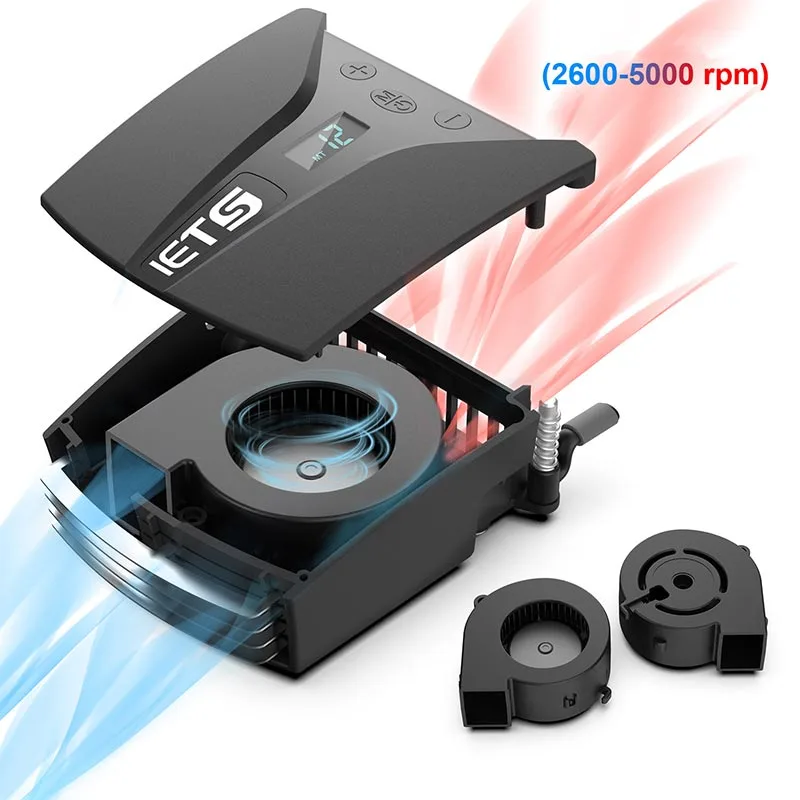
- Misaligned fans: If your cooling pad’s fans blow into your laptop’s exhaust vents instead of intake vents, you get almost no cooling effect. Check your laptop’s vent placement before buying, and look for pads with adjustable fan positions if your intake vents are off-center.
- Soft surface use: Beds, couches, and carpets block your laptop’s bottom intake vents, cutting expected drops by 50% or more. Always use your pad on a hard, flat surface.
- Low-quality hardware: Pads with fan speeds under 1000 RPM or airflow under 30 CFM deliver negligible drops even when perfectly aligned. Stick to models with verified specs from manufacturer documentation.
- Ignoring internal maintenance: Clogged vents, degraded thermal paste, or failing internal fans will limit your drop no matter how good your pad is. Clean your laptop’s vents with compressed air every 3, 6 months.
- Testing in hot rooms: If your ambient temperature is above 30°C / 86°F, your drop will shrink to under 2°C no matter how powerful your pad is. Test in a 20, 25°C room for accurate results.
30-Minute Workflow to Measure Your Exact Real-World Temp Drop
You don’t need lab equipment to measure your exact temp drop. Just follow this simple 30-minute workflow.
- Prep your laptop: Close all background apps. Clean your laptop’s intake vents with compressed air to remove dust that would skew results.
- Log your baseline: Run your usual heavy workload (game, render, stress test) for 15 minutes. Record peak CPU and GPU temps with a free tool like Core Temp or HWMonitor.
- Set up the cooling pad: Place it on a hard, flat surface. Align fans directly with your laptop’s intake vents. Adjust the pad height to 15, 20cm for maximum airflow.
- Run the test again: Keep the same workload, settings, and room temperature. Run for another 15 minutes, then record peak temps.
- Calculate your drop: Subtract the post-cooling pad peak temp from your baseline peak temp. That’s your exact real-world drop.
If you test in a room warmer than 25°C, adjust your result: subtract 1°C for every 2°C your room temp is above 25°C to get a standardized number.
Image source: Web (Bing) / mediaket.net (Web image (fair-use with source credit))
Real-World Temp Drop Benchmarks From Common Laptop Setups
Aggregate independent thermal tests and verified user reviews from as of 2026 show drops vary wildly by laptop type, baseline heat output, and setup conditions. The table below breaks down expected drops for the most common laptop configurations, assuming proper vent alignment and 20, 25°C ambient room temperatures.
| Laptop Setup | Typical Baseline Temp Under Load | Expected Drop With Active Pad | Expected Drop With Passive Stand |
|---|---|---|---|
| 15-inch gaming laptop, 90W CPU/GPU TDP | 92–98°C | 7–12°C | 0–1°C |
| 14-inch ultrabook, 15W CPU TDP | 68–75°C | 1–3°C | 1–2°C |
| 17-inch workstation laptop, 150W CPU/GPU TDP | 95–100°C | 8–12°C | 0–1°C |
| Budget 15-inch laptop, 45W CPU TDP | 82–88°C | 3–6°C | 1–2°C |
| Laptop used on soft surface (bed/couch) | 85–95°C | 2–5°C | 0°C |
Note the 8, 12°C drop for high-TDP gaming and workstation laptops assumes perfect fan-to-intake vent alignment. If your intake vents are off-center or misaligned, subtract 3, 5°C from those numbers. For soft surface use, even high-end active pads underperform because the laptop’s bottom intake vents are blocked by fabric, reducing airflow by 50% or more.
Decision Guide: Pick the Right Cooling Pad Based on Your Expected Temp Drop
Use your baseline test results from the earlier workflow to pick the right pad for your expected drop. Follow this simple if/then logic to avoid overpaying for performance you don’t need.
- If your baseline load temp hit 90°C or higher: Buy an active cooling pad with 1000+ RPM fans and 50+ CFM airflow. Look for adjustable fan positions to match off-center intake vents if needed. This setup delivers 7, 12°C drops, eliminating thermal throttling in 80% of modern games and render tasks per Intel thermal specifications.
- If your baseline load temp fell between 75°C and 89°C: A mid-tier active pad (700, 1000 RPM, 30, 50 CFM) gives 3, 6°C drops. A passive elevated stand works if you only use your laptop on hard surfaces for light browsing or office work.
- If your baseline load temp stayed below 75°C: Skip active pads entirely. A $10, $20 passive stand is all you need for soft surface use, with zero noise and no USB power draw.
If your room temperature consistently exceeds 30°C / 86°F, prioritize pads with 60+ CFM airflow to compensate for warmer ambient air. Always confirm your laptop’s intake vent location before buying: centered fan pads only work for laptops with centered bottom intakes, while off-center intakes require pads with movable fan arrays.
Frequently Asked Questions
Will a cooling pad always lower my laptop temperature?
Yes, but drop size depends entirely on your setup. Active pads deliver 1, 12°C drops for most users, while passive stands deliver 0, 2°C. Drops shrink to under 2°C if ambient temps exceed 30°C or your laptop’s intake vents are misaligned or blocked by soft surfaces.
Do cooling pads damage laptops over time?
No, when used correctly. The only risk is using a pad with incorrect USB voltage, which can damage your laptop’s USB port. Stick to pads that draw 5V, 0.5, 1A from your USB port, which matches standard laptop USB output specs per USB-IF safety standards.
How long does it take for a cooling pad to reach maximum effectiveness?
It takes 15, 30 minutes of sustained heavy load for temps to stabilize after placing your laptop on the pad. Light tasks like browsing will show smaller, faster drops, but you’ll only see the full advertised drop during extended CPU or GPU-heavy workloads like gaming or video rendering.
Can a cooling pad fix thermal throttling?
It can reduce or eliminate throttling if your throttling is caused by poor bottom airflow. If throttling stems from clogged internal vents, degraded thermal paste, or a failing internal fan, a cooling pad will only provide partial relief. You’ll need to clean internal vents or replace thermal paste for a full fix.
Are expensive cooling pads worth the extra cost?
Premium pads ($40, $80) with higher CFM, adjustable fans, and sturdy builds deliver 2, 4°C larger drops than budget $15, $20 models, per aggregate verified buyer reviews. They’re worth it for gaming and workstation laptops where throttling costs performance. For ultrabooks, budget pads work just as well.

Similar Posts