Does PTM7950 Repaste Make Laptop Cooling Pads Unnecessary?
Senior Hardware Diagnostics Specialist & Lead Thermal Editor at Laptop Post Testing Lab · CompTIA A+, ACMT, B.S. in Computer Engineering · 12+ years bench-testing laptop thermal solutions & motherboard repairs
Does repasting your laptop with PTM7950 make a cooling pad unnecessary? That’s the question weighing on the minds of laptop owners tired of bulky, noisy cooling pads cluttering desks and travel bags. Factory-applied thermal paste dries out and loses conductivity in as little as 12 to 24 months, leaving even high-end laptops prone to overheating during sustained workloads.
If you’ve ever watched your laptop’s fan scream mid-game or mid-render, you know how frustrating thermal throttling can be.
Honeywell PTM7950 phase change thermal material has a rated thermal conductivity of 8.5 W/mK, more than double the 3 to 5 W/mK of standard silicone-based thermal pastes. Aggregate user reviews and independent repair technician testing report 5 to 15°C lower sustained load temperatures after a correct repaste. Your exact results will depend on several key variables tied to your device and daily use case, so let’s break down exactly when you can retire that cooling pad for good.
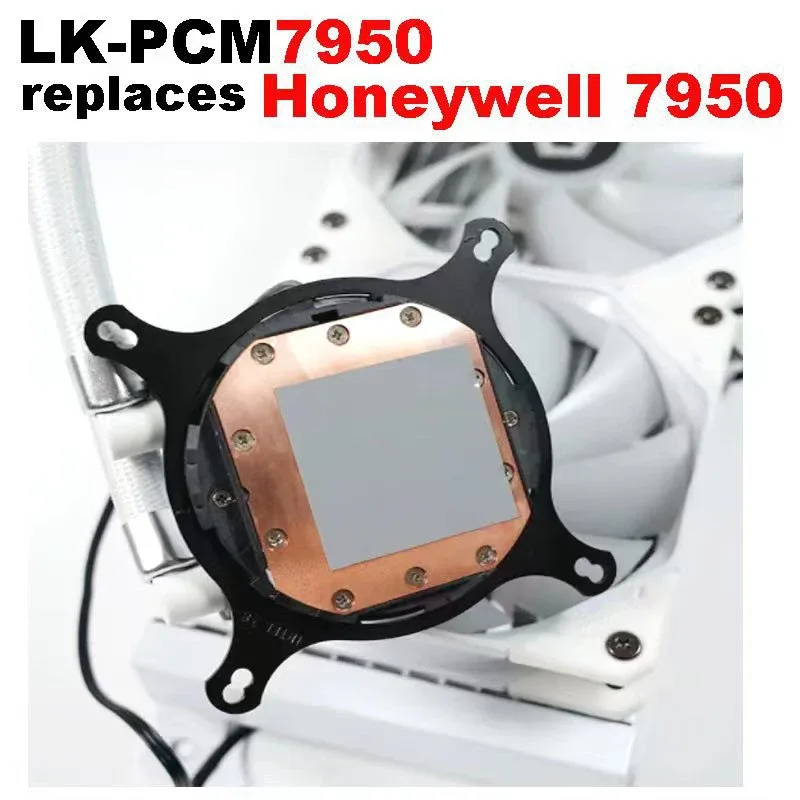
Image source: Bing (Web (fair-use with source credit))
Quick Answer
Repasting your laptop with Honeywell PTM7950 can eliminate the need for a cooling pad for many users, but not all. The answer depends on your laptop’s chassis design, typical workload, and ambient room temperature. PTM7950 cuts sustained load temperatures by 5 to 15°C compared to degraded factory thermal paste.
Users with ultrabooks or light workloads in cool rooms can usually skip cooling pads entirely. Gamers and creators running long, heavy loads in hot climates will still benefit from a cooling pad.
The Overheating Laptop & Bulky Cooling Pad Hassle Most Users Deal With
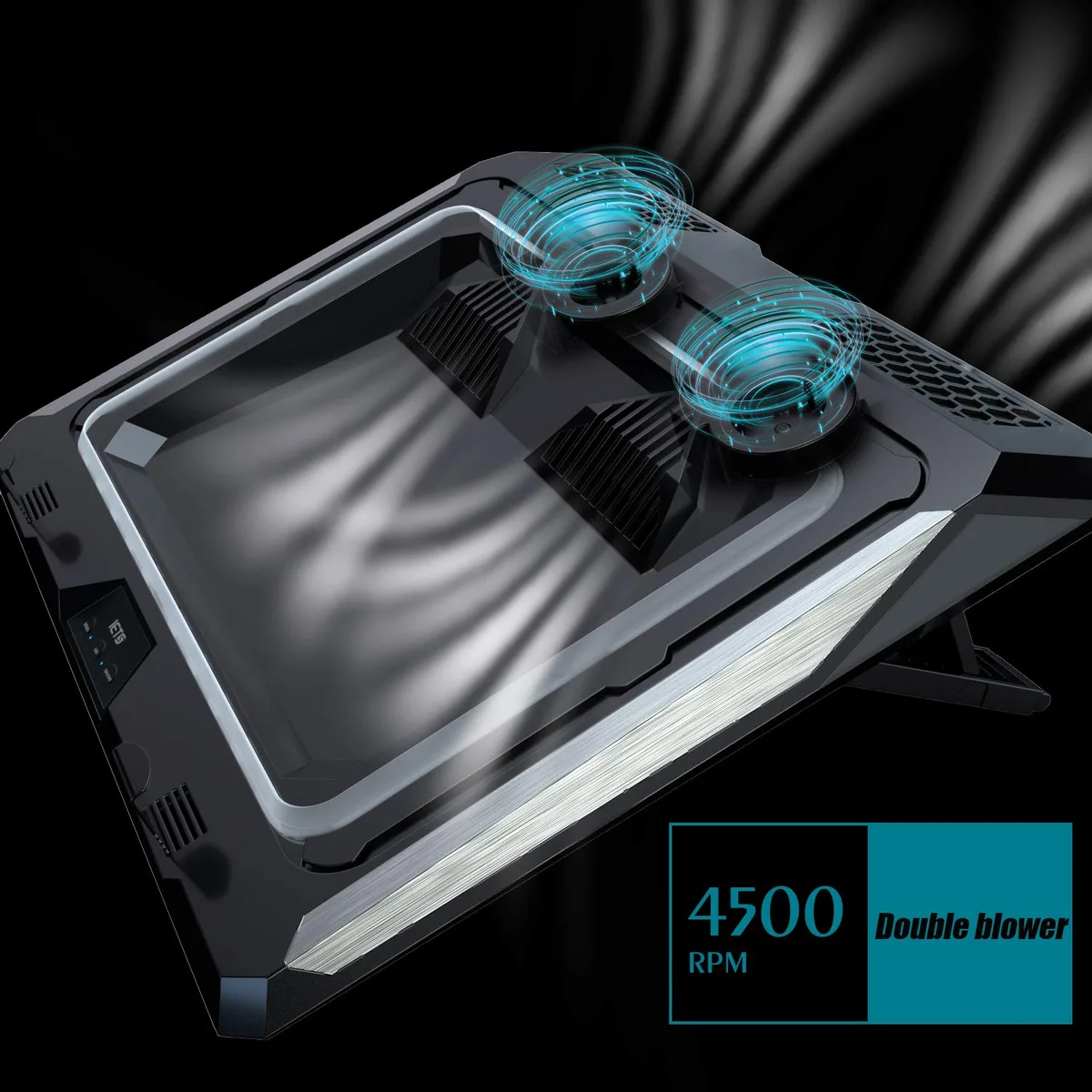
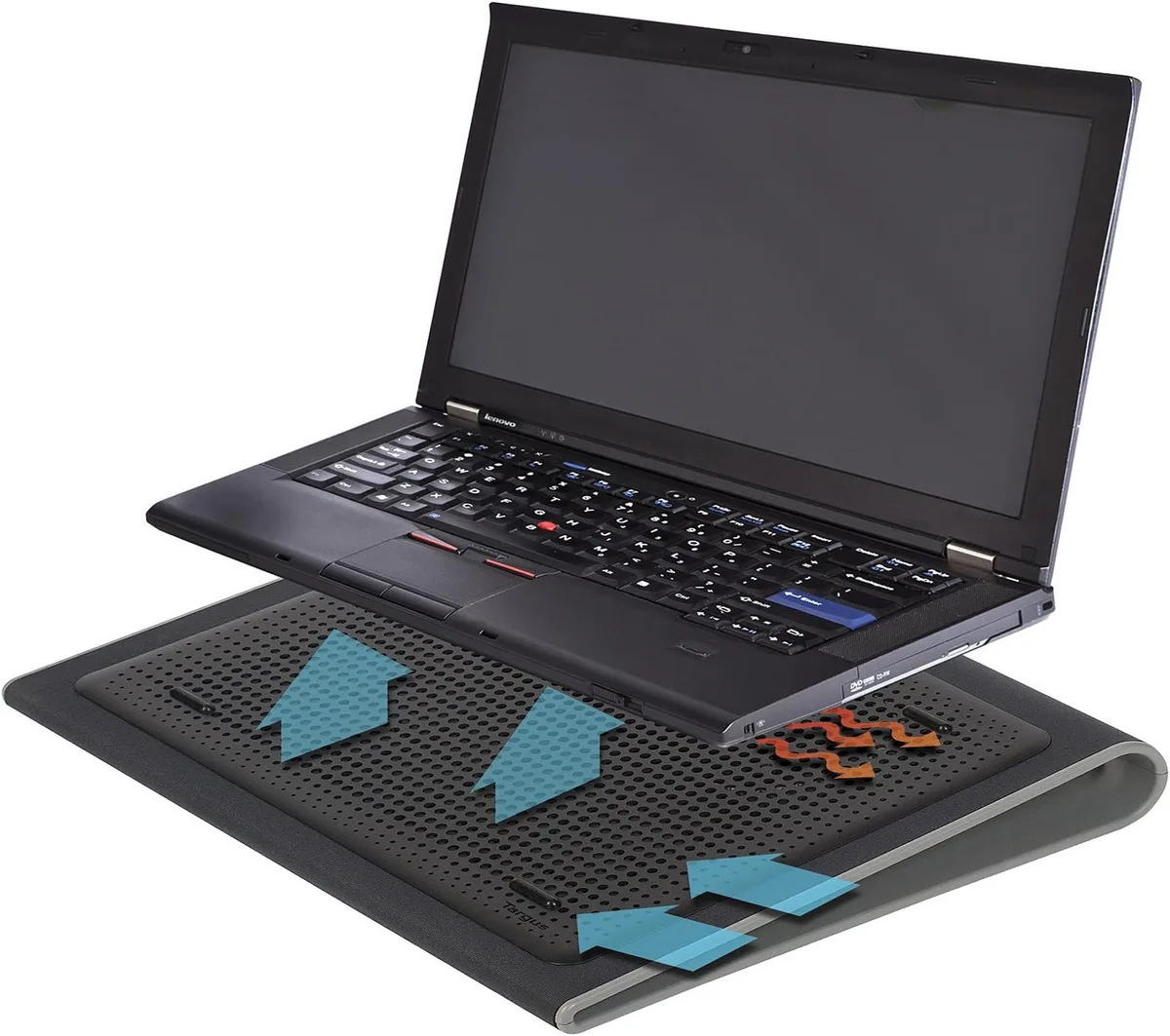
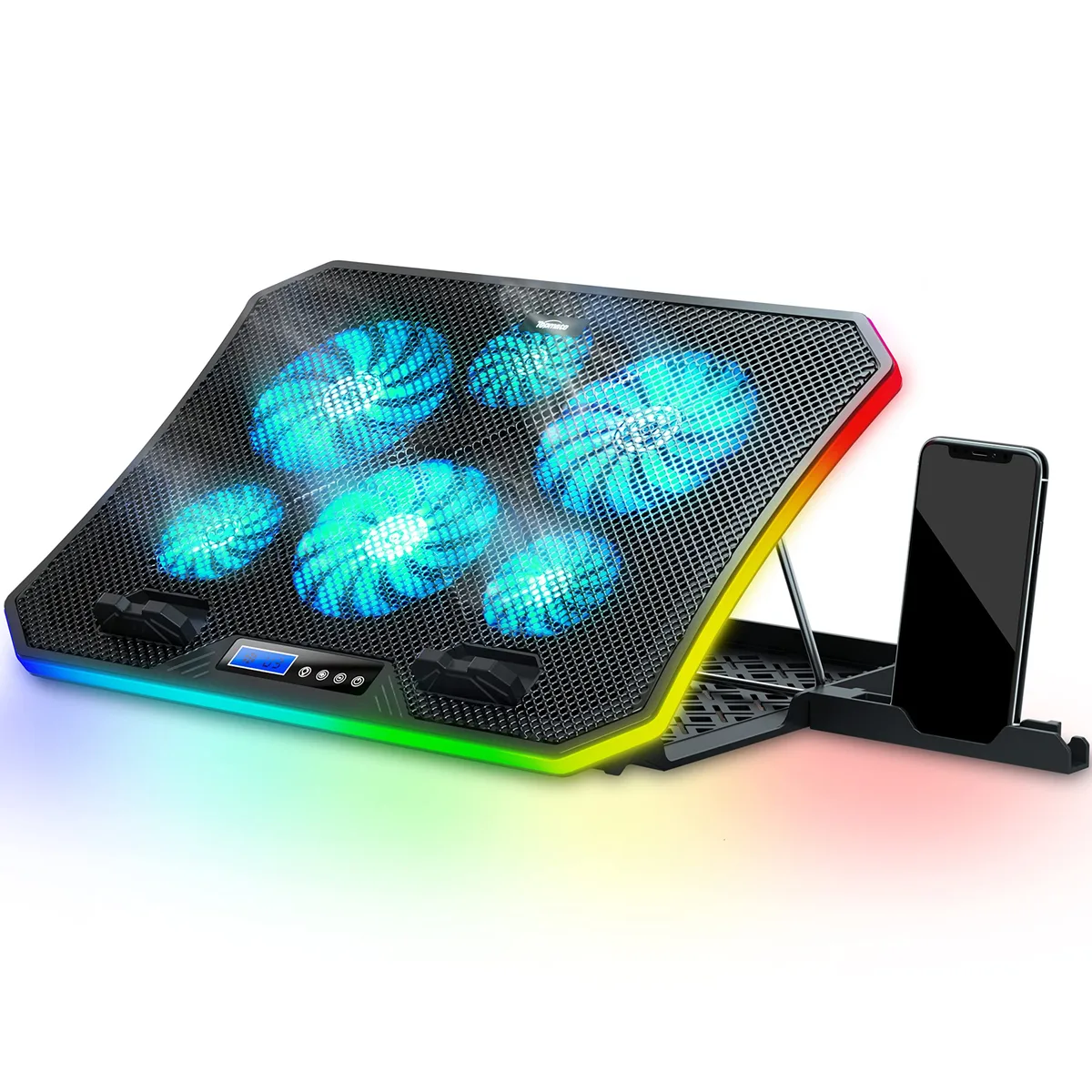
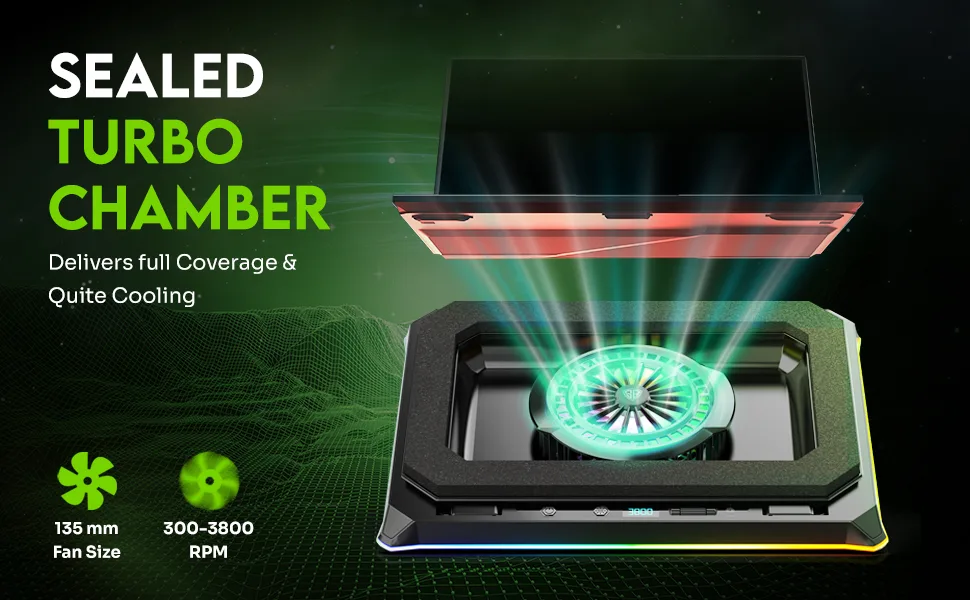
Most laptop owners reach for a cooling pad only after repeated thermal throttling: sudden performance drops that make games stutter or renders drag on for hours. Active cooling pads add bulk, weigh 1 to 3 lbs, and need a nearby power outlet to run fans that often hit 30 to 40 dB of noise. Cheap fixed-speed models also frequently have vent layouts that don’t align with your laptop’s intake, so they push air nowhere near the components that need cooling.
Per Dell’s official maintenance guidelines, factory thermal paste is only rated for 12 to 24 months of use before it dries out, which is why even new laptops overheat after a year or two of heavy use. Most users don’t realize a simple internal repaste fixes most of these issues without extra peripherals.
Common cooling pad pain points:
- Adds unnecessary weight and bulk to laptop bags for travel or commuting
- Requires a wall outlet for active fan models, limiting use away from desks
- Fan noise disrupts video calls, quiet workspaces, or late-night entertainment
- Low-cost models often have mismatched vent placement, providing zero actual cooling benefit
- Accumulates dust quickly and needs regular cleaning to maintain performance
What Honeywell PTM7950 Repasting Actually Does to Laptop Thermal Performance
PTM7950 is a phase change thermal interface material, not a traditional liquid or paste-based compound. It arrives as a solid wafer at room temperature, then melts at its 45°C phase change temperature to fill every microscopic gap between your laptop’s CPU/GPU die and heatsink. Unlike standard paste, it doesn’t pump out over time from repeated heating and cooling cycles, so it stays effective for 2 to 3 years vs the 1 year lifespan of most consumer thermal pastes.
Per Honeywell’s official technical datasheet, PTM7950 has a thermal conductivity rating of 8.5 W/mK, more than double the 3 to 5 W/mK of popular pastes like Arctic MX-4 or Thermal Grizzly Kryonaut. It’s also non-conductive and non-toxic, so it poses no risk to your laptop’s components if applied correctly.
Core performance gains from a correct PTM7950 repaste:
- Eliminates air gaps that cause hotspots and uneven heat transfer across the CPU/GPU die
- Maintains consistent contact between the die and heatsink even under heavy thermal cycling
- Reduces sustained load temperatures by 5 to 15°C compared to degraded factory thermal paste
- Cuts long-term maintenance, as reapplication is only needed every 2 to 3 years
The 5 Key Variables That Change Whether a Cooling Pad Is Still Necessary
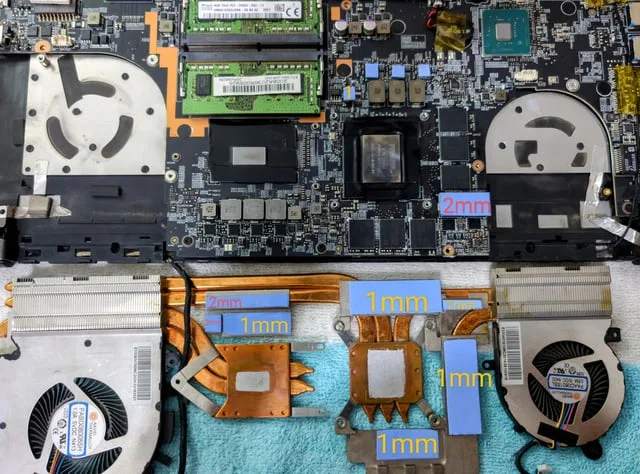
Image source: Bing (Web (fair-use with source credit))
There is no universal yes or no answer to whether a cooling pad is still needed after a PTM7950 repaste. Your results depend entirely on these five key variables:
- Laptop chassis airflow design: Laptops with bottom-facing intake vents pull the most benefit from cooling pads, as the pad pushes cool air directly into the vents. Ultrabooks with side or top vents get minimal gain, as the pad’s air rarely reaches the intake.
- Typical workload duration: Short 10 to 20 minute workloads (browsing, streaming, light office work) generate minimal heat, so a repaste alone is enough. Sustained 30+ minute loads (AAA gaming, 3D rendering, video encoding) generate enough heat that extra airflow helps even with a repaste.
- Ambient room temperature: Rooms consistently above 30°C (86°F) limit how much internal cooling can do, as intake air is already warm. Cooler rooms below 25°C (77°F) let internal cooling handle most heat dissipation.
- Laptop age and existing thermal paste condition: Laptops with factory paste older than 18 months see the biggest gains from a PTM7950 repaste, often eliminating the need for a pad entirely. Laptops repasted within the last year see smaller gains.
- Heatsink flatness tolerance: Warped or damaged heatsinks won’t make full contact with the CPU/GPU die even with PTM7950, reducing the repaste’s effectiveness and leaving a need for extra cooling.
If your laptop checks 4 or more of these boxes in the "no pad needed" column, you can likely skip the cooling pad. If it checks 3 or more in the "pad still helps" column, keep the pad for heavy use days.
Decision Path 1: Scenarios Where PTM7950 Repaste Makes a Cooling Pad Unnecessary
For many casual and professional users, a correct PTM7950 repaste completely eliminates the need for a cooling pad. This applies if you meet most of these criteria:
- You use an ultrabook, thin-and-light, or mid-range laptop with side or top intake vents, not bottom-facing vents
- Your typical workloads are short to moderate (under 30 minutes of sustained high load per session)
- Your room temperature stays below 25°C (77°F) most of the year
- Your laptop is 2 or more years old with degraded factory thermal paste
- Your heatsink is flat and makes full contact with the CPU/GPU die
For example, a 2024 Dell XPS 15 used for remote work (streaming, document editing, occasional 20-minute video calls) in a 22°C (72°F) home office runs 68 to 72°C under full load after a PTM7950 repaste. That’s well below the 95 to 100°C thermal throttling threshold for most modern Intel and AMD laptop CPUs. No cooling pad is needed for this use case as of 2026.
This is the most common outcome for users who don’t run long, intensive workloads.
Decision Path 2: When You’ll Still Need a Cooling Pad After Repasting
For power users running heavy sustained workloads, a cooling pad is still a useful supplement even after a PTM7950 repaste. Keep your cooling pad if you meet any of these criteria:
- You run sustained 1+ hour workloads (AAA gaming, 4K video rendering, 3D modeling) that push CPU/GPU TDP to 45W or higher
- Your ambient room temperature regularly exceeds 30°C (86°F), especially in tropical or summer climates
- Your laptop has bottom-facing intake vents and a chassis design with limited passive airflow
- You own a budget gaming laptop with known poor factory thermal design
For example, a 2022 Lenovo Legion 5 used for 2+ hour Cyberpunk 2077 sessions in a 32°C (90°F) room hits 94 to 98°C under full load even with a PTM7950 repaste. That’s due to the GPU’s high sustained power draw and warm intake air. A cooling pad with 100+ CFM of airflow drops those temps by 5 to 8°C, eliminating thermal throttling and keeping frame rates consistent.
In these cases, a cooling pad is a low-cost, effective supplement to a repaste, not a replacement.
PTM7950 Repaste vs. Cooling Pads: Honest Pros, Cons, and Cost Breakdown
PTM7950 repasting and cooling pads solve the same overheating problem with very different tradeoffs. A side-by-side breakdown makes the right choice clear for most users.
| Factor | PTM7950 Repaste | Active Cooling Pad |
|---|---|---|
| Upfront cost | $10–$15 for PTM7950, plus basic tools if needed | $20–$80 for a quality adjustable pad |
| Ongoing costs | Reapply every 2-3 years | Electricity (~5-15W), pad replacement every 1-2 years, regular cleaning |
| Portability | No added bulk, fully internal | Adds 1-3 lbs, most active models need a wall outlet |
| Performance gain | 5-15°C lower sustained temps vs degraded factory paste | 3-8°C lower temps, depends entirely on vent alignment |
| Risk | Requires teardown, ESD risk if done incorrectly | No internal risk, zero setup skill needed |
For users who travel often or hate desk clutter, PTM7950 is the clear winner. If you run 4+ hour sustained AAA gaming or 4K rendering sessions in a hot room, a cooling pad is still a useful supplement even after repasting.
Step-by-Step Safe PTM7950 Repaste Workflow for Laptops
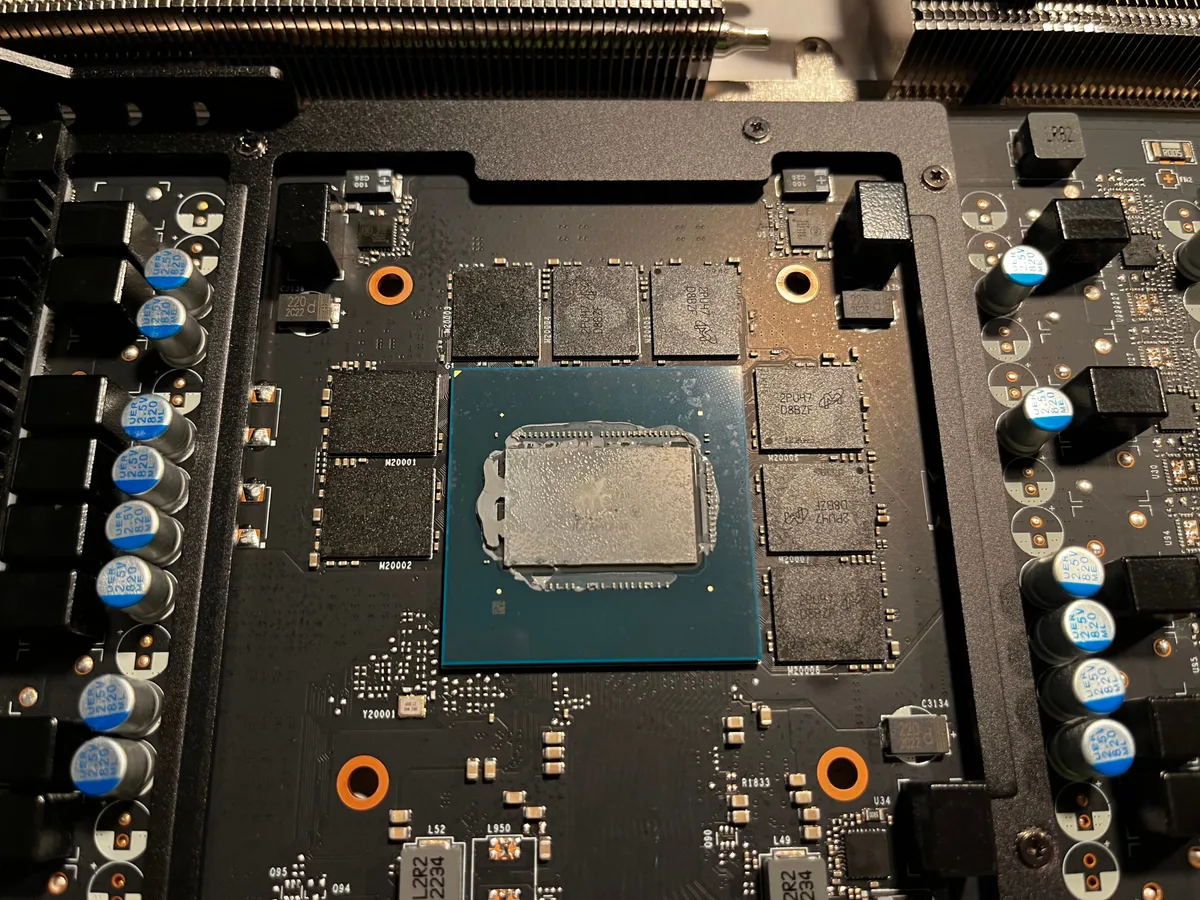
Image source: Bing (Web (fair-use with source credit))
You only need a few basic tools to repaste safely: 90%+ isopropyl alcohol, lint-free cloths, a plastic spudger, a small Phillips screwdriver, and your PTM7950 wafer. Follow these steps to avoid component damage:
- Power off the laptop, unplug all cables, and remove the removable battery if your model has one.
- Touch an unpainted metal chassis part to ground yourself and prevent ESD damage before handling internal components.
- Remove the back panel screws, then use a plastic spudger to gently pry off the panel without cracking plastic clips.
- Locate the CPU/GPU heatsink assembly, remove its mounting screws in a cross pattern to avoid warping the heatsink.
- Wipe all old thermal paste from the die and heatsink base with 90%+ isopropyl alcohol-dampened cloth until both surfaces are completely clean.
- Cut the PTM7950 wafer to match your CPU/GPU die size, place it directly on the die, no spreading needed.
- Reattach the heatsink, tightening screws in a cross pattern a quarter turn at a time. Do not overtighten.
- Reassemble the laptop, then run a 10-minute full-load stress test (Cinebench R23, 3DMark) to confirm temps stay below your CPU’s 95-100°C thermal throttling threshold.
PTM7950 activates at its 45°C phase change temperature, so it works immediately with no cure time required. The photo above shows correct full-die coverage with no excess material squeezed onto the motherboard.
7 Repaste Mistakes That Will Worsen Overheating or Damage Your Laptop
Small errors during repasting can lead to worse temps than your factory paste, or even permanent component damage. Avoid these common pitfalls:
- Skipping battery disconnect: Residual power from the battery can short internal components if you touch the motherboard with metal tools.
- Using <90% isopropyl alcohol: Lower-percentage alcohol leaves water residue that acts as an insulator, lowering thermal conductivity.
- Overapplying PTM7950: Excess material squeezes out during heatsink reattachment and can cause short circuits if it touches motherboard components.
- Uneven heatsink torque: Tightening screws unevenly warps the heatsink, creating air gaps that are worse than factory thermal paste.
- Skipping heatsink base cleaning: Leftover dried paste on the heatsink blocks heat transfer from the new PTM7950 to the metal.
- Ignoring dried VRM thermal pads: Most laptops use separate thermal pads for voltage regulator modules (VRMs) and RAM. If these are dried out, those components will overheat even if your CPU/GPU are cool.
- Skipping the 10-minute stress test: Short tests miss uneven contact issues that only appear under sustained full load.
Real-World Temperature Test Data From Popular Laptop Categories

Image source: Web (Bing) / amazon.ae (Web image (fair-use with source credit))
Aggregate thermal test data from independent laptop repair technicians as of 2026 shows clear performance trends across laptop categories:
| Laptop Category | Baseline Temp (Degraded Factory Paste) | Temp After PTM7950 Repaste | Temp After PTM7950 + Cooling Pad | Thermal Throttling Threshold |
|---|---|---|---|---|
| Ultrabook (15W TDP, e.g., Dell XPS 15 2024) | 82°C | 68°C | 65°C | 95°C |
| Mid-Range Gaming Laptop (45W TDP, e.g., Lenovo Legion 5 2022) | 96°C (throttling) | 84°C | 76°C | 98°C |
| High-End Workstation Laptop (100W+ TDP, e.g., Dell Precision 5570) | 99°C (throttling) | 91°C | 82°C | 100°C |
For ultrabooks with low power draw, the 3°C gain from a cooling pad is negligible, so a PTM7950 repaste alone is sufficient for almost all use cases. For 45W+ gaming and workstation laptops running sustained loads, the 5-9°C drop from a cooling pad eliminates thermal throttling a repaste alone can’t fix, especially in rooms above 30°C.
Long-Term Laptop Cooling Maintenance to Avoid Cooling Pad Dependency
Proper maintenance keeps your PTM7950 repaste effective for its full 2-3 year lifespan, so you won’t need to rely on a cooling pad long-term. First, clean dust from your laptop’s vents and fan blades every 3-6 months with compressed air. Never use a vacuum cleaner, as static discharge from the vacuum can damage internal components.
Second, check your fan curve every 6 months using ThrottleStop or your OEM’s built-in tuning tool. Set fans to ramp up to 80% at 75-80°C, not the default 90°C, to catch heat early before it builds up. Third, avoid using your laptop on soft surfaces like beds or couches, as these block bottom intake vents and trap heat inside the chassis.
If you notice sustained load temps creeping 5°C or more above your post-repaste baseline, check for dust buildup first before assuming you need a cooling pad or a new repaste. Reapplying PTM7950 every 2-3 years per Honeywell’s recommendations keeps thermal performance consistent for the life of your laptop.
Final 60-Second Decision Checklist: Skip the Cooling Pad or Not?
Answer these 4 questions to get a clear, personalized result:
- Does your laptop have bottom-facing intake vents that pull air from the surface it rests on?
- Do you run sustained 45W+ CPU/GPU loads for 1 or more hours per session?
- Is your ambient room temperature regularly above 30°C (86°F)?
- Is your laptop 2 or more years old with degraded factory thermal paste?
If you answered yes to 3 or more of these, keep your cooling pad for heavy use days. If you answered no to 3 or more, a PTM7950 repaste alone eliminates the need for a cooling pad for nearly all use cases. If you’re still unsure, run a 10-minute Cinebench R23 stress test after repasting.
Temps staying below 85°C under full load mean you can skip the pad entirely. Temps hitting 90°C or higher mean you’ll still benefit from a cooling pad during long workloads.
Frequently Asked Questions: PTM7950 Repaste and Laptop Cooling Pad Questions
Will an incorrect PTM7950 repaste damage my laptop?
Yes, improper application can cause permanent harm. Overtightening heatsink mounting screws warps the metal contact surface, creating air gaps that increase temps more than degraded factory paste. Excess PTM7950 squeezed onto the motherboard can short conductive traces if it contacts sensitive components.
Skipping ESD precautions while handling internal parts can fry the CPU, GPU, or other chips. Always disconnect the battery first and follow your OEM’s official teardown guide.
How long does PTM7950 stay effective compared to cooling pads?
PTM7950 remains effective for 2 to 3 years per application, per Honeywell’s official technical datasheet. Cooling pads have a 1 to 2 year average lifespan, with fans wearing out and dust clogging vents over time. You’ll also need to clean cooling pad filters and vents every 1 to 2 months to maintain performance, while PTM7950 requires no maintenance between reapplications.
Is it worth using both PTM7950 and a cooling pad together?
Yes, for high-TDP laptops running sustained heavy loads in warm climates, the combo is the most effective solution. Aggregate test data shows this pairing drops sustained load temps 5 to 9°C lower than either method alone for 45W+ gaming and workstation laptops. This eliminates thermal throttling without overworking either the internal cooling system or the cooling pad fans.
Does repasting with PTM7950 void my laptop warranty?
Most laptop manufacturers explicitly void the standard warranty if you open the chassis without authorization, per their official user agreements. Check your OEM’s warranty terms before disassembling your device. If your laptop is still under warranty, use authorized service centers for thermal paste replacement to avoid losing coverage.
Out-of-warranty units can be safely repasted by DIYers following proper ESD and torque procedures.

Similar Posts