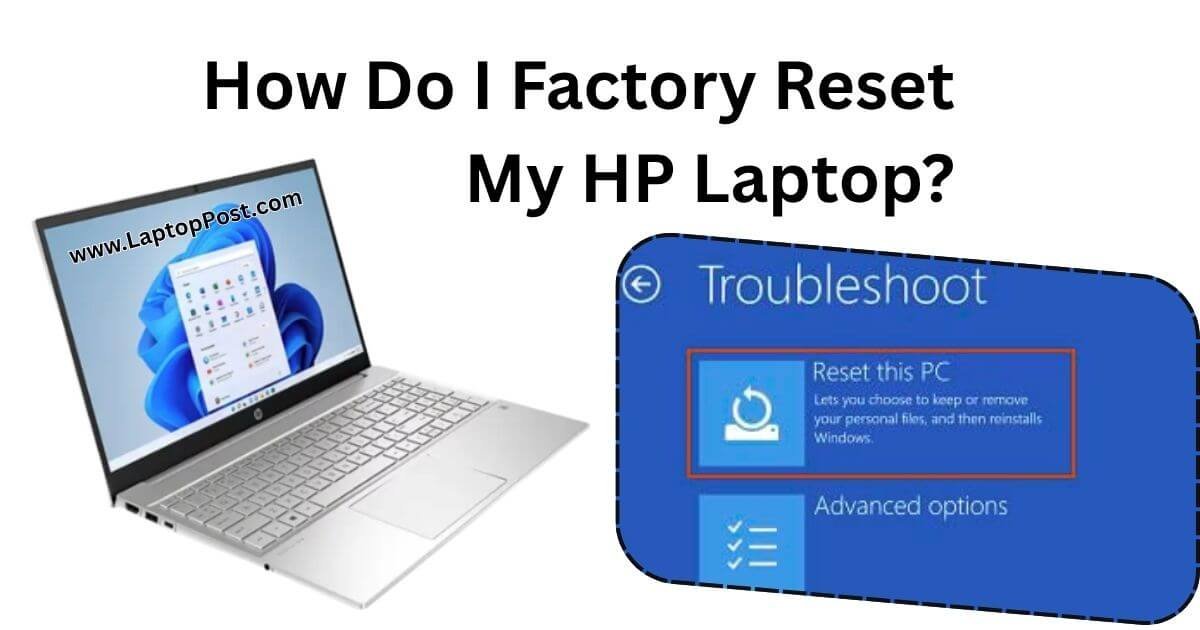
How Do I Factory Reset My HP Laptop? HP is one of the popular brands! An HP laptop serves as a gateway to productivity, entertainment, and online connectivity. However, over time, you may encounter sluggish performance, software glitches, or even the need to erase your data completely. When this happens, a factory reset is often the most effective solution.
But how do you achieve this? In this comprehensive guide, I tell you Step-by-Step process of factory resetting your HP laptop, ensuring you return to a fresh system without the headaches.
What is a Factory Reset?
A factory reset (also known as a hard reset) returns a device to its original system state; this is done by deleting all data, settings, and applications installed after the initial setup. This process essentially returns the laptop to its default condition.
Why Should You Factory Reset Your HP Laptop?
- Performance Improvement: Over time, your laptop may accumulate unnecessary files and applications that can slow it down. A factory reset removes these clutter and can enhance performance.
- Software troubleshooting: If your HP laptop is experiencing frequent crashes, freezes, or other errors, a factory reset can often help resolve these issues.
- Preparation for Resale: If you plan to sell or donate your laptop, resetting it will erase all data and protect your personal information.
- Clearing Malware or Viruses: A factory reset can eliminate malware or viruses that have compromised your device’s security.
Types of Factory Reset for HP Laptops
There are two primary methods for resetting your HP laptop: 1. Using the built-in settings, and 2. Using recovery media.
How to Factory Reset an HP laptop Using Built-in Windows Settings
Most HP laptops run on Windows operating systems, which include built-in reset functions.
1. Windows 10/11 Reset
If your HP laptop is running Windows 10 or 11, follow these steps:
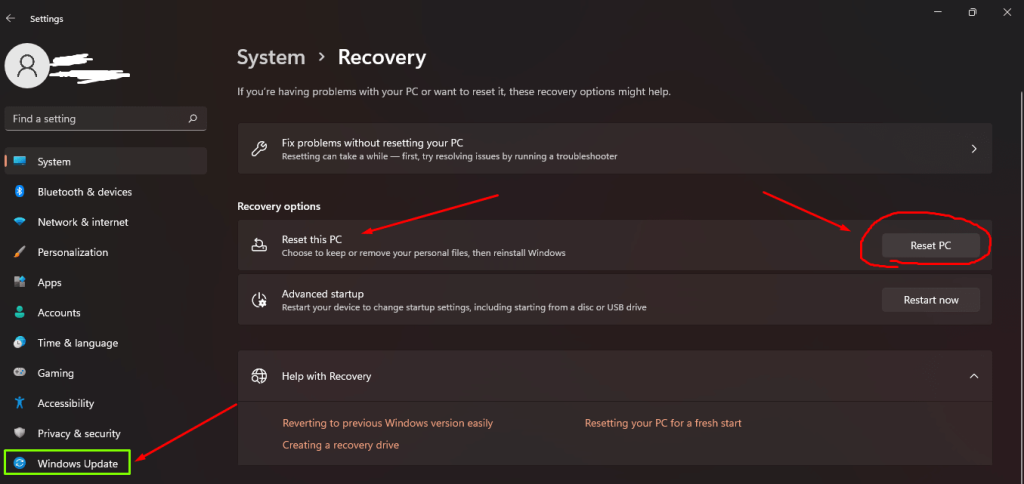
- Open the Settings Menu: Click on the Start menu or press the Windows key, then select the gear icon to open Settings.
- Navigate to Update & Security (for Windows 10): Find this option in the Settings menu. Or Click on “Windows Update” (if use Windows 11), then Click on “Advanced Options”
- Select Recovery: Choose the Recovery tab on the left side of the window (or dropdown for Windows 11).
- Choose Reset This PC: Under the “Reset this PC” option, click on the “Get started” button.
- Select Your Option: You will be given two choices:
- Keep my files: This option reinstalls Windows while keeping your personal files. Ideal if you want to maintain essential documents.
- Remove everything: This option removes all personal files, applications, and settings. Choose this if you want a complete reset.
- Follow the Prompts: Once you select your preferred option, finish the process by following the on-screen instructions. Your computer may restart several times during this process.
2. Windows 8/8.1 Reset
If your HP laptop is operating on Windows 8/8.1 (Old version), you can initiate the factory reset procedure with the following steps:
- Access Settings: Go to the Start screen and type “Settings” to access it.
- Change PC Settings: Scroll down and select “Change PC settings.”
- Select Update and Recovery: Click on this option within the left-hand menu.
- Factory Reset: Choose “Recovery” and then click “Remove everything and reinstall Windows.”
- Follow the On-Screen Instructions: Proceed through the prompts to complete the factory reset.
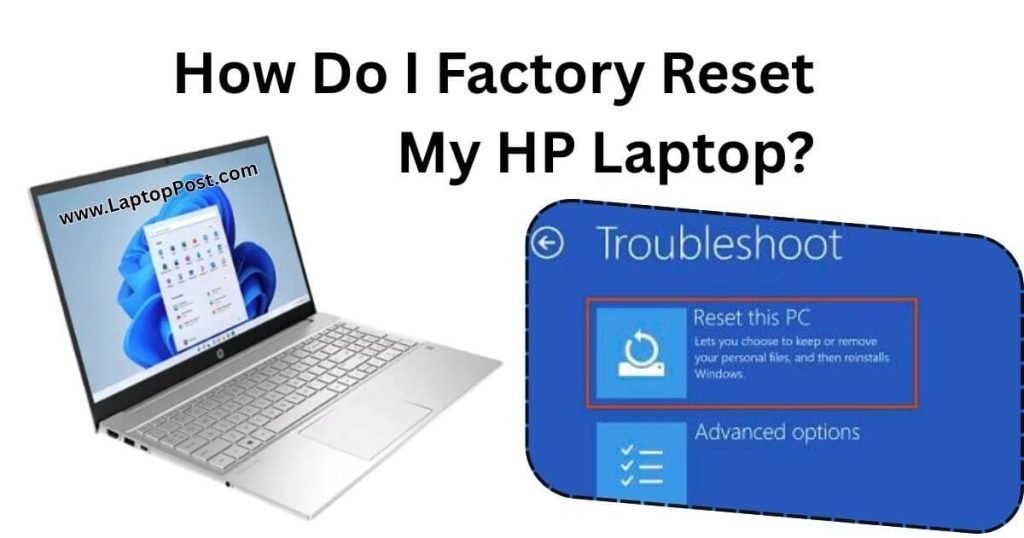
How to Factory Reset HP Laptop Using Recovery Media
For those using older versions of Windows or who require a more thorough approach, recovery media might be the best choice. This method involves creating or utilizing a recovery disk.
Creating Recovery Media
- Prepare a USB Drive: Ensure you have a USB flash drive with at least 16GB of storage.
- Download Recovery Media: Visit HP’s official website and download the Recovery Media Creation Tool specifically designed for your HP model.
- Follow Instructions: This tool will guide you through creating a recovery disk based on your laptop model.
Performing the Reset using Recovery Media
- Insert Recovery Media: Connect a USB drive or insert the DVD containing the recovery files.
- Restart the Laptop: Reboot your HP laptop and continuously tap the F9 key until the Boot Options menu appears.
- Select USB or DVD: Choose your recovery media from the list.
- Follow On-Screen Instructions: Select “Repair your computer” on the recovery screen and follow the setup instructions to reset your laptop.
Pre-Reset Considerations
Before you initiate a factory reset on your HP laptop, there are several important factors to consider:
Backup Your Data
This is the most important step before performing a factory reset. Since you will be either removing all files or keeping only some, backing up your important data means you won’t lose any valuable data.
- Use Cloud Services: Consider utilizing services like Google Drive, OneDrive, or Dropbox for easy access and storage.
- External Hard Drives: Connect an external drive for large files or entire system backups.
- Use HP Backup Utility: Some HP laptops come equipped with a backup utility that simplifies this process.
Power Supply and Battery Life
Ensure your HP laptop is connected to a power source throughout the factory reset process. Because, a power outage during this process could corrupt the operating system.
Ensure Your Recovery Options are Set Up
Before resetting, check if you have access to recovery options or Not. HP laptops typically come with a pre-installed recovery partition, which can be used if the laptop fails to boot. Make sure it is accessible by booting into recovery mode.
Post-Reset Steps
Once you successfully complete the factory reset on your HP laptop, it is essential to follow a few next steps to prepare the laptop for use.
Set Up Windows
During the initial setup phase, you will need to select your country/region, language, and keyboard layout. After this, you will be prompted to sign in with your Microsoft account or create a new one.
Install Necessary Drivers and Updates
After setting up your laptop:
- Install Windows Updates: Ensure your system is up-to-date by going to Settings > Update & Security > Windows Update and clicking “Check for updates.”
- Install HP Software: Go to the HP support website and download any necessary drivers specific to your model to ensure all hardware components function correctly.
Troubleshooting Factory Reset Issues
Sometimes, you might face challenges during the factory reset process. Here are some common issues and their solutions:
Reset Process Freezes
If your reset process freezes; try powering off your laptop and restarting it. If the issue persists, run the reset again from the recovery options.
Unable to Access Recovery Options
If you can not access recovery options, it may indicate corruption in the recovery partition. In this case, using recovery media is the best solution.
FAQ
Can I perform a factory reset without accessing Windows?
Yes, you can factory reset your HP laptop without entering the Windows operating system using HP’s recovery options. Restart your laptop and press the F11 key repeatedly as soon as the HP logo appears on the screen. This will take you to the recovery environment, where you can select “Troubleshoot” and then “Reset this PC.”
In the recovery options, you will find various options similar to those in Windows settings. You can keep your files or delete everything. Select the option you want and follow the on-screen instructions to begin the reset. This method is especially useful if your Windows operating system is damaged or you cannot boot to the desktop.
Will a factory reset remove viruses and malware from my HP laptop?
Factory resetting your laptop can effectively remove most viruses and malware that may have infected your system by returning it to a clean state. When you reset your laptop, all of your installed applications, files, and settings are deleted, including any malware that may have been hiding in the system. However, it is important to remember that if you restore from a backup created when the computer was infected, the malware may return.
To ensure a complete and clean system after the reset, I recommend running a malware scan using a reliable antivirus software after completing the reset. This will help identify and eliminate any remaining threats. Also, consider creating a clean backup of your files before resetting to avoid any vulnerabilities from returning.
What should I do if my HP laptop doesn’t reset properly?
If your HP laptop is not resetting properly, first try restarting the process from the recovery environment. Follow the instructions carefully and give the laptop enough time to complete the process. If it seems stuck, you can force restart it by holding down the power button until the laptop turns off, then try the factory reset process again using the F11 key.
If the reset fails repeatedly, you can check for hardware problems. Sometimes, an underlying problem, such as a hard drive error, can prevent a successful reset. You can run HP’s built-in diagnostics by pressing the F2 key during startup to test the hardware. If the problem persists, you can contact HP support or seek help from a qualified technician.
What happens to my warranty if I perform a factory reset on my HP laptop?
Performing a factory reset on your HP laptop usually does not affect your warranty. It is a common troubleshooting step and is considered a normal part of maintaining your laptop. As long as you do not open the laptop or make any unauthorized changes that violate the terms of the warranty, your warranty will remain valid.
However, if your laptop is experiencing hardware issues, it is always a good idea to consult HP’s support and warranty documentation before taking drastic steps like a factory reset.
Note: If you plan to have your laptop serviced or repaired under warranty, back up and reset your data beforehand, as servicing may erase your data during the repair.
You Can Read: How to Hibernate Your Laptop with Keyboard Shortcuts?
Final Thoughts,
Factory resetting your HP laptop is a great way to breathe new life into an old machine. Whether it’s due to performance issues, malware, or just a need to start fresh; it’s important to understand how to perform this reset.
Always remember to back up your data, ensure an uninterrupted power supply, and follow the post-reset steps for optimal performance.
By following this guide carefully, you can confidently take control of your HP laptop and restore it to factory settings; ensuring a smoother and faster experience from now on. Happy resetting!